
Integrations · Guide
Creating an online menu
Flag the PLUs that go online, build the menu and its groups, set availability times, add items, names, descriptions, images, sizes and prompts, then publish.
PowerEPOS
Creating an online menu
Online menus in PowerEPOS
An online menu is a separate view of your products, built for a delivery platform rather than for your staff. You can have more than one — a different menu for each platform — and each decides which items appear, what they are called, how they are described and what the customer is asked when ordering them. The example here builds a menu for UberEats.
In this guide
- StartBefore you start
- Flagging the PLUs that go online
- 1Open the PLU list in quick edit
- 2Tick Is Available Online
- 3Save and close
- Creating the menu
- 4Insert a new online menu
- 5Add the menu groupings
- Availability times
- 6Turn the restriction on
- 7Create the timeframe
- 8Apply it
- 9Do the same for a group, if you need to
- Adding items
- 10Add a whole display group
- 11Add an individual PLU
- Names, descriptions and images
- 12Give it a customer-facing name
- 13Add a description
- 14Add an image
- Sizes
- 15Add the default size
- 16Add the other sizes
- Prompts
- 17Create the prompt
- 18Attach it to the item
- Finishing up
- 19Close and publish
- 20Need help?
Start
Before you start
- Access to PowerEPOS System Manager, with permission to publish.
- Your PLUs created and grouped — see [Creating PLUs](/article/creating-a-plu).
- Any product images already loaded into the image library.
- Your sales modifiers set up, if items come in sizes — see [Setting up a sales modifier](/article/setting-up-a-sales-modifier).
Flagging the PLUs that go online
Step 1
Open the PLU list in quick edit
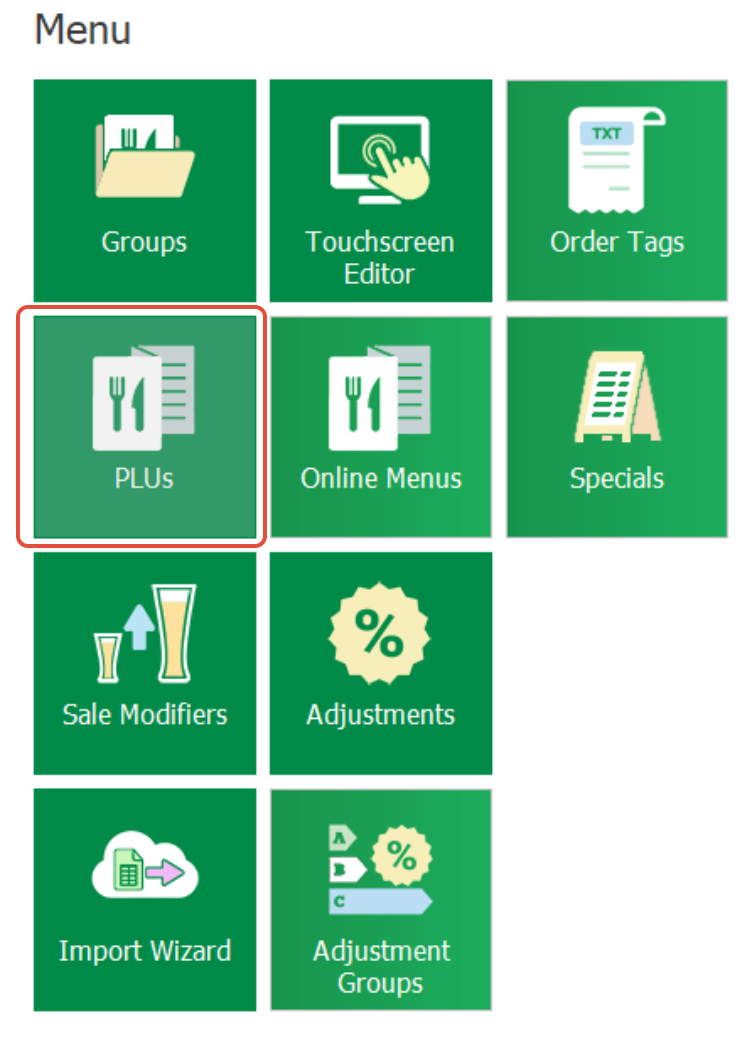
Go to Menu → PLUs from the main screen. Select Flags in the selection tabs along the top of the list, then Quick Edit in the bottom context bar.


Step 2
Tick Is Available Online
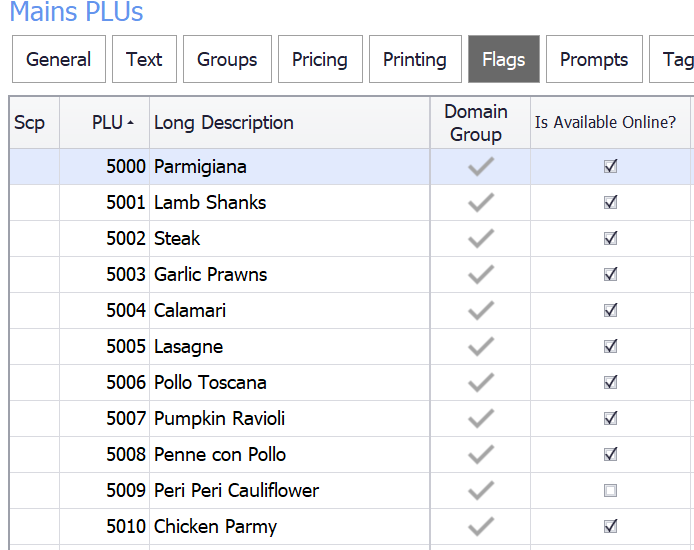
Tick Is Available Online? against every PLU you want on the menu. This can be turned on and off whenever you like — once the menu is configured it follows this flag by itself.
Step 3
Save and close
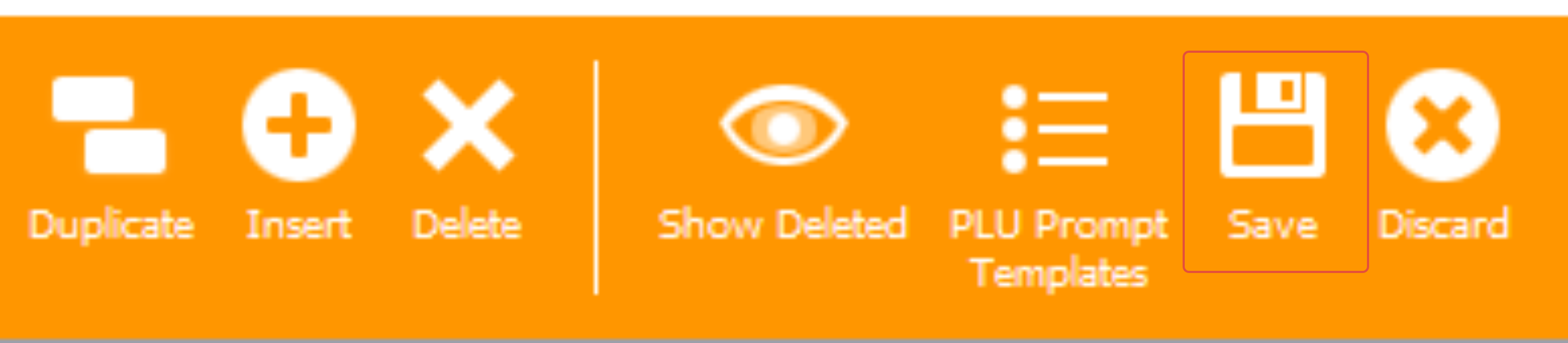
Select Save, then close back to the main menu.

Creating the menu
Step 4
Insert a new online menu
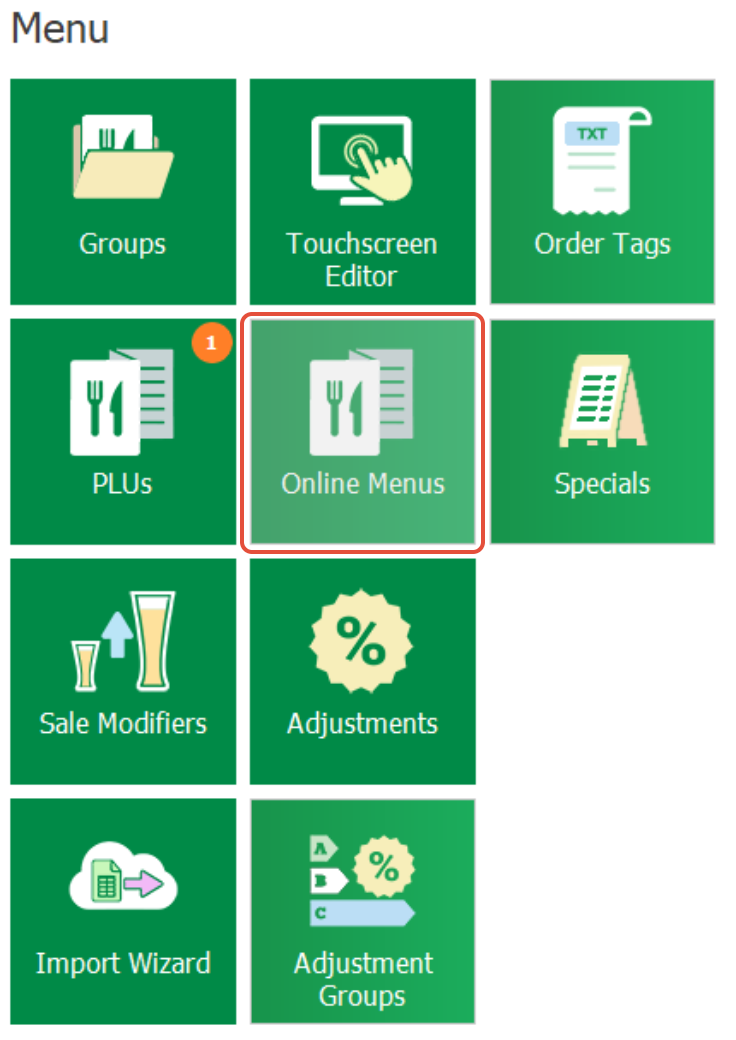
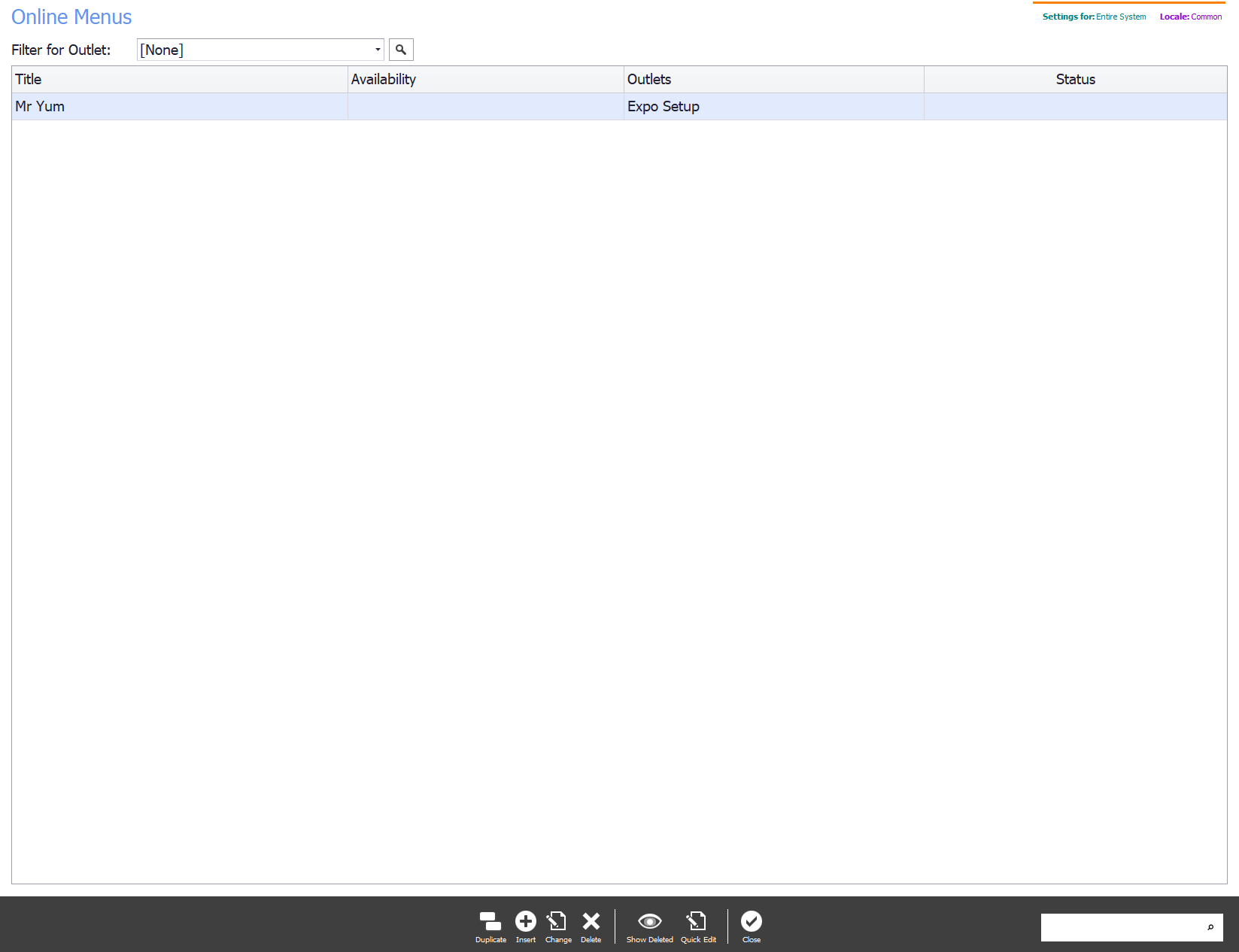
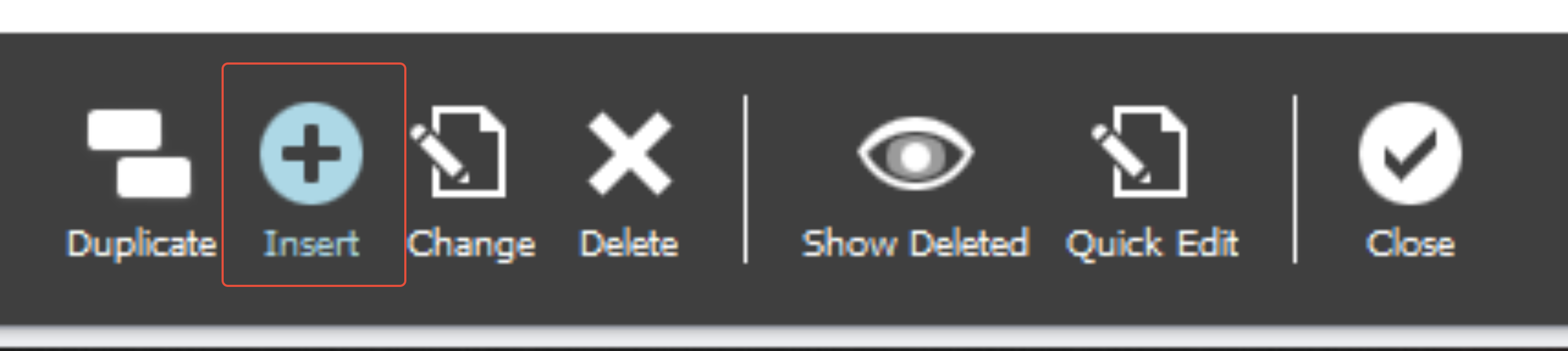
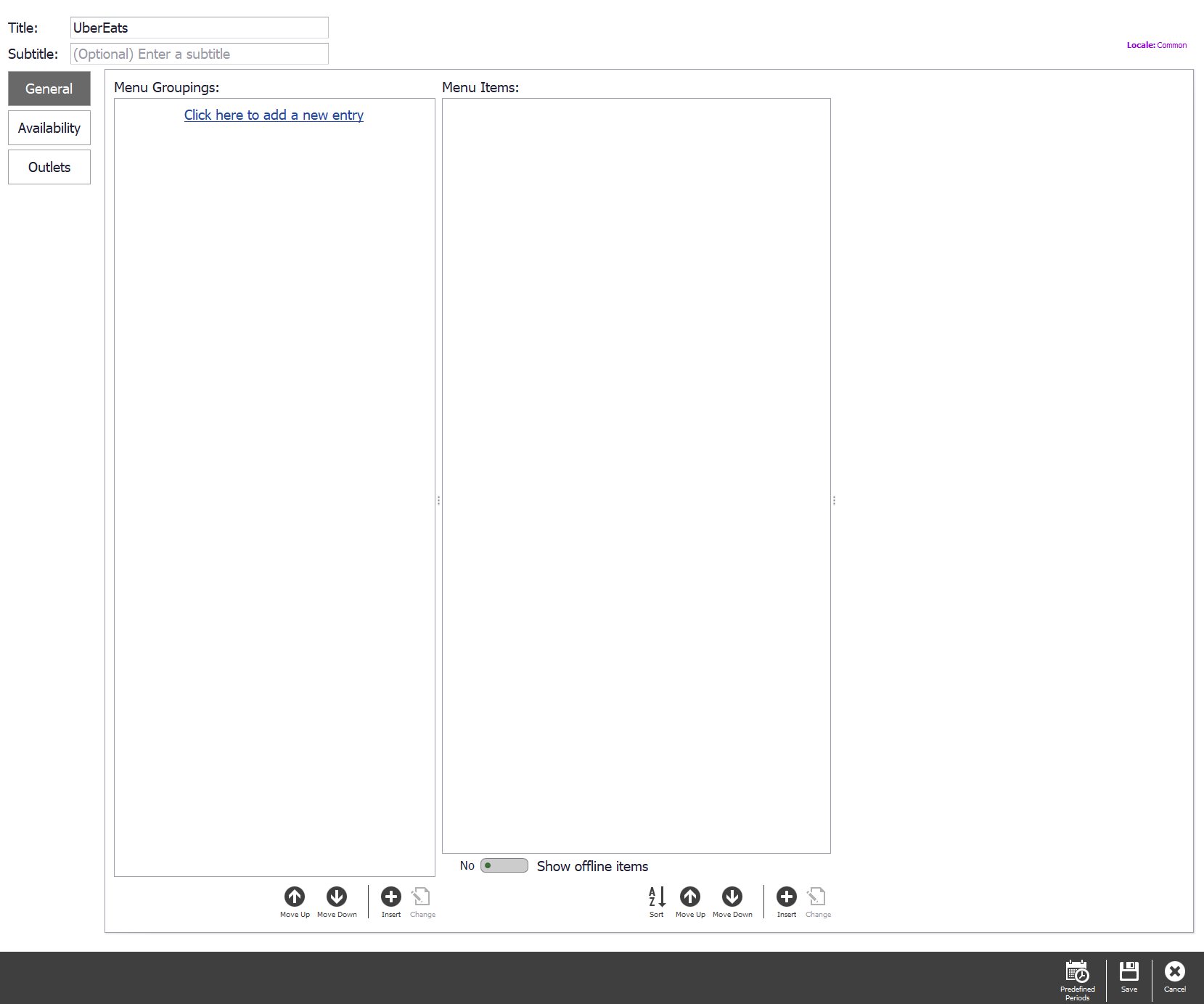
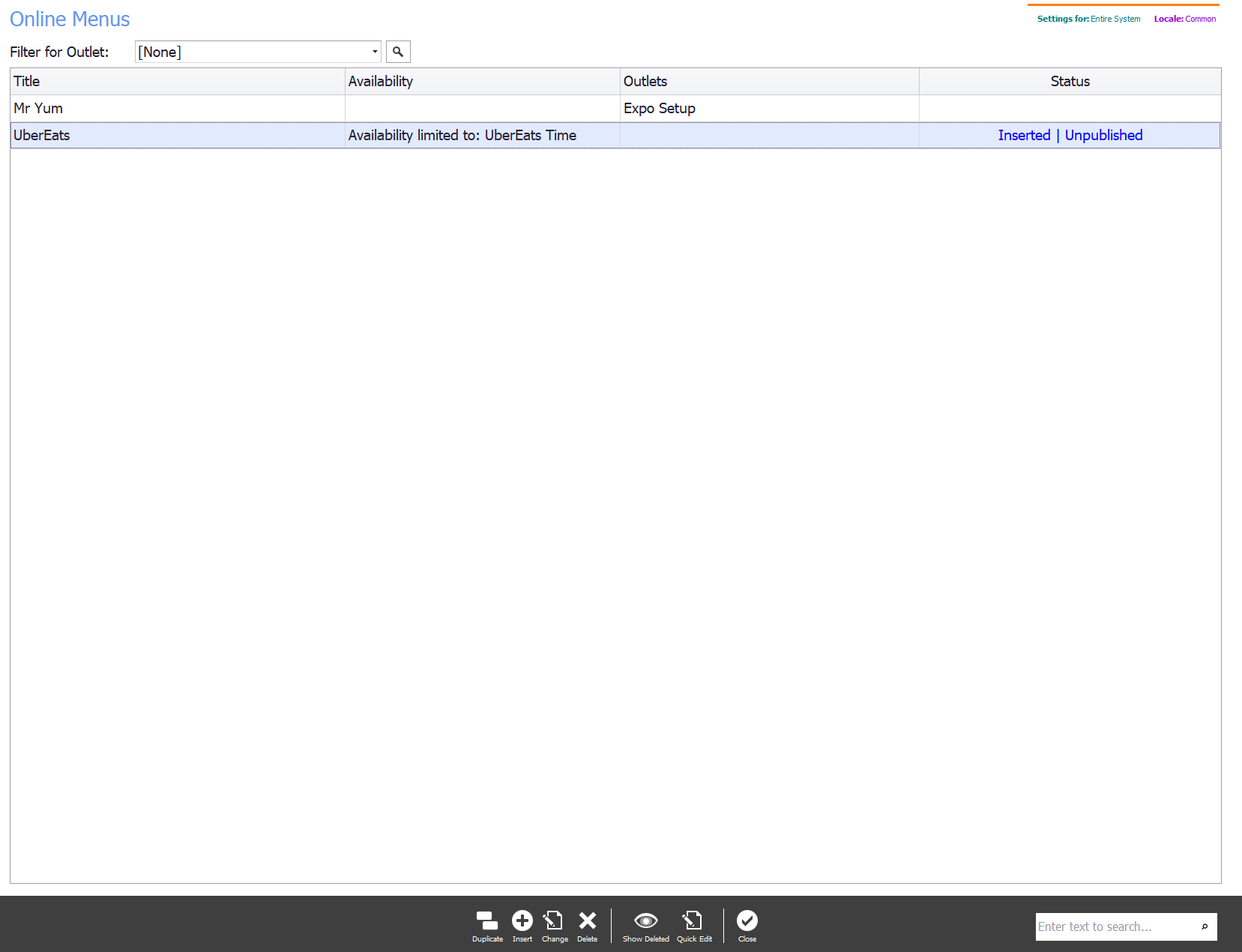
Go to Menu → Online Menus from the main screen for the list of menus, select Insert in the bottom context bar, and give the new menu a title you will recognise later.
Step 5
Add the menu groupings
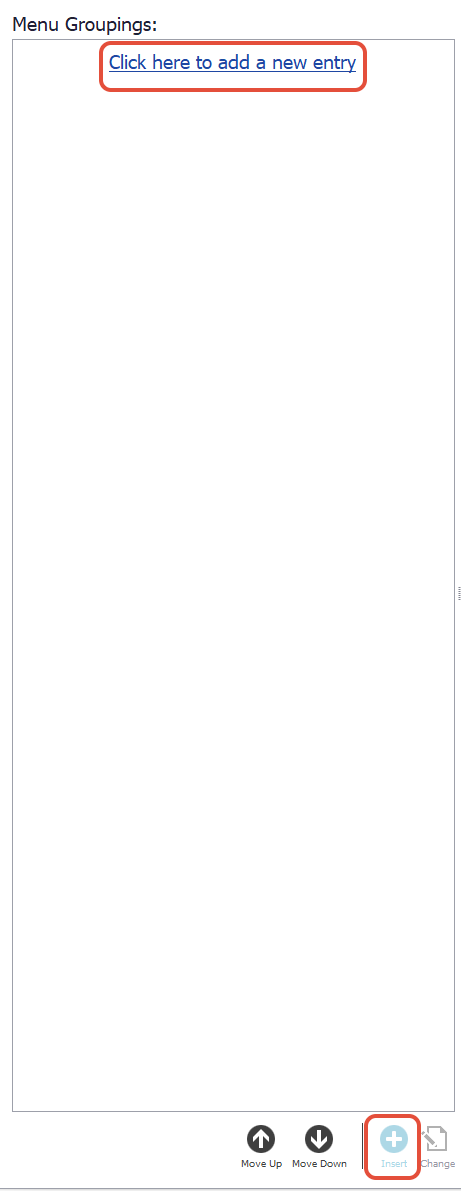
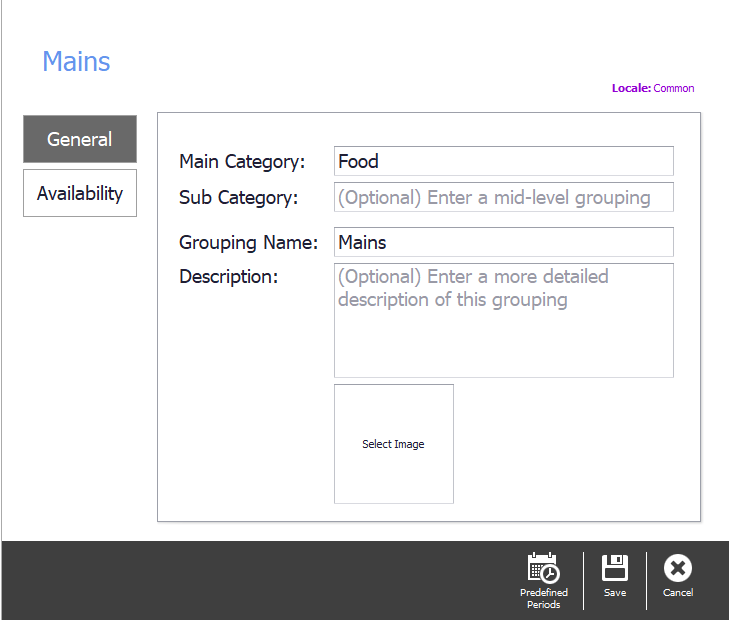
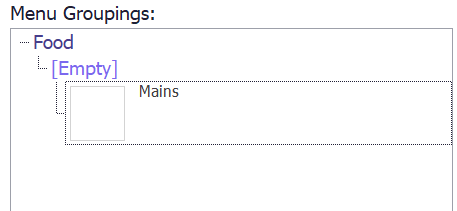
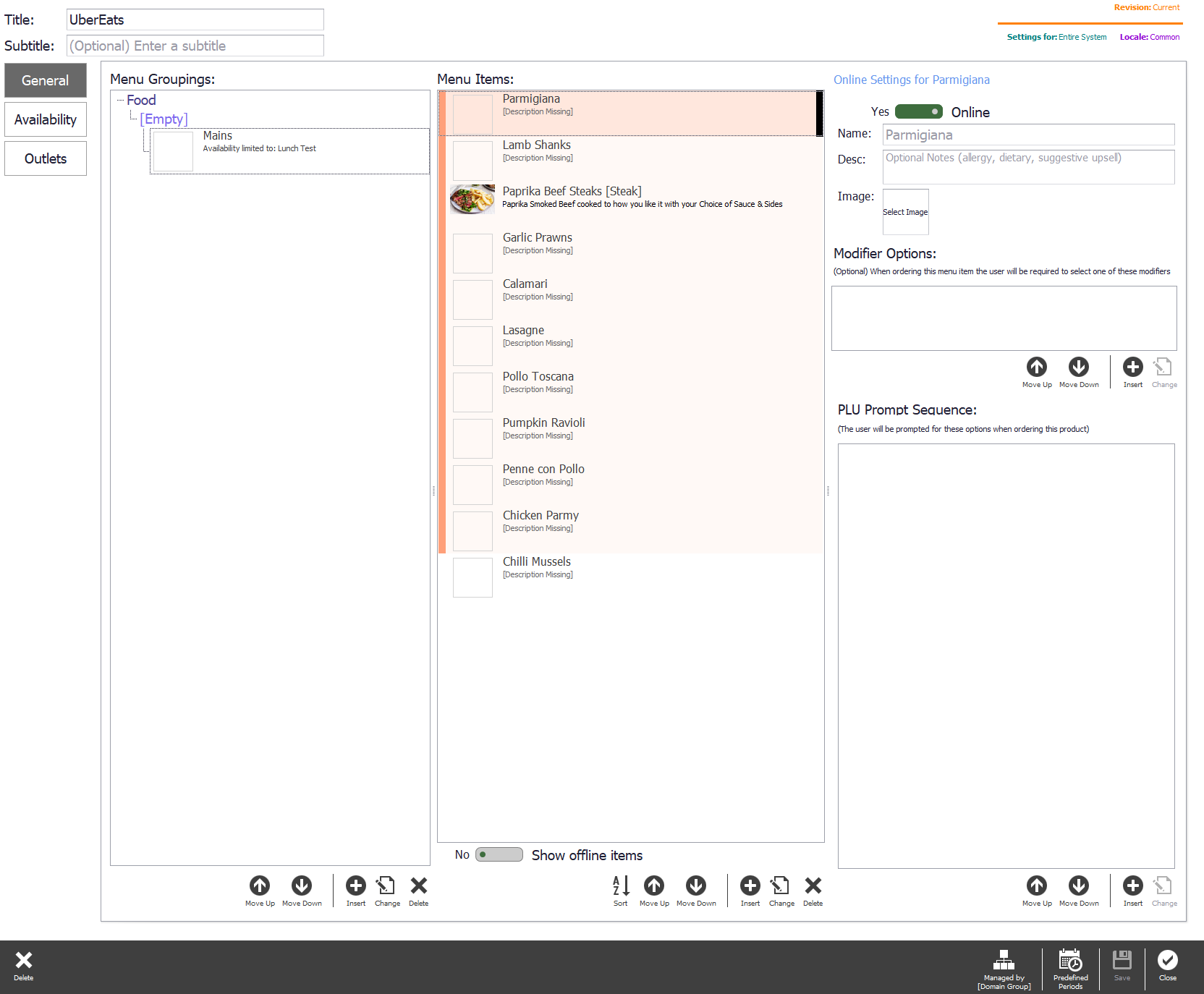
In the Menu Groupings section, select Click here to add a new entry at the top, or Insert at the bottom.
The main category is usually Food or Beverage, though it can be split further — lunch and dinner, say — because these can be sub-categorised. Then name the group the items will go into, which is usually the reporting or display group they already belong to. Select Save.
Availability times
Times can be set on the menu as a whole or on individual groups within it. This example applies them to the whole menu.
Step 6
Turn the restriction on
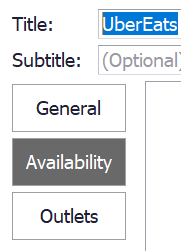
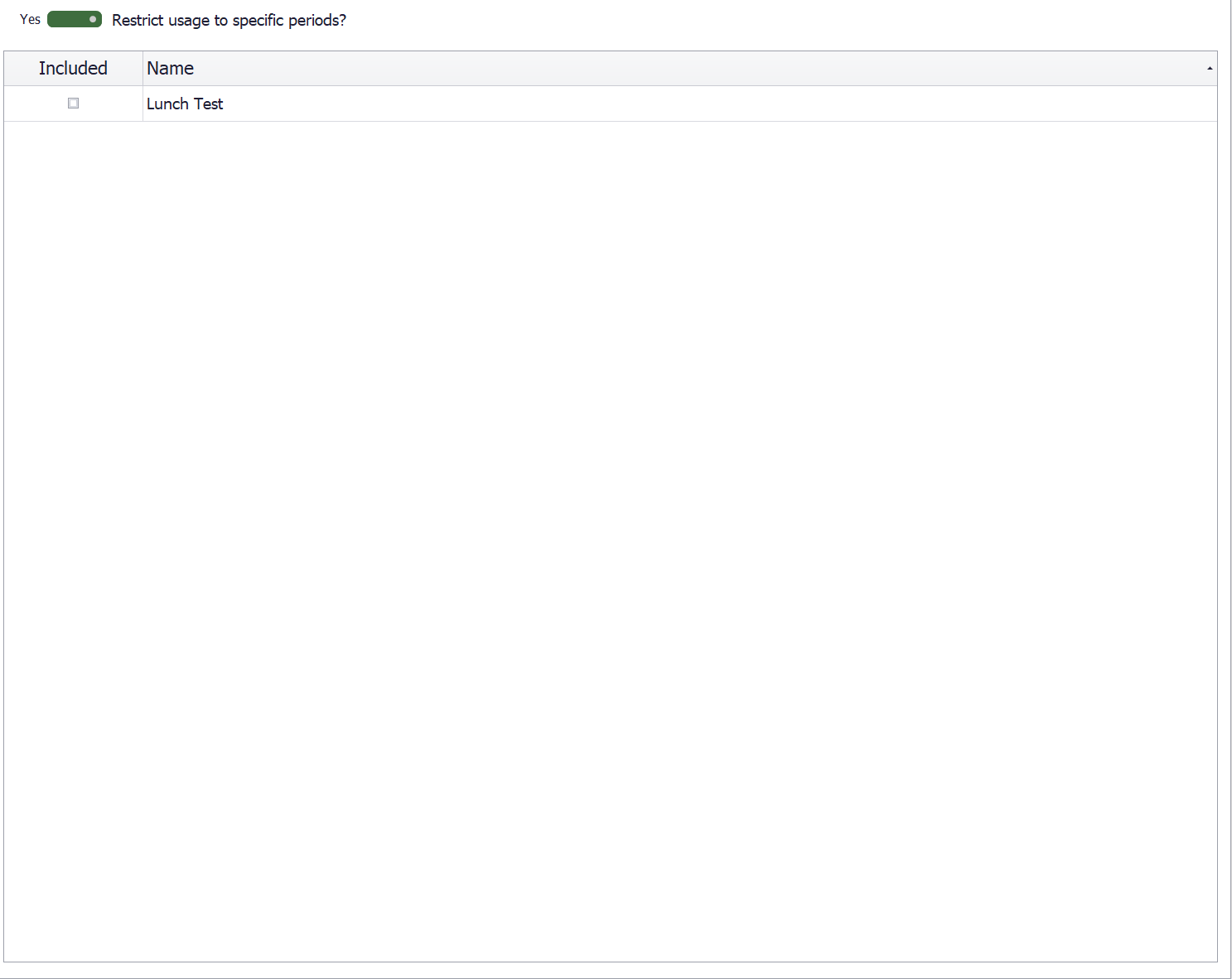
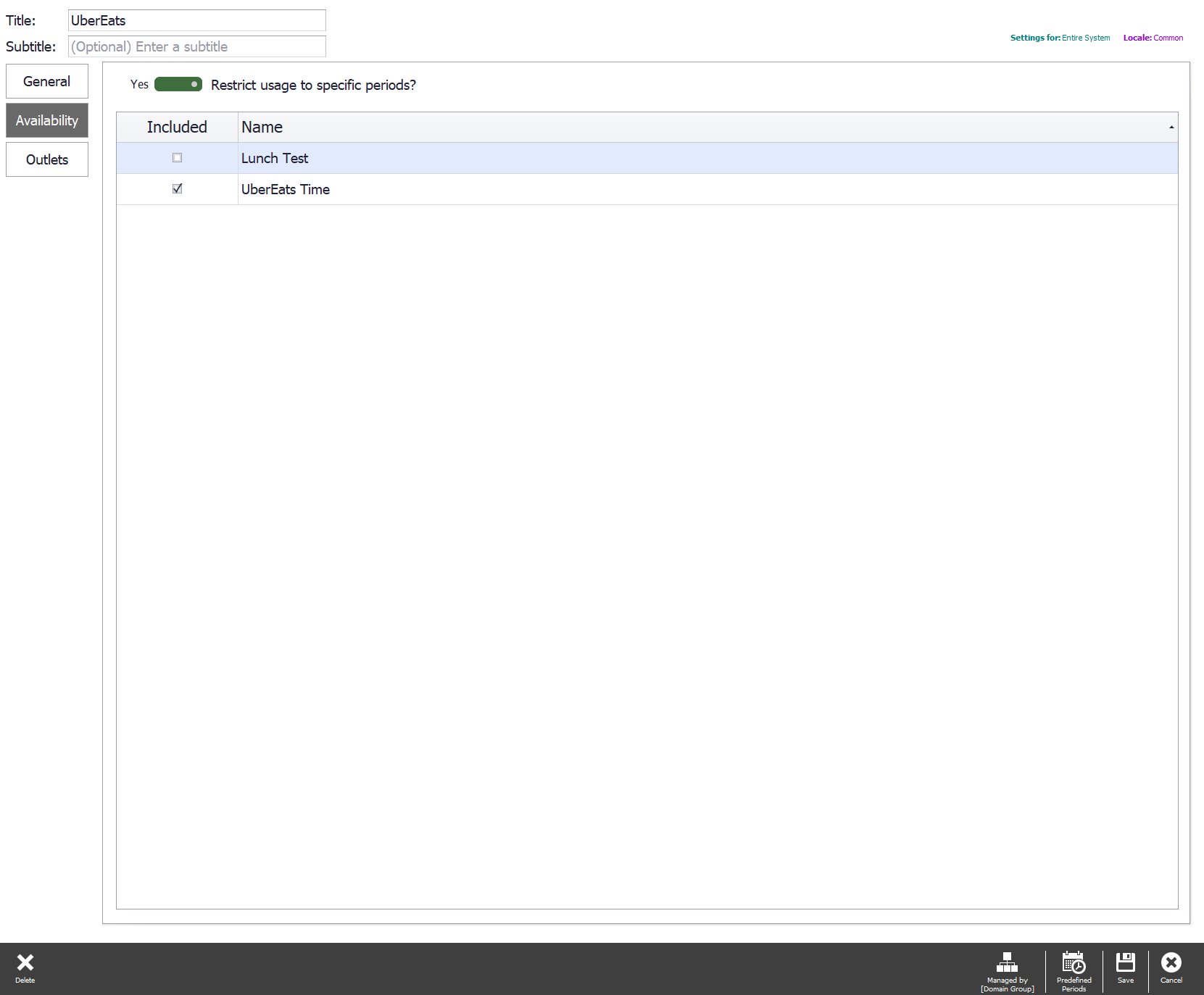
Select the Availability tab on the left and switch No to Yes.
Step 7
Create the timeframe
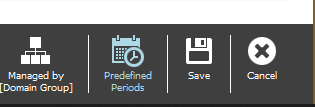
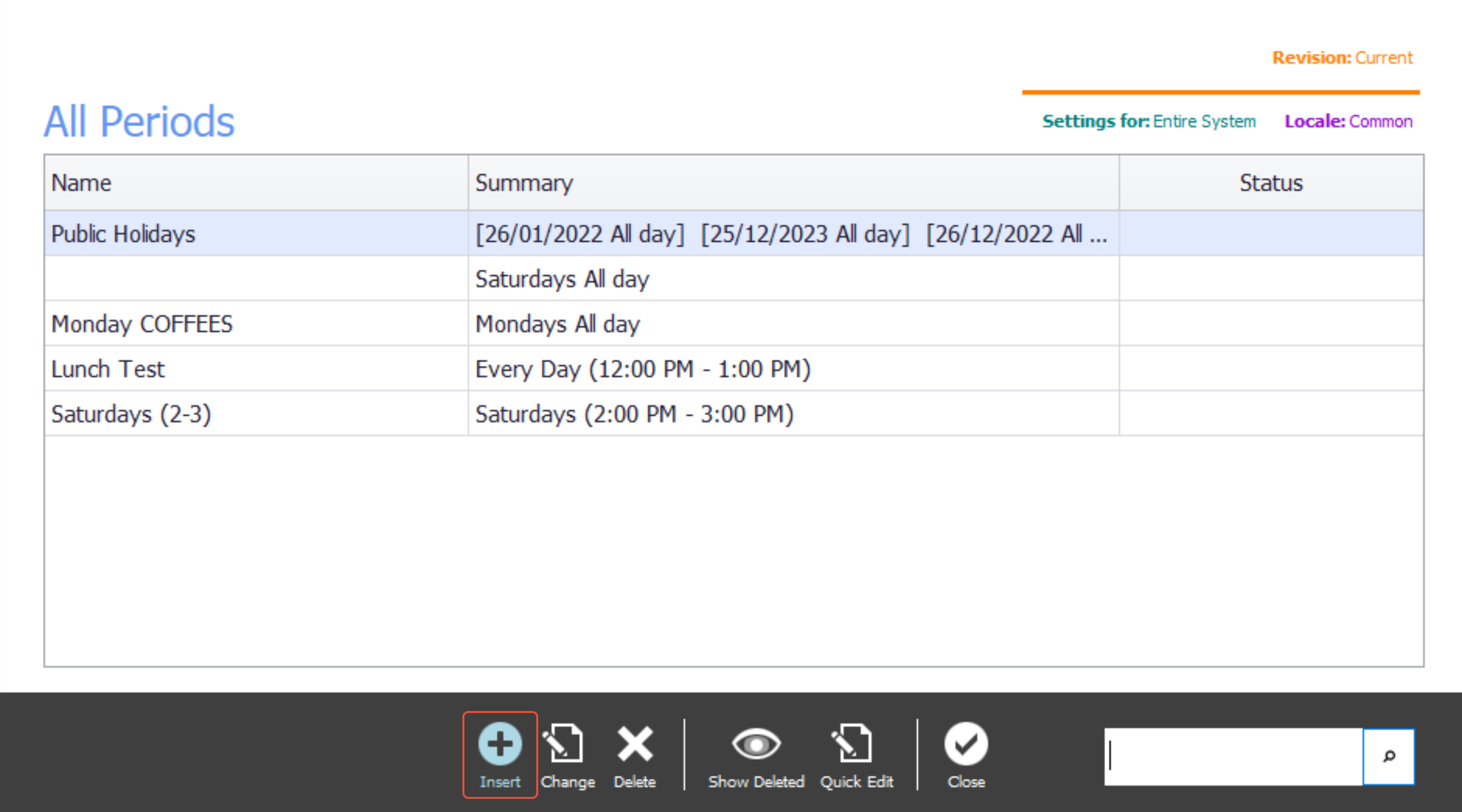
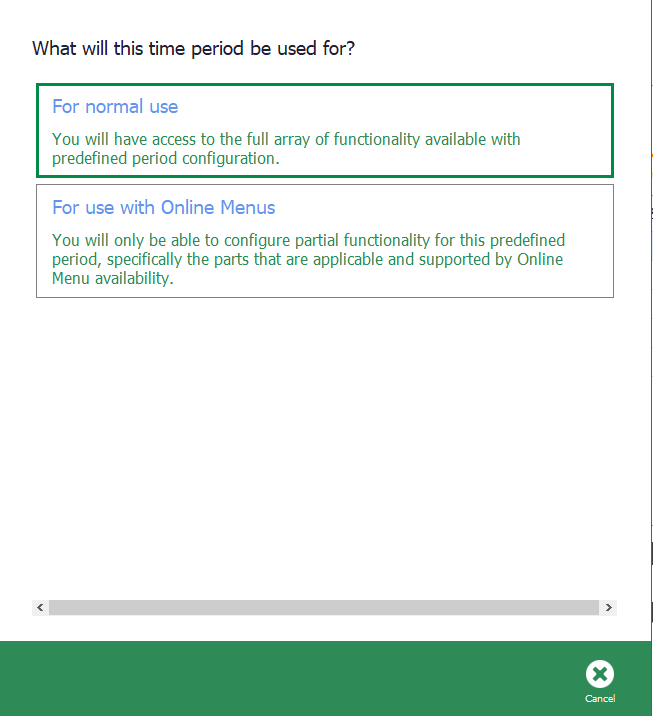
Select Predefined Periods at the bottom right, then Insert in the pop-up, and choose For use with Online Menus so the period can be used here.
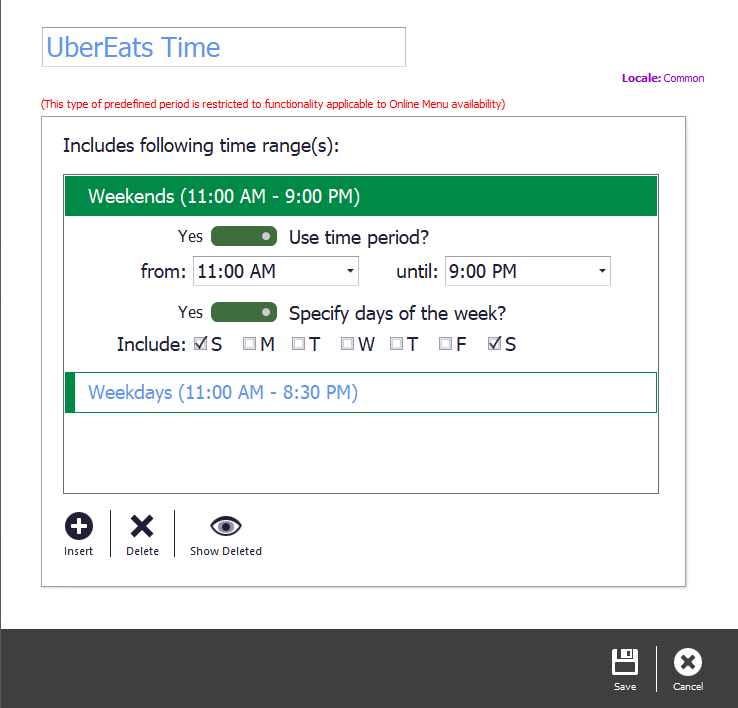
Name it and set the times and days. Insert adds further timeframes, for where weekdays and weekends differ.
Step 8
Apply it
Select Save & Close to get back to the menu screen, tick the timeframe you want, and select Save.
Step 9
Do the same for a group, if you need to
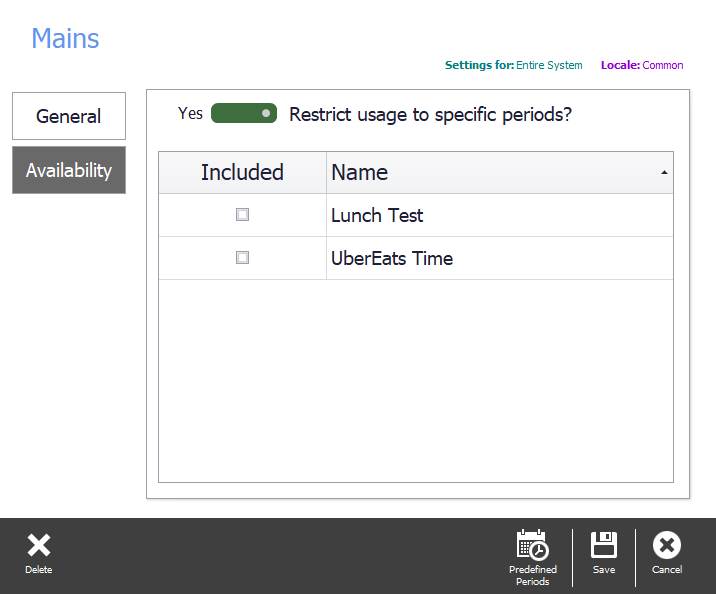
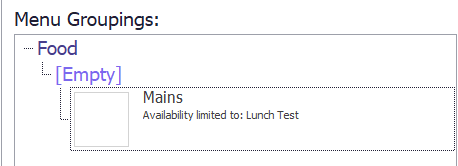
A group can carry its own times. Double-click the group that needs restricting and set it the same way.
Adding items
Step 10
Add a whole display group
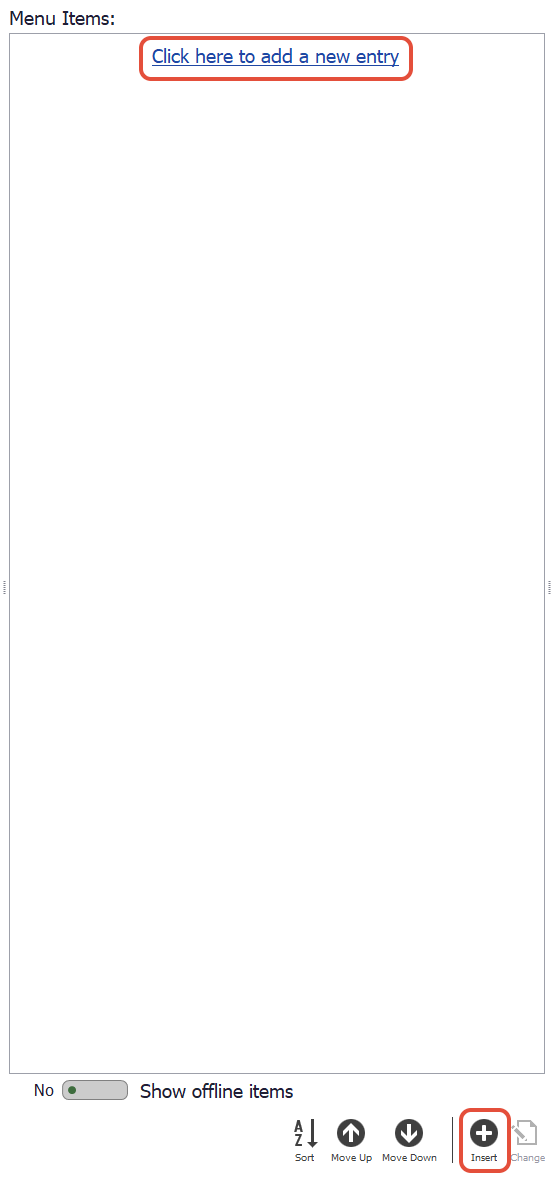
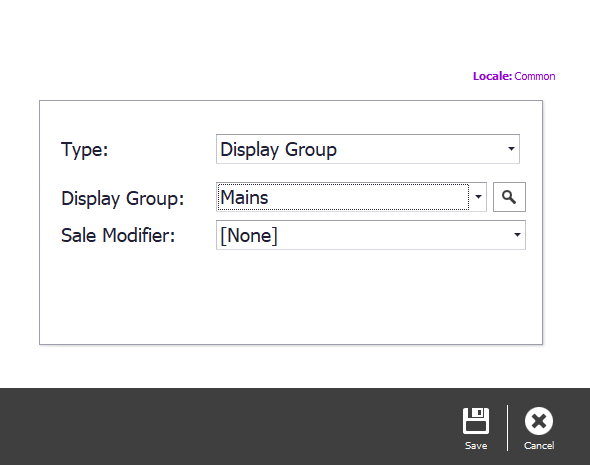
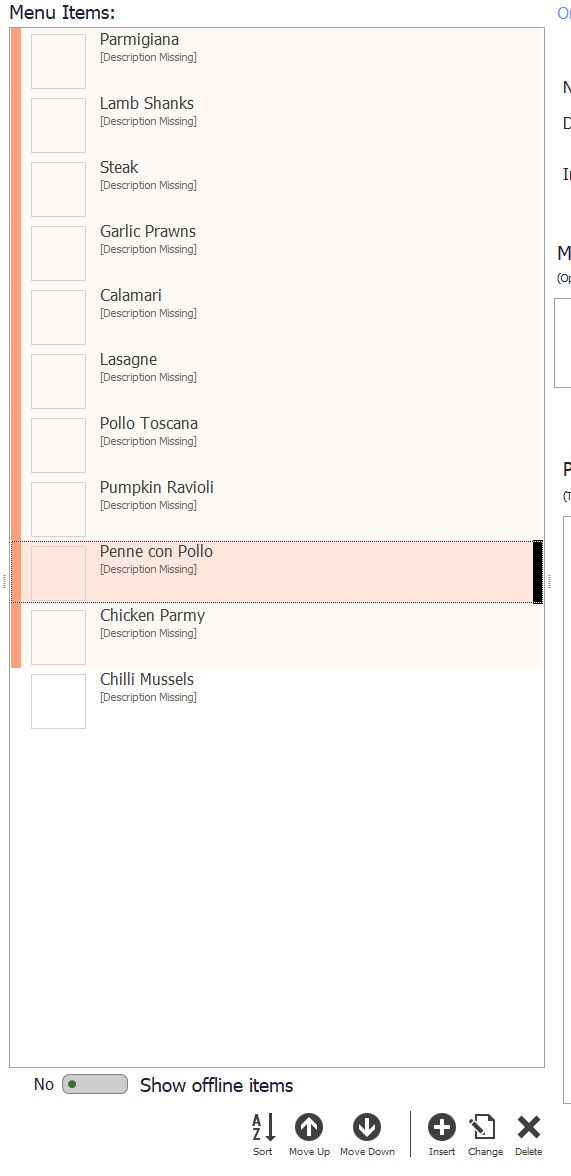
Select Insert at the bottom of the Menu Items section, or Click here to add a new entry at the top. Set Type to Display Groups and pick the group from the drop-down — typing part of its name filters the list.
Select Save and the group appears on the screen, coloured to show it is a display group rather than a single item.
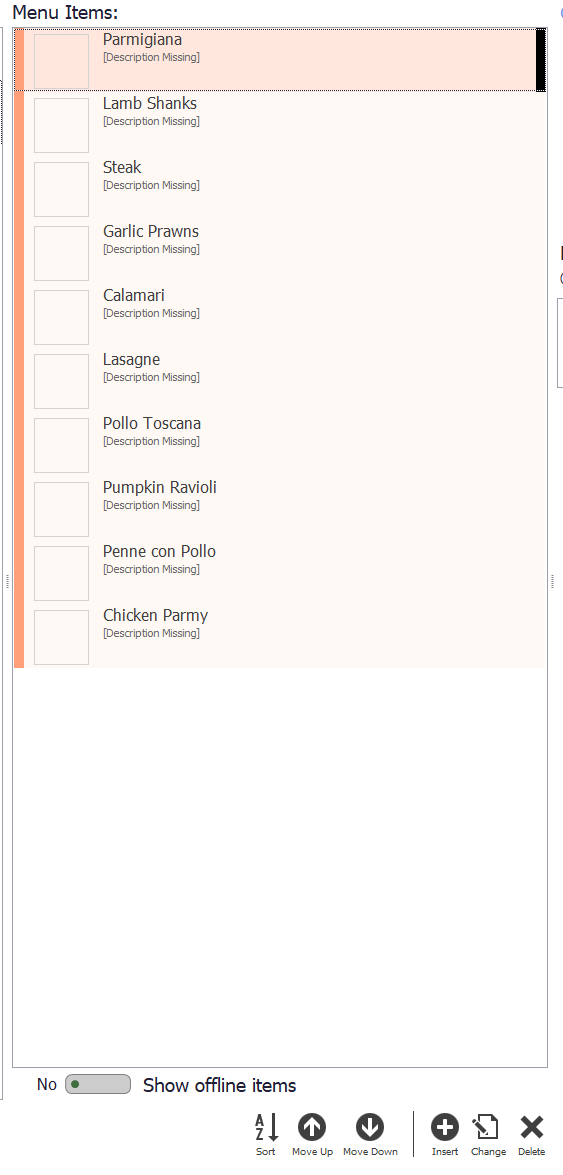
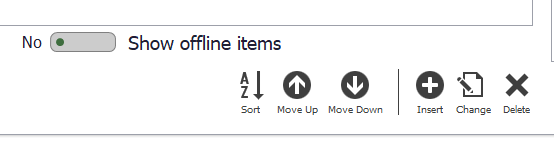
Deleting a display group deletes the lot
Delete here removes the whole display group from the menu. To drop a single item, either take it out of the display group or untick Is Available Online? on that PLU.
Step 11
Add an individual PLU
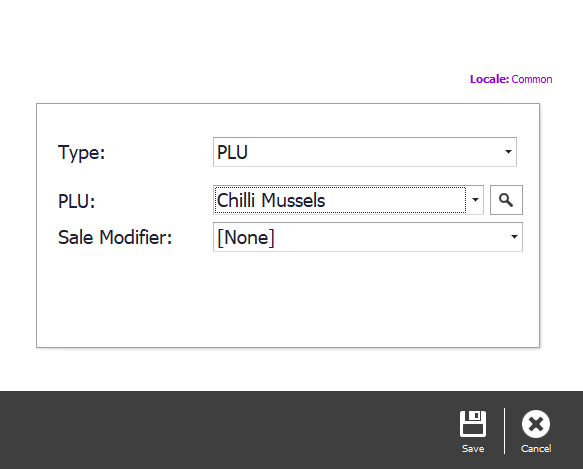
Select Insert at the bottom of the item section, set Type to PLU, and search the drop-down for the item. It appears on the menu screen uncoloured, which is how you tell an individual product from a group. Delete on it removes just that item.
Names, descriptions and images
All of this is optional, and all of it only affects the online menu. The PLU keeps whatever name your staff know it by.
Step 12
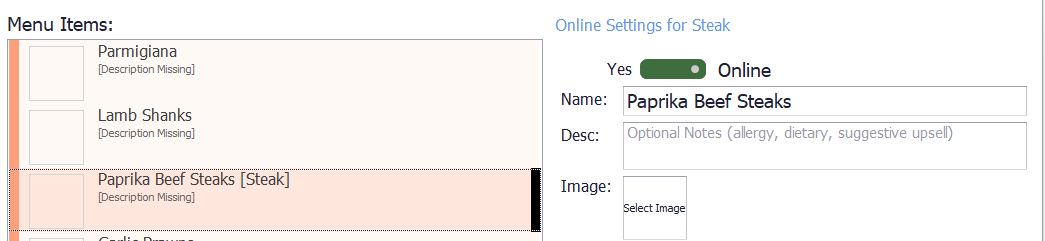
Give it a customer-facing name
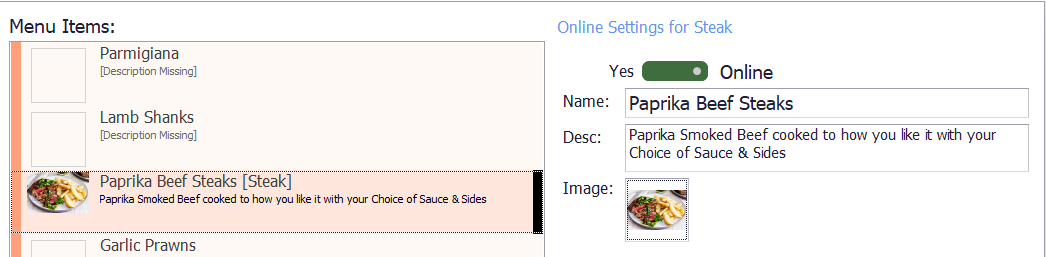
Select the PLU in the list and type the name customers will see into Name, in the Online Settings area on the right.
Step 13
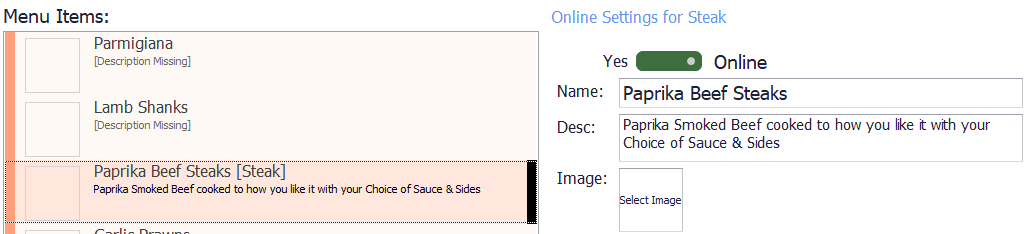
Add a description
Desc: in the same settings area takes a description — what the dish is, an upsell, anything the customer needs to know.
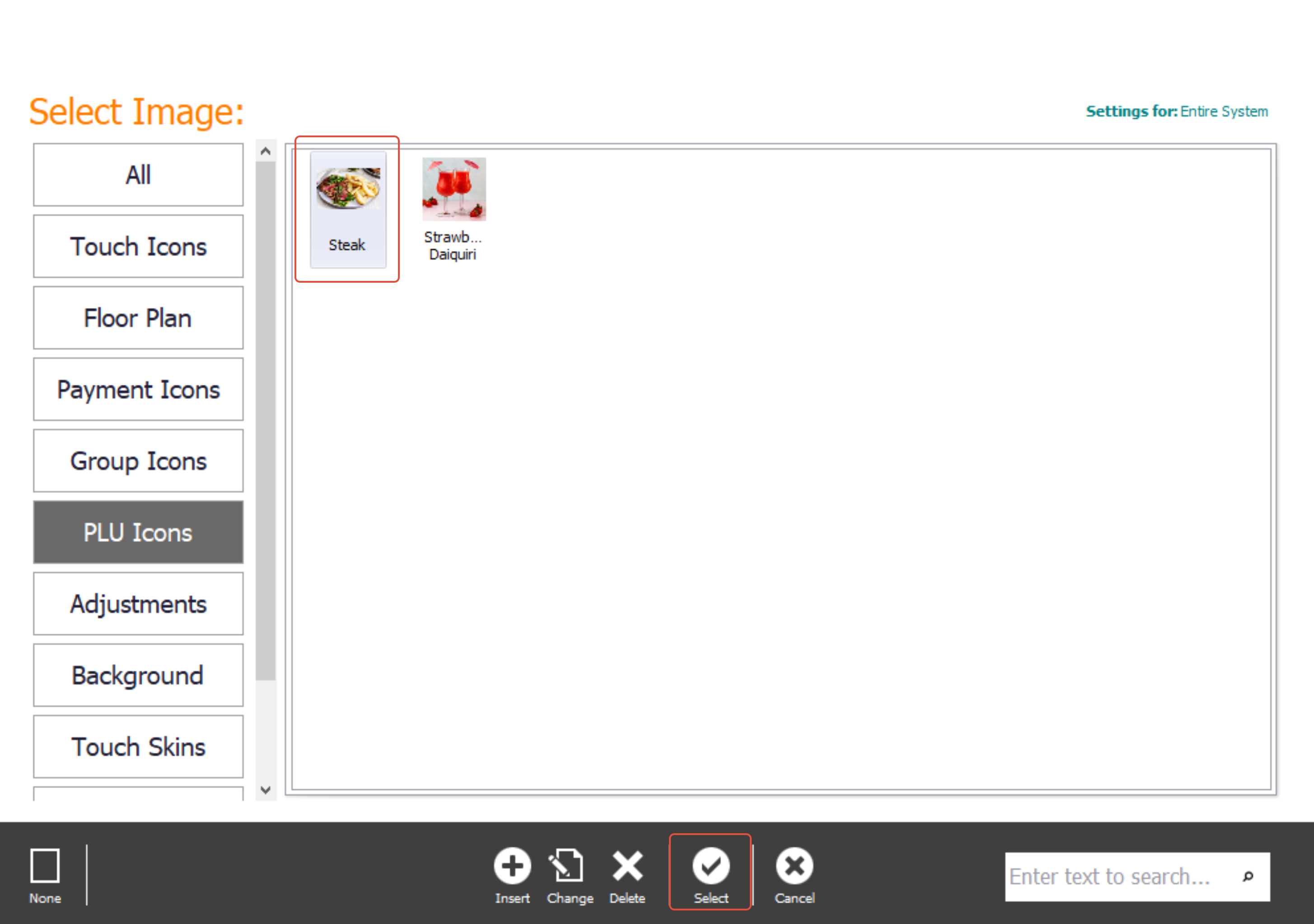
Step 14
Add an image
Select the Select Image icon in the settings, choose the image you want from the library, and select Select.
Sizes
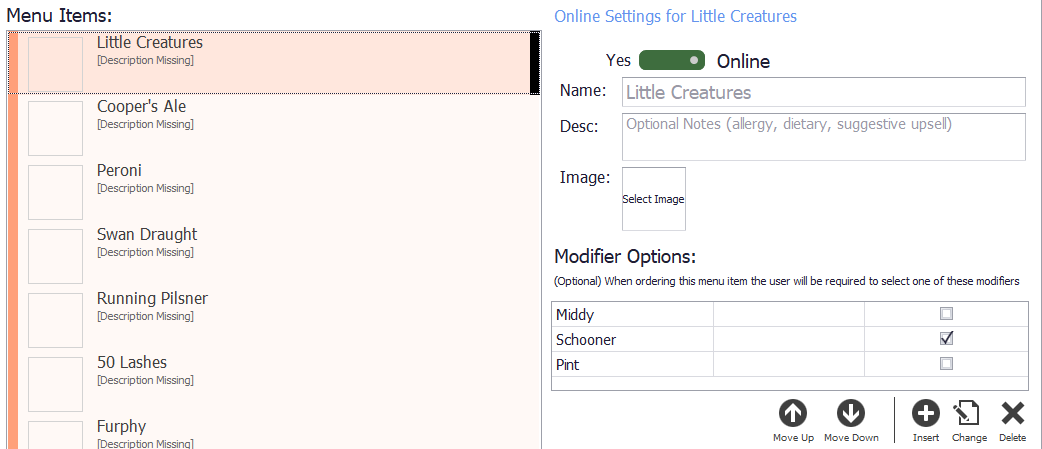
Sale modifiers let the customer choose a size, and the price follows the modifier. Tap beer is the usual example.
Step 15
Add the default size
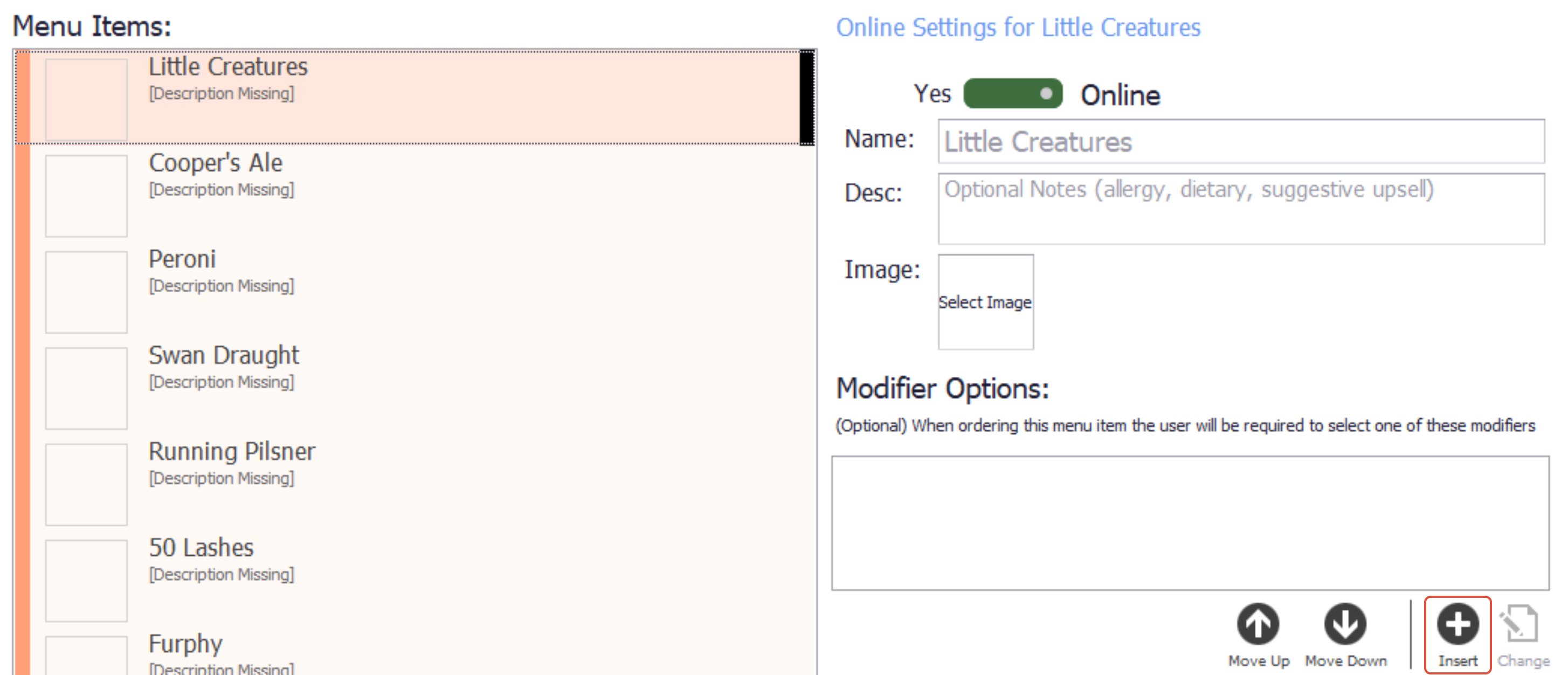
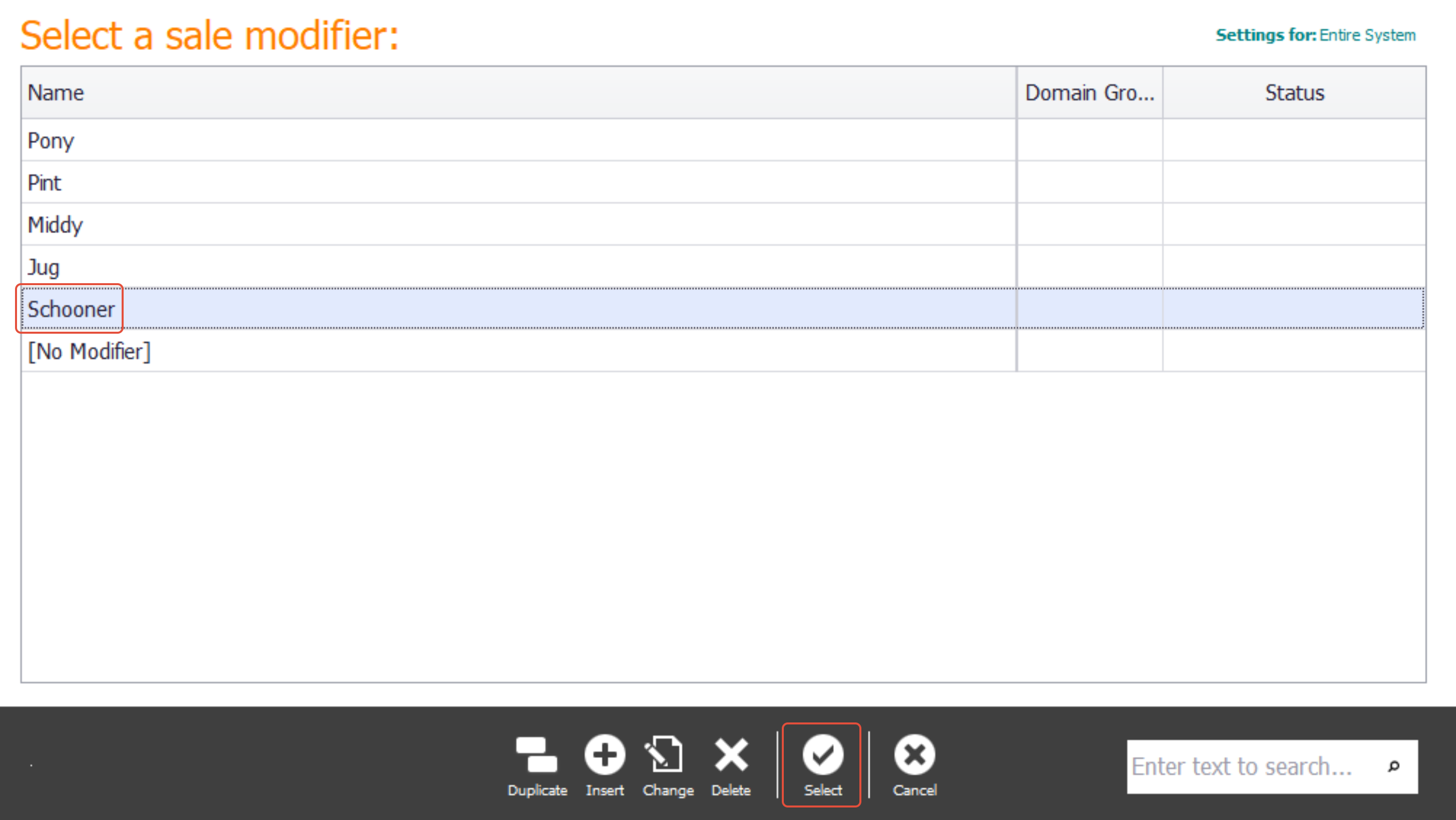
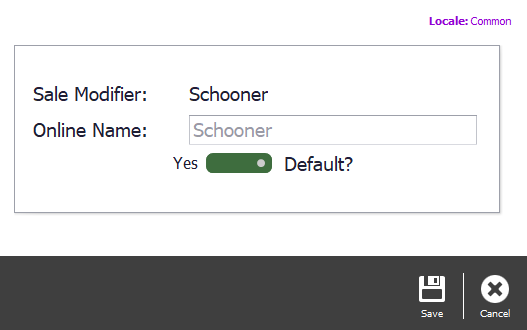
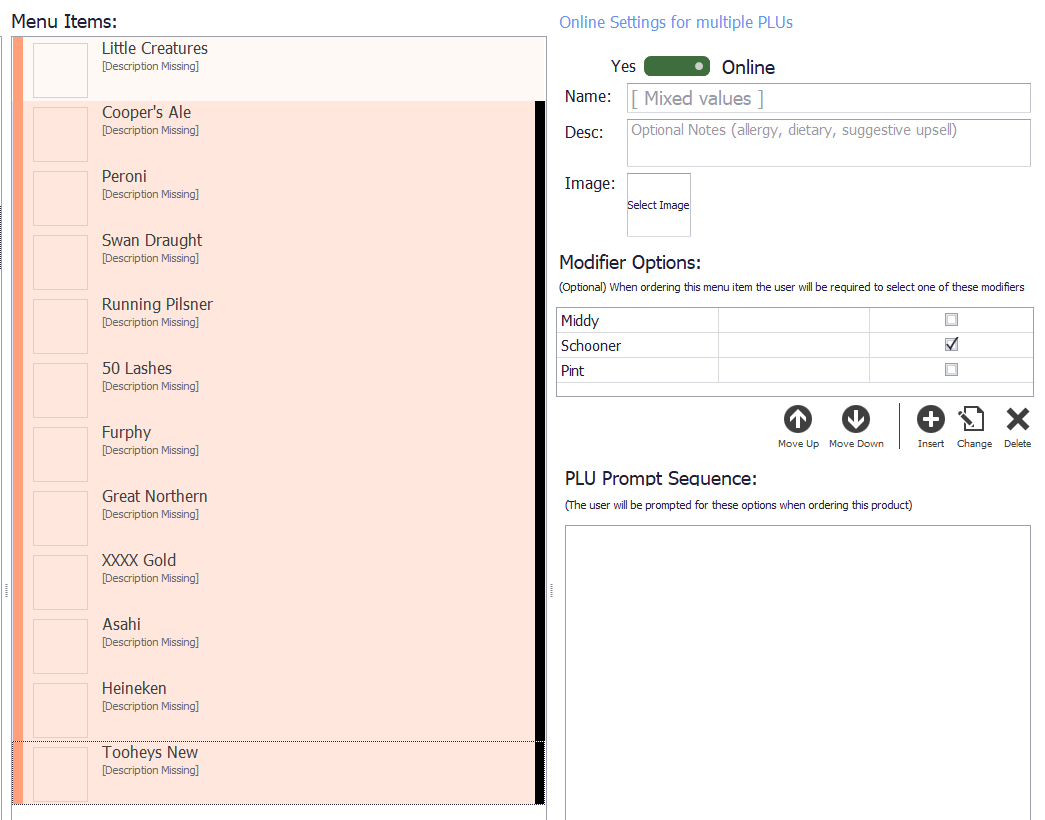
Select Insert under Modifier Options on the right. Choose the default size and select Select, then set Default to Yes so it is pre-selected when a customer opens the product, and Save.
Step 16
Add the other sizes
Add the rest the same way, leaving Default off.
To do several products at once, hold Shift while selecting them and add the modifiers to the whole selection. Select Save when you are done.
Prompts
A prompt is what lets the customer add, remove or choose something — sides, or how a steak is cooked.
Step 17
Create the prompt
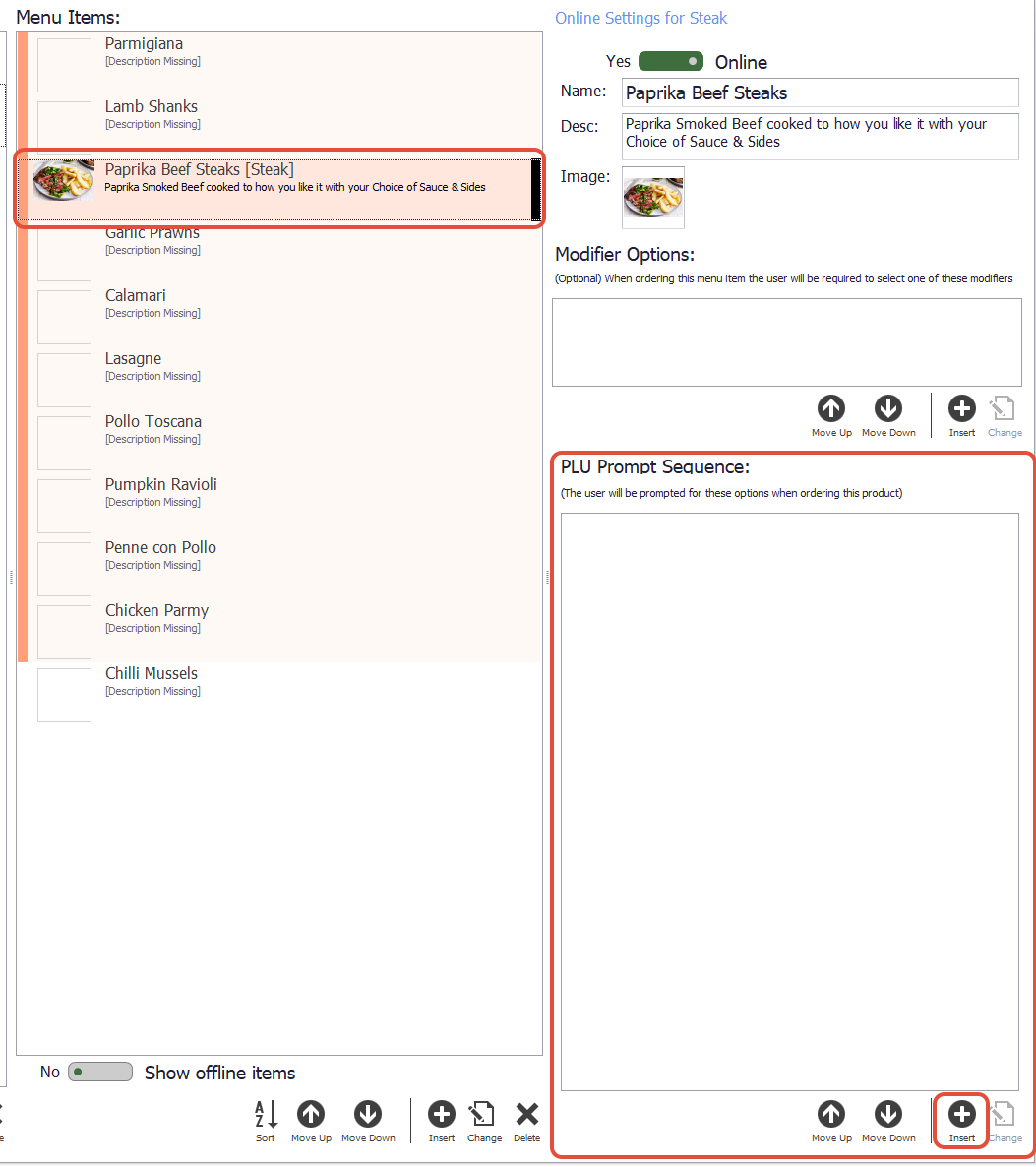
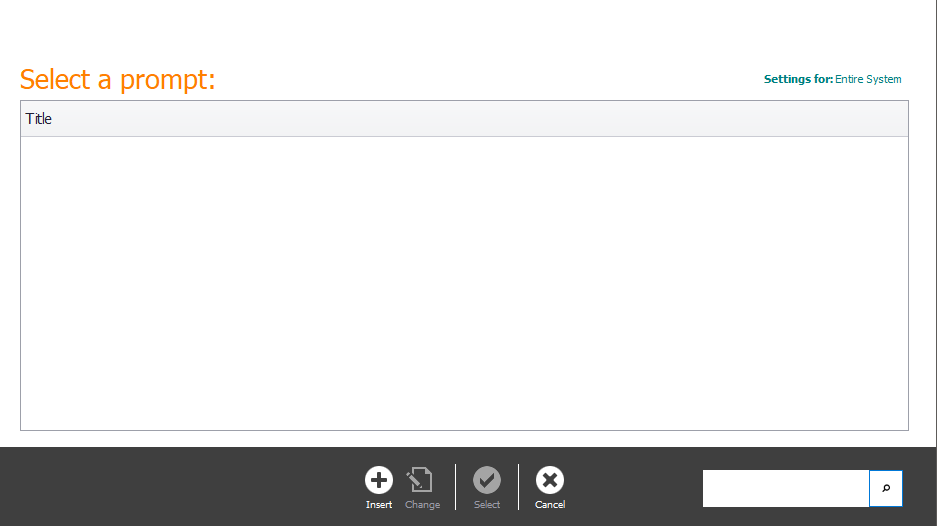
Select the PLU, then Insert in the PLU Prompt Sequence section, and Insert again to create a new prompt.
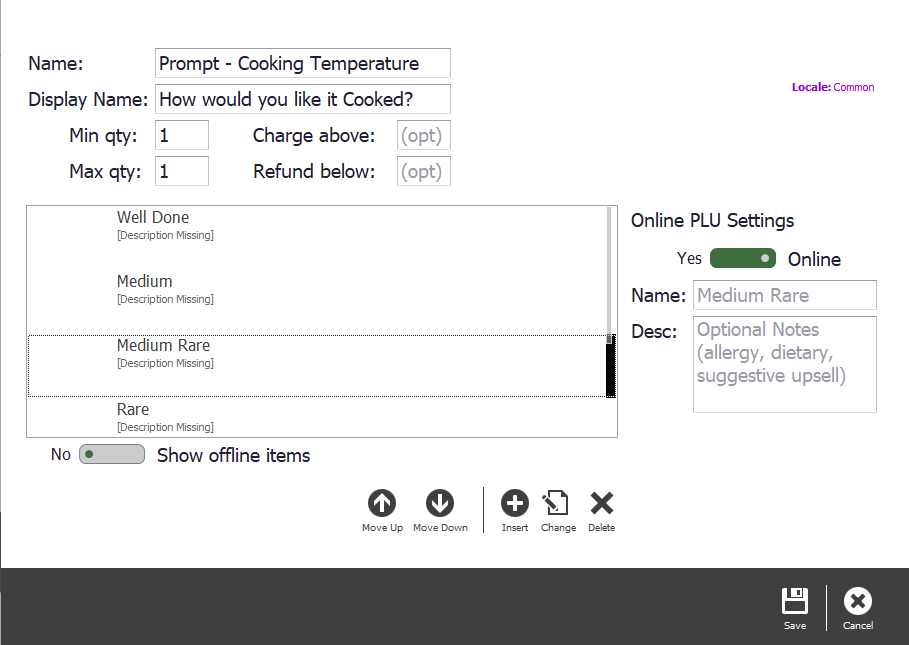
Give it a name you will recognise — that part is only for the POS side — and a display name the customer sees, usually the question itself. Min and Max are how many choices they may make: for how a steak is cooked, both are 1, so they must choose exactly one. Leaving either blank removes that limit.
Select Insert to add the items, choosing a display group or a PLU exactly as you did for the menu. The up and down arrows reorder them.
Step 18
Attach it to the item
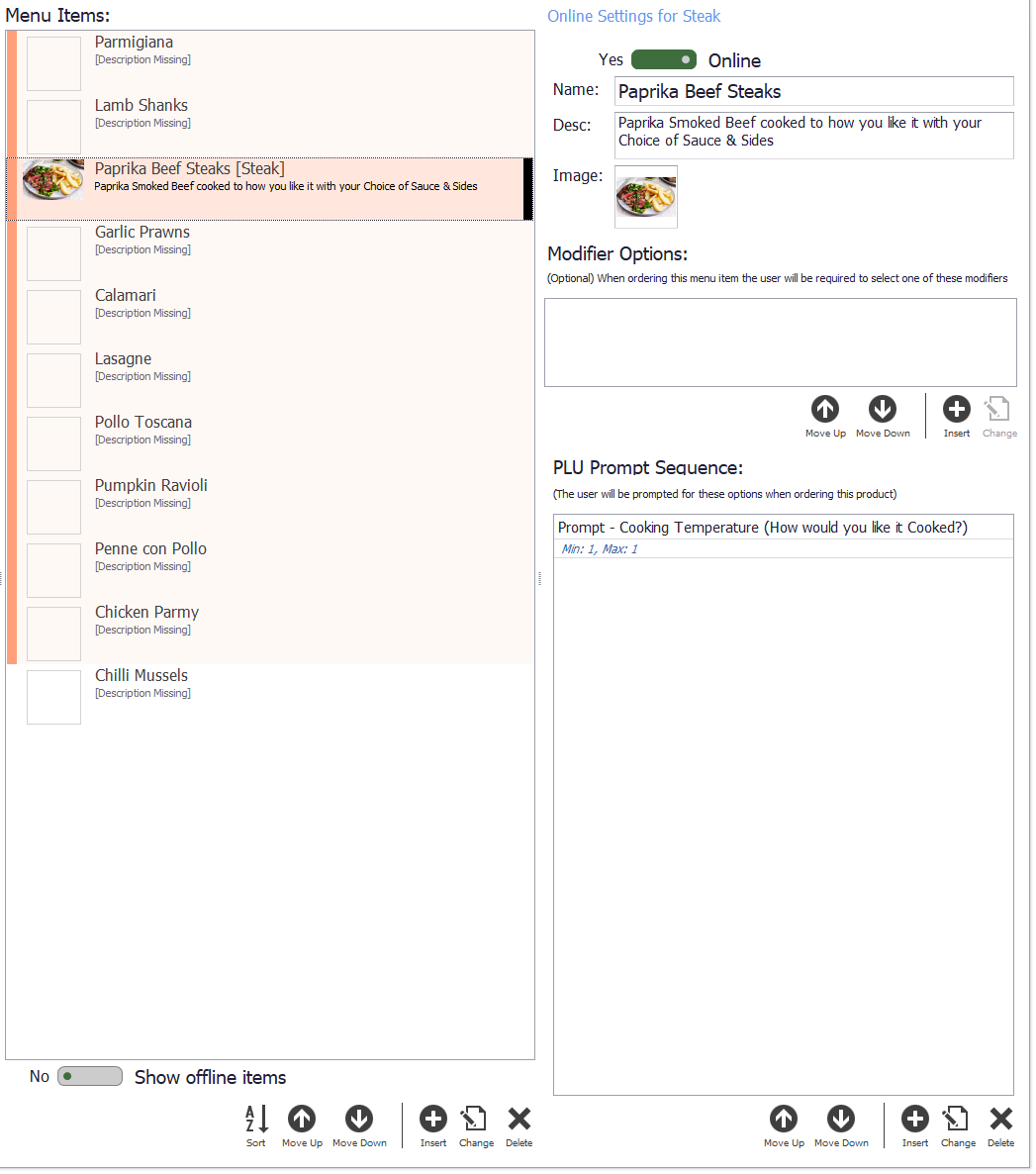
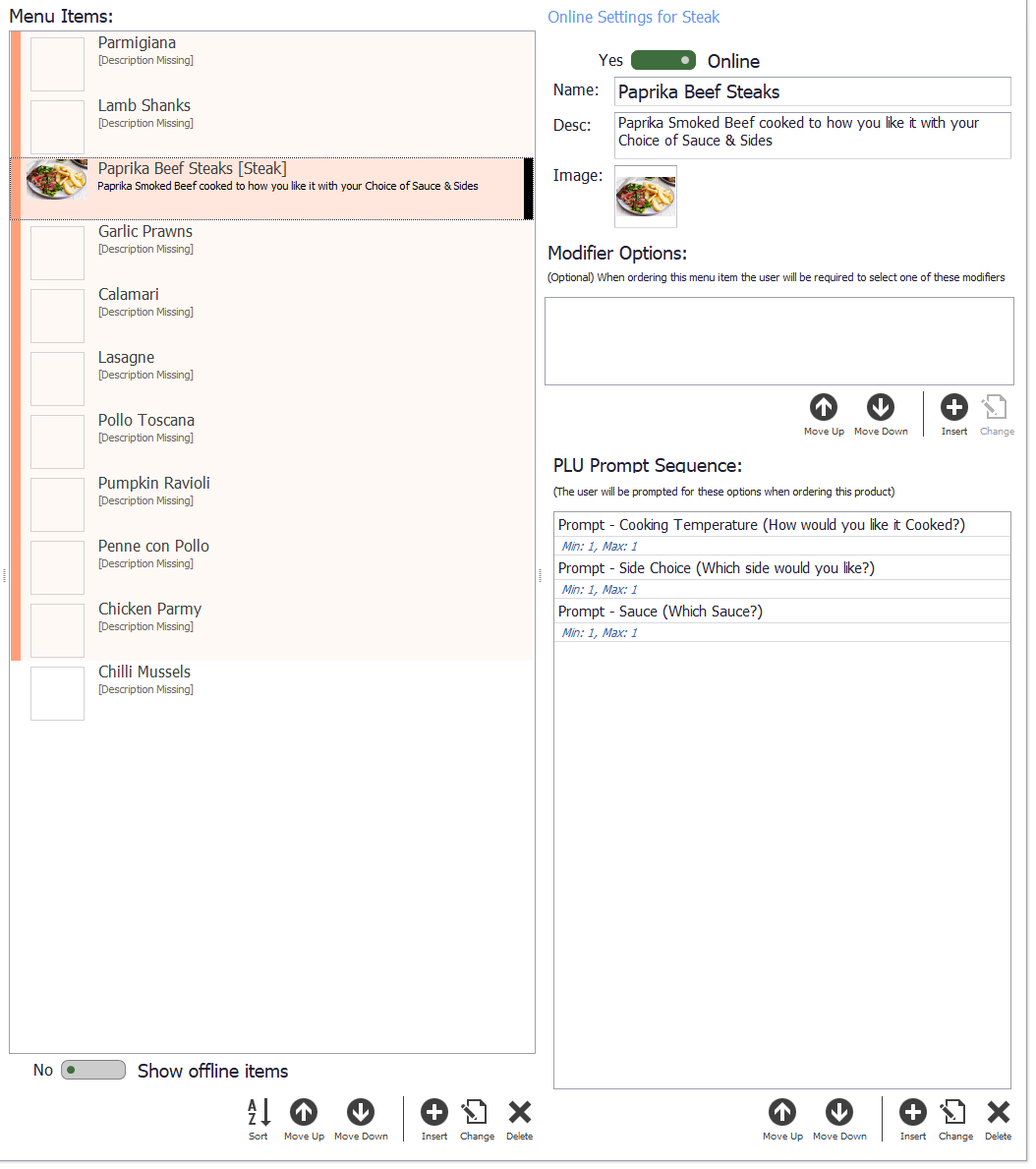
Select Save, then select the prompt and Select to add it to the item it belongs on. Repeat for any other prompts that item needs.
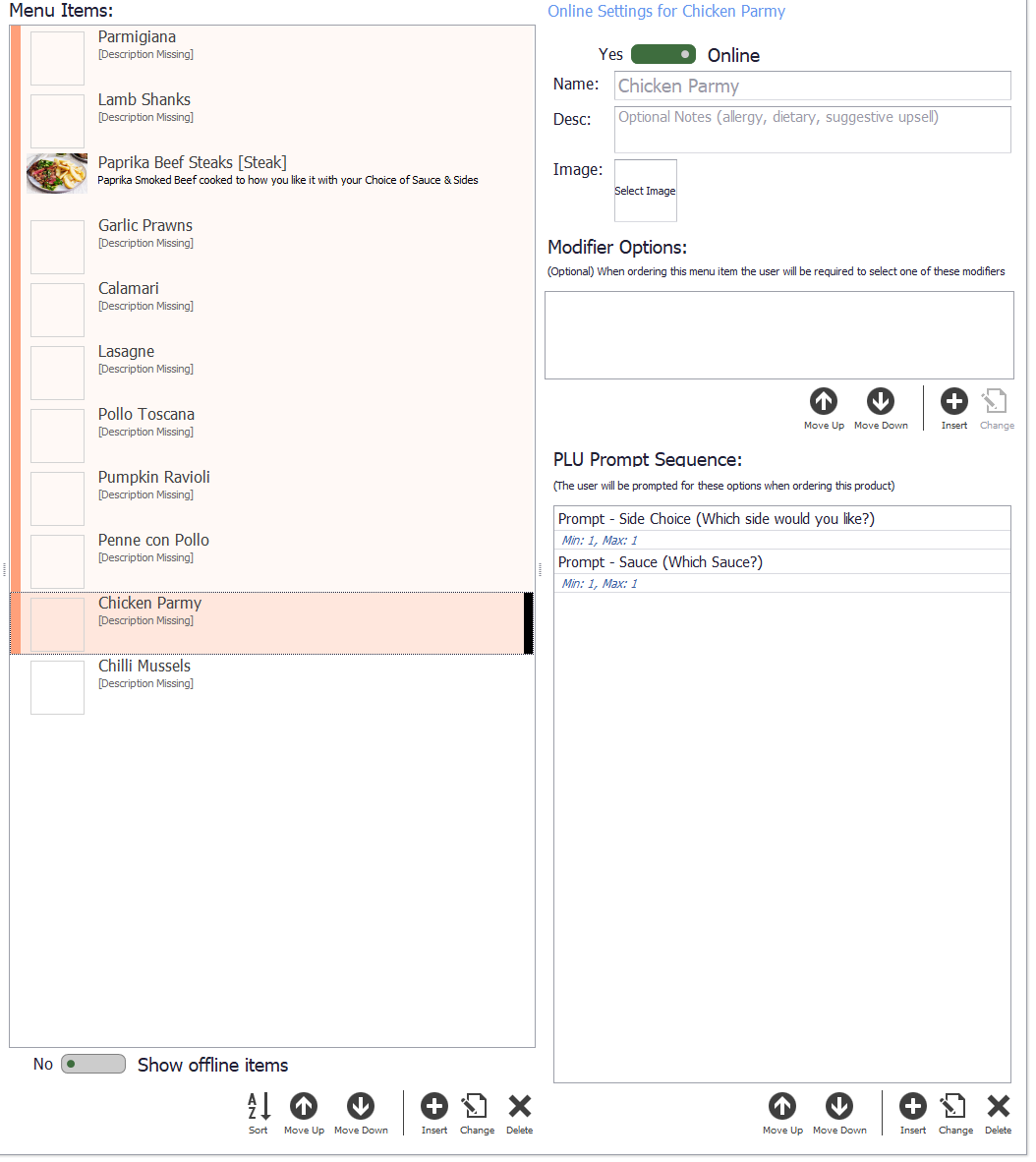
A prompt only has to be built once: the same one can be added to every other item that shares it. Select Save when you are done.
Finishing up
Step 19
Close and publish
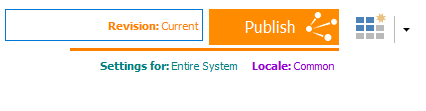
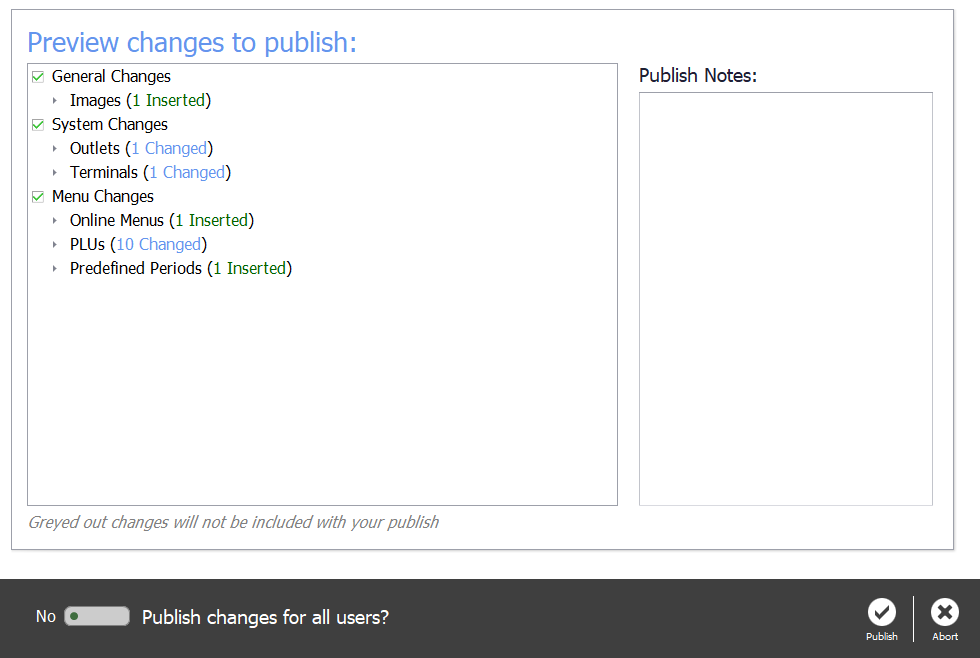
Select Close at the bottom right of the menu, then Close on the Online Menu page, and publish the changes.
The menu now exists, but nothing is ordering from it yet. Raise a ticket with Triniteq support and we will connect it to the online menu provider you are using.
Step 20
Need help?
Triniteq support
Our support team is here to help.
Call 1300 784 276 or email support@triniteq.com, and include your venue name so we can find your setup straight away.