
Modules · Guide
Linking a loyalty card to a member
Attach a physical loyalty card to a member who already exists, so the card identifies them at the POS and their transactions and benefits follow.
PowerEPOS
Linking a loyalty card to a member
Membership cards, from the POS
A physical loyalty card has to be attached to the member's account before it does anything. This is done at the POS, on the member's record.
In this guide
- StartBefore you start
- 1Open the PowerEPOS menu
- 2Open Members
- 3Choose Create or Update
- 4Search rather than scan
- 5Find the member
- 6Add the card
- 7Save
- 8Need help?
Start
Before you start
- The physical loyalty card, to scan.
- Something to find the member by: their name, email address or phone number.
Step 1
Open the PowerEPOS menu
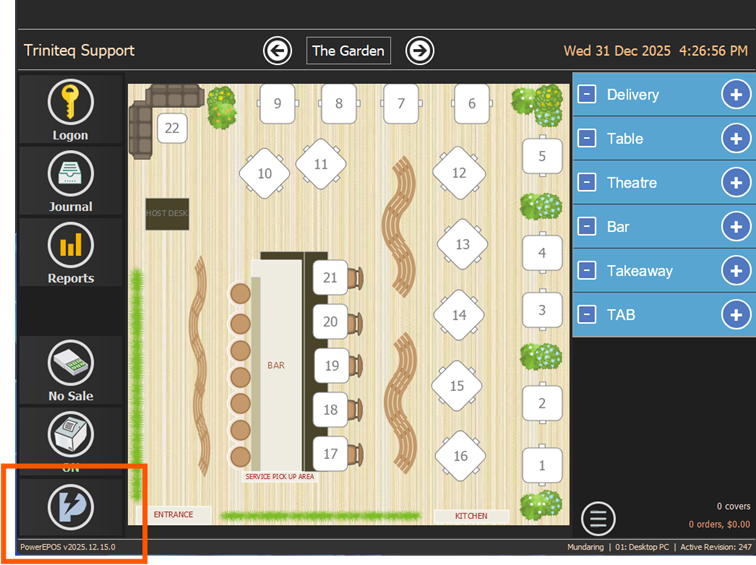
From the POS home screen, press the PowerEPOS menu button.
Step 2
Open Members
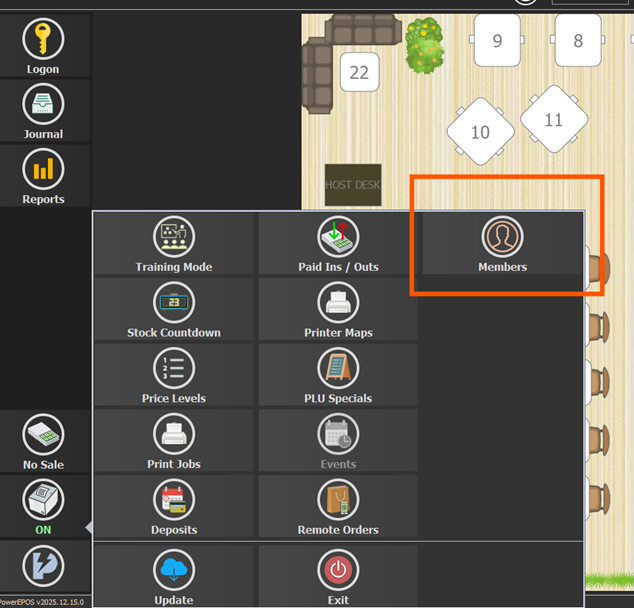
Choose Members.
Step 3
Choose Create or Update
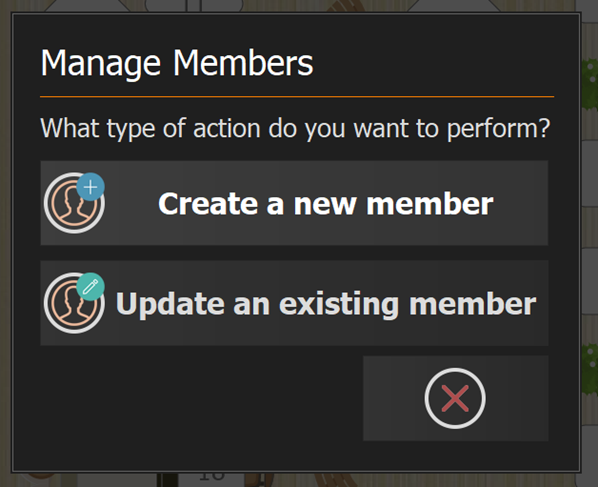
Press Update for a member who has already signed up online, or Create for one who has not. This guide follows Update.
Step 4
Search rather than scan
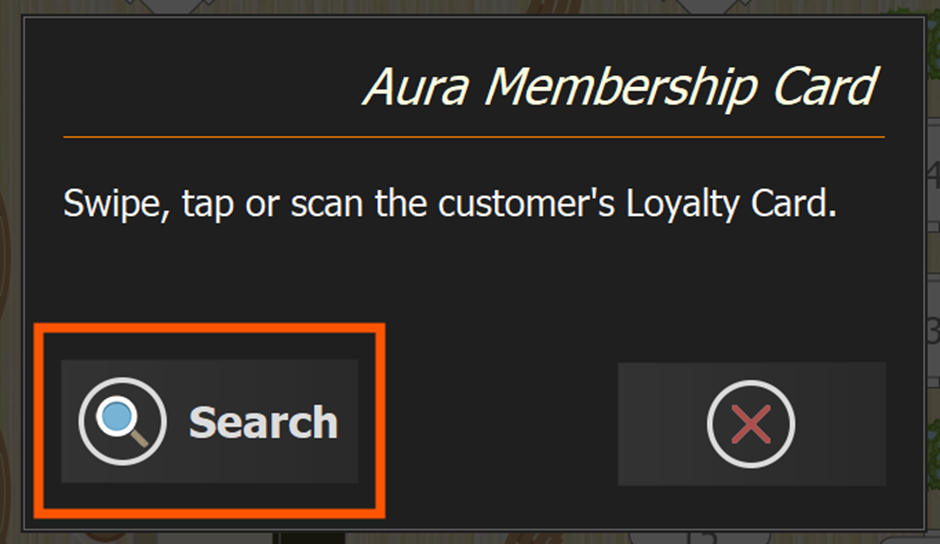
The POS asks you to swipe or scan the card. Do not scan it yet — press Search and look the member up instead.
Step 5
Find the member
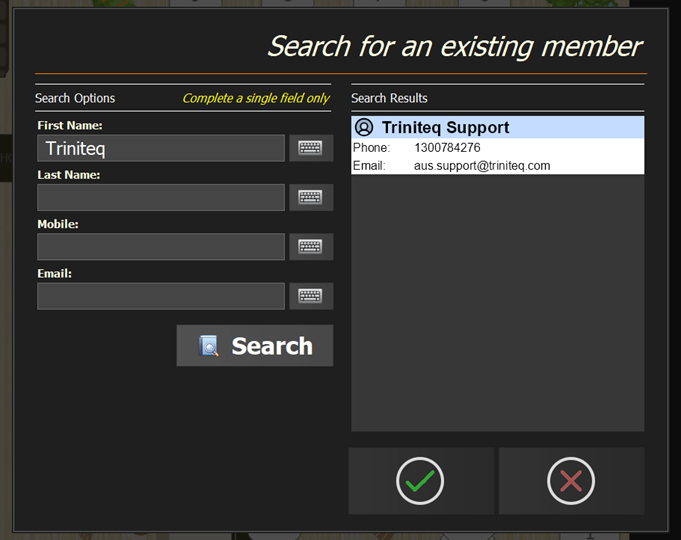
Search by name, email address or phone number. Only one field can be used at a time. Matches appear on the right: select the right member and press the tick to continue.
Step 6
Add the card
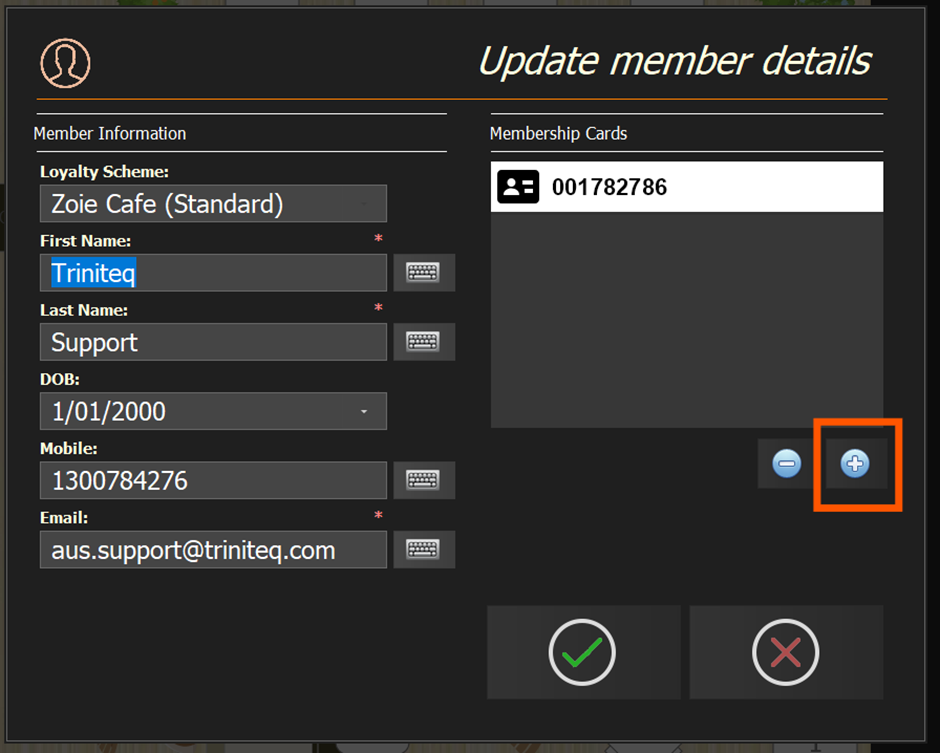
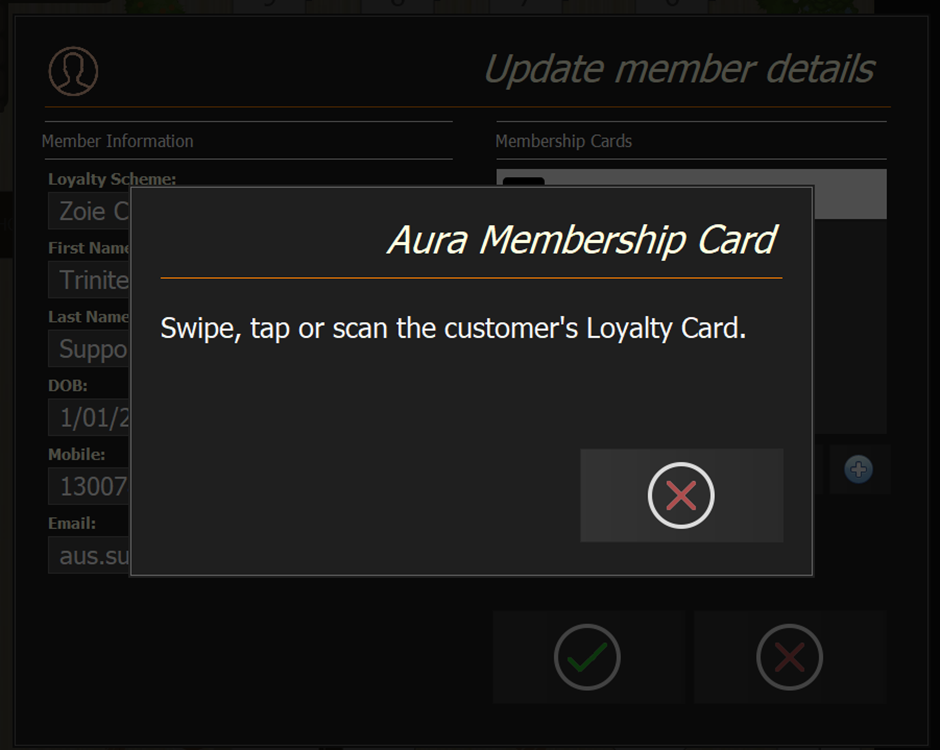
On the Member Update screen, press + under Membership Cards, and scan the physical card when the POS asks.
Step 7
Save
The card number appears in the membership card list. Press the tick again to save.
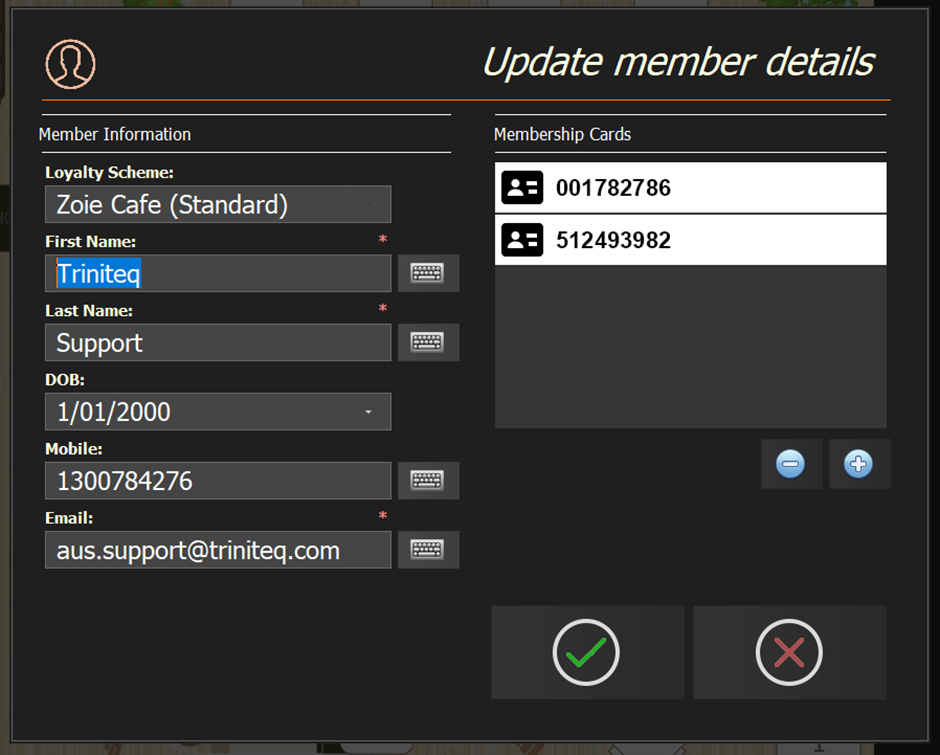
The card now identifies the member at the POS, links their transactions to their account, and applies whatever loyalty benefits are configured.
Step 8
Need help?
Triniteq support
Our support team is here to help.
Call 1300 784 276 or email support@triniteq.com, and include your venue name so we can find your setup straight away.