
Features · Guide
Managing deposits
Set up a deposit payment type in PowerEPOS, point the outlet at it, add the POS buttons, then take a deposit against a future booking and redeem it when the guests arrive.
PowerEPOS
Managing deposits
Deposits in PowerEPOS
A deposit is money taken now against a booking later. PowerEPOS holds it as its own payment type so the figures stay honest: on the day it is taken it nets to nothing on the Z report, and it counts as a sale on the day the guests come in and spend it. There are four parts to this — the payment type, the outlet setting, the POS buttons, and then taking and redeeming deposits day to day.
In this guide
- StartBefore you start
- Creating the deposit payment type
- 1Open Payment Types
- 2Name it
- 3Set the flags
- 4Save and close
- What the other flags do
- Pointing the outlet at it
- 5Open the outlet
- 6Set the deposit payment type
- 7Save and publish
- Adding the buttons to the POS
- 8Open the touchscreen page
- 9Add the Create Deposit button
- 10Add the Redeem Deposit button
- 11Save and publish
- Taking a deposit
- 12Open a transaction and go to Pay
- 13Create the deposit
- 14Attach the guest
- 15Find them and add them
- 16Set the expected date
- 17Finalise the payment
- Redeeming a deposit
- 18Open the transaction and go to Pay
- 19Find the deposit
- 20Apply it
- 21Finish the sale
- 22Need help?
Start
Before you start
- Access to System Manager and the Touchscreen Editor.
- Permission to publish changes to the POS.
- Somewhere on a POS touchscreen page — usually the payment page — with two free buttons.
Creating the deposit payment type
Deposits are reported against their own payment type, so that is the first thing to create.
Step 1
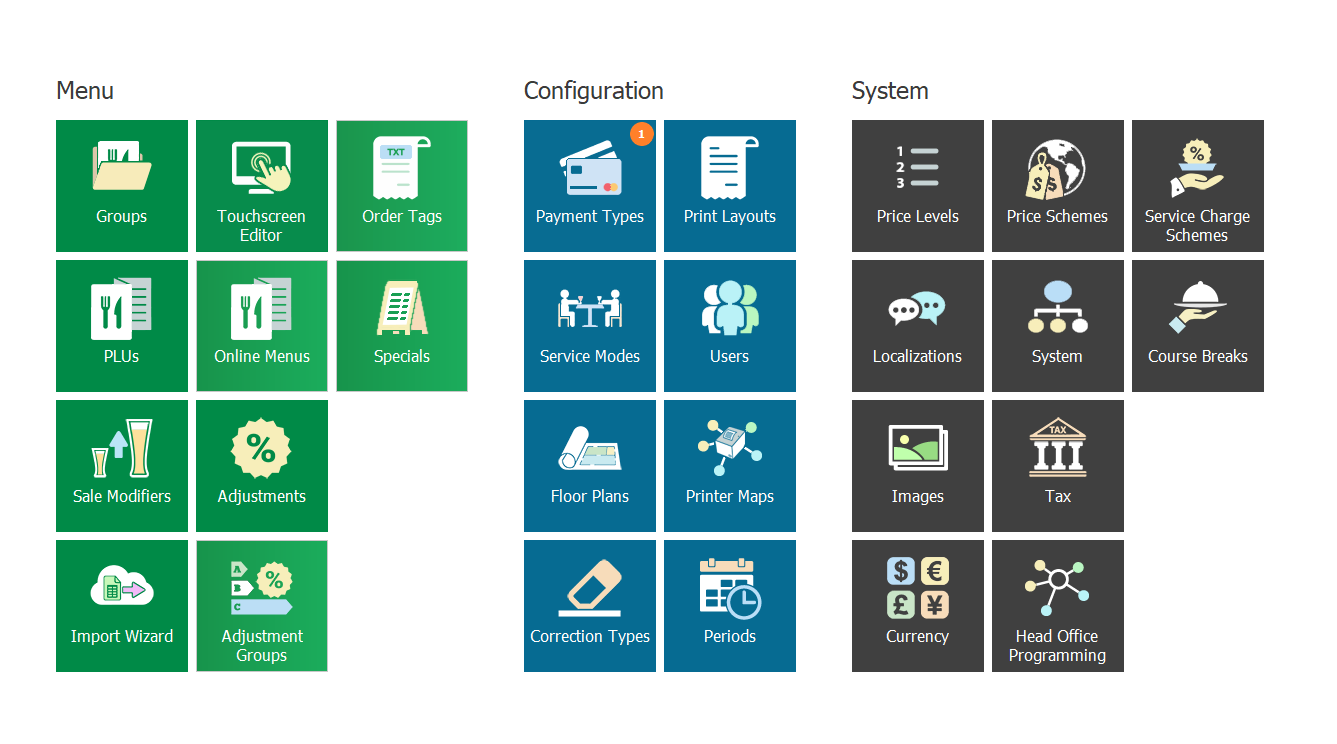
Open Payment Types
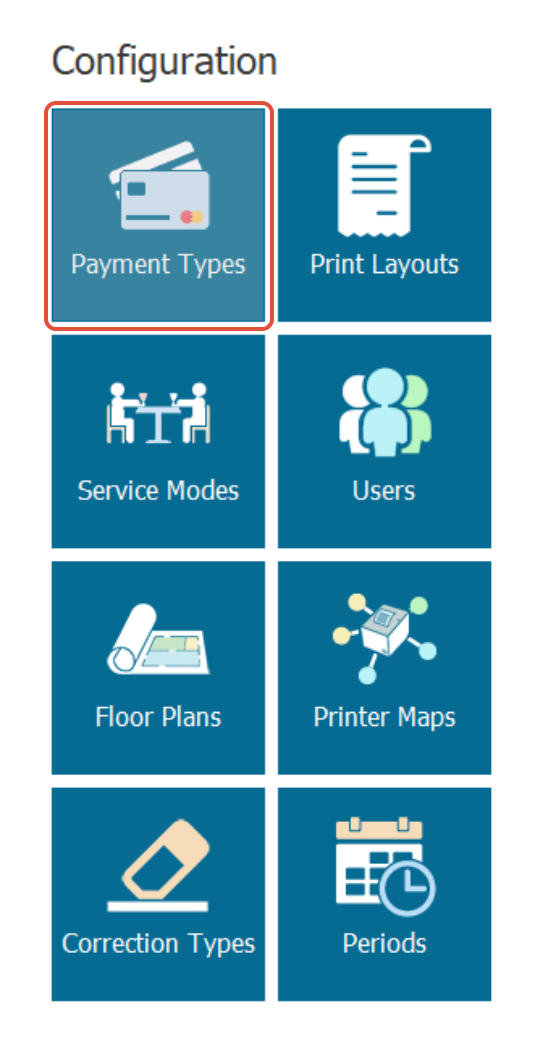
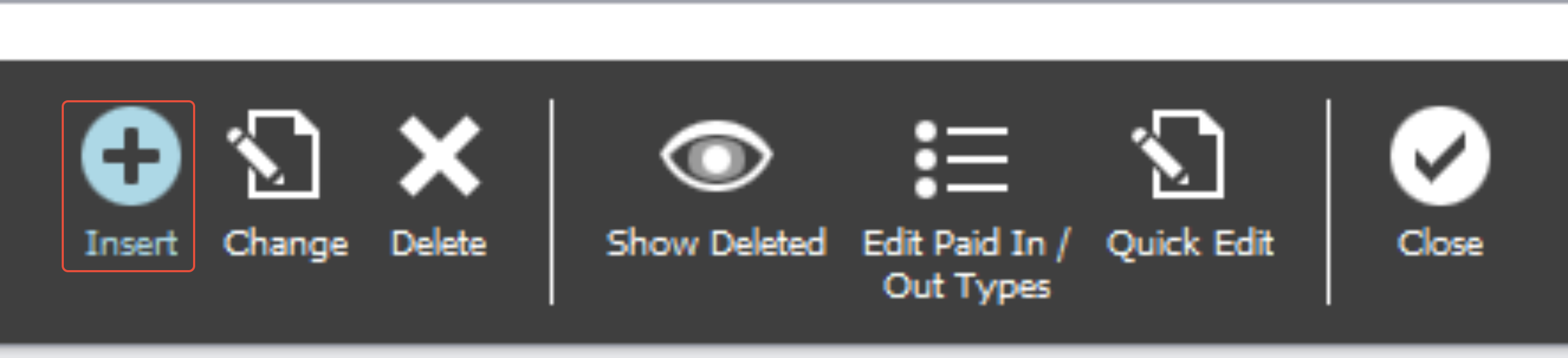
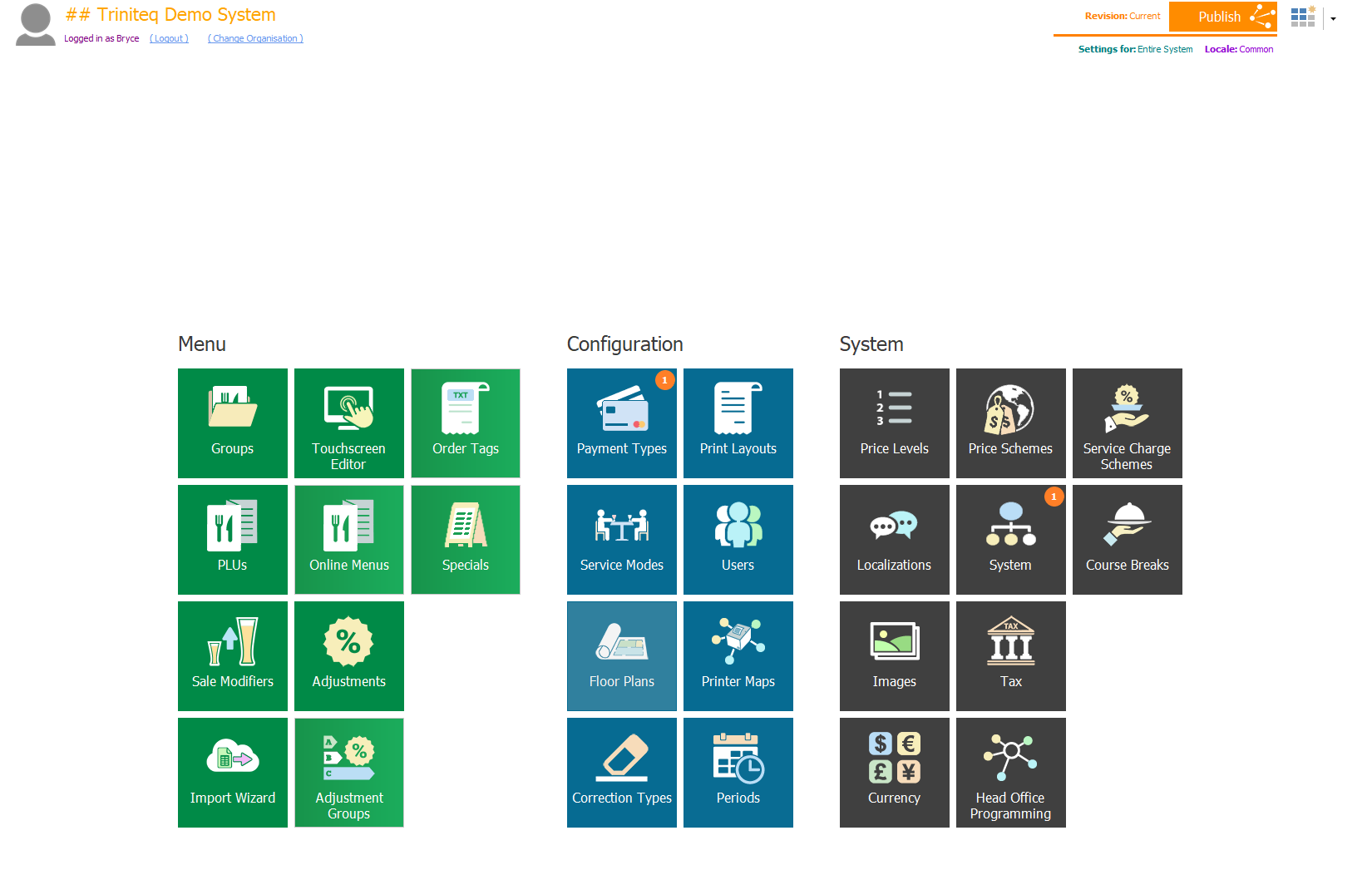
From the main screen of System Manager, go to Configuration → Payment Types, then select Insert on the bottom context bar.
Step 2
Name it
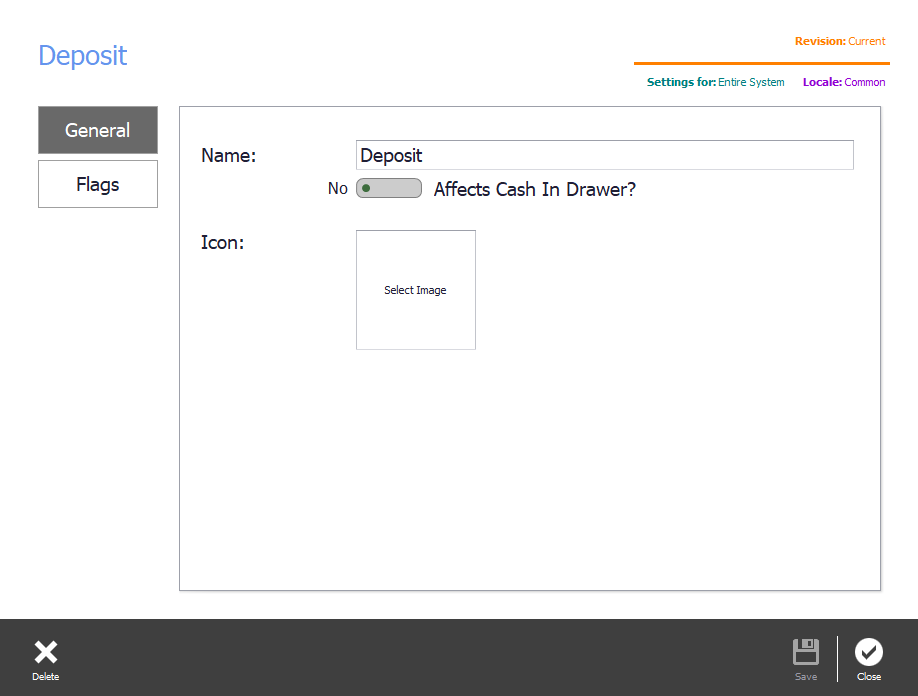
The name is how deposits will appear on your reports, so make it one you will recognise there.
Step 3
Set the flags
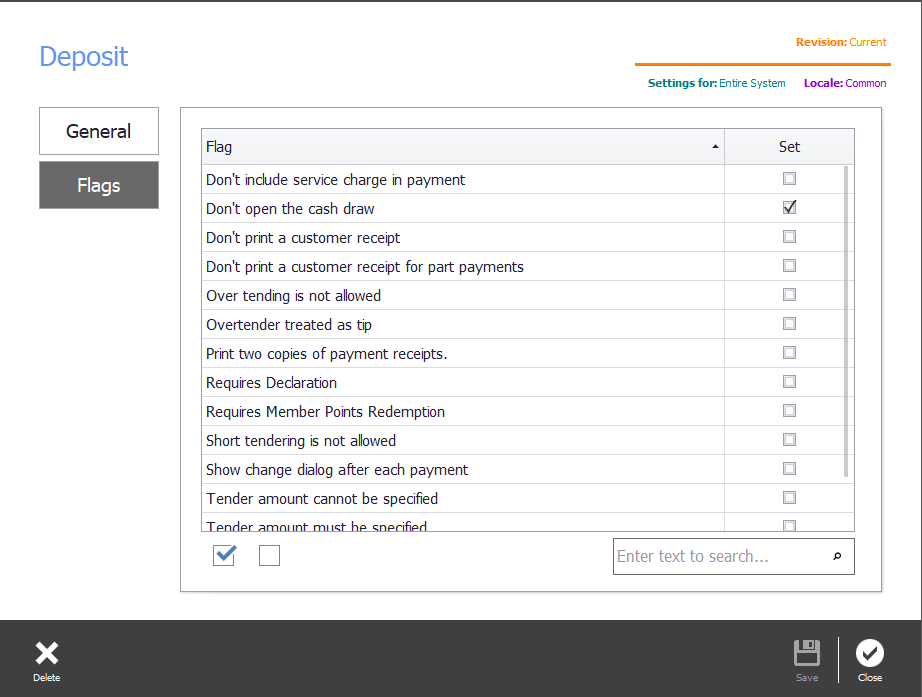
Turn on Don't open the cash drawer, so finalising a deposit does not pop the drawer.
Step 4
Save and close
Select Save & Close to go back to the main menu.
What the other flags do
A deposit payment type only needs the one flag, but the rest are there if you want them.
- Don't include service charge in payment — where an automated service charge is set in Configuration, this payment type will not carry that percentage.
- Don't open the cash drawer — finalising on the POS with this payment type does not open the drawer.
- Don't print a customer receipt — overrides automatic receipt printing when the transaction is finalised this way.
- Don't print a customer receipt for part payment — the same, where this payment type only pays part of the total.
- Over tendering is not allowed — the payment type cannot finalise an amount greater than the transaction subtotal.
- Overtender is treated as tip — an amount entered above the subtotal is taken as a tip.
- Print two copies of payment receipts — prints the receipt twice where the transaction includes this payment type.
- Requires Declaration — the POS asks a user to count this payment type as a cross-check against sales. Usually used on cash at end of service.
- Requires Member Points Redemption — with a loyalty integration enabled, this payment type counts towards the member's points on finalisation.
- Short tendering is not allowed — the transaction cannot be finalised this way for less than the subtotal.
- Show change dialog after each payment — the POS pops up the change detail when the amount entered differs from the subtotal.
- Tender amount cannot be specified — the user cannot type an amount when using this payment type.
- Tender amount must be specified — the user must type an amount to use this payment type.
Pointing the outlet at it
Step 5
Open the outlet
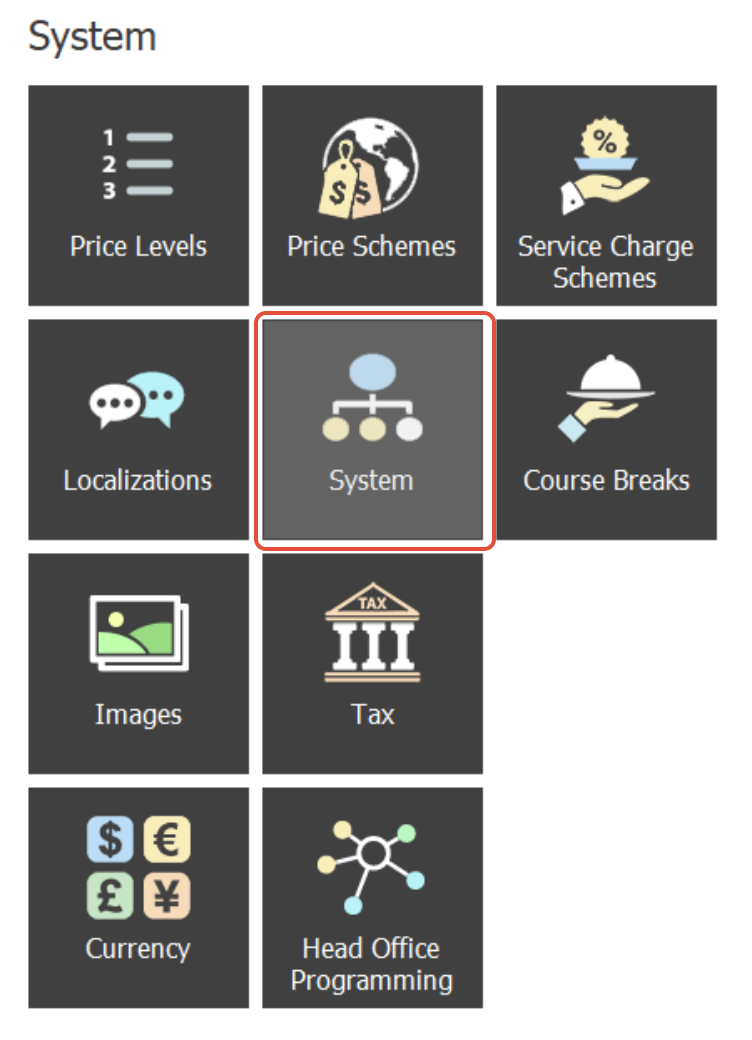
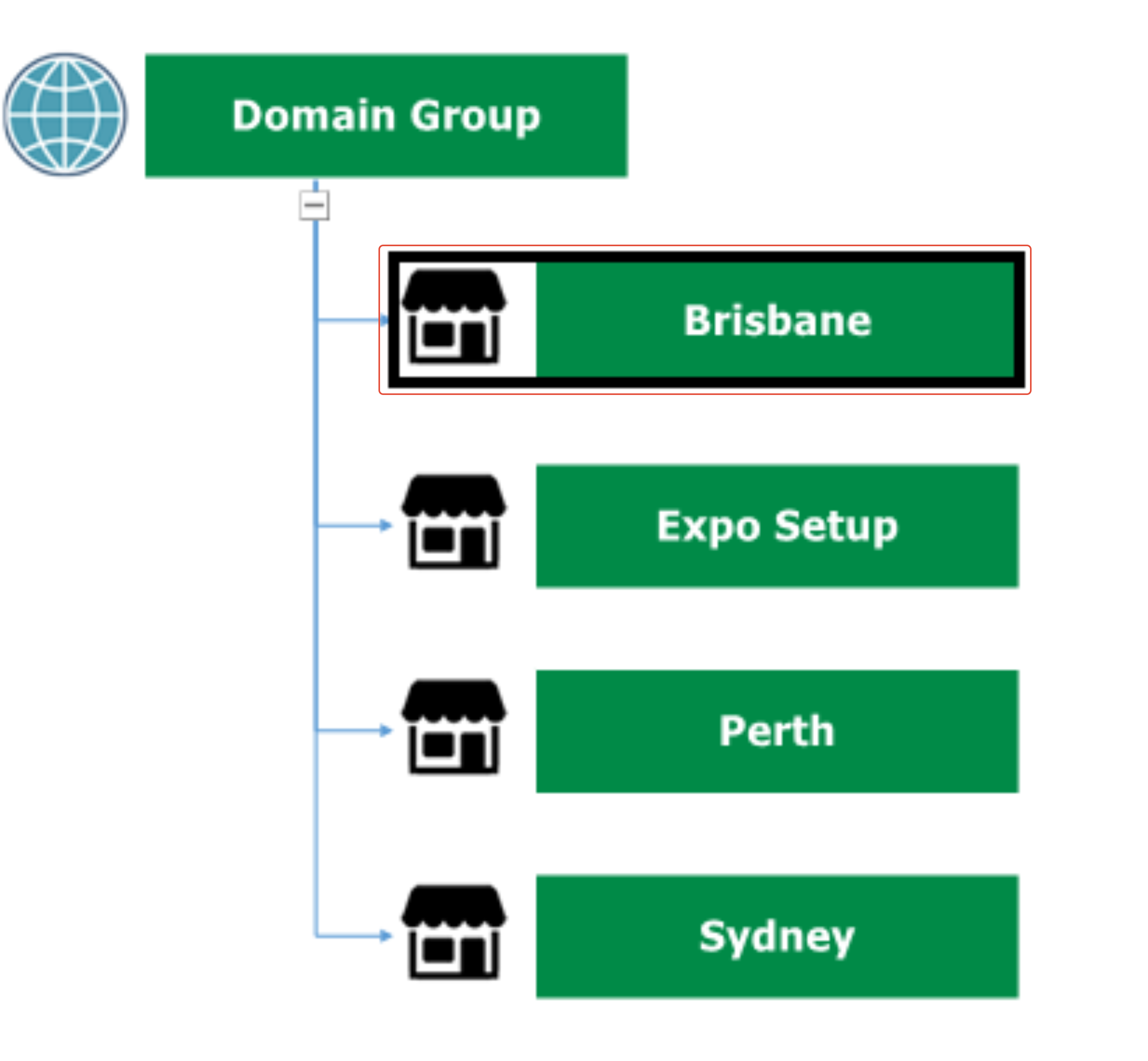
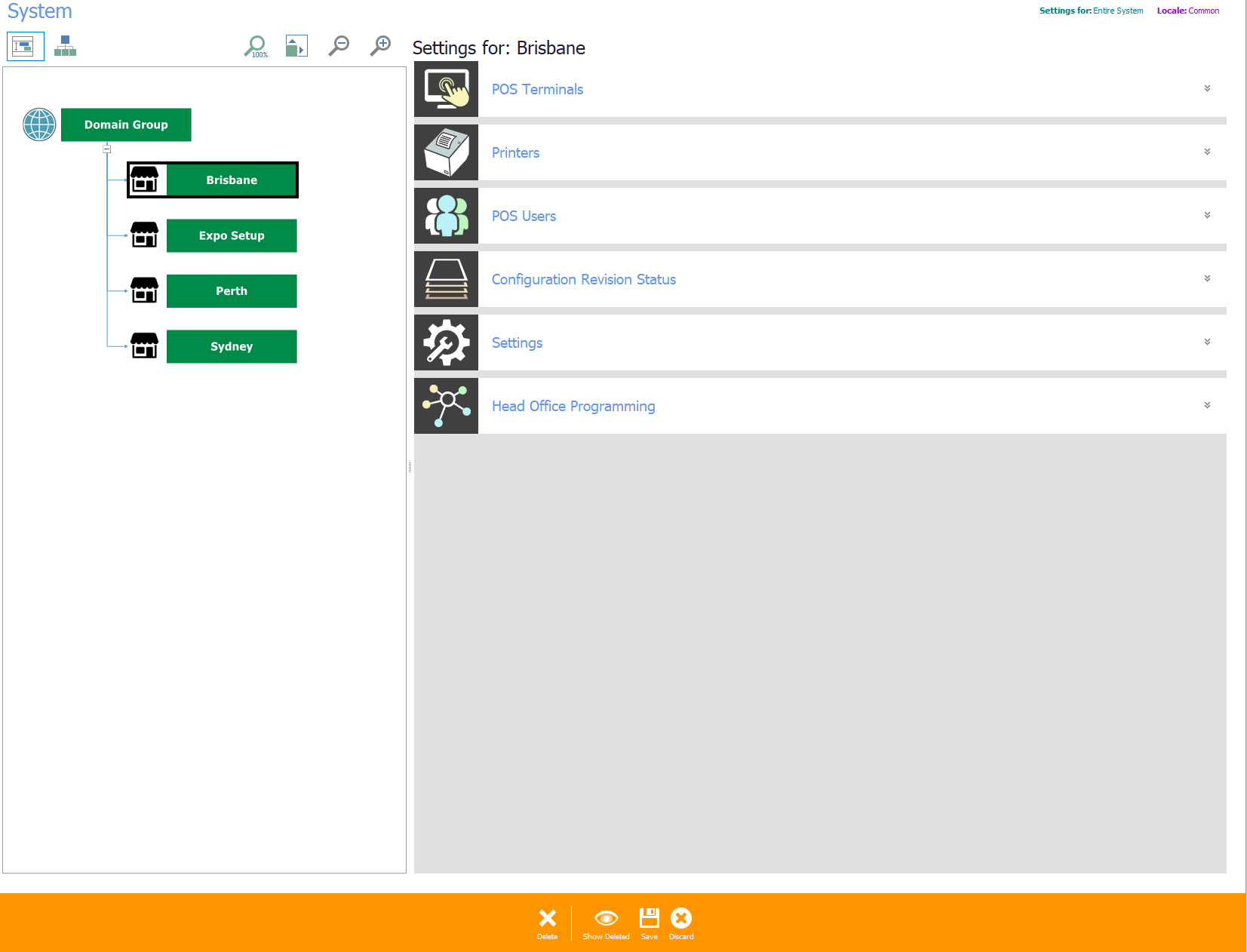
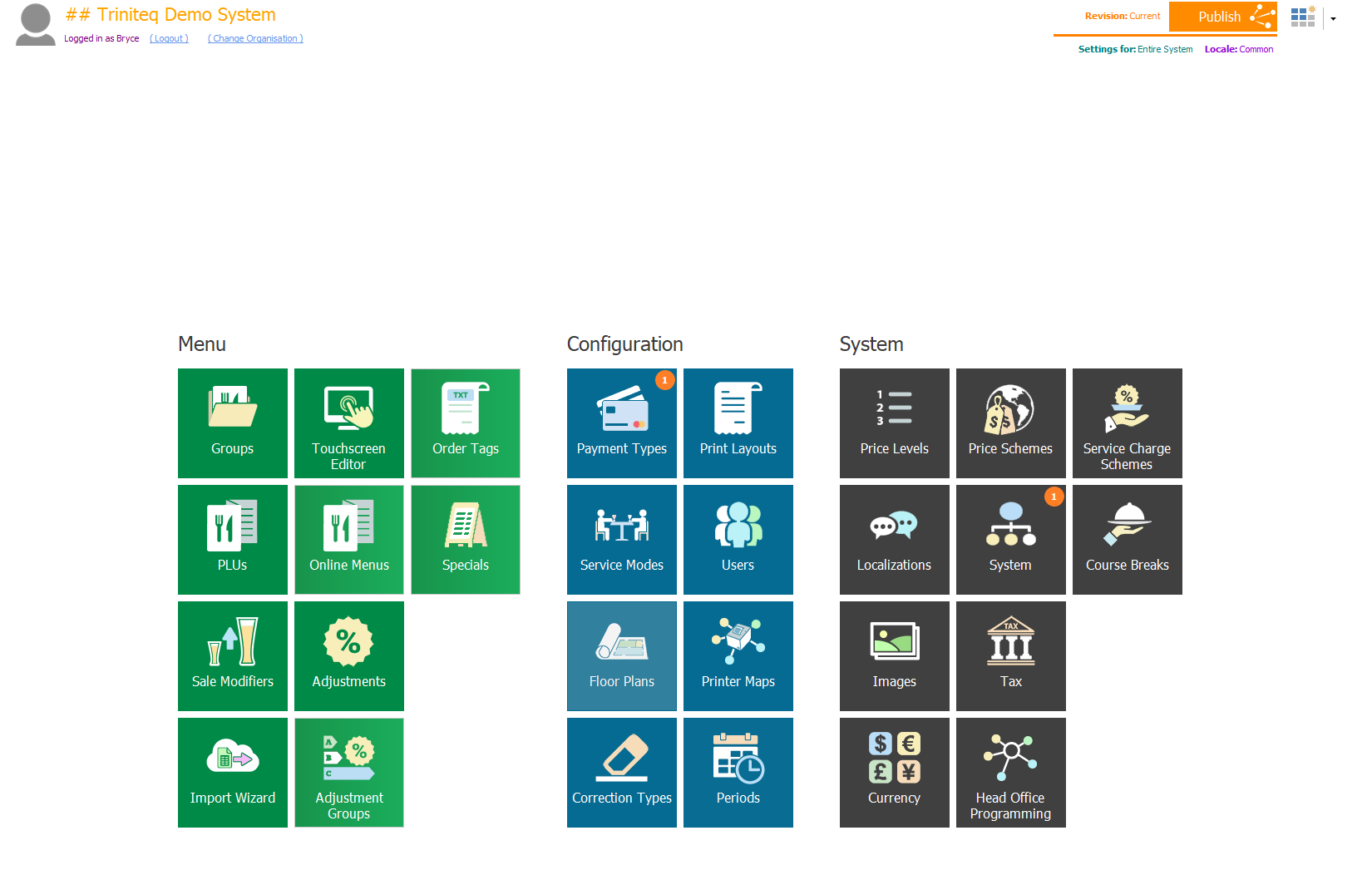
Go to System → System, then double-click the venue outlet in the group.
Step 6
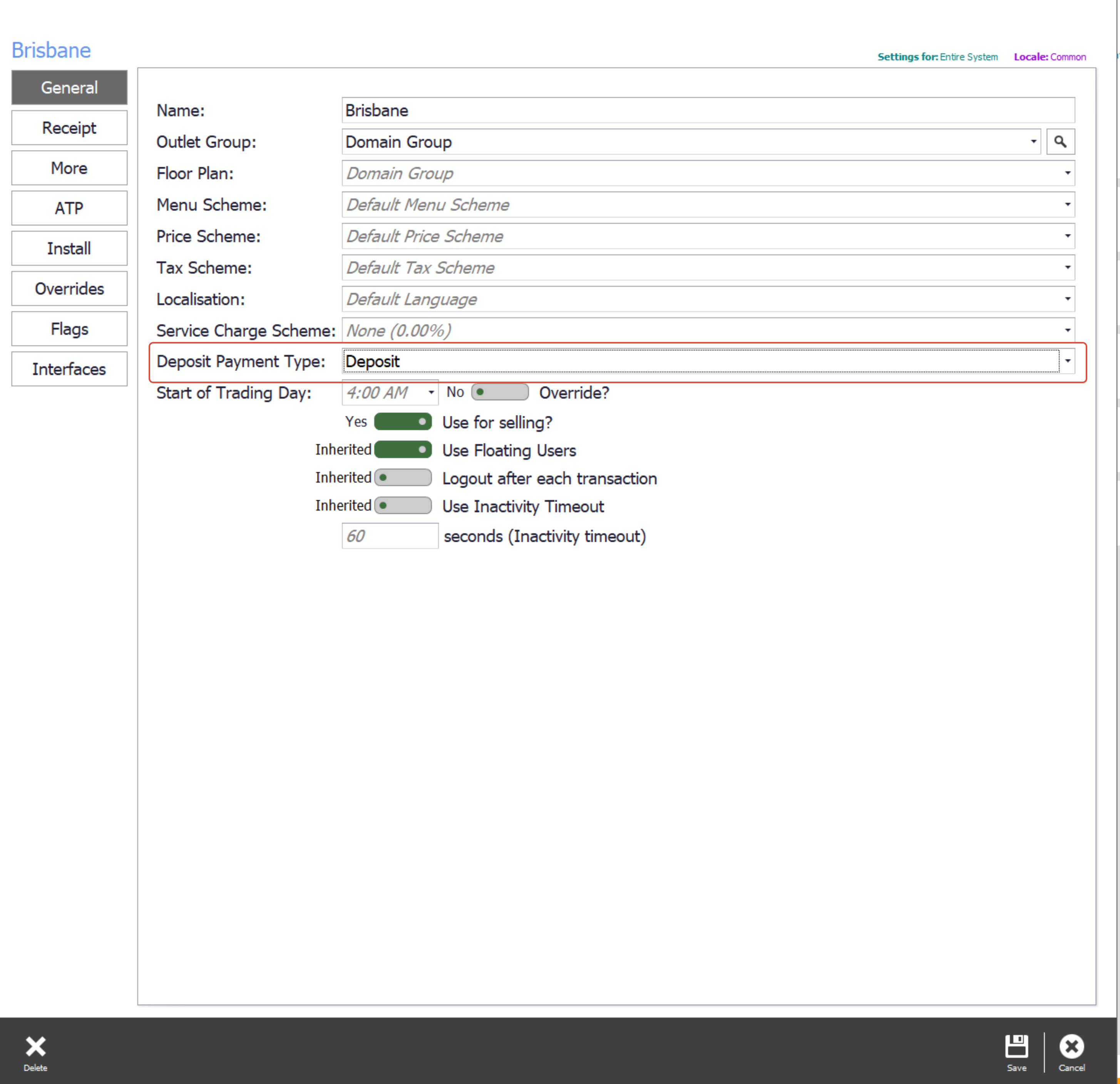
Set the deposit payment type
Set Deposit Payment Type to the payment type you just created. This is what makes deposits taken on the POS report correctly.
Step 7
Save and publish
Select Save, then Save & Close to get back to the main screen, and Publish to send the change out to the POS.
Adding the buttons to the POS
Step 8
Open the touchscreen page
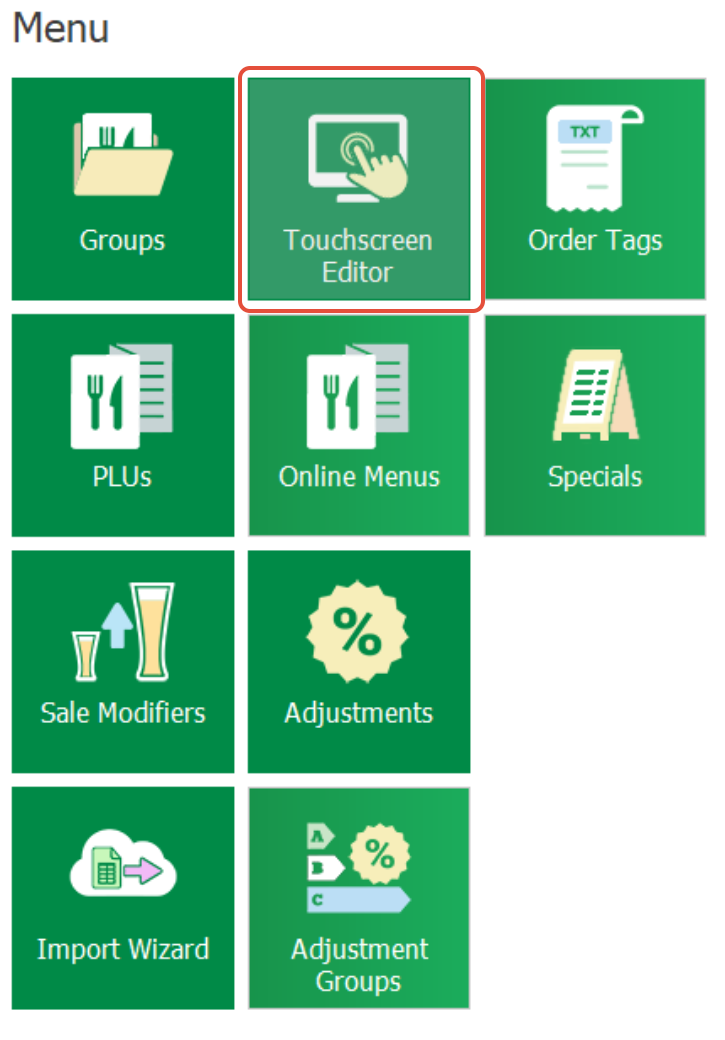
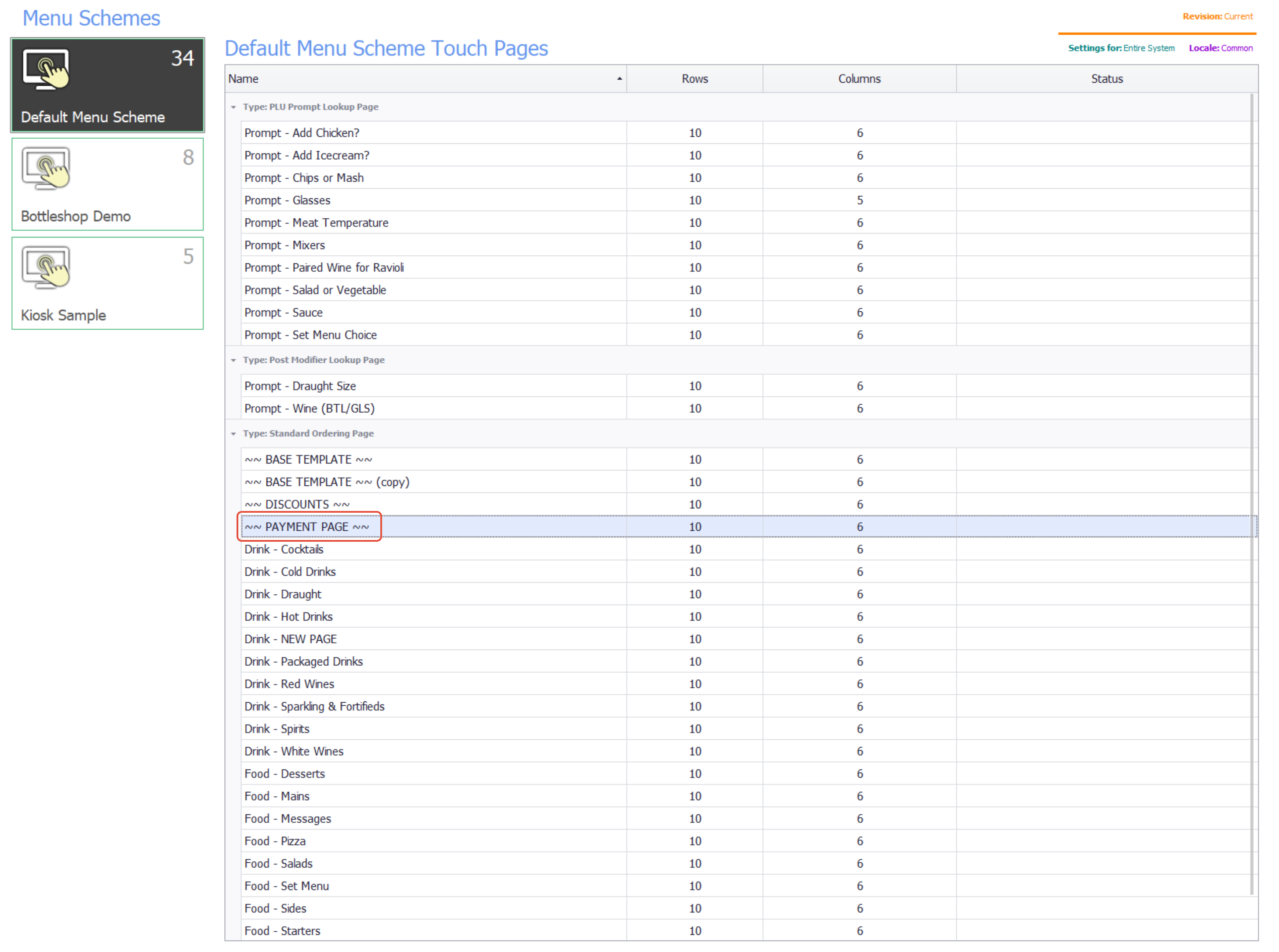
Go to Menu → Touchscreen Editor, and in the selection screen double-click the page you want the deposit buttons on. The payment page is the usual choice.
Step 9
Add the Create Deposit button
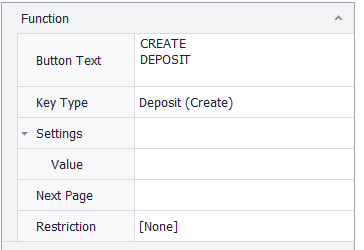
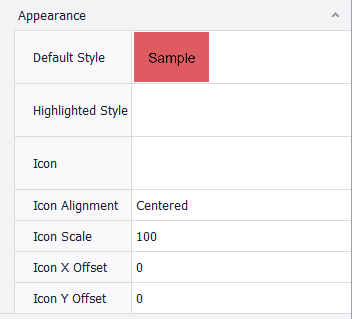
Select an empty space on the screen, configure the button under Function, and give it a default style under Appearance.
Step 10
Add the Redeem Deposit button
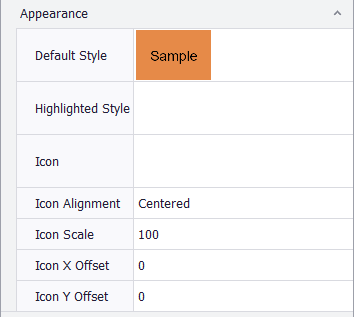
Do the same on an adjoining empty space, setting its function and appearance.
Step 11
Save and publish
Select Save & Close to leave the touchscreen pages, then publish them so the POS can use them.
Taking a deposit
A deposit has to be bought and assigned on a POS before it can be stored against a future visit.
Step 12
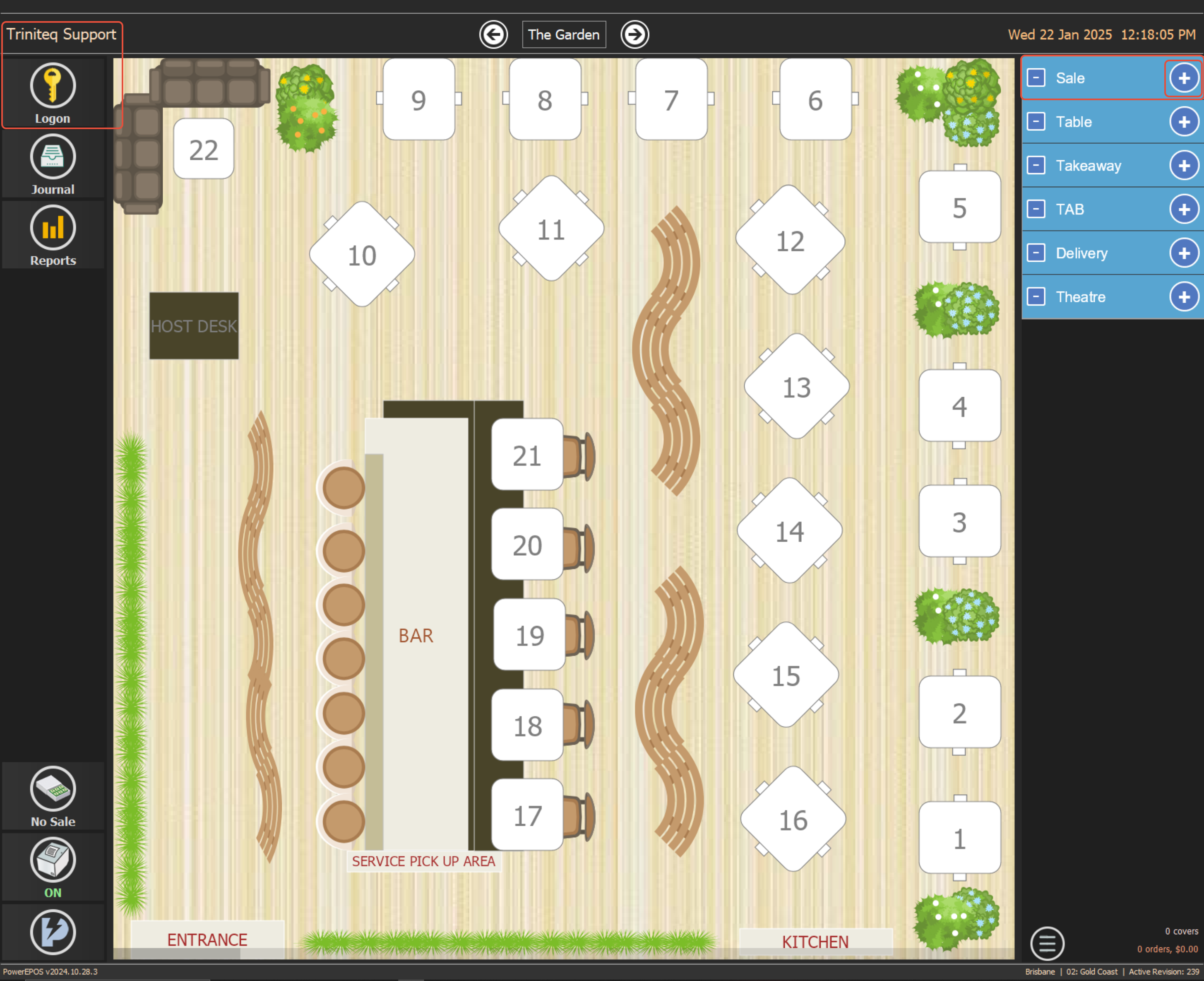
Open a transaction and go to Pay
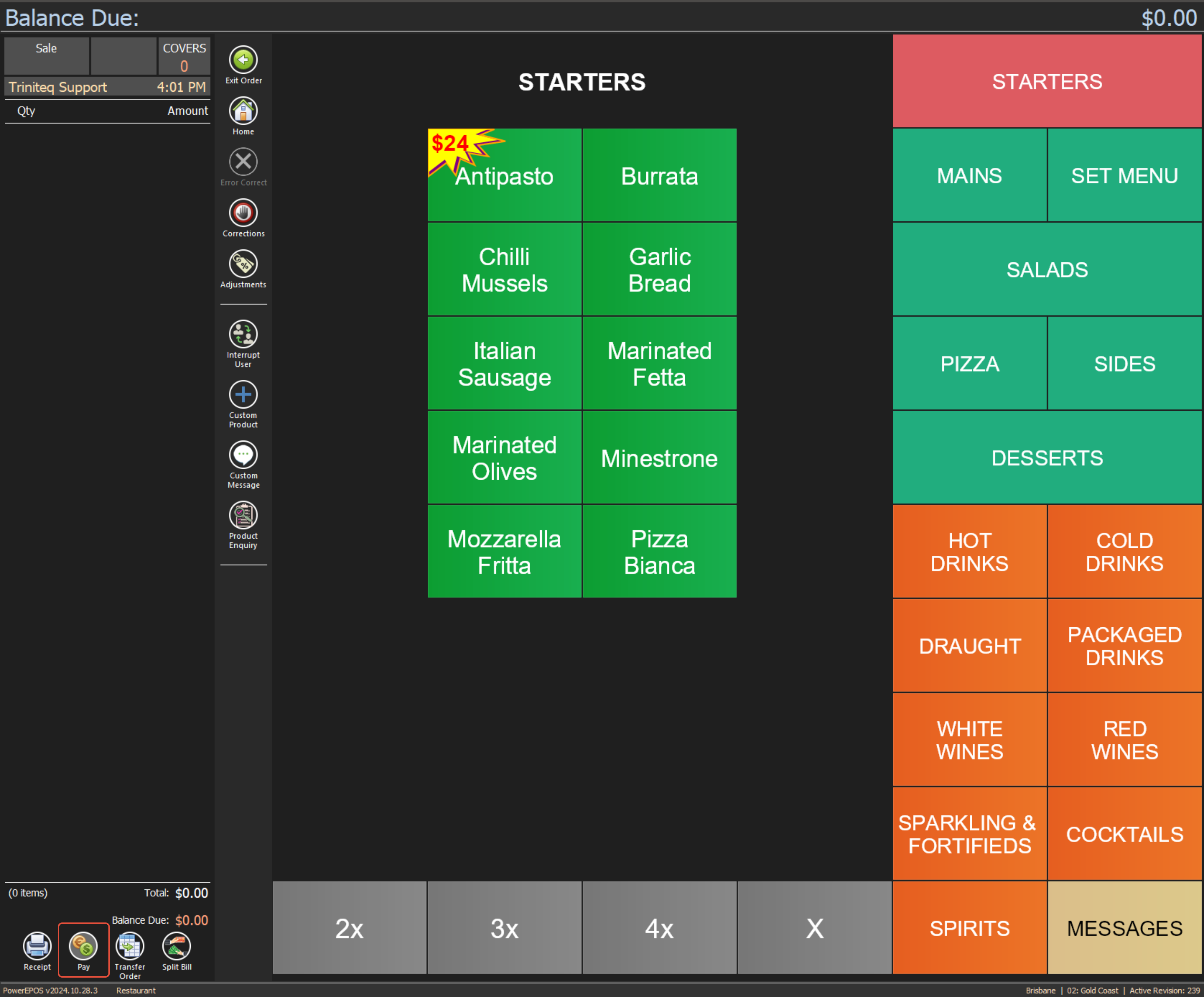
Sign in, open a transaction in any service mode, and go to the pay screen.
Step 13
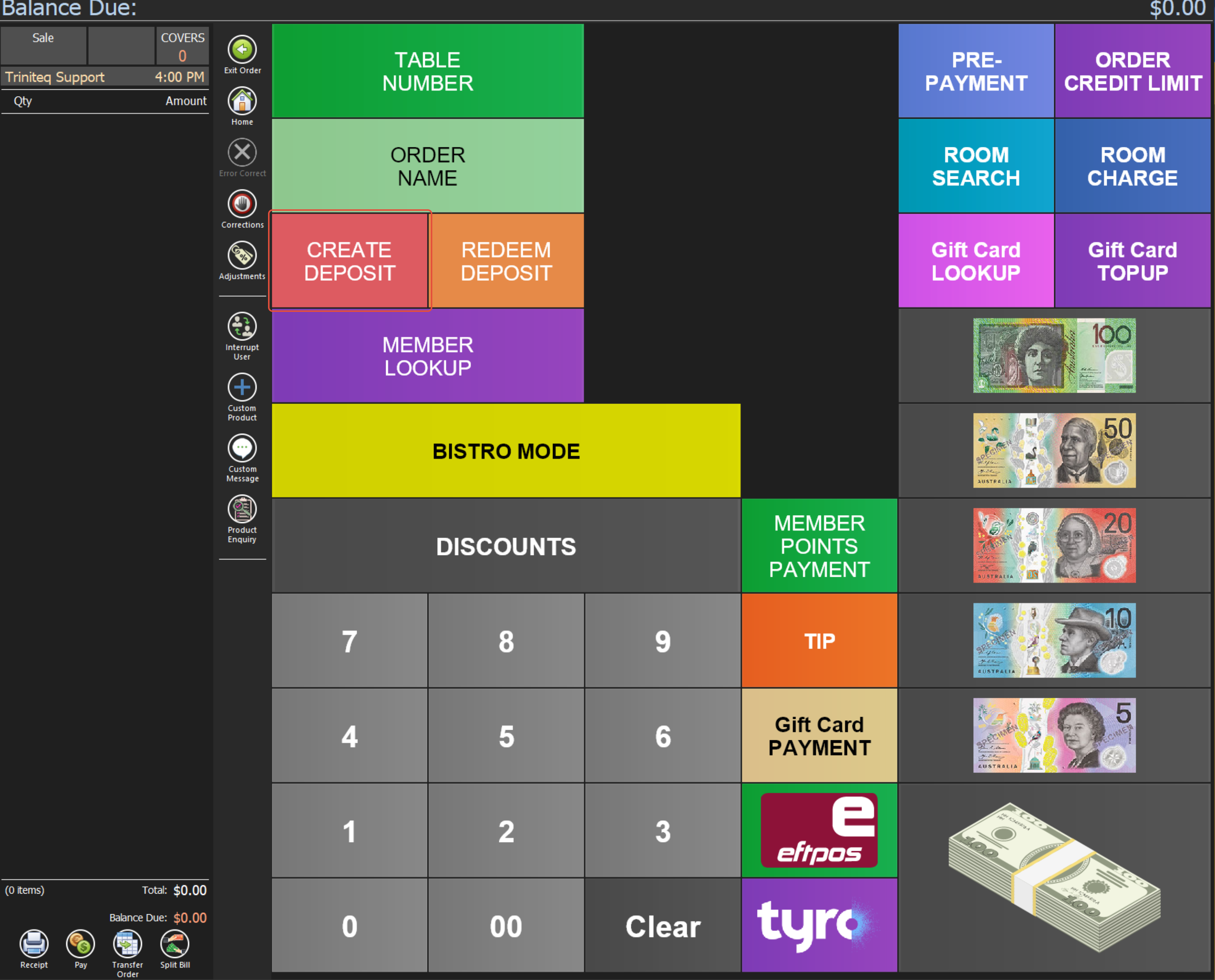
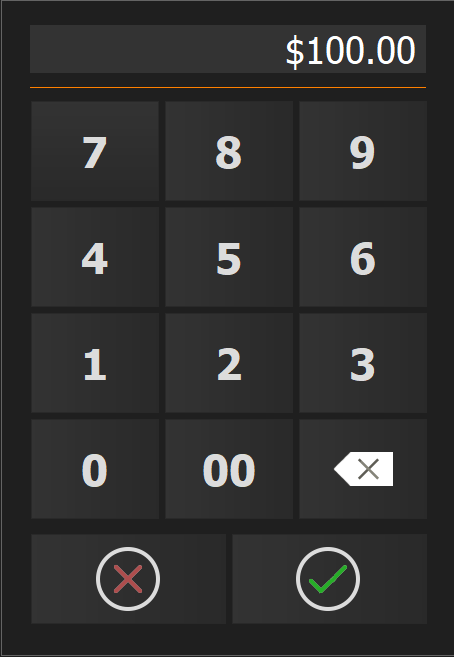
Create the deposit
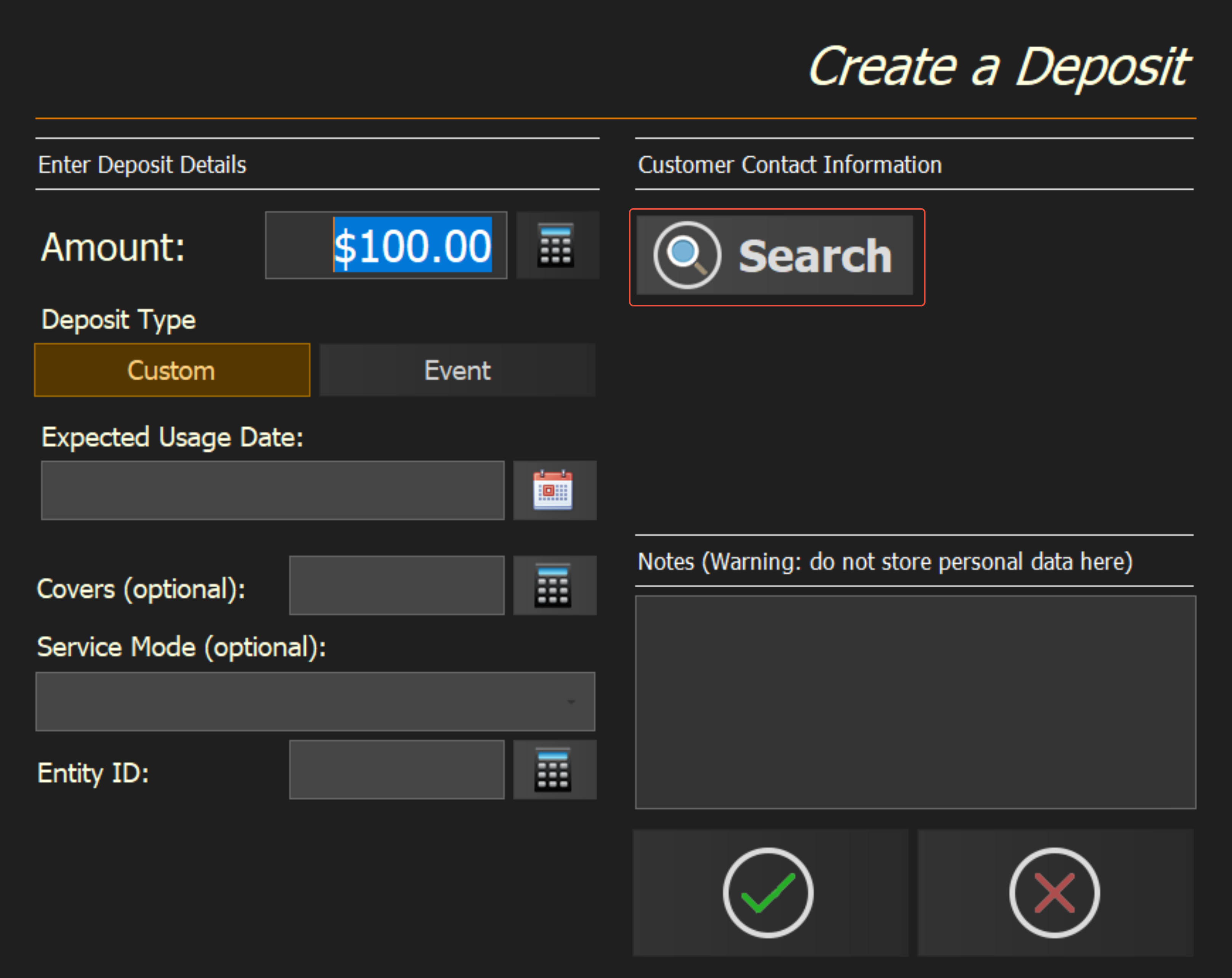
Select Create Deposit, enter the amount the guest is paying, and select the green tick.
Step 14
Attach the guest
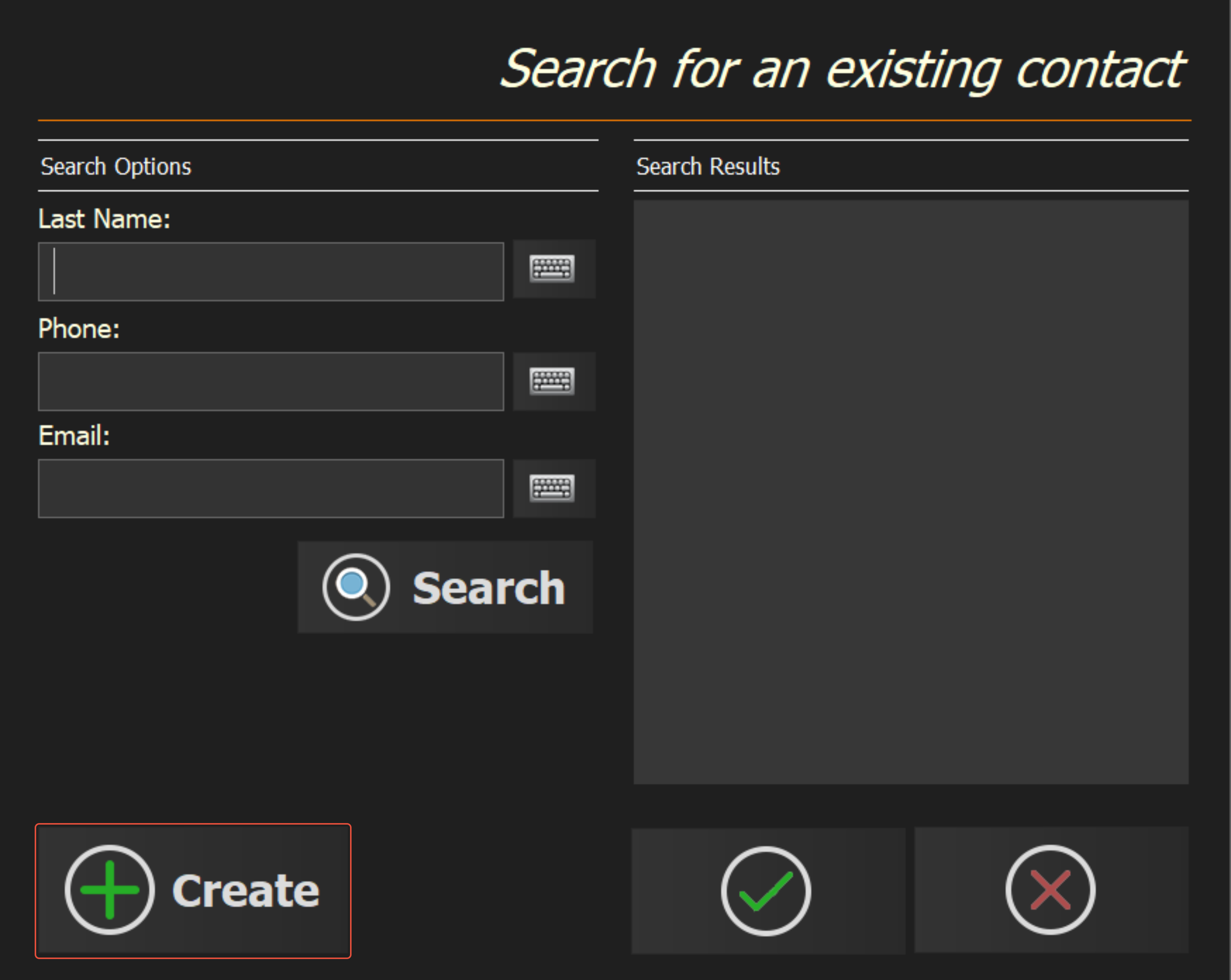
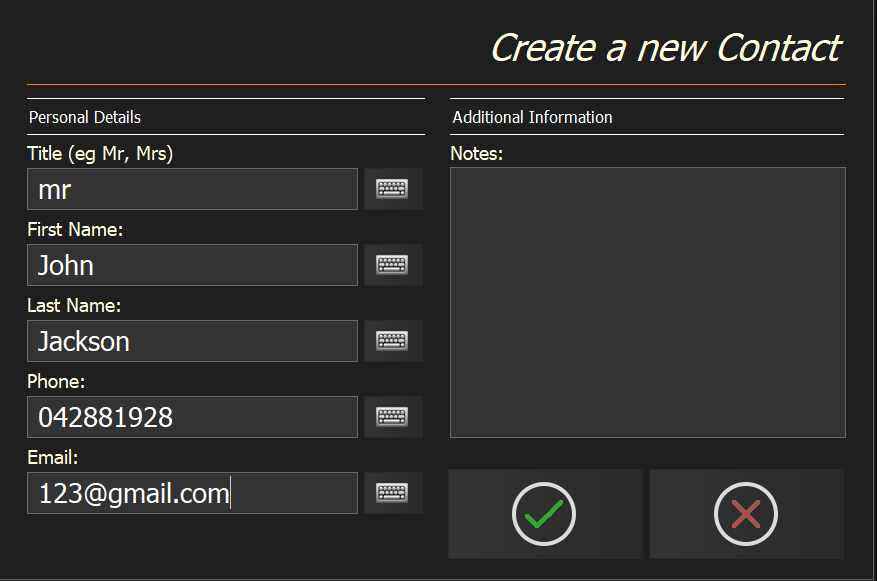
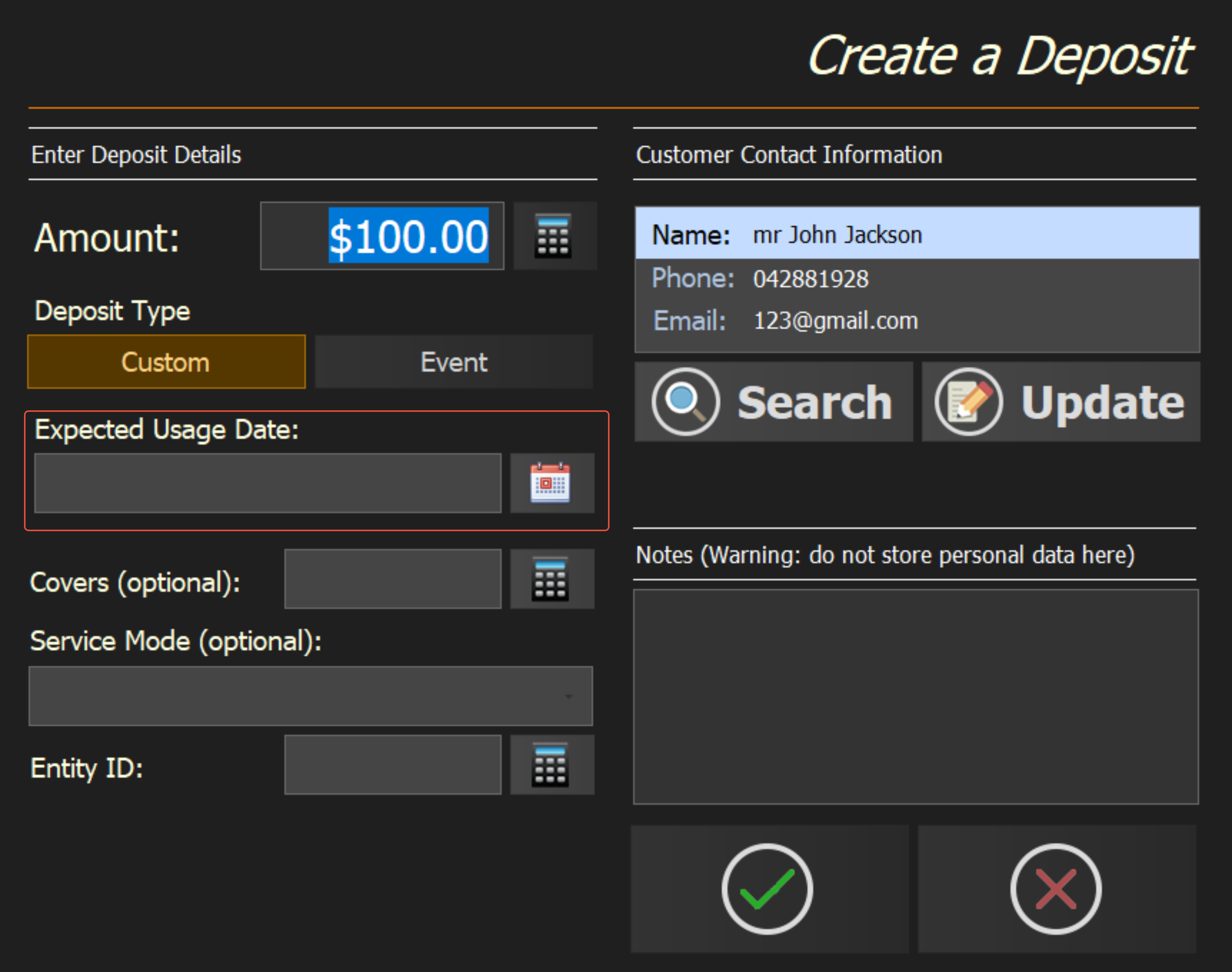
Select Search to put a contact against the deposit. If they are not on file, select Create at the bottom left and enter their name with at least a phone number or an email so they can be found later. Notes can go in the Notes field.
Step 15
Find them and add them
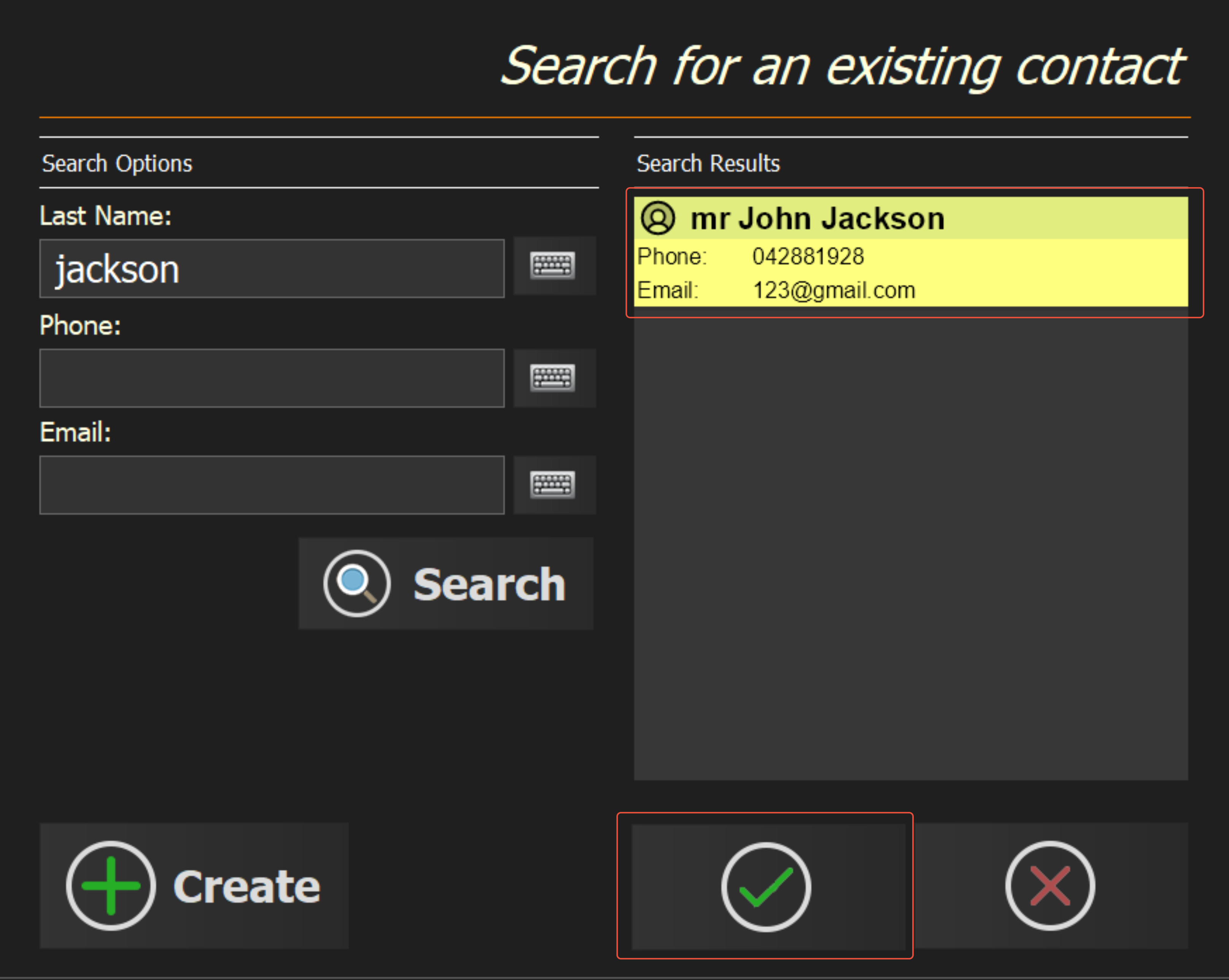
Search on any of the details you entered, select the contact and select the green tick to attach them to the deposit.
Step 16
Set the expected date
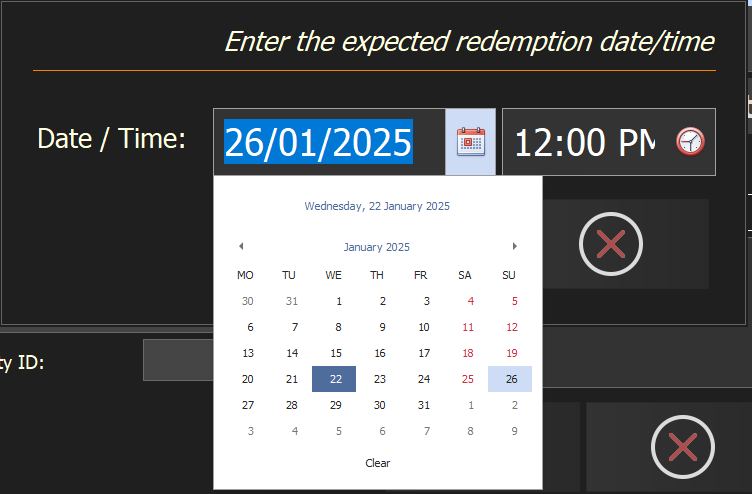
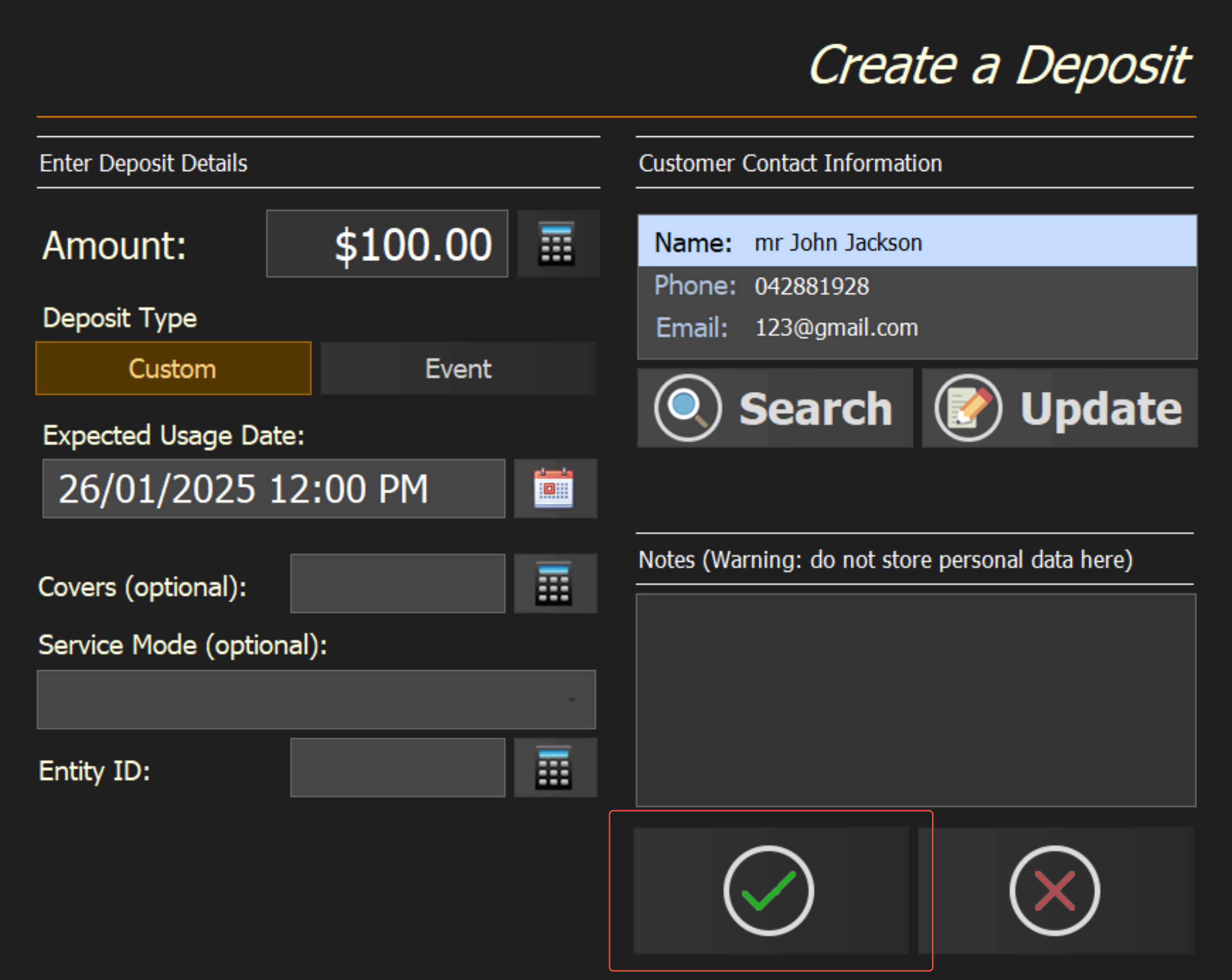
Select the calendar to record the date and time the guest is expected, then the green tick to finish creating the deposit.
Step 17
Finalise the payment
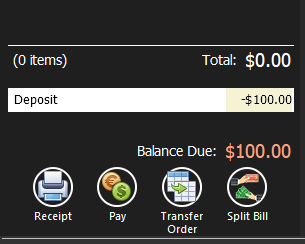
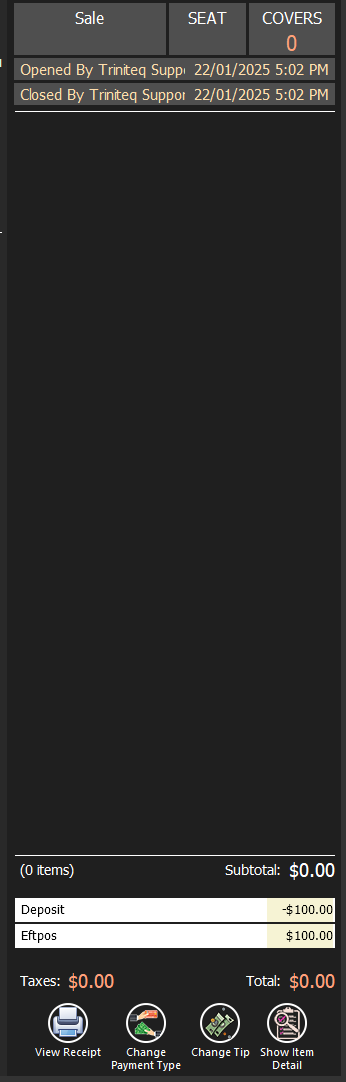
The deposit shows in the transaction as a negative, because it is being stored rather than spent. Take the payment as normal; the transaction closes and appears in the journal.
What the Z report shows
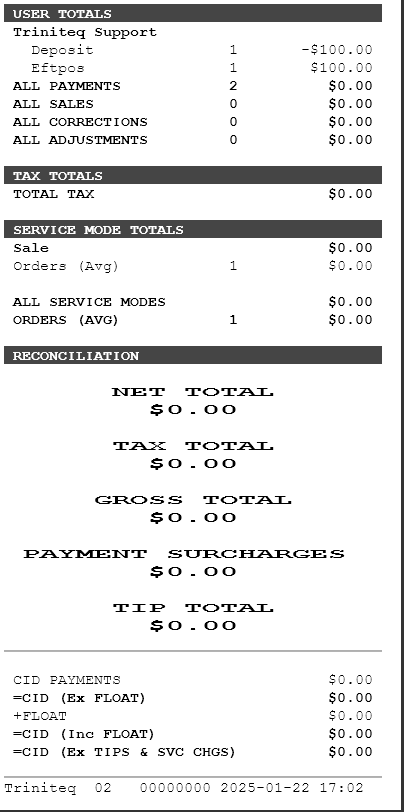
On the day a deposit is taken the Z report nets to $0 for it: the deposit cancels out the payment, so the POS only reports the sales actually made that day.
Redeeming a deposit
Step 18
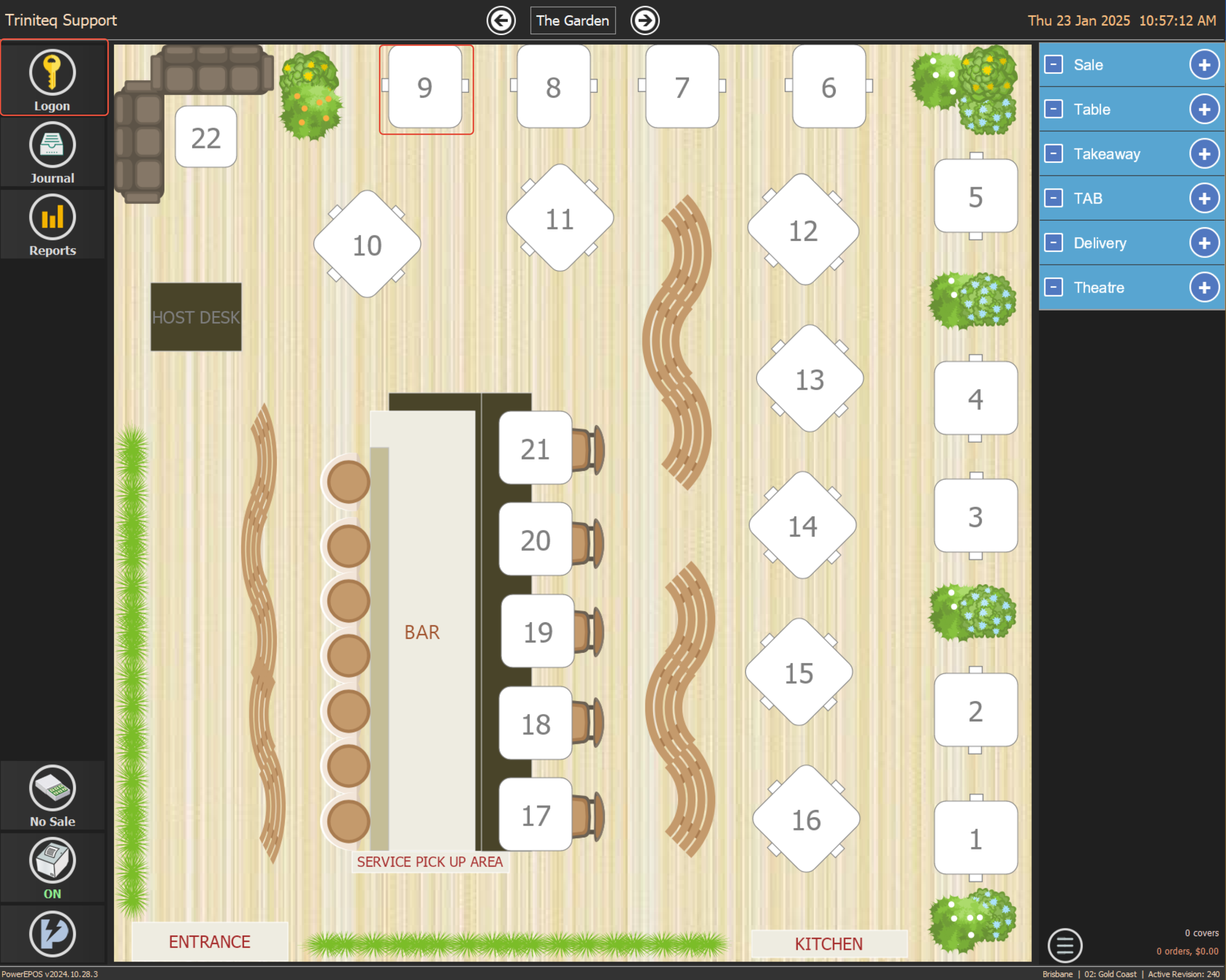
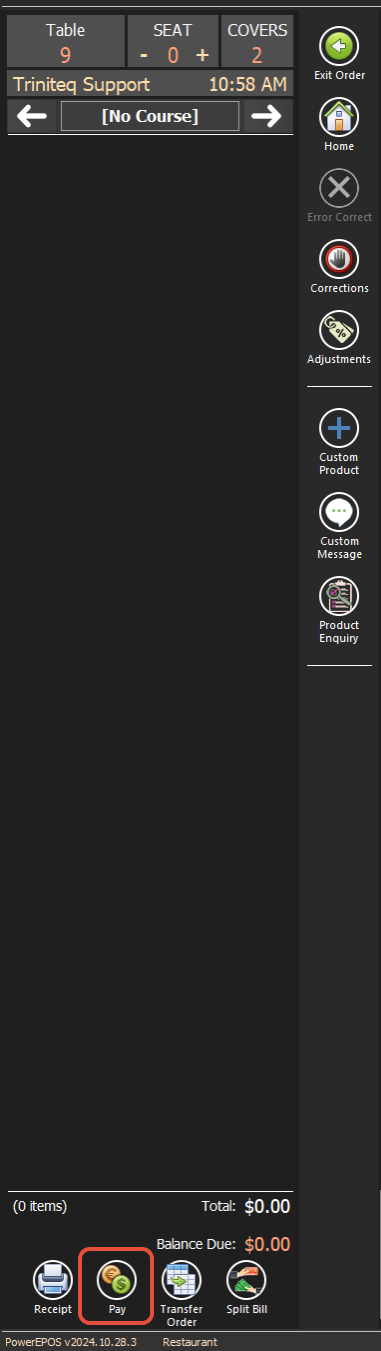
Open the transaction and go to Pay
Sign in and open the transaction the deposit is going against, then go to the pay screen.
Step 19
Find the deposit
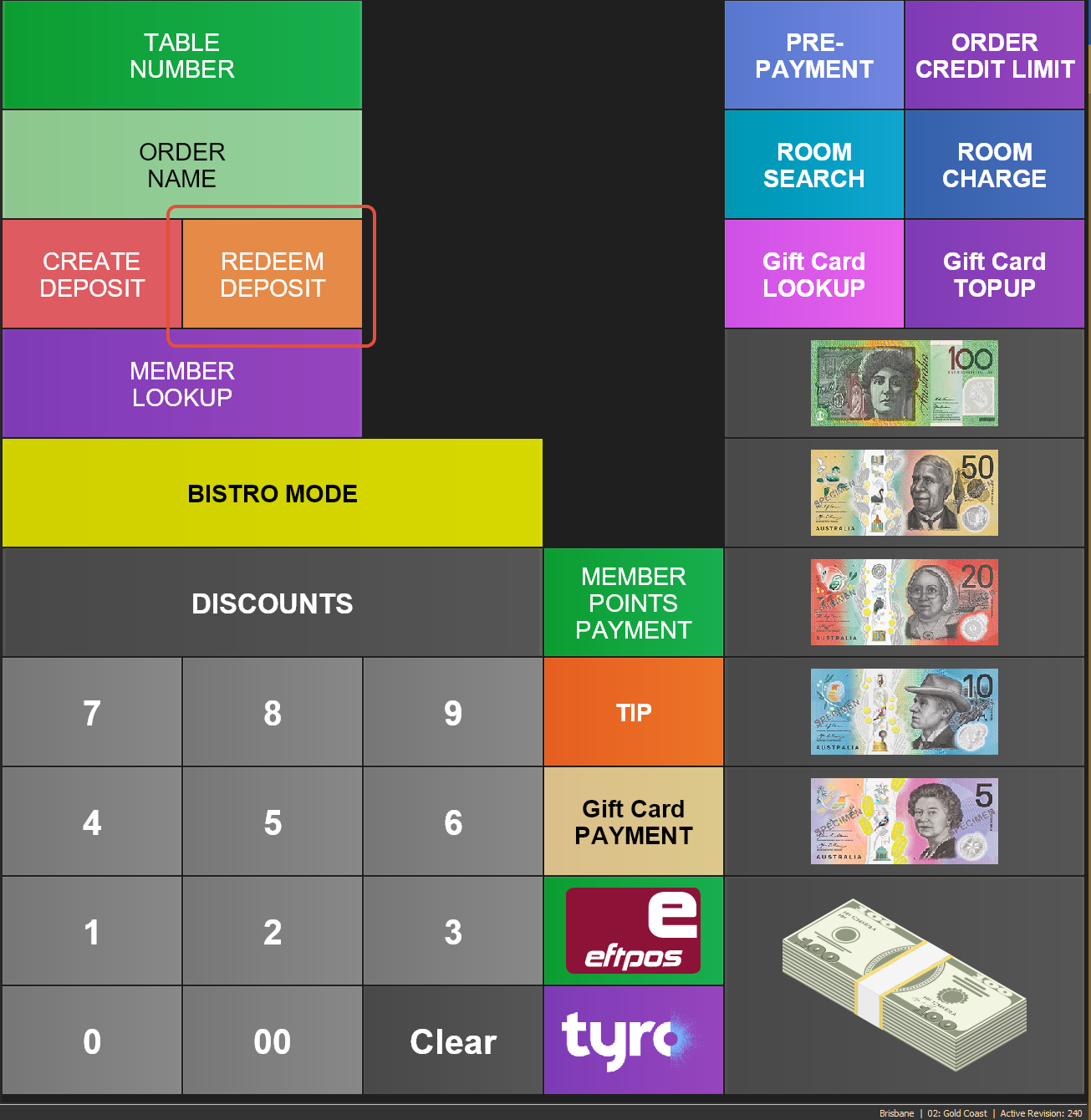
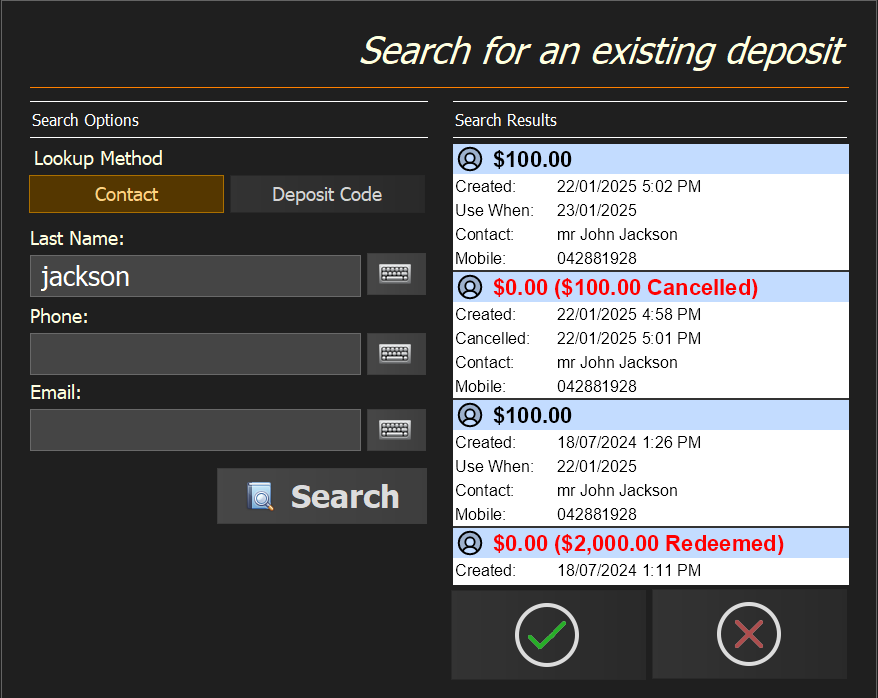
Select Redeem Deposit, enter the contact's details or the deposit code, and select Search to list that contact's deposits, past and future.
Step 20
Apply it
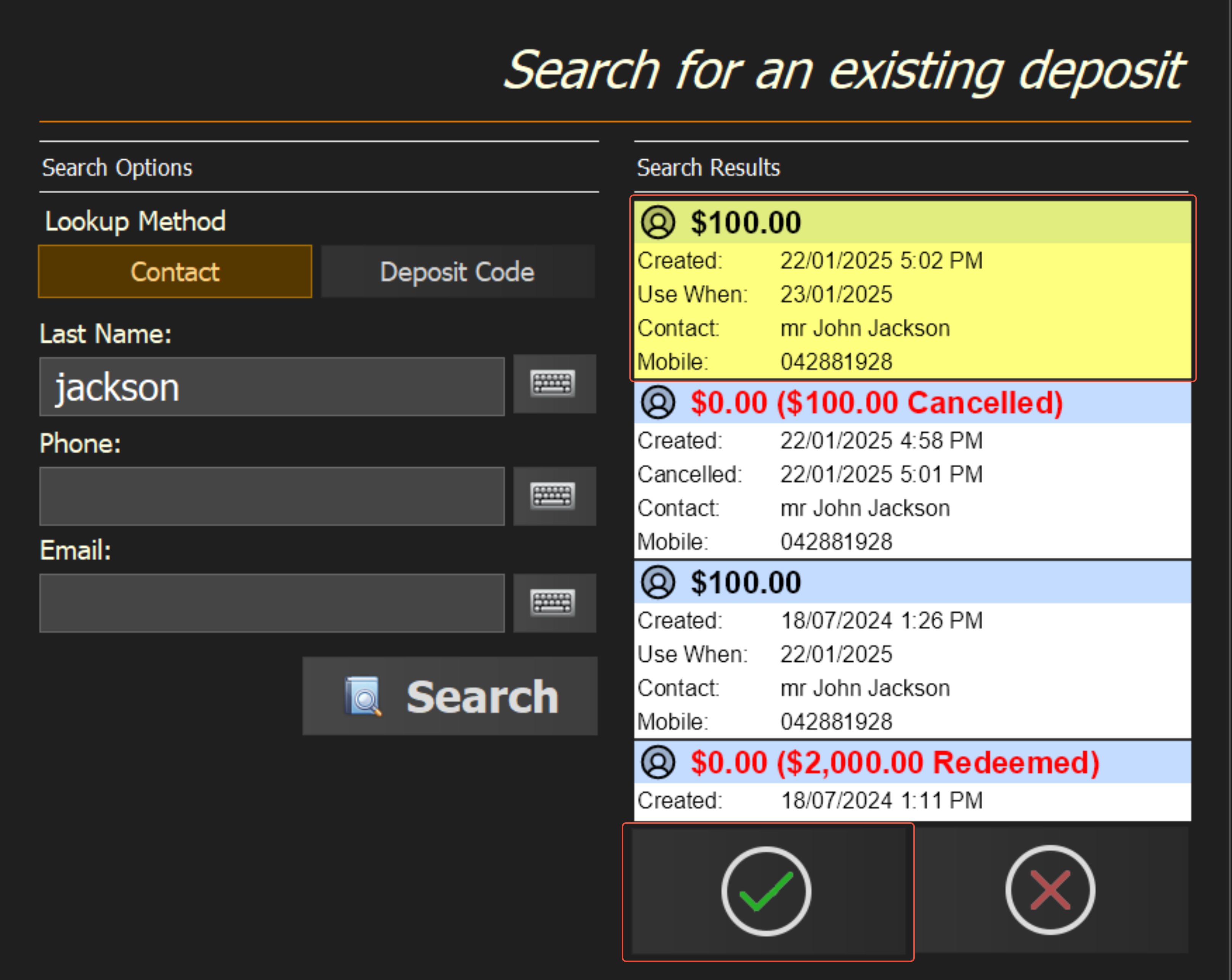
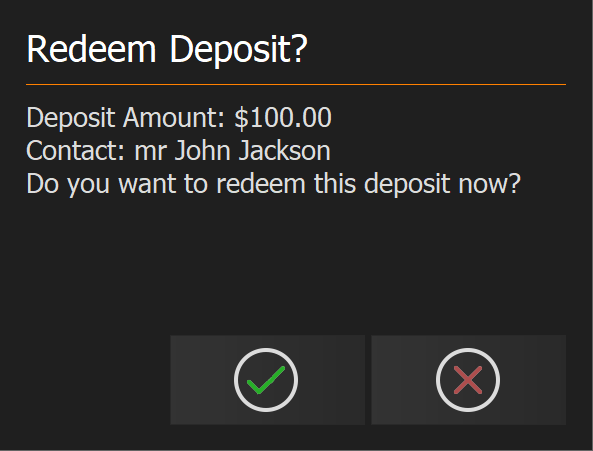
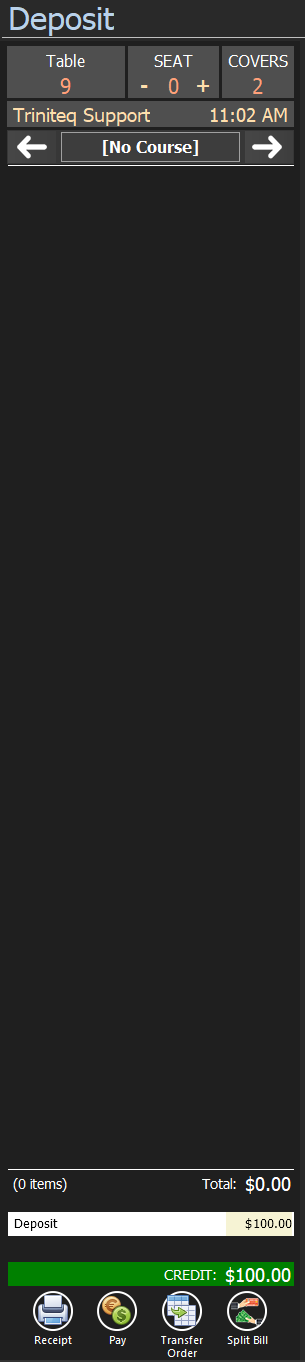
Select the deposit and the green tick to bring it onto the POS, then the green tick again to redeem it. It appears on the transaction as a payment, crediting the bill.
Step 21
Finish the sale
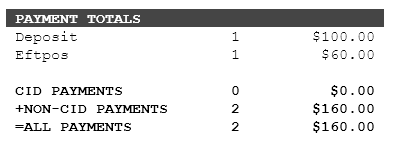
Carry on as normal. When the table closes, the guests only pay whatever the bill came to above the deposit, and the transaction records both payment methods.
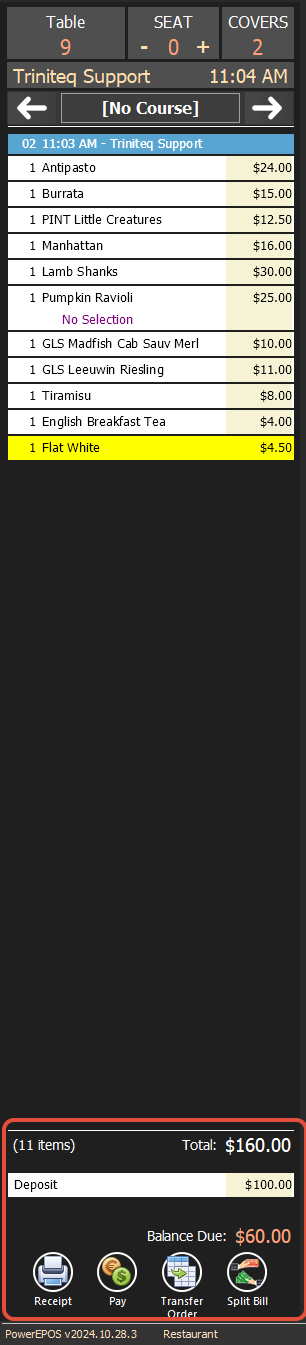
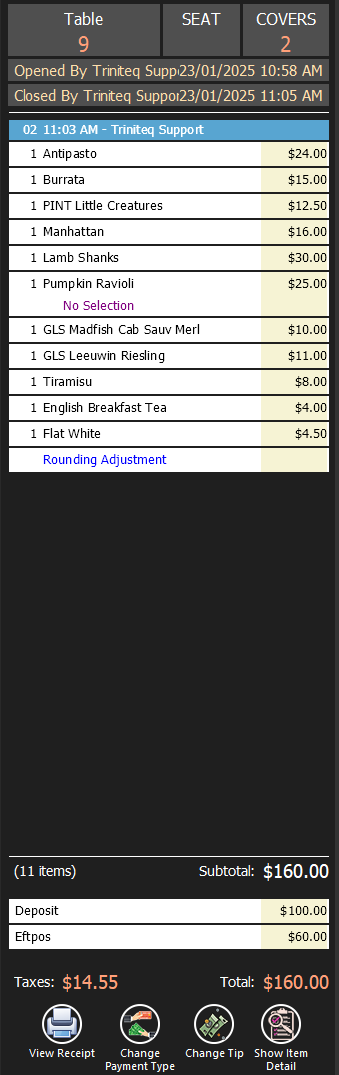
A redeemed deposit shows on that day's reports and counts towards the day's sales, because that is the day it paid for something.
Step 22
Need help?
Triniteq support
Our support team is here to help.
Call 1300 784 276 or email support@triniteq.com, and include your venue name so we can find your setup straight away.