
Using PowerEPOS · Guide
Setting up and using paid ins and paid outs
Create paid in and paid out types in System Manager, decide who may use them, and record money going into or out of the drawer on the POS.
PowerEPOS
Setting up and using paid ins and paid outs
Money in and out of the cash drawer
A paid in is money put into the cash drawer — a float, a deposit. A paid out is money taken out of it — petty cash, a drop to the safe. Recording them keeps the drawer reconcilable at the end of the day.
In this guide
- StartBefore you start
- Setting the types up in System Manager
- 1Open the paid in and out types
- 2Add a type
- 3Say which way it goes
- 4Set the flags and the permissions
- 5Save and publish
- Using it on the POS
- 6Open Paid Ins / Outs
- 7Pick the type
- 8Enter the transaction
- 9Need help?
Start
Before you start
- Access to PowerEPOS System Manager, for the setup.
- A decision about who may use the function: it is set by access role.
Setting the types up in System Manager
Step 1
Open the paid in and out types
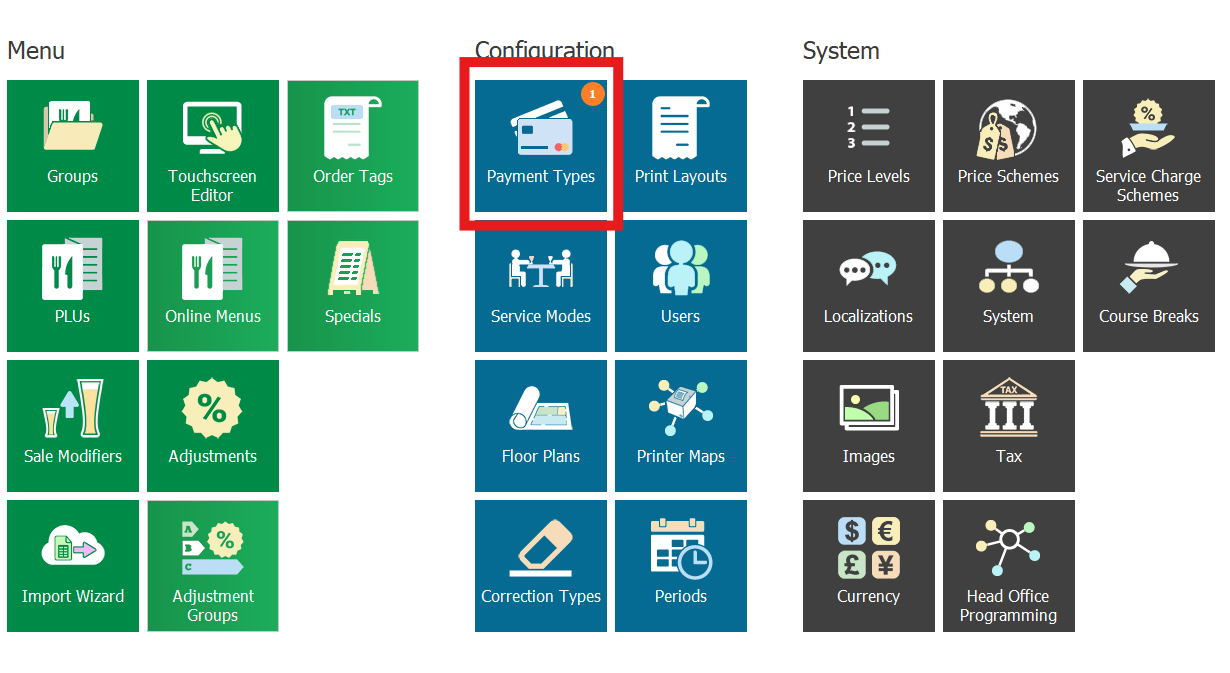
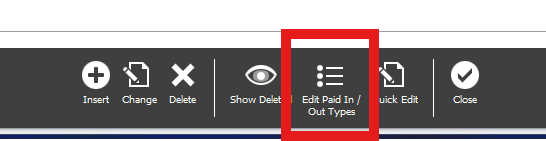
Go to the Payments section and choose Edit Paid In/Out Types.
Step 2
Add a type
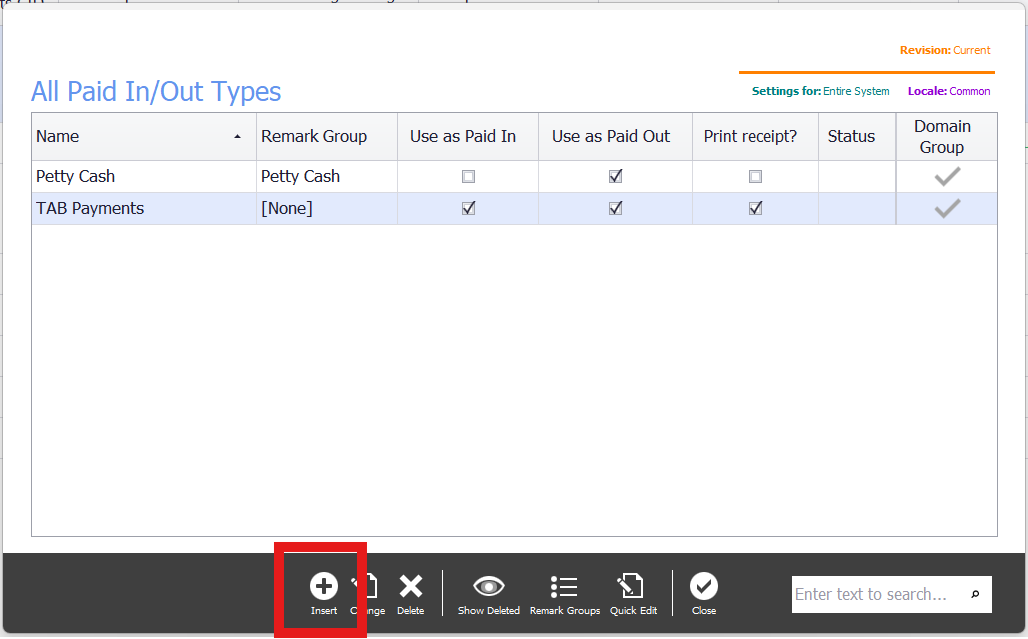
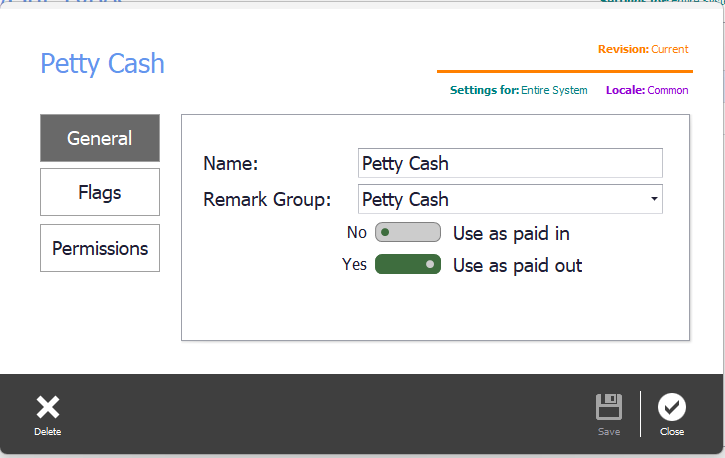
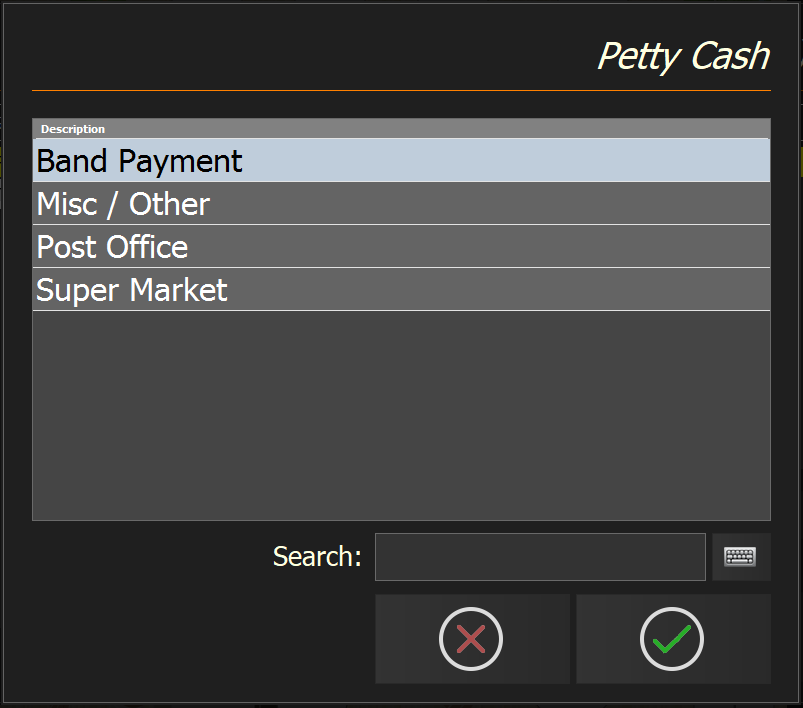
Click Insert and give the type a name — Petty Cash, say. The name is what appears in reports and on the POS. A Remark Group, if you set one, gives staff a list of reasons to pick from when they use it.
Step 3
Say which way it goes
Set the usage type to Paid In, Paid Out or Both.
Step 4
Set the flags and the permissions
Under Flags, decide whether a receipt prints automatically for each transaction — useful for the end-of-day check. Under Function Permissions, set which access roles may use it; take staff off it if only managers should.
Step 5
Save and publish
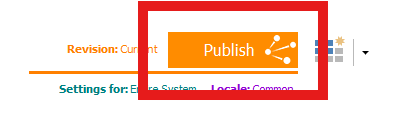
Save the changes and publish them, or the POS will not see them.
Using it on the POS
Step 6
Open Paid Ins / Outs
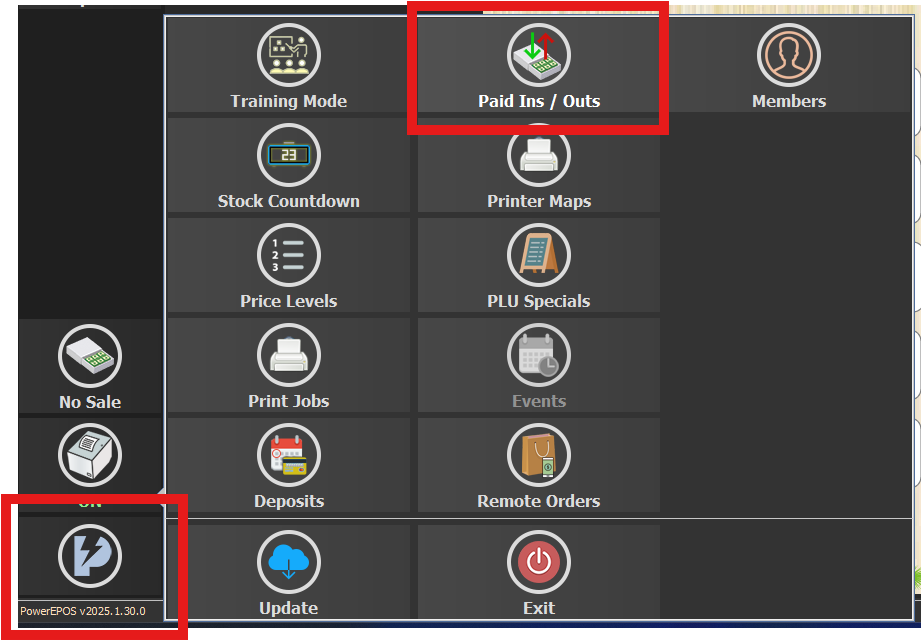
Press the PowerEPOS icon on the main screen and choose Paid Ins/Outs. The POS asks you to sign in if you have not.
Step 7
Pick the type
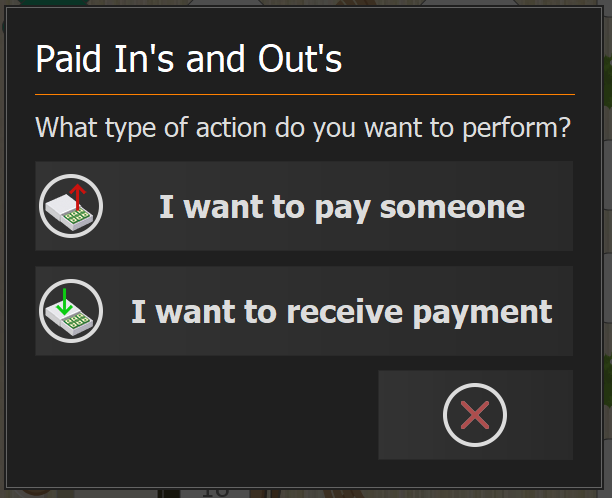
If more than one type is configured you are asked which. With only one, the POS skips straight past this.
Step 8
Enter the transaction
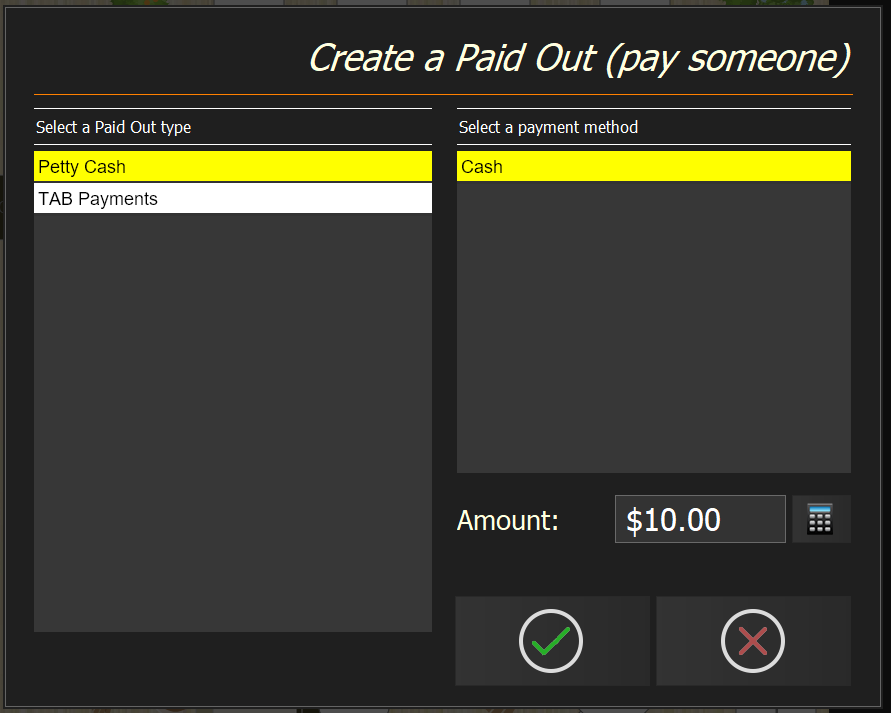
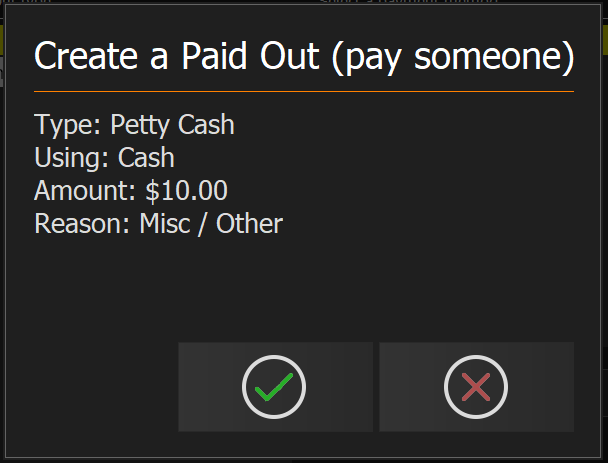
Choose the type on the left and the payment method on the right — only methods that affect the cash drawer are listed. Enter the amount, pick a reason if the type has a remark group, and confirm.
Step 9
Need help?
Triniteq support
Our support team is here to help.
Call 1300 784 276 or email support@triniteq.com, and include your venue name so we can find your setup straight away.