
System programming · Guide
Setting up floor plans
Build a floor plan in PowerEPOS that matches your venue: tables and service mode, shapes and images, table management colours, then assign it to the right POS terminal.
PowerEPOS
Setting up floor plans
Floor plans in PowerEPOS
A floor plan that matches the room tells staff at a glance where every table is up to. PowerEPOS builds one from your service mode, a background, shapes and images, and a set of colours for the stages of service — then you assign it to the POS terminal that stands in that part of the venue.
In this guide
- StartBefore you start
- Creating the floor plan
- 1Open the Floor Plan module
- 2Name it
- 3Give it a background
- Adding the tables
- 4Drag a service mode onto the plan
- 5Place and format each table
- Adding shapes and images
- 6Draw the fixed parts of the room
- 7Add images
- Table management colours
- 8Set a colour for each stage of service
- 9Preview and close
- Assigning the plan to a POS terminal
- 10Find the terminal
- 11Set its floor plan
- 12Publish to that outlet
- 13Need help?
Start
Before you start
- Access to the PowerEPOS Management Console.
- Your service modes already configured.
- Any background or decoration images loaded into the Graphics Library.
Creating the floor plan
Step 1
Open the Floor Plan module
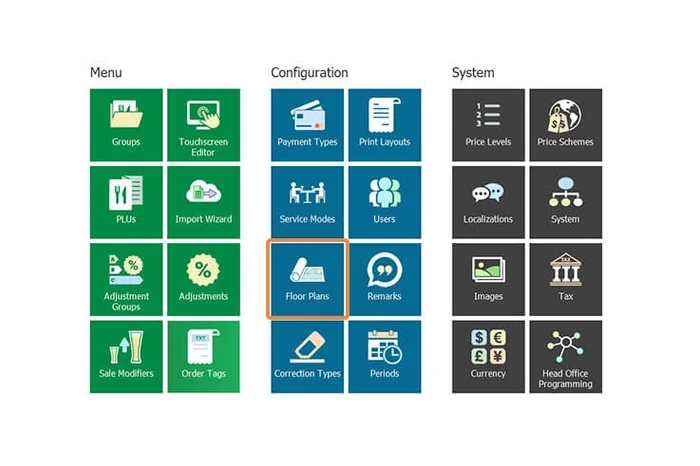
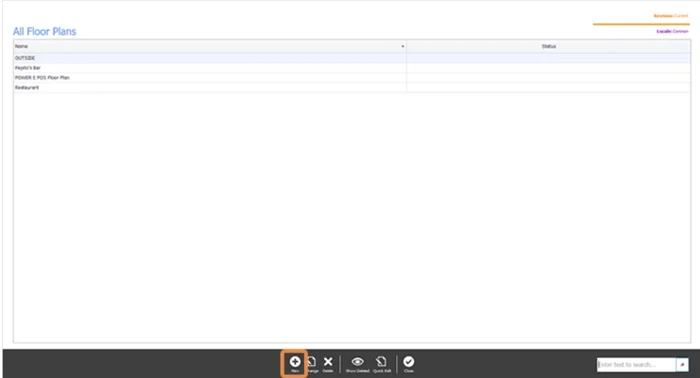
From the Management Console, select the Floor Plan tile, then New in the control panel at the bottom of the screen.
Step 2
Name it
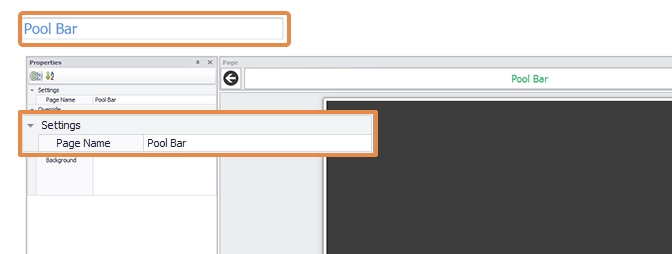
Give the floor plan a name — Restaurant in this example — in the name field at the top left of the screen and under Settings.
Step 3
Give it a background
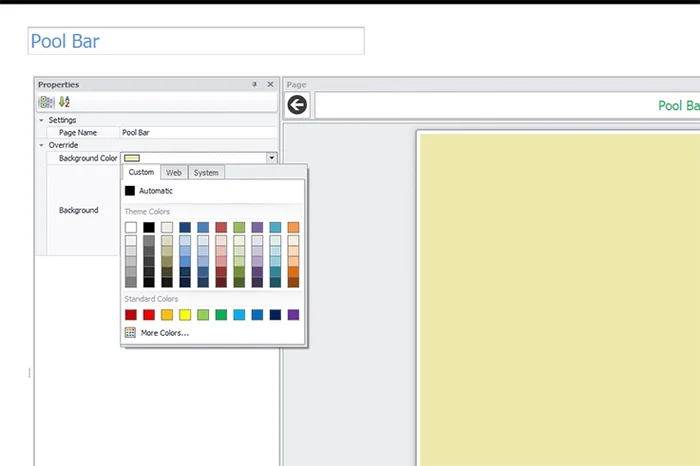
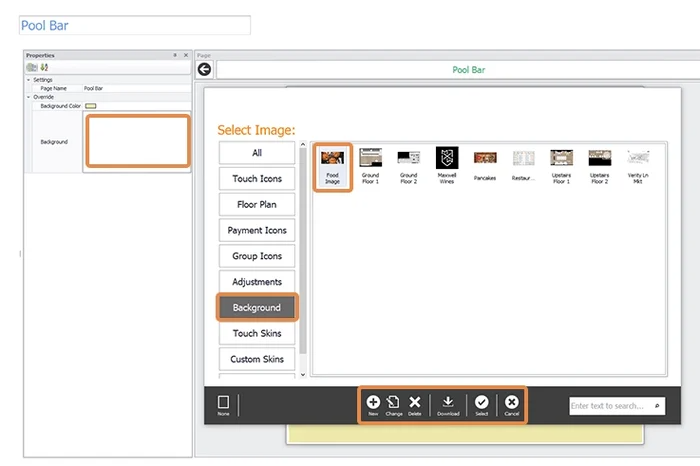
For a plain colour, make sure Page Settings is selected in the control panel, then pick the colour in the Properties panel.
For an image instead, click into the Background field to open the Graphics Library and double-click the image, or use the buttons in the control panel.
Adding the tables
Step 4
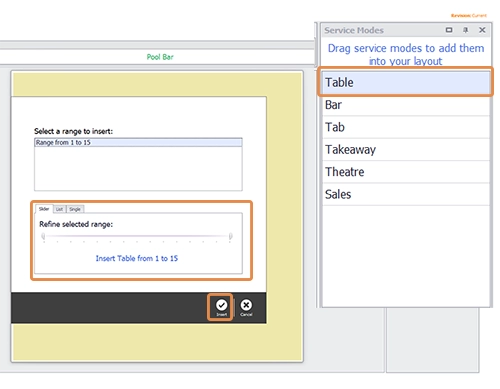
Drag a service mode onto the plan
The service modes you have already configured sit in the Service Mode panel at the top right. Drag Table onto the floor plan and the Table Range window opens. Select Insert to add the whole range — 15 tables here — or use the slider or the list first to add fewer.
Step 5
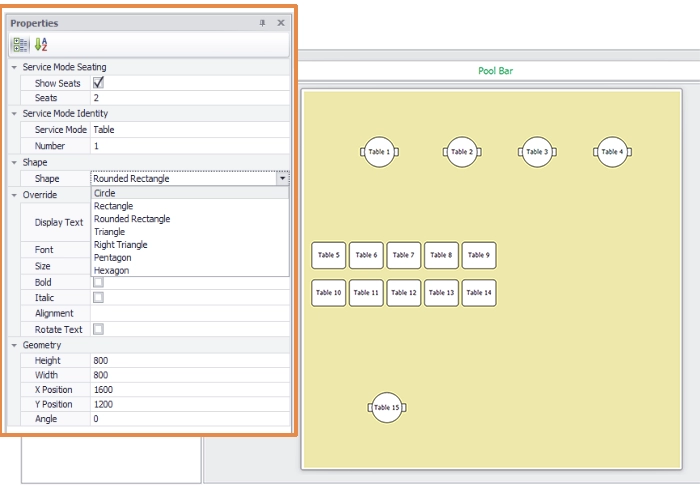
Place and format each table
Drag the tables into the positions they stand in. Select one and use Properties to change its size, shape and number, add seats and change the text, until the plan matches the room.
Adding shapes and images
Step 6
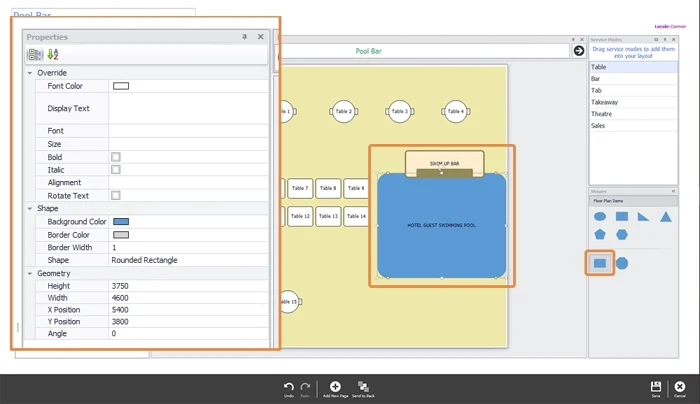
Draw the fixed parts of the room
From the shapes panel at the bottom right, drag a rectangle onto the plan and use the handles to resize and reshape it — two rectangles make the swim-up bar in this example. Properties changes a shape's colour and adds text to it.
Step 7
Add images
Select Insert Image in the control panel to open the Graphics Library, find your image and double-click it, or use the control panel buttons. Once it is on the plan you can resize and move it.
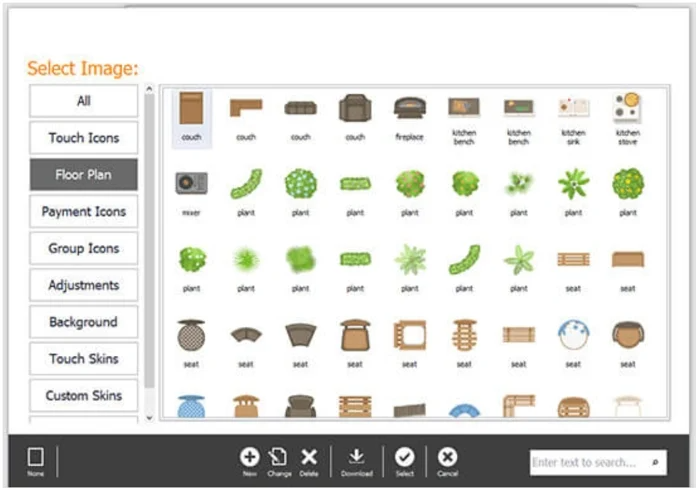
Add every image from the Graphics Library
Copying and pasting an image inside the floor plan looks as though it works, but the image's properties do not come with it and the pasted copy will not be saved. Insert each one from the Graphics Library.
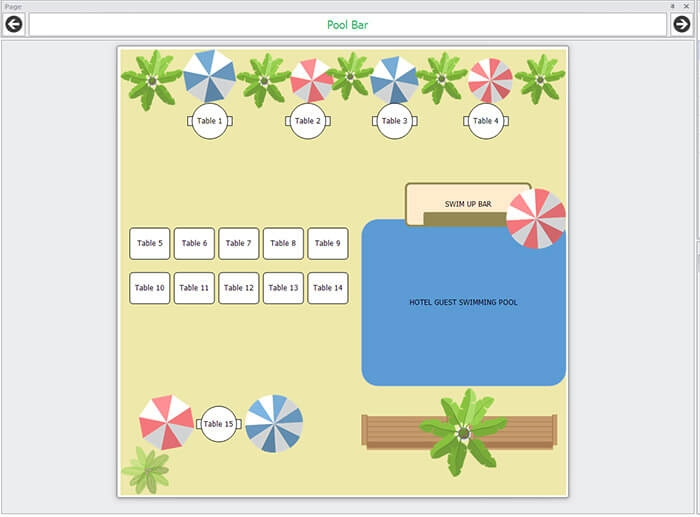
Table management colours
Step 8
Set a colour for each stage of service
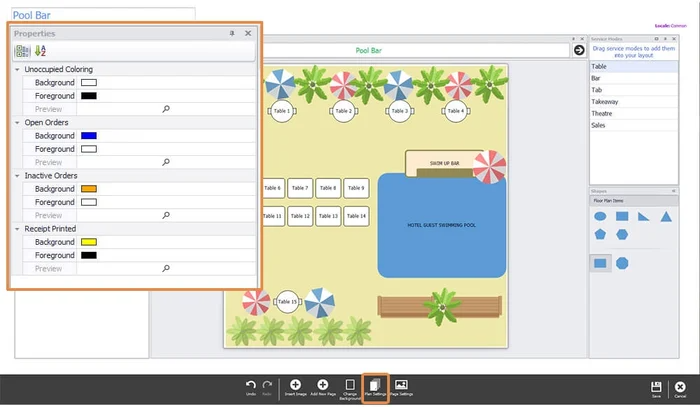
Select Plan Settings in the control panel to open the Table Management properties. Choose the colours that mean unoccupied, an open order, an inactive order, and a printed receipt with the table ready to be cleared.
Step 9
Preview and close
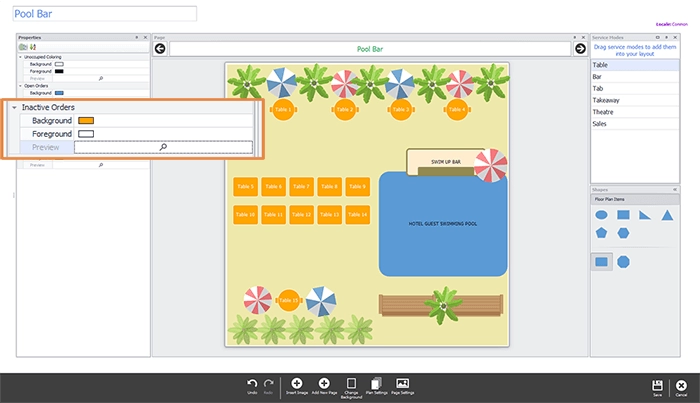
Select Preview to see the colour scheme on the plan. When you are happy, select Save and Close to leave the floor plan builder, then Close to leave the module and return to the Management Console.
Assigning the plan to a POS terminal
A floor plan belongs to a terminal, because a terminal stands in one part of the venue. Until you assign it, the plan is not on any POS.
Step 10
Find the terminal
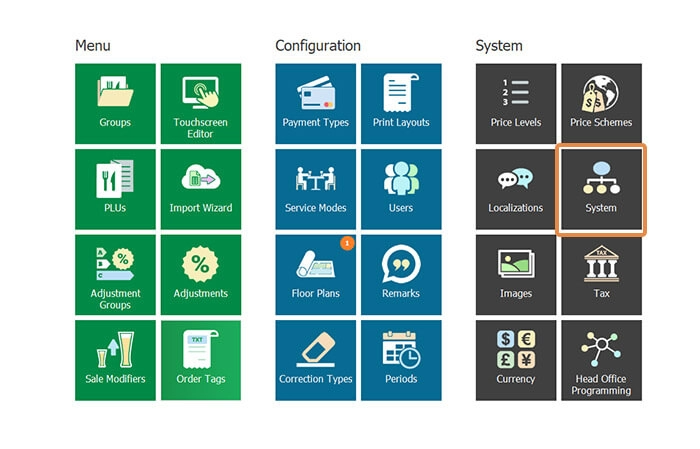
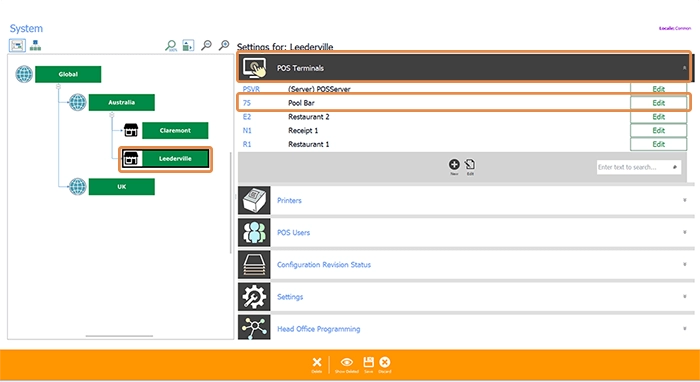
From the Management Console select the System tile. Choose the outlet — Leederville here — then POS Terminals, find the terminal (Pool Bar) and select Edit.
Step 11
Set its floor plan
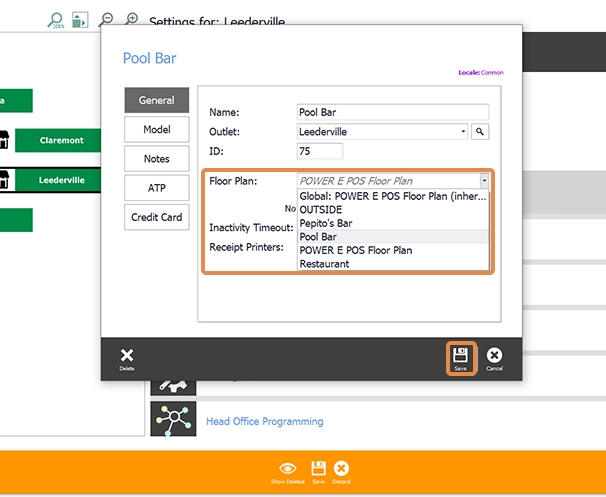
In the POS Terminal Configuration window, find the Floor Plan drop-down, choose your plan and select Save. Then Save and Close to leave the System module.
Step 12
Publish to that outlet
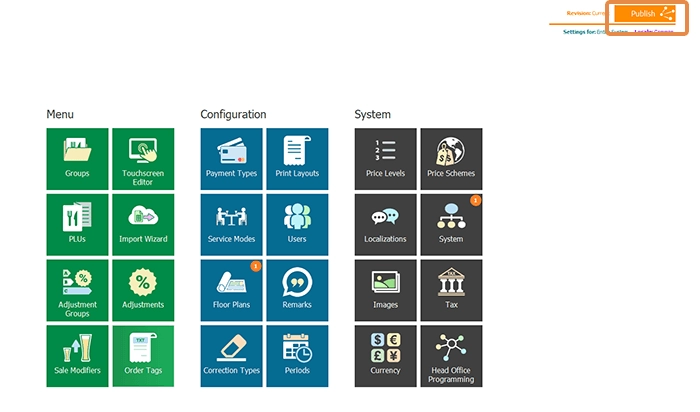
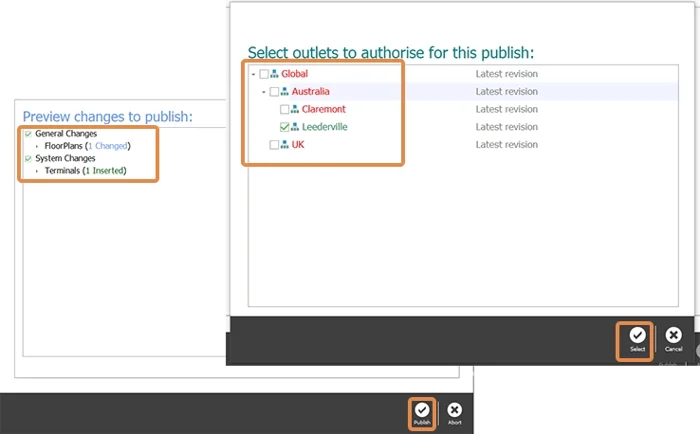
Select Publish at the top right of the screen, check the changes, and make sure only the outlet you mean — Leederville here — is ticked. When it finishes you get a Complete message with a revision number, which the Revision Management Tool can wind the change back by.
Step 13
Need help?
Triniteq support
Our support team is here to help.
Call 1300 784 276 or email support@triniteq.com, and include your venue name so we can find your setup straight away.