
System programming · Guide
Setting up POS screens
Build touchscreen pages in PowerEPOS: page types, a new standard ordering page, shortcut and emulated buttons, display groups, size buttons, large buttons, graphics and individual PLUs.
PowerEPOS
Setting up POS screens
The Touchscreen Editor
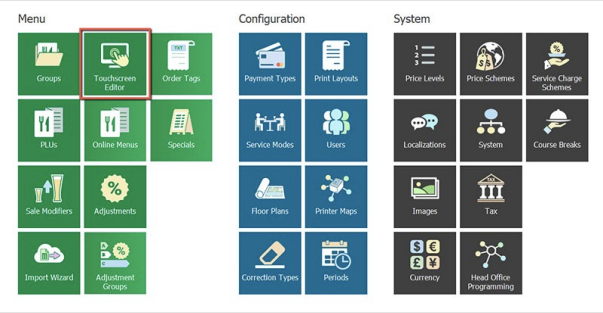
POS screens are built in the Touchscreen Editor, from the Menu section of the POS Management screen. A good screen is one staff barely have to think about, so it is worth planning the layout before you start placing buttons.
In this guide
- StartBefore you start
- Ten principles for an efficient screen
- The three page types
- Creating a standard ordering page
- 1Insert the page
- 2Name it and size it
- Adding a shortcut button to the page
- 3Open the Base Template
- 4Point it at the new page
- 5Copy the category buttons onto the new page
- 6Choose the page to emulate
- Adding a display group of PLUs
- 7Drop a whole group onto the page
- Adding size or quantity buttons
- 8Build each size button
- Making a large button
- 9Merge buttons together
- Adding graphics
- 10Put a logo or icon on a button
- Adding one PLU at a time
- 11Drag a single PLU onto a button
- 12Need help?
Start
Before you start
- Access to the Touchscreen Editor from the POS Management screen.
- Your PLUs created and grouped — see our guide on creating PLUs.
- Your sizes set up in Sales Modifiers, if you want size buttons.
Ten principles for an efficient screen
- Build the system to work in the fewest keystrokes or button presses.
- Make high-use buttons easy to find.
- Put high-selling items where they are easy to reach, and lower-selling ones on category screens or in drop-down lists.
- Test thoroughly, so every screen leads to the next one.
- Do not clutter a screen with too many buttons.
- Make the font big enough to read, and a colour that stands out.
- Make buttons big, so items are easier to hit.
- Use images only where they genuinely help.
- Use features that improve the experience, such as customer-facing displays.
- Build in as many chances to upsell and cross-sell as you can, using POS prompts to suggest sides and complementary products.
The three page types
Sign in to PowerEPOS and open the Touchscreen Editor from the Menu section of the POS Management screen to see your existing pages.
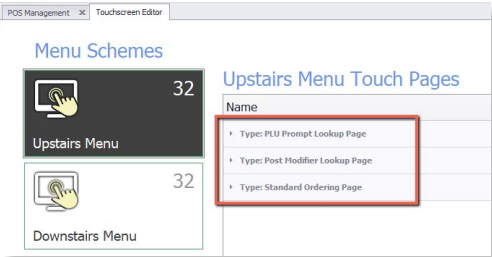
There are three kinds of page you can create.
- PLU Prompt Lookup Page — the page you are taken to when a PLU needs more information, such as cooking instructions for a steak.
- Post Modifier Lookup Page — options offered after the PLU is selected, such as bottle or glass for wine.
- Standard Ordering Page — a menu page of PLU buttons.
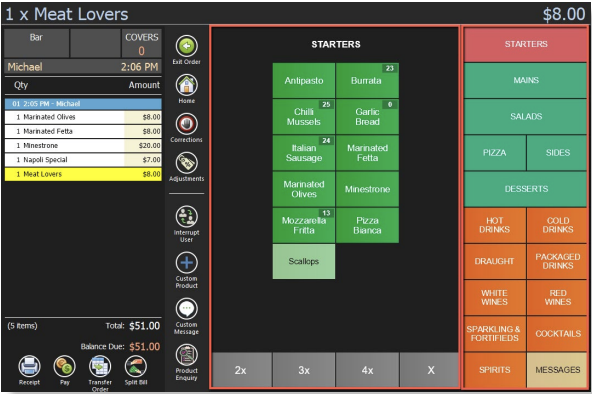
Most standard ordering pages follow the same layout, though you can change it: two columns of category buttons down the right-hand side as menu page shortcuts, and the centre given over to PLUs and modifiers.
Creating a standard ordering page
Step 1
Insert the page
In the Touchscreen Editor, select Insert from the toolbar.

Step 2
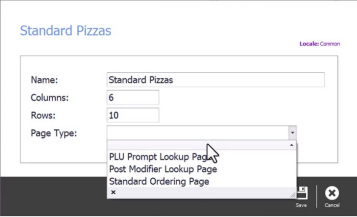
Name it and size it
Enter the page name and the number of columns and rows, select Standard Ordering Page, and select Save. Six columns by ten rows is the standard layout.
Adding a shortcut button to the page
Step 3
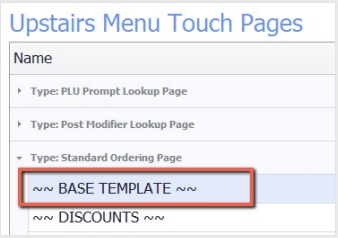
Open the Base Template
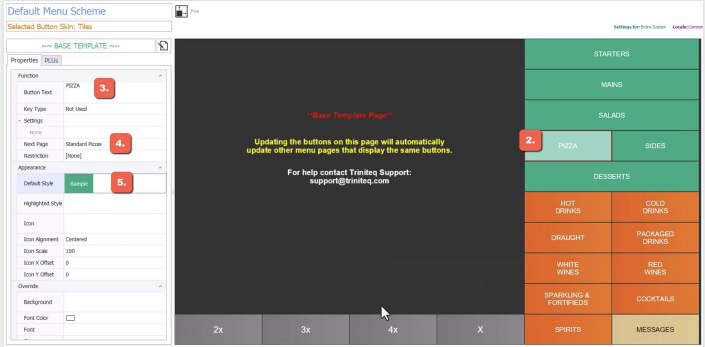
Double-click the Base Template page to open it, then select the button you want to use.
Step 4
Point it at the new page
Under Properties on the left, put the page name in Button Text, choose your new page in Next Page, pick a Default Style, and select Save.
To test it, right-click the button and select Follow — it should open the new page.
Step 5
Copy the category buttons onto the new page
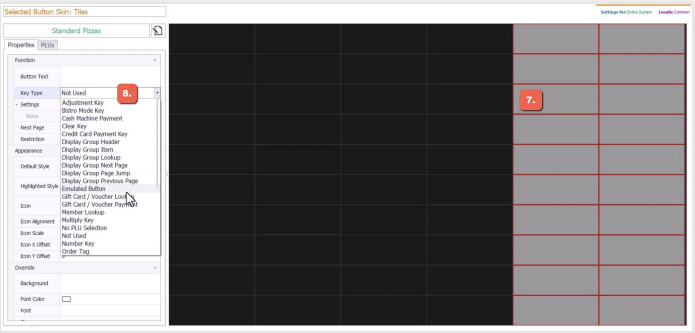
On the new page, click and drag to highlight two columns of buttons down the right. In Key Type, select Emulated Button.
Step 6
Choose the page to emulate
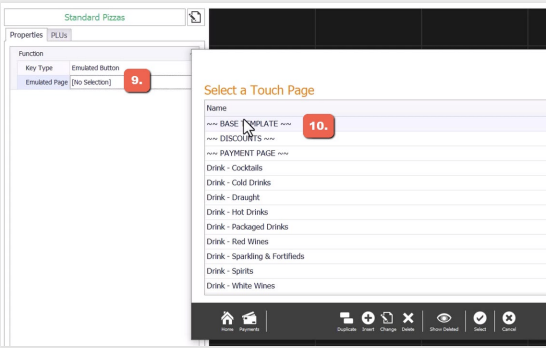
Click into Emulated Page and double-click the Base Template you added the button to. The shortcut buttons are copied down the right-hand side.
Adding a display group of PLUs
Step 7
Drop a whole group onto the page
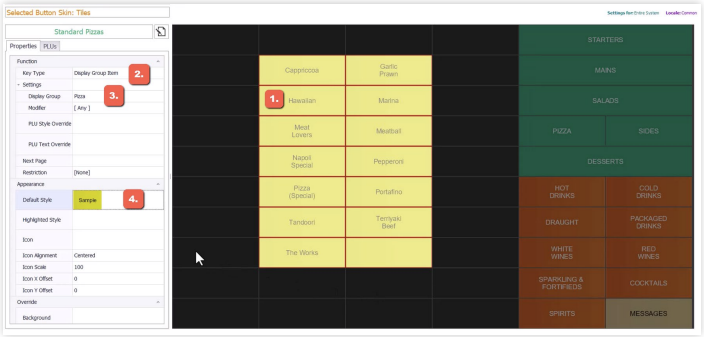
Click and drag to highlight the buttons that will receive the PLUs. In Key Type select Display Group Item, then in Display Group select the group — every PLU in it lands on the page at once.
Set the button colour and font in Default Style. Note that this styles the PLU rather than the button, so removing the PLU removes the style with it.
Adding size or quantity buttons
Sizes come from Sales Modifiers on the POS Management screen, and are attached to PLUs as those PLUs are created.
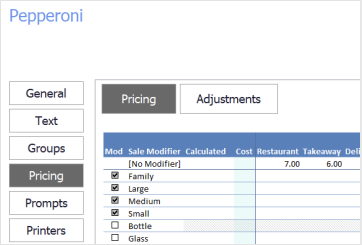
Decide whether staff should press the modifier before or after the PLU, and set Key Type to match:
- Sale Pre Modifier Key — the modifier is chosen before the PLU button.
- Sale Post Modifier Key — the modifier is chosen after the PLU button.
Step 8
Build each size button
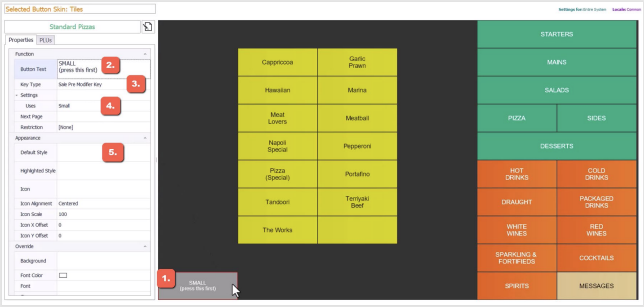
Highlight the button. In Button Text put the size, plus a short reminder of the order to press things in. Set Key Type to Sale Pre Modifier Key, and in Uses select the size. Repeat for the rest of the buttons, then highlight them all together and give them a Default Style.
Making a large button
Step 9
Merge buttons together
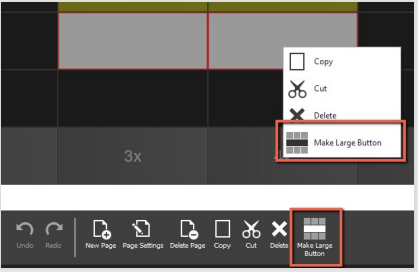
Click and drag to select the buttons you want merged, then either choose Make Large Button from the toolbar, right-click and select it from the options, or press Ctrl+M. Add the button text, default style and key type as needed.
Adding graphics
Step 10
Put a logo or icon on a button
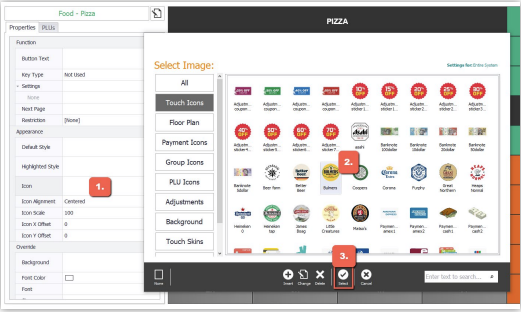
Graphics make a button easier to pick out. Highlight the button, select Icon to open the Graphics Library, and double-click the graphic — or highlight it and select Select from the toolbar.
Adding one PLU at a time
Step 11
Drag a single PLU onto a button
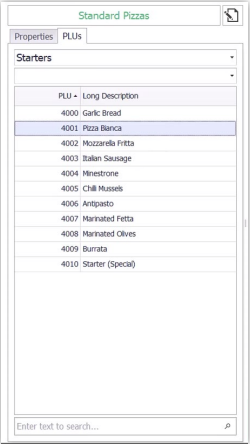
Go to the PLUs tab. Find the PLU in the list, by choosing its group from the drop-down, or with the search field. Drag it onto the button, then give the button a Default Style.
Step 12
Need help?
Triniteq support
Our support team is here to help.
Call 1300 784 276 or email support@triniteq.com, and include your venue name so we can find your setup straight away.