
System programming · Guide
Setting up service modes
Create a service mode in PowerEPOS, set its prefixes, price level and methods, add table ranges and flags, and publish it to the POS.
PowerEPOS
Setting up service modes
Service modes in PowerEPOS
A service mode is how a particular style of service behaves on the POS: what it is called on each screen, which price level it uses, whether covers and seat numbers are compulsory, and what happens to dockets, receipts and orders left sitting. This guide builds a table service mode from scratch.
In this guide
- StartBefore you start
- Creating the service mode
- 1Open the Service Mode module
- 2Start a new one and name it
- The prefixes
- Price level and methods
- 3Choose the price level
- 4Set the cover method
- 5Set the seat method
- 6Set the kitchen printer method
- 7Set the receipt method
- 8Set the inactivity method
- Table ranges
- 9Open Ranges
- 10Enter the range
- 11Save and test it
- Flags
- 12Set the flags and save
- Publishing to the POS
- 13Publish
- 14Keep the revision number
- 15Need help?
Start
Before you start
- Access to the PowerEPOS Management Console.
- Your price levels already set up.
- The table numbers you use, if this is a table service mode.
Creating the service mode
Step 1
Open the Service Mode module
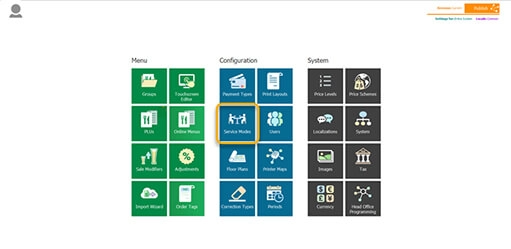
From the PowerEPOS Management Console, select Service Modes.

Step 2
Start a new one and name it
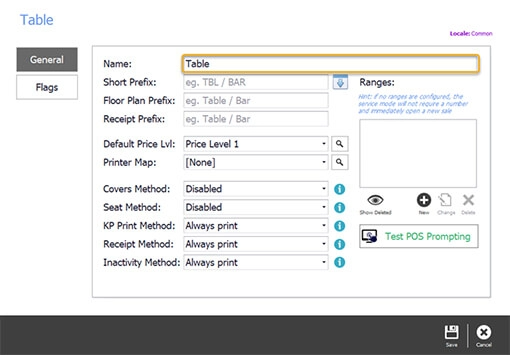
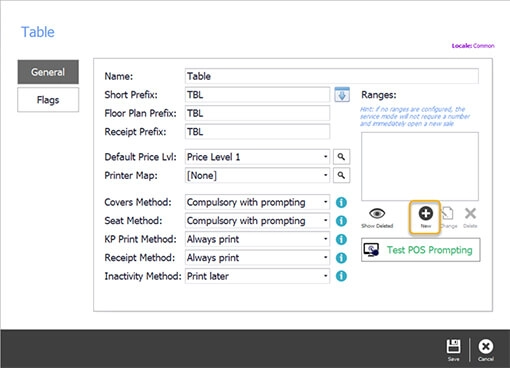
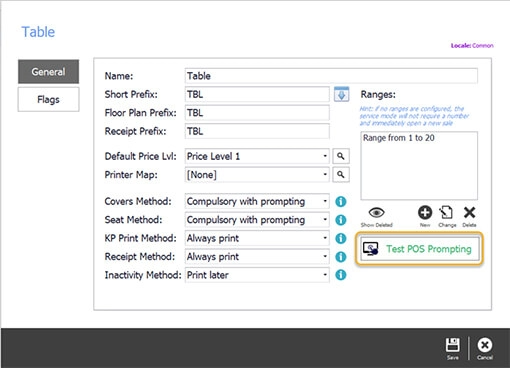
Select New at the bottom right of the control panel, then enter the name — Table, short for table service, in this example.

The prefixes
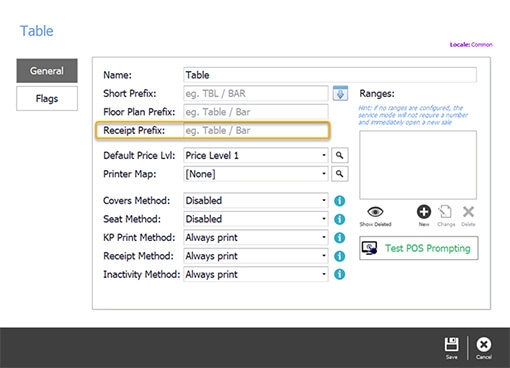
The service mode appears in three places, each with its own prefix.
- Short prefix — shown on the right of the ordering screen.
- Floor plan prefix — shown on the floor plan screen.
- Receipt prefix — printed on the receipt or docket.
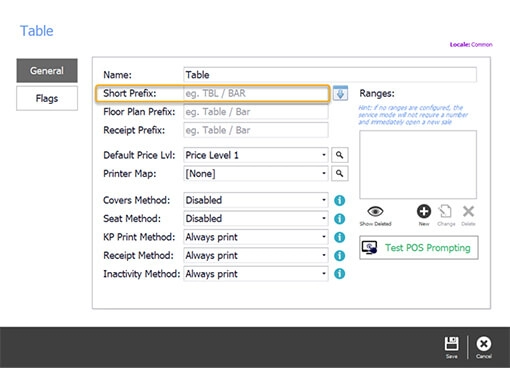
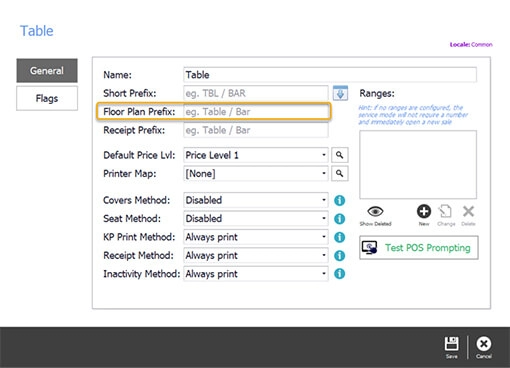
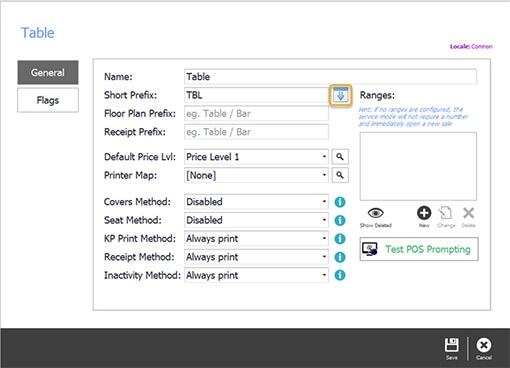
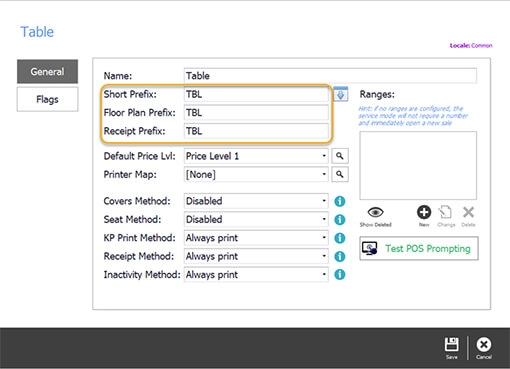
Where the same name works for all three, type the short prefix and select the down arrow on the right to copy it into the rest.
Price level and methods
Step 3
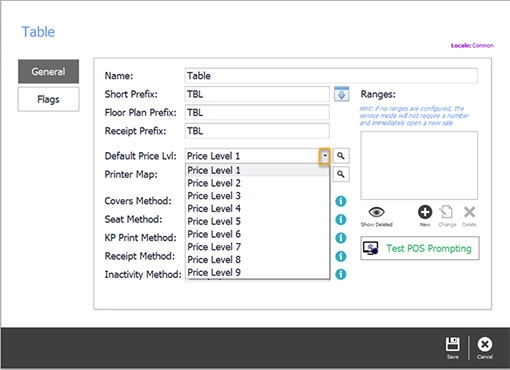
Choose the price level
Use the drop-down on the right to pick the price level this service mode charges at. Price level 1 is the default here, which is dine-in prices.
Step 4
Set the cover method
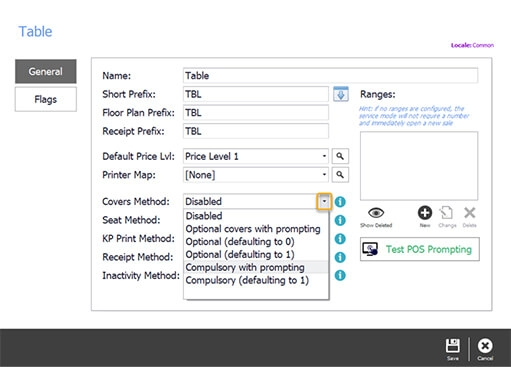
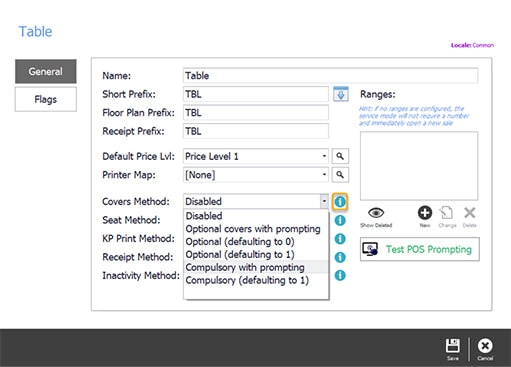
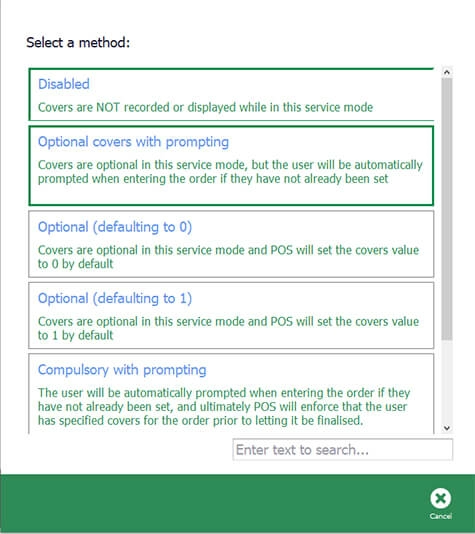
Compulsory with prompting means staff cannot start ordering until they have entered the covers. Select the i icon on the right to read what each of the other methods does.
Step 5
Set the seat method
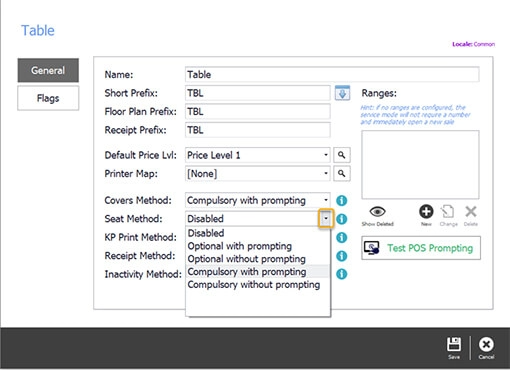
The seat method decides whether a seat number is needed on an order. Compulsory with prompting means the seat numbers go in before the order can be placed.
Step 6
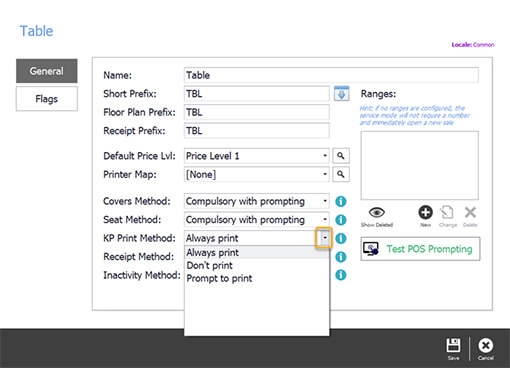
Set the kitchen printer method
The KP Print Method tells the kitchen printer what to do. Always print sends every order docket to the kitchen as it is completed.
Step 7
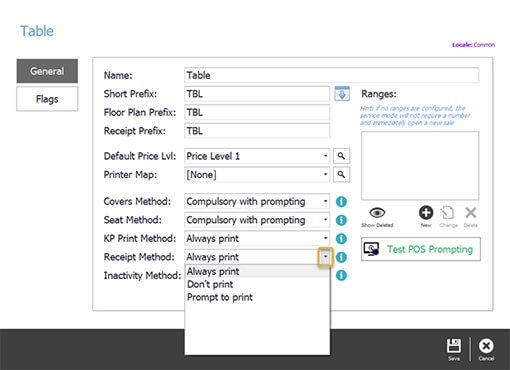
Set the receipt method
The Receipt Method decides whether a receipt prints when an order is finished. For table service, always print suits a venue that presents the bill to the table in a folder.
Step 8
Set the inactivity method
The Inactivity Method decides what happens to an order left sitting. Print later holds it so the whole order goes to the kitchen together.
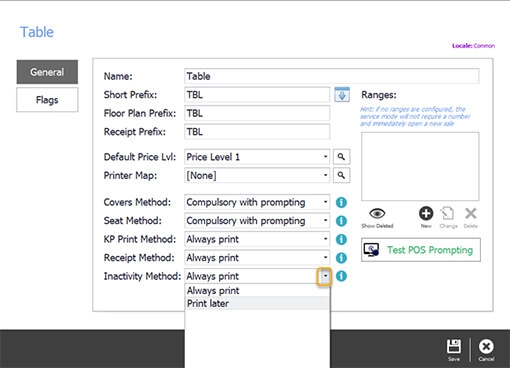
Table ranges
Step 9
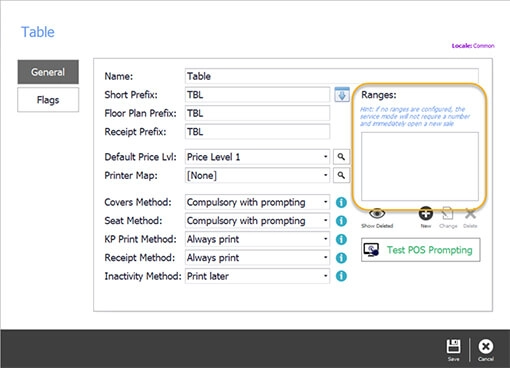
Open Ranges
Ranges, on the right, is where the table numbers go. Select New below the Ranges field.
Step 10
Enter the range
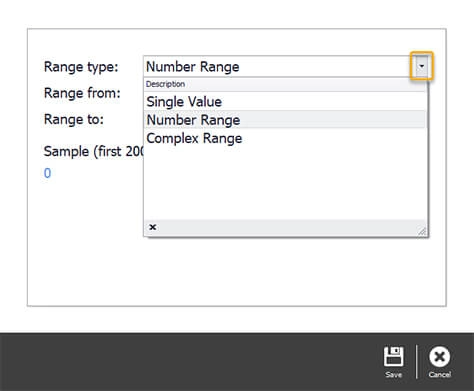
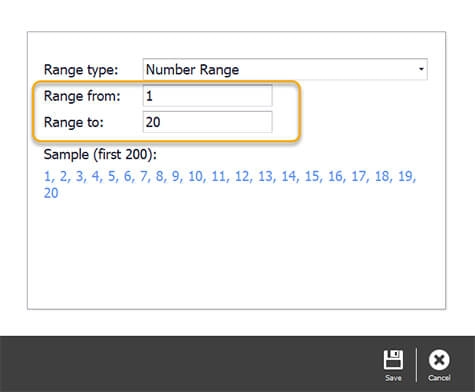
In the Ranges window, set the range type with the drop-down on the right — Number Range, for table numbers — then enter the range itself. Twenty tables means 1 to 20.
Step 11
Save and test it
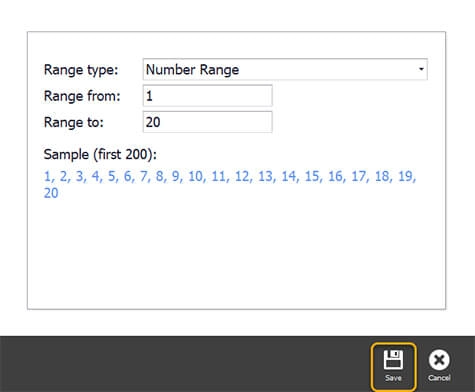
Select Save at the bottom right. You come back to the service mode window with the range listed. Select Test POS Prompting at the bottom to see how the ranges will look on the POS screen.
Flags
Step 12
Set the flags and save
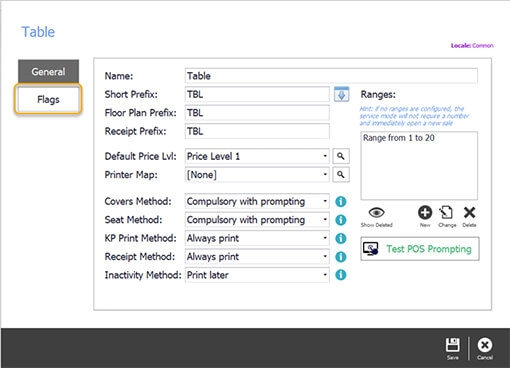
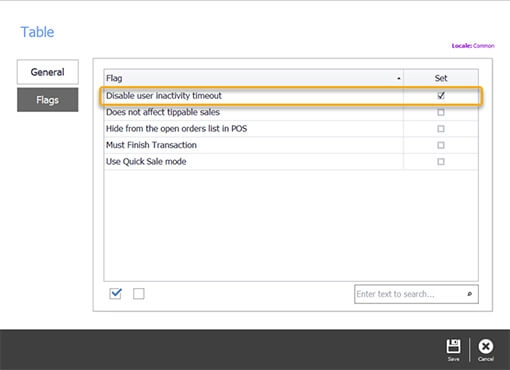
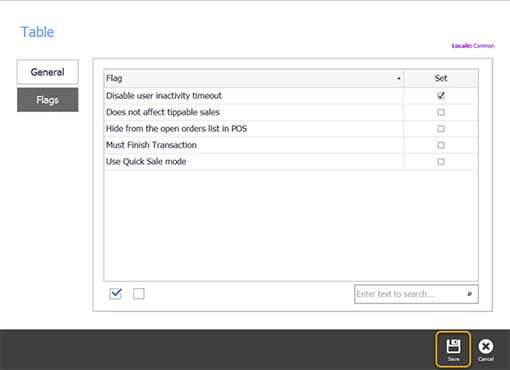
Select Flags on the left of the service mode window. For table service, tick disable used inactivity timeout on the right so orders are not timed out before they are finished. Then select Save in the control panel.
Publishing to the POS
Step 13
Publish
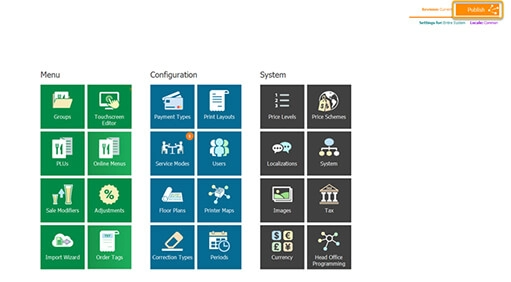
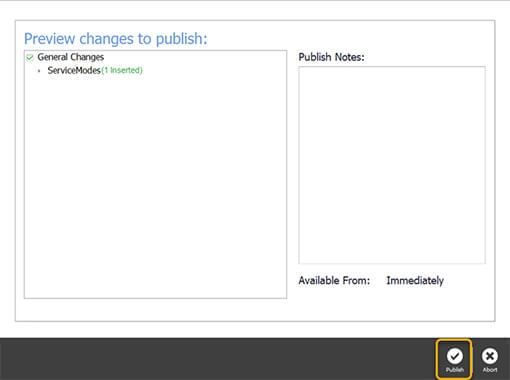
The orange marker on the Service Modes tile shows there are settings waiting. Select Publish at the top right, check the changes and the outlets, clear anything you are not ready to send, and publish.
Step 14
Keep the revision number
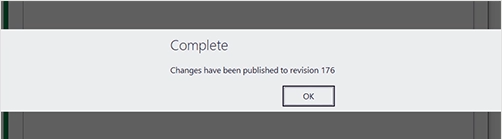
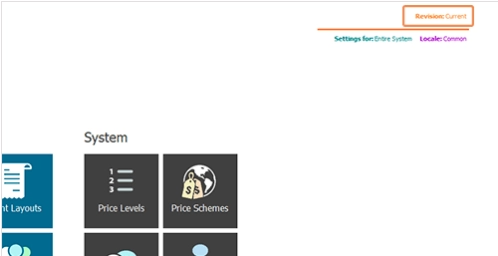
The Complete message carries a revision number, which the Revision Management Tool works from. It takes the Publish button's place at the top right of the screen.
Step 15
Need help?
Triniteq support
Our support team is here to help.
Call 1300 784 276 or email support@triniteq.com, and include your venue name so we can find your setup straight away.