
Using PowerEPOS · Guide
Using Bistro Mode
Set Bistro Mode to run on every order or to be switched on with a button, prompt for a table number, batch several customers' orders onto one kitchen docket, and put an order on hold.
PowerEPOS
Using Bistro Mode
Batching counter orders onto one docket
Bistro Mode is for ordering and paying at the bar or counter. Where several customers from one table order separately, it holds the items back from the kitchen and bar printers until everyone has ordered, then sends them as one docket. Some venues run it on every order; others switch it on with a button. This covers both.
In this guide
- StartBefore you start
- Putting every order in Bistro Mode
- 1Open Service Modes
- 2Turn Bistro Mode on for the mode
- 3Publish
- Asking for the table number
- 4Open Order Tags
- 5Add the table number tag
- 6Set its flags
- 7Attach it to the service mode
- 8Publish
- Taking an order with Bistro Mode always on
- 9Start the order
- 10Enter the table number
- 11Take the first customer's order
- 12Choose Add more
- 13Take the next order
- 14Finish the table
- Switching Bistro Mode on with a button
- 15Open the touchscreen editor
- 16Open the payment page
- 17Add the Bistro Mode button
- 18Add a table number button
- 19Publish
- Taking an order with the button
- 20Turn it on as you take the order
- 21Finish the table
- 22Turn it off again
- Putting an order on hold
- 23Allow unfinished transactions
- 24Start the table and leave it
- 25Choose to hold it
- 26Come back to it
- 27Need help?
Start
Before you start
- Access to PowerEPOS System Manager, for everything in the first half.
- The service mode the venue takes counter orders in — Counter, in the examples here.
Putting every order in Bistro Mode
Step 1
Open Service Modes
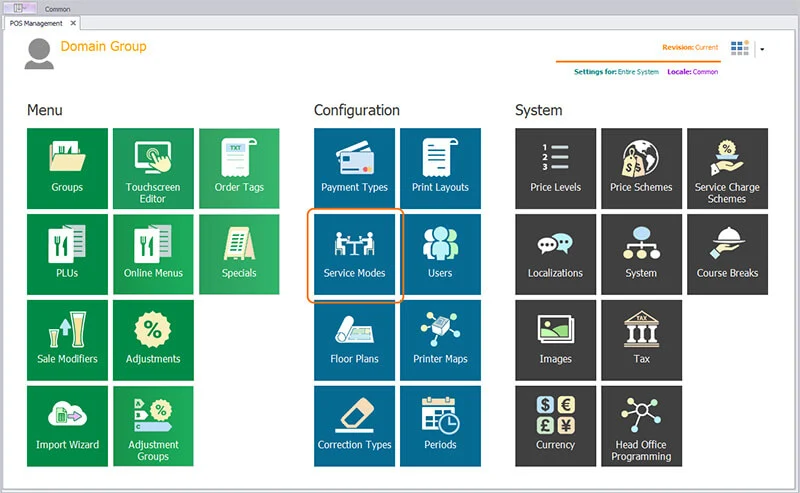
From the POS Management screen, open Service Modes.
Step 2
Turn Bistro Mode on for the mode
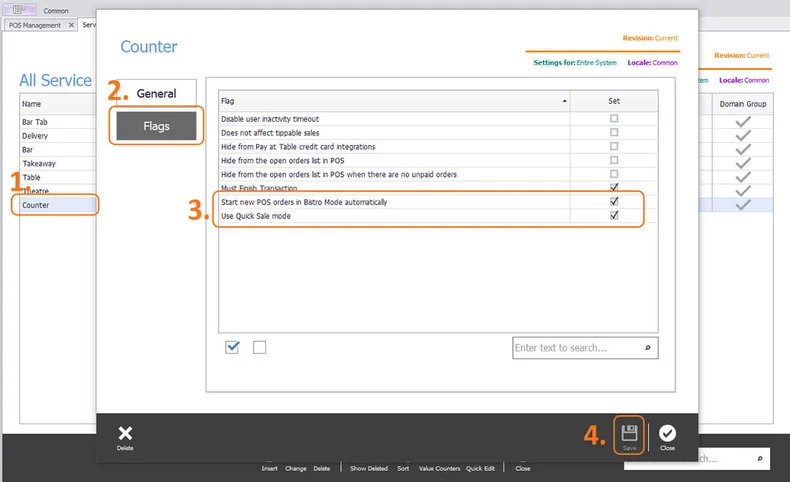
Open the service mode — Counter here — and go to Flags. Tick Start new POS orders in Bistro Mode automatically and Use Quick Sale mode, then save and close.
Step 3
Publish
Back on the POS Management screen, press Publish at the top right. Every order now starts in Bistro Mode, and the order screen resets into Bistro Mode after each one is sent to production.
Asking for the table number
A table number is usually needed to know where the food goes. An order tag prompts for it before the order is taken.
Step 4
Open Order Tags
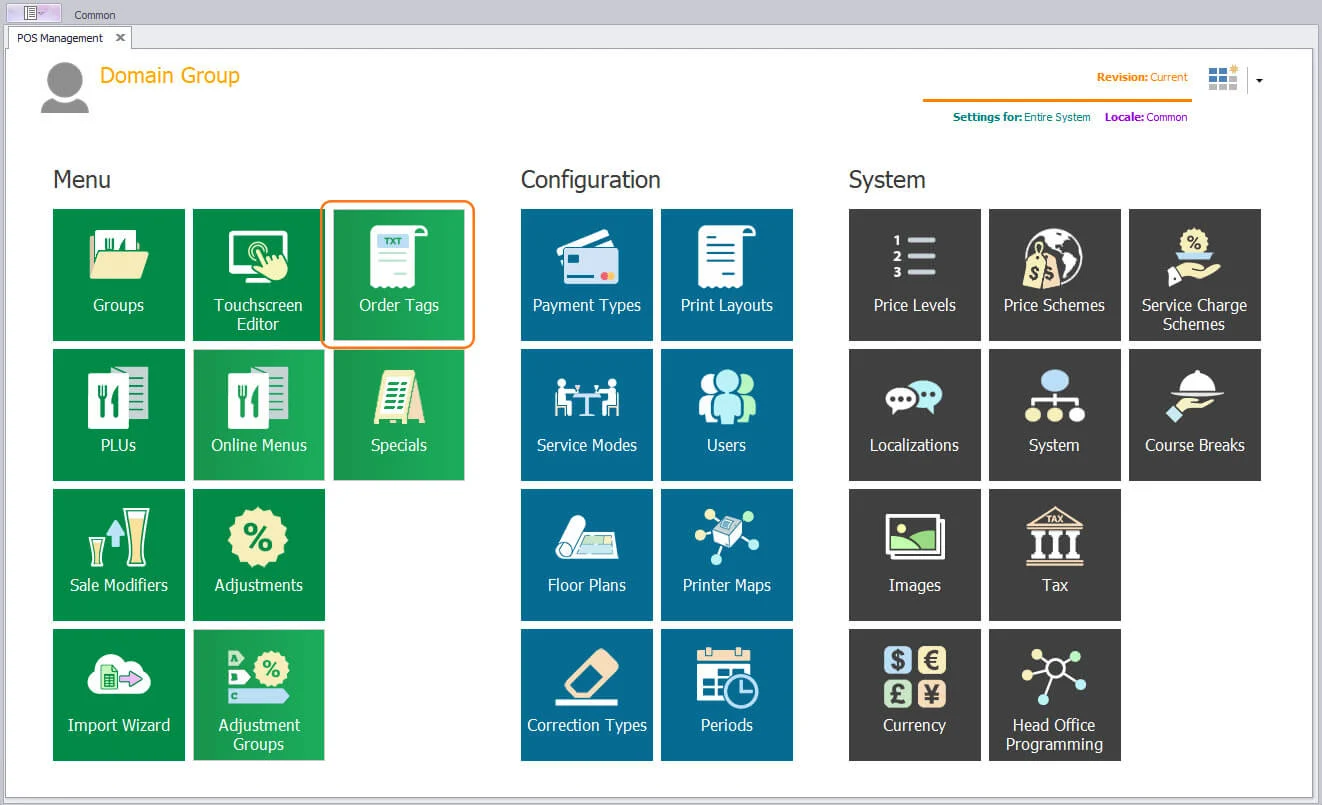
From the POS Management screen, open Order Tags.
Step 5
Add the table number tag
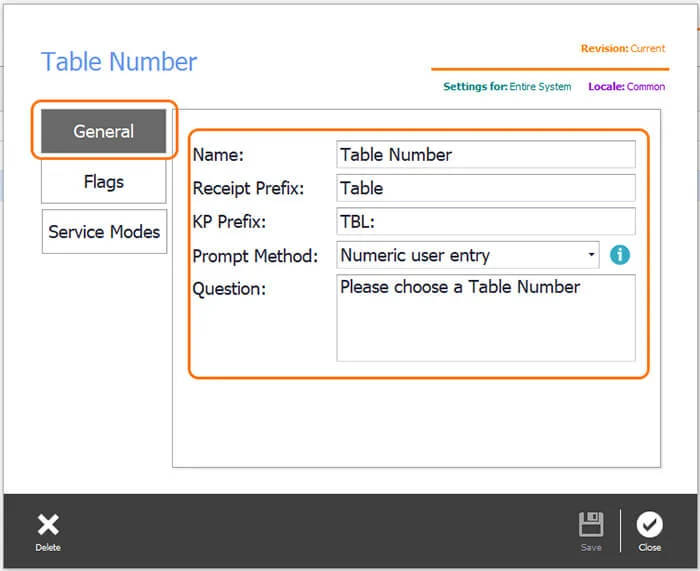
Press Insert and enter the text for table numbers.
Step 6
Set its flags
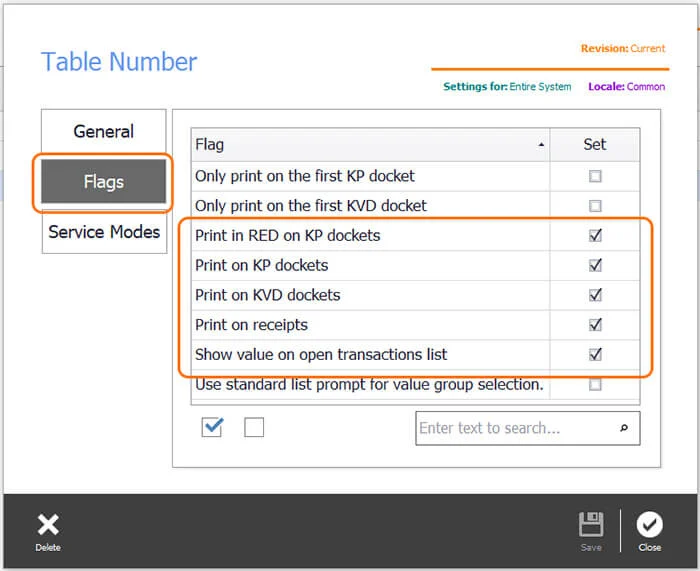
Open Flags and tick the settings shown.
Step 7
Attach it to the service mode
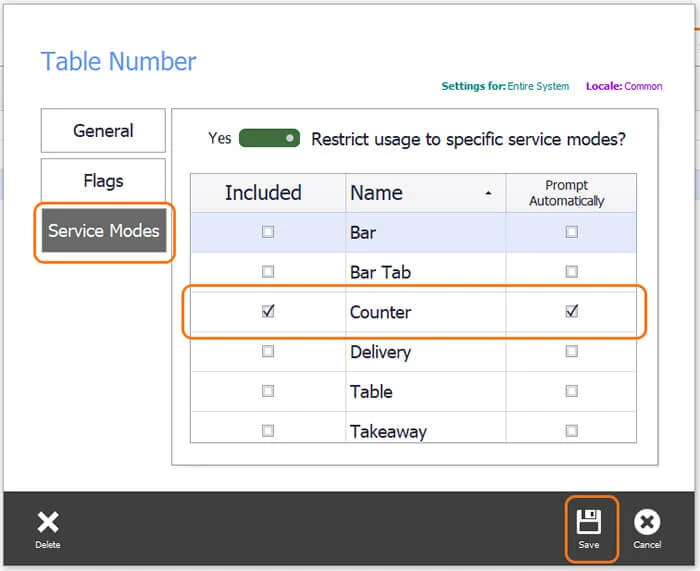
Open Service Modes, tick Counter Service and Prompt Automatically, then save.
Step 8
Publish
Close Order Tags and publish. A new order now asks for the table number first.
Taking an order with Bistro Mode always on
Step 9
Start the order
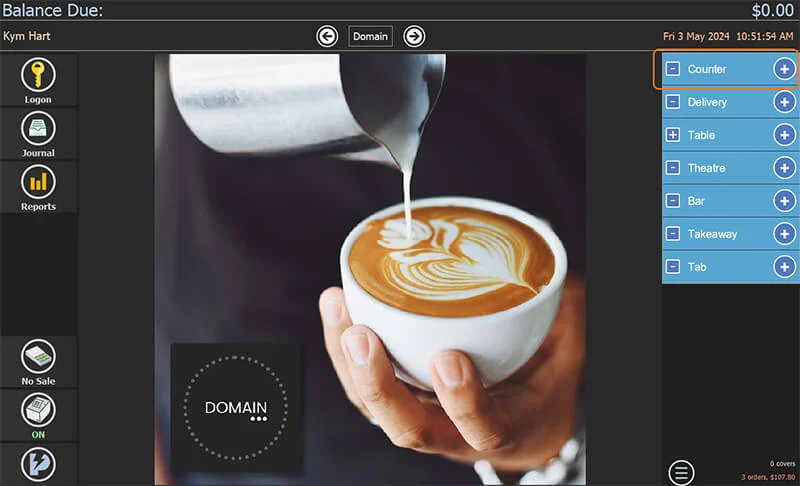
Open an order from Service Modes, at the top right of the screen.
Step 10
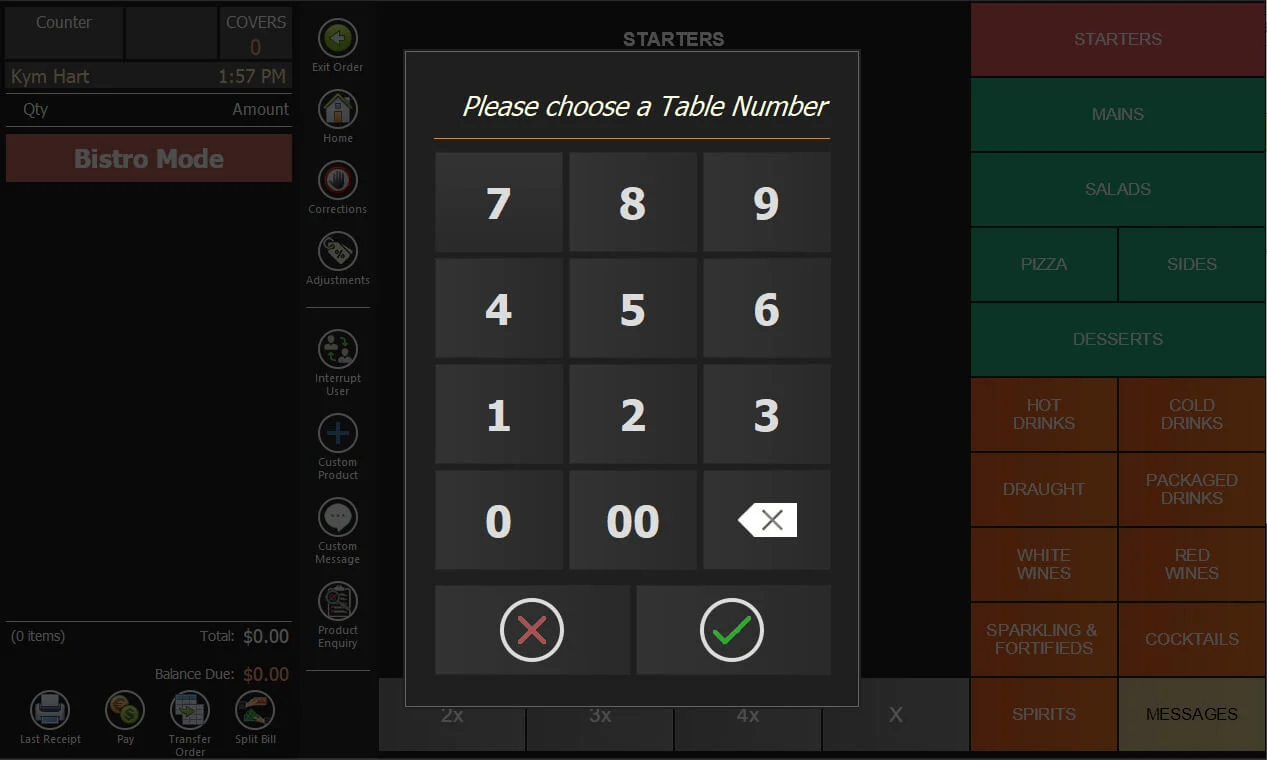
Enter the table number
The POS prompts for it.
Step 11
Take the first customer's order
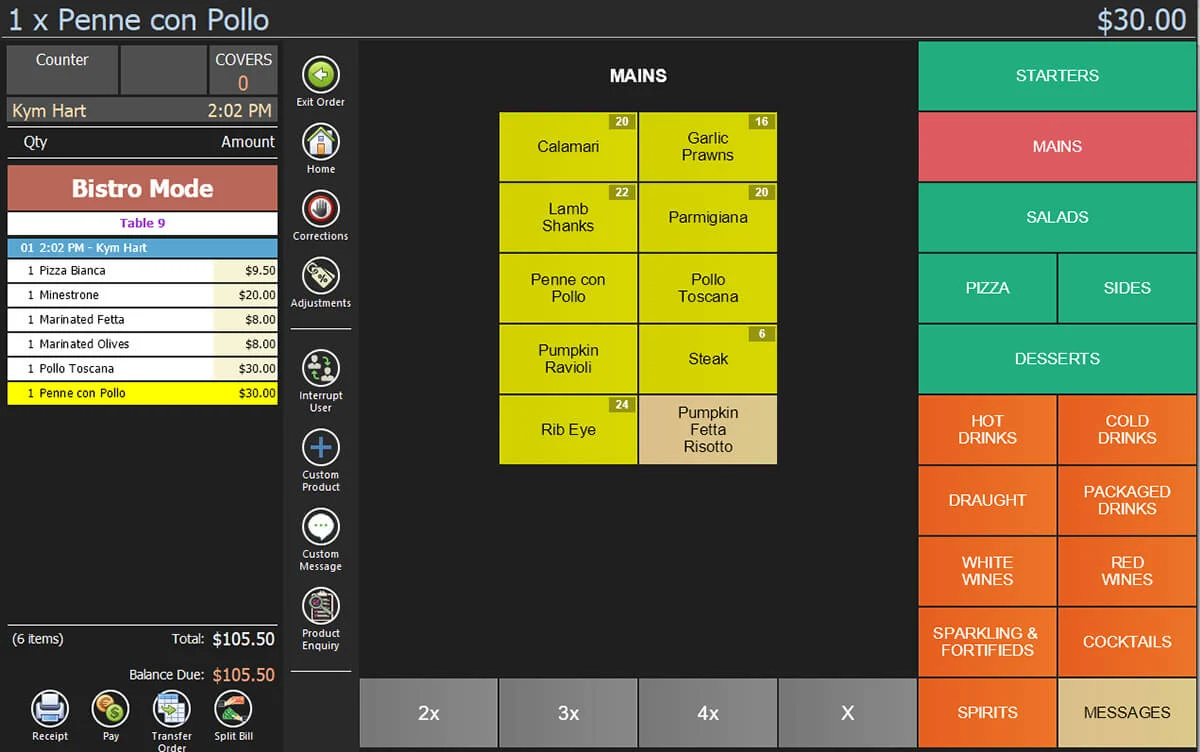
Bistro Mode is showing on the order screen, with the table number. Add the items and press Pay.
Step 12
Choose Add more
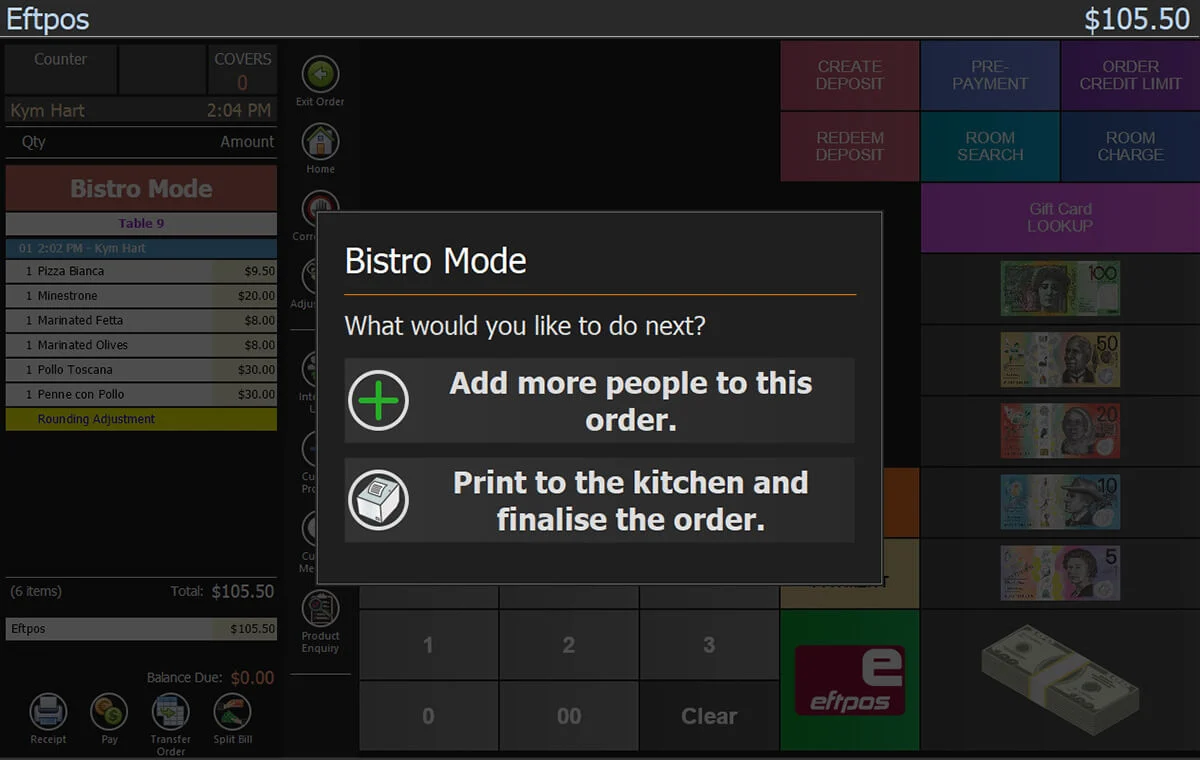
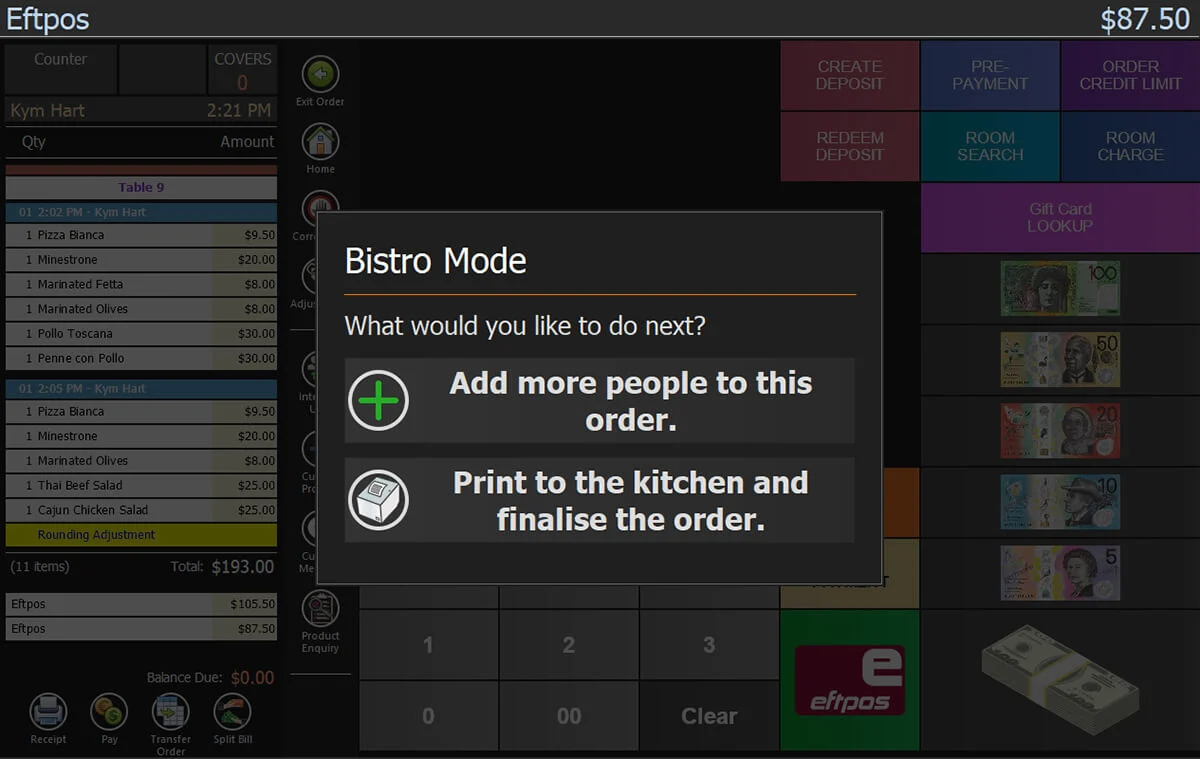
The POS asks whether to add more people to the order or finalise it and send it to the kitchen. Choose Add more.
Step 13
Take the next order
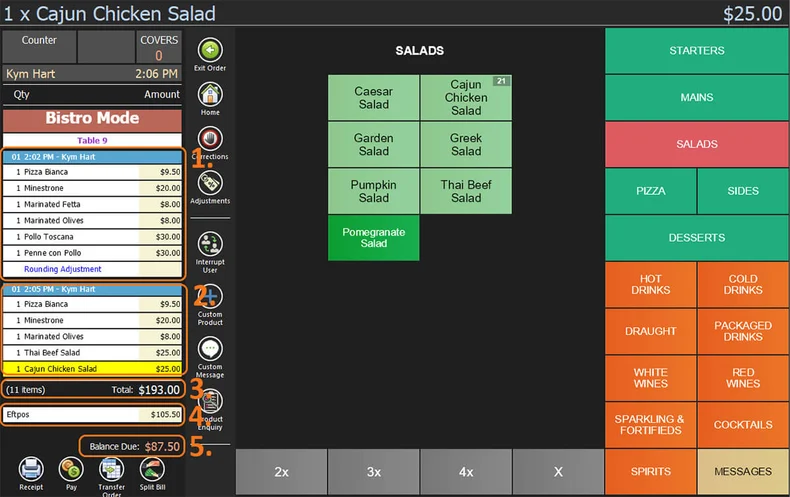
The screen shows the first order, the second order, the running total for the table, the first payment and the balance due on the second order.
Step 14
Finish the table
On the last customer, press Pay and choose Print to the kitchen and finalise order. The orders are batched and print on one docket.
Switching Bistro Mode on with a button
Where Bistro Mode is only wanted sometimes — food ordered at the bar, say — put it on the touchscreen as a button.
Step 15
Open the touchscreen editor
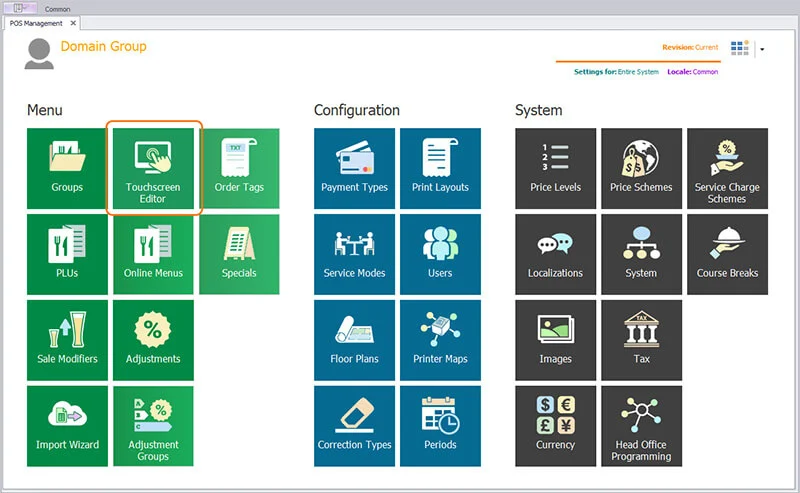
From the POS Management screen, open Touchscreen Editor.
Step 16
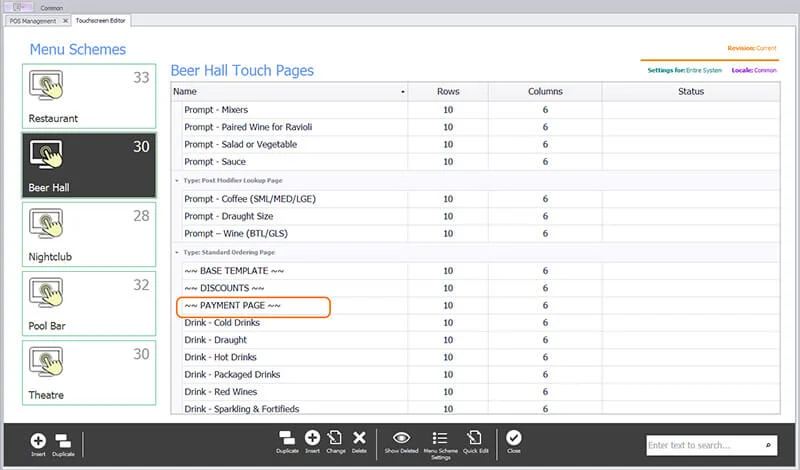
Open the payment page
Open the payment page, which is where both buttons go.
Step 17
Add the Bistro Mode button
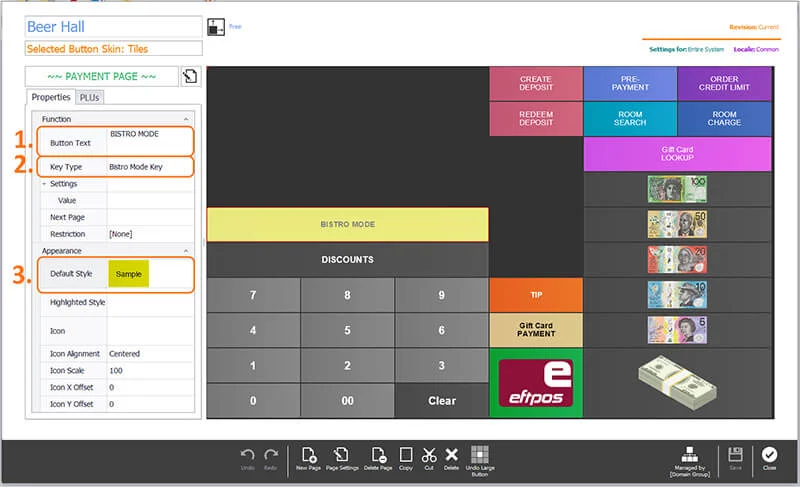
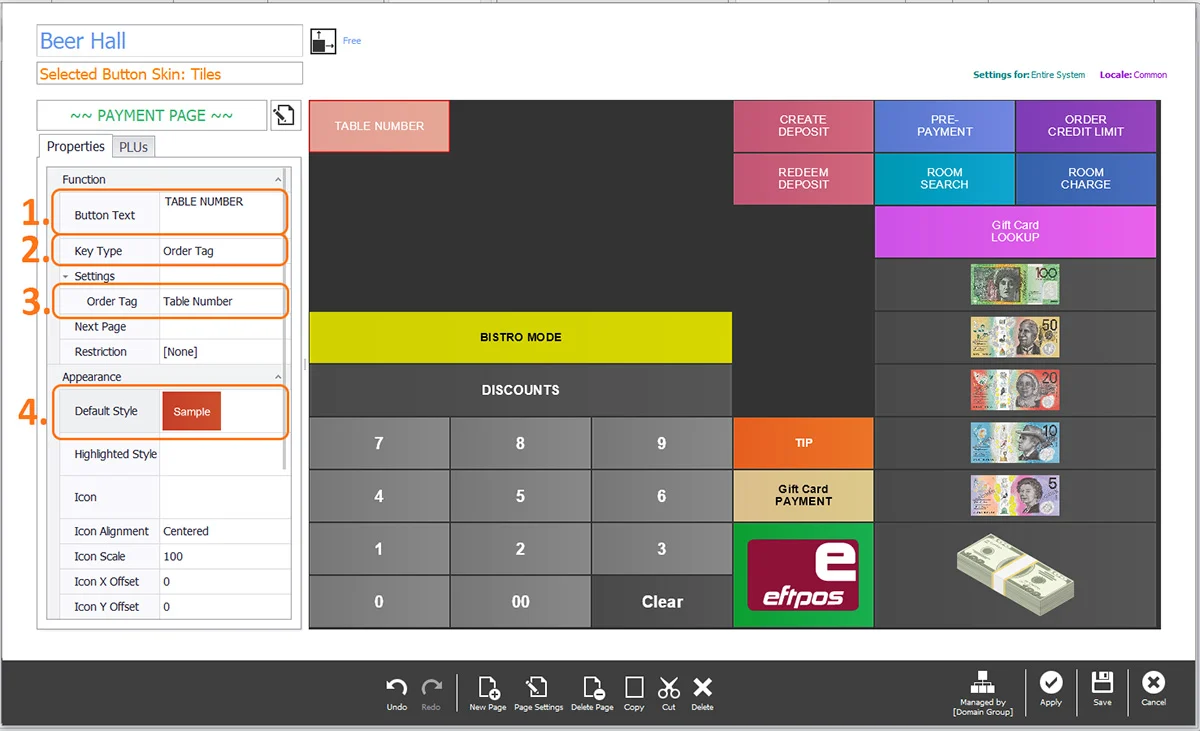
Highlight two cells, right-click and choose Make Large Button. Set its button text, its key type and its default style.
Step 18
Add a table number button
Add a second button for the table number: set its button text and key type, choose the order tag you made earlier, and give it a style. Save and close the editor.
Step 19
Publish
Back on the POS Management screen, press Publish.
Taking an order with the button
Step 20
Turn it on as you take the order
Take the order and press Pay. Press the table number button and enter the number, then press Bistro Mode. Take the customer's payment and choose Add more people for the next one.
Step 21
Finish the table
On the last order, choose Print to the kitchen and finalise order.
Step 22
Turn it off again
Press the same button to switch Bistro Mode back off.
Putting an order on hold
Useful when a group is spread down the queue, or somebody is not ready: hold their order, serve other customers, and come back to it.
Step 23
Allow unfinished transactions
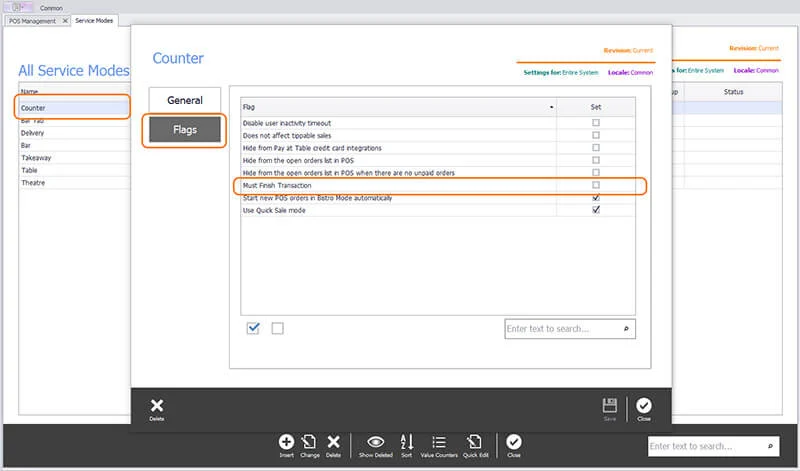
In System Manager, open Service Modes and the mode you use — Counter here. On Flags, untick Must finish transaction, then save, close and publish.
Step 24
Start the table and leave it
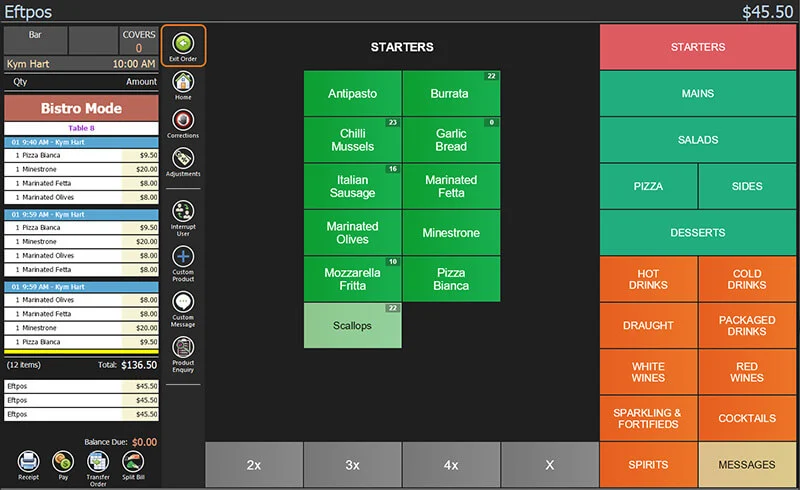
On the POS, open the order, go to the payment screen, add the table number, press Bistro Mode and take the first orders. Then press Exit Order.
Step 25
Choose to hold it
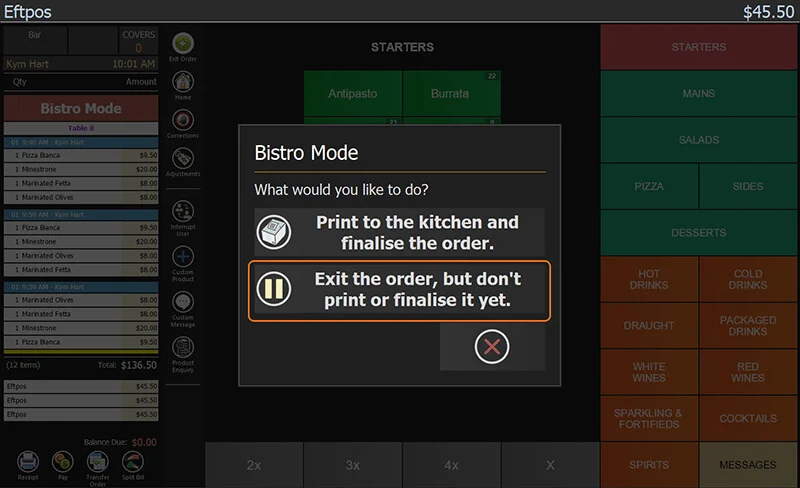
Choose the bottom option.
Step 26
Come back to it
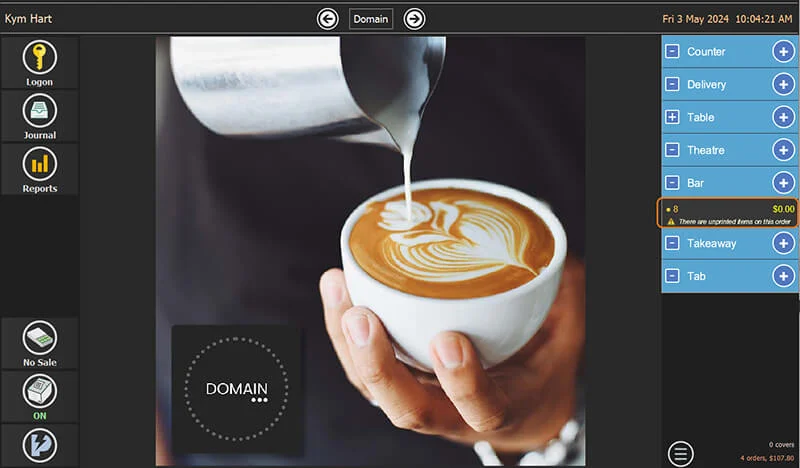
The order sits on the home screen under its service mode, marked as unprinted. Open it, press the pencil to edit, add the last customer's items, take payment and finalise. The whole table goes to the kitchen as one docket.
Step 27
Need help?
Triniteq support
Our support team is here to help.
Call 1300 784 276 or email support@triniteq.com, and include your venue name so we can find your setup straight away.