
Modules · Guide
Using PowerEPOS Insights
A tour of PowerEPOS Insights: how to sign in, what the dashboards and reports cover, how filters work, and what the change code on each report means.
PowerEPOS
Using PowerEPOS Insights
Live business data
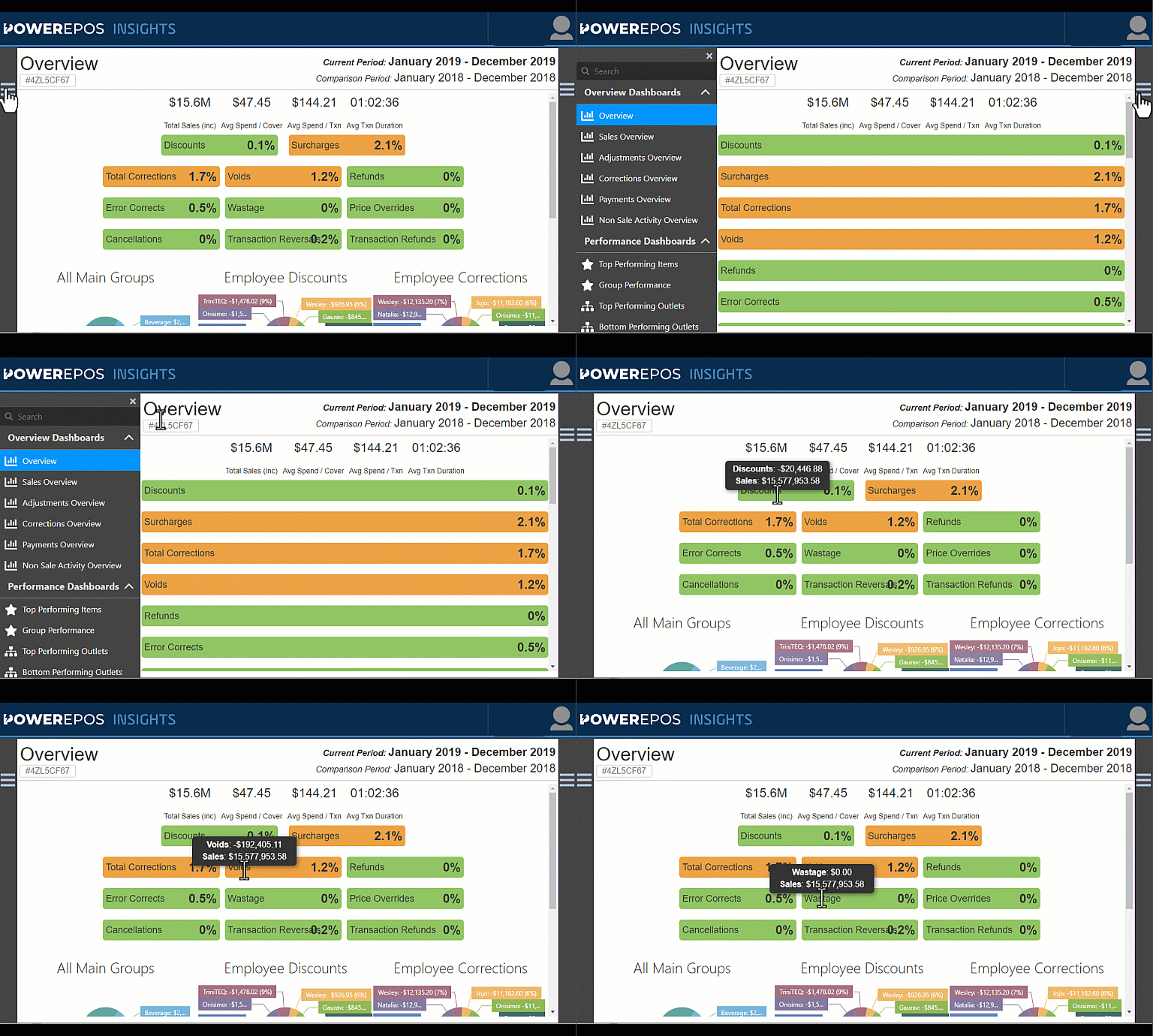
PowerEPOS Insights shows your live business data as dashboards and reports, on a desktop, a laptop or a phone. The dashboards group figures into simple graphics with traffic-light colours for good and bad news; hover over any element for the breakdown behind it, and use the filters to narrow it down.
On this page
- Getting in
- The home screen
- The dashboards
- The reports
- Filters
- Tracking changes
- Worth knowing
- Need help?
Getting in
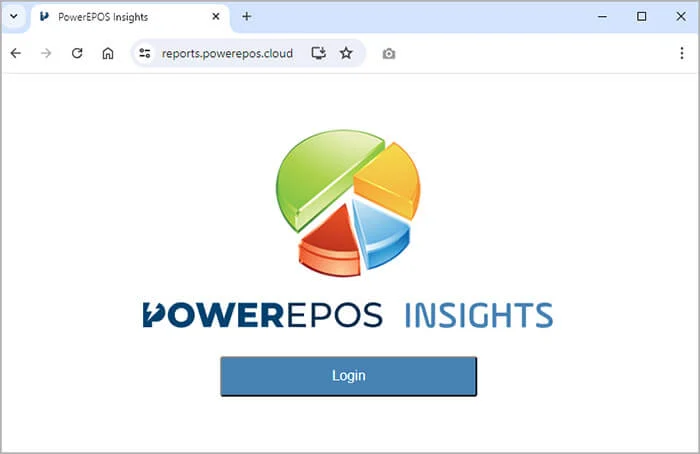
Sign in with your PowerEPOS credentials, either way:
- On a desktop or laptop: open reports.powerepos.cloud in your browser.
- On a phone or tablet: install the PowerEPOS Insights app from your app store.


The home screen
On a desktop or laptop the screen is in three parts:
- Left menu: the predefined dashboards and reports.
- Middle: whatever you have selected.
- Right menu: the filters that slice the data.
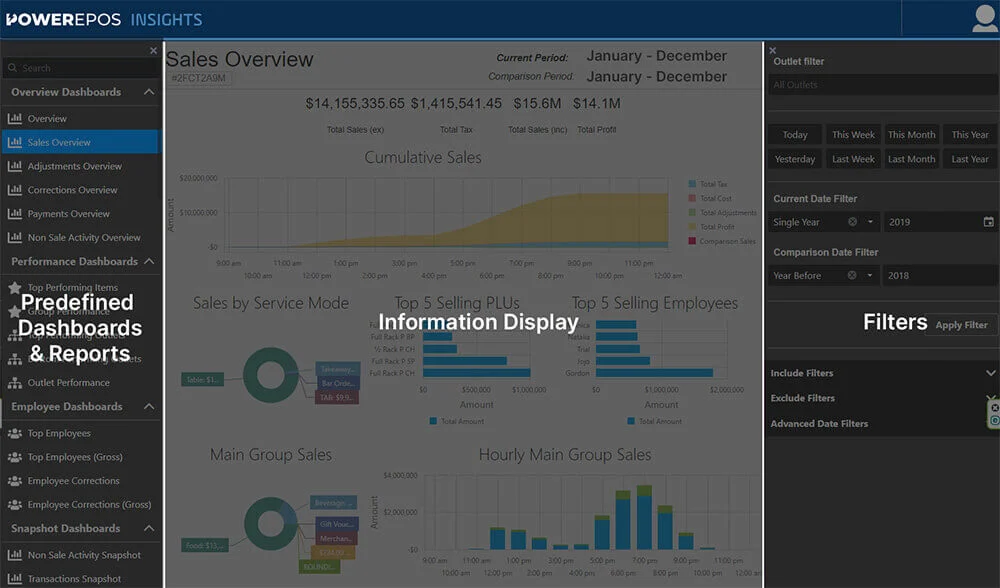
Either side menu closes with the × in its top inner corner, which gives the dashboard the whole screen. Hovering over a widget shows the detail behind it.
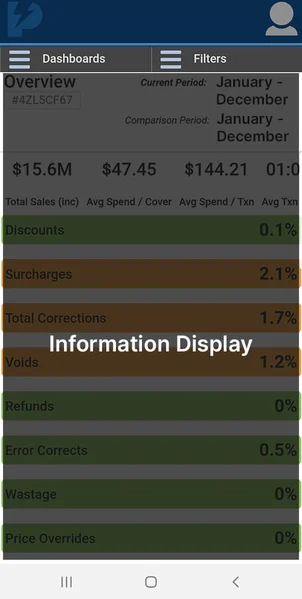
On a phone or tablet the two side menus are the Dashboards and Filters menus, or the hamburger menus when you turn the device to landscape.
The dashboards
There are four families of predefined dashboard.
Overview
- Sales Overview: your best-performing staff, PLUs, times of day and sites.
- Adjustments Overview: what discounts and surcharges are doing to the business.
- Corrections Overview: sales corrections, so a problem is visible early.
- Payment Overview: how customers are paying, including digital ordering and delivery platforms.
- Non-Sale Activity Overview: no-sale transactions.
Performance
- Top Performing Items: the best items for a period, with a monthly breakdown.
- Group Performance: sales by group, with a drill-down.
- Top and Bottom Performing Outlets: best and worst outlets by sales.
- Outlet Performance: one outlet in detail.
Employee
- Top Employees: best performers by average and gross sales over a period.
- Employee Corrections: corrections by staff member.
Snapshot
- Non Sale Activity Snapshot: no-sale transactions.
- Transactions Snapshot: search and analyse a specific transaction.
- ZReports Snapshot: search and analyse every ZReport.
What that looks like in practice
On the Corrections Overview, one employee holding the highest corrections two months running may mean more training is needed, or that something else is going on.
On Bottom Performing Outlets, a site that keeps appearing may need local promotion or a different product range.
The reports
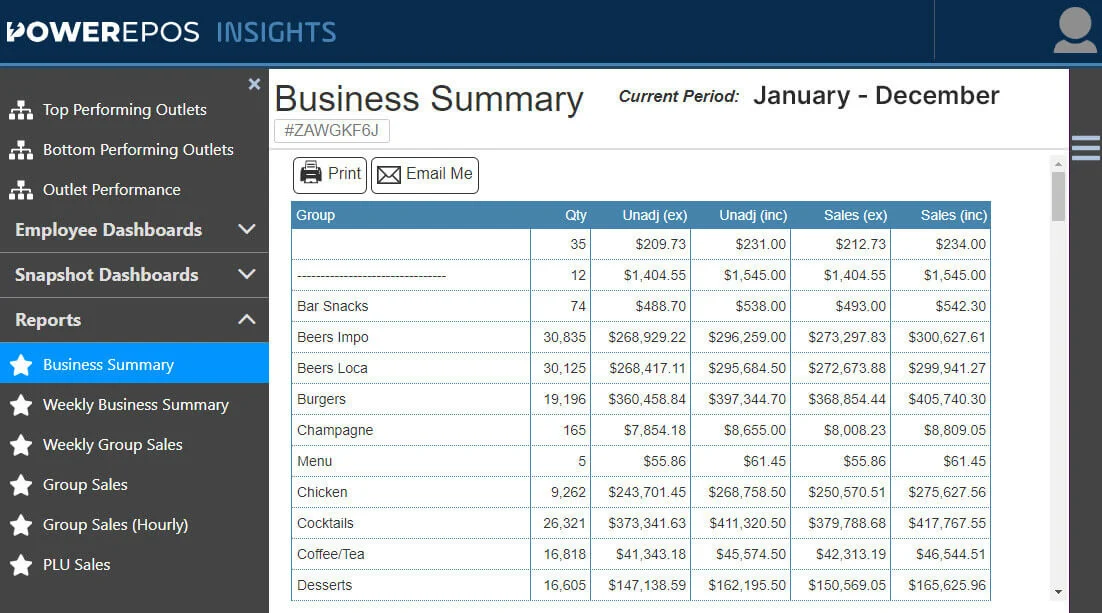
The predefined reports give the same data as tables, across whatever timeframe you choose, and they print and email well. You do not need to export to a spreadsheet: select the data in Insights and copy and paste it straight across, and the cells stay intact.
- Business Summary: the whole business for a period — total sales, number of transactions, average transaction value and overall profitability.
- Weekly Business Summary: the same figures week by week, so trends show up.
- Weekly Group Sales: how each product group sold each week, and where demand moved.
- Group Sales: each group's contribution to revenue over a period.
- Group Sales (Hourly): group sales by the hour — peak times, and what to staff and stock for.
- PLU Sales: individual items, so you can see best sellers and keep stock in line.
Filters
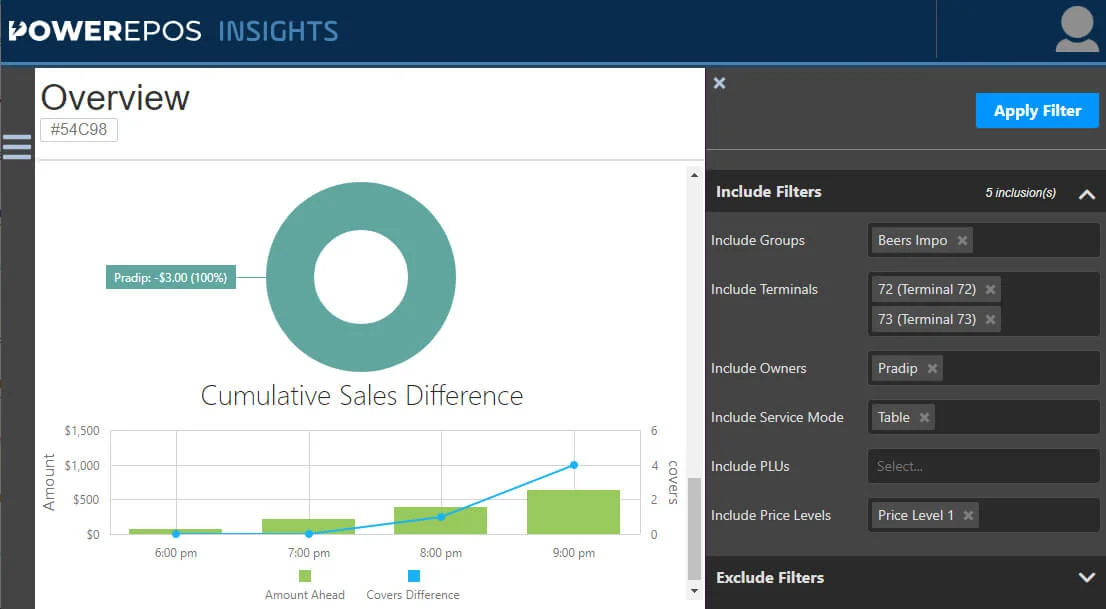
The filters live down the right of the screen and work on dashboards and reports alike. You can cut the data by date, time, outlet, POS terminal, owner, service mode and corrections, and include or exclude each one to drill further in.
Which filters are offered depends on the report. The Business Summary cannot be filtered by groups or PLUs; every other report can.
Tracking changes
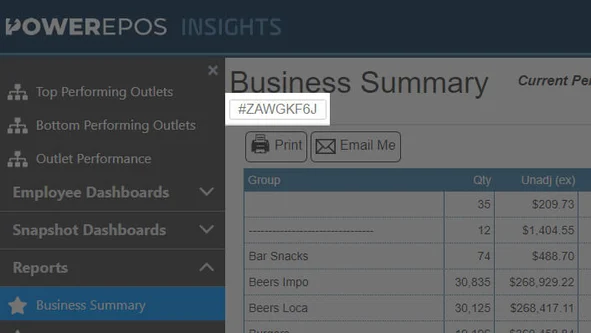
Every dashboard and report Insights generates carries a unique code beginning with #. The code changes when the underlying data changes, so you can tell whether two copies of the same report are showing the same figures.
Worth knowing
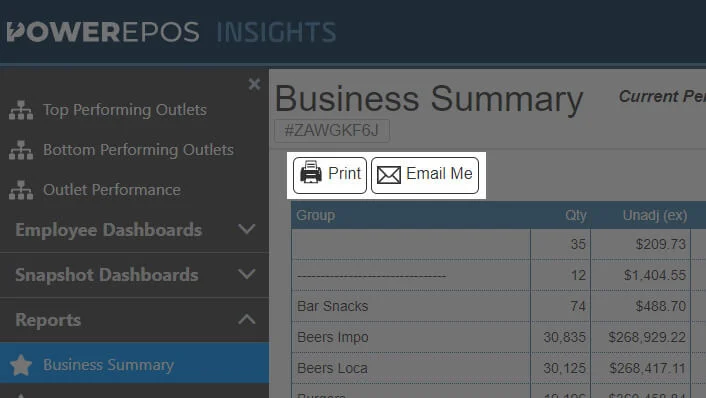
- Print and email: reports go out as PDFs, straight from Insights.
- On a phone: a report may need scrolling to the right to show every column.
- Copy and paste: click and drag to select the data in Insights, copy it with Ctrl+C or Command+C, and paste it into a spreadsheet with Ctrl+V or Command+V.
Help
Need help?
Triniteq support
Our support team is here to help.
Call 1300 784 276 or email support@triniteq.com, and include your venue name so we can find your setup straight away.