
Features · Guide
Using Stock Countdown
Track how many of a product are left and show the number on its POS button, using the Stock Countdown screen.
PowerEPOS
Using Stock Countdown
Counting stock down on the POS
Stock Countdown tracks how many of a product are left and shows the number on its button on the POS. It is a counter for the day's service, not stock management: it does not order, value or reconcile anything.
In this guide
- StartBefore you start
- 1Open Stock Countdown
- 2Sign in if you are asked to
- 3Find the product
- 4Set the stock level
- 5Set the warning level
- 6Turn the countdown on or off
- 7Add or remove products
- 8Save and close
- 9Need help?
Start
Before you start
- A POS user account with permission to open Stock Countdown.
- The products you want to count, already set up as PLUs.
Step 1
Open Stock Countdown
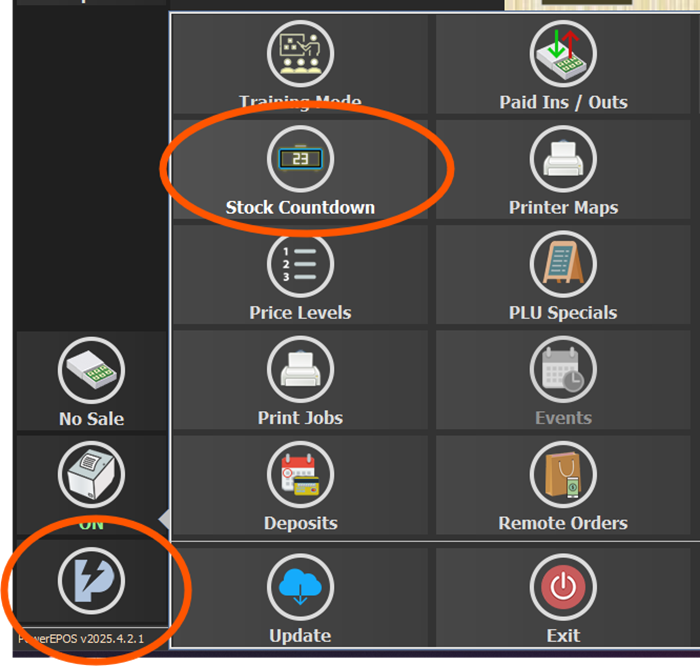
On the POS, press the PowerEPOS button at the bottom left of the screen, then choose Stock Countdown.
Step 2
Sign in if you are asked to
If the POS asks for a login, sign in with an account that has permission to use Stock Countdown. If your account is refused, ask a manager to change your access role.
Step 3
Find the product
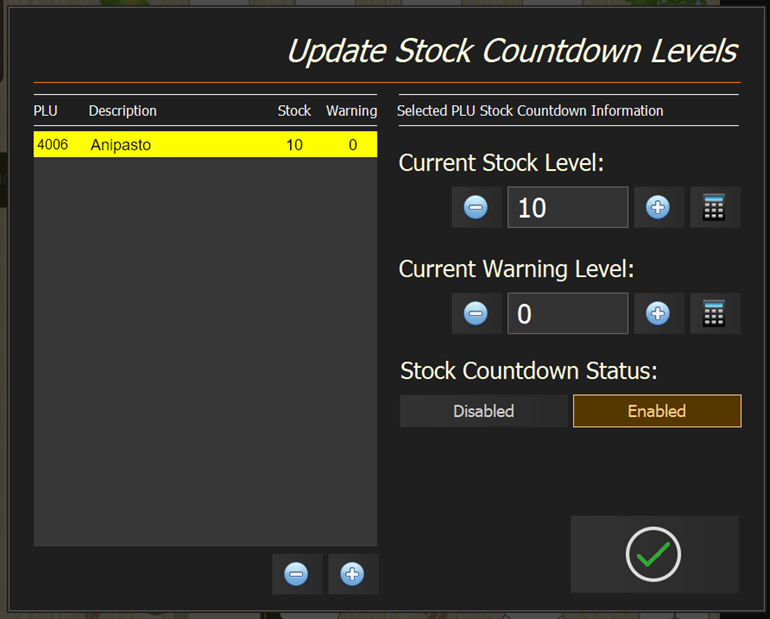
The Update Stock Countdown Levels screen lists the products that already have stock levels, with their PLU number, description, stock and warning level. Products with Stock Countdown disabled are shown in grey. Select a product to work on it.
Step 4
Set the stock level
Under Current Stock Level, enter how many you have left. Use the + and − buttons, or the keypad button to type a number.
Step 5
Set the warning level
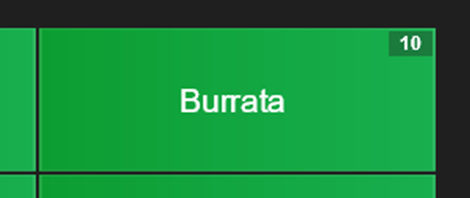
Current Warning Level decides when the number appears on the product's button on the POS. Set it to 0 to show the remaining stock at all times, or to any other number to show it only once the stock falls to that number or below.
Step 6
Turn the countdown on or off
Set Stock Countdown Status to Enabled to count this product down, or Disabled to leave it alone. A disabled product stays in the list, in grey, with its numbers kept for next time.
Step 7
Add or remove products
Use the + and − buttons under the product list to add a product to the countdown or take one off it.
Step 8
Save and close
Press the green tick to save your changes and close the screen. The new numbers are on the POS buttons straight away.
Step 9
Need help?
Triniteq support
Our support team is here to help.
Call 1300 784 276 or email support@triniteq.com, and include your venue name so we can find your setup straight away.