
Features · Guide
Changing who owns an order
Reassign the creator or owner of an order on the POS, so tips and sales report against the person who served the table rather than a generic clerk.
PowerEPOS
Changing who owns an order
Remap Creator / Owner on the POS
An order recorded against a generic user — a kiosk clerk, say — reports its sales and tips against that user. Remap Creator / Owner moves the order to the person who should have it, so POS tips and sales report correctly.
In this guide
- StartBefore you start
- Adding the key to the touchscreen
- Moving an order
- 1Sign in as the new owner
- 2Open the order
- 3Press Change Order Owner
- 4Confirm
- 5Check the order
- 6Need help?
Start
Before you start
- PowerEPOS 2025.1.23.0 or newer.
- The Liverpool interface enabled.
- A Remap Creator / Owner key on the POS touchscreen. If there is not one, add it first — the next section says how.
- The PIN of the user who is taking the order over.
Adding the key to the touchscreen
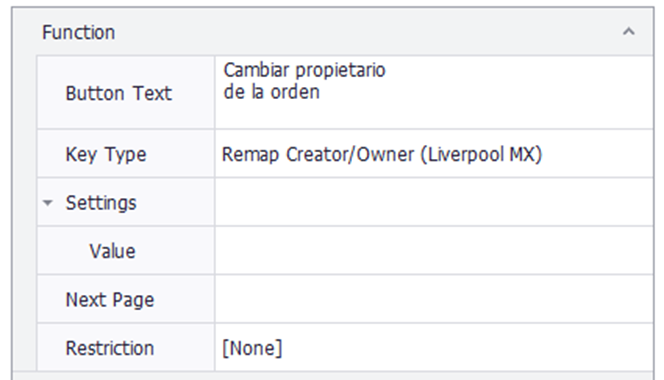
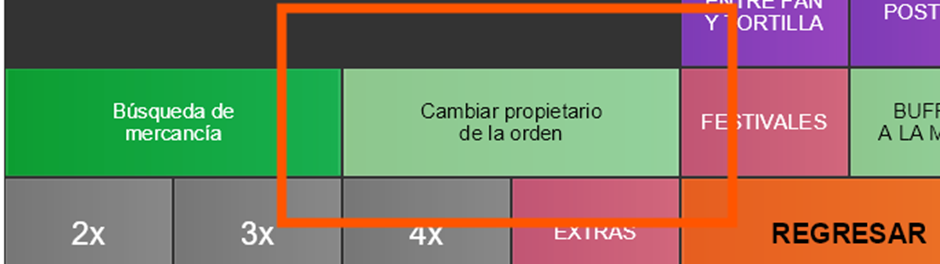
In the touchscreen editor, add a key of the new type Remap Creator / Owner to the screens that need it. This is configuration rather than something done during service, and it is done once.
Moving an order
Step 1
Sign in as the new owner
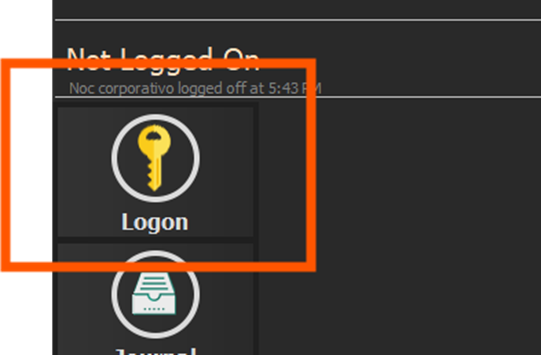
Sign in to PowerEPOS with the PIN of the user who should own the sale.
Step 2
Open the order
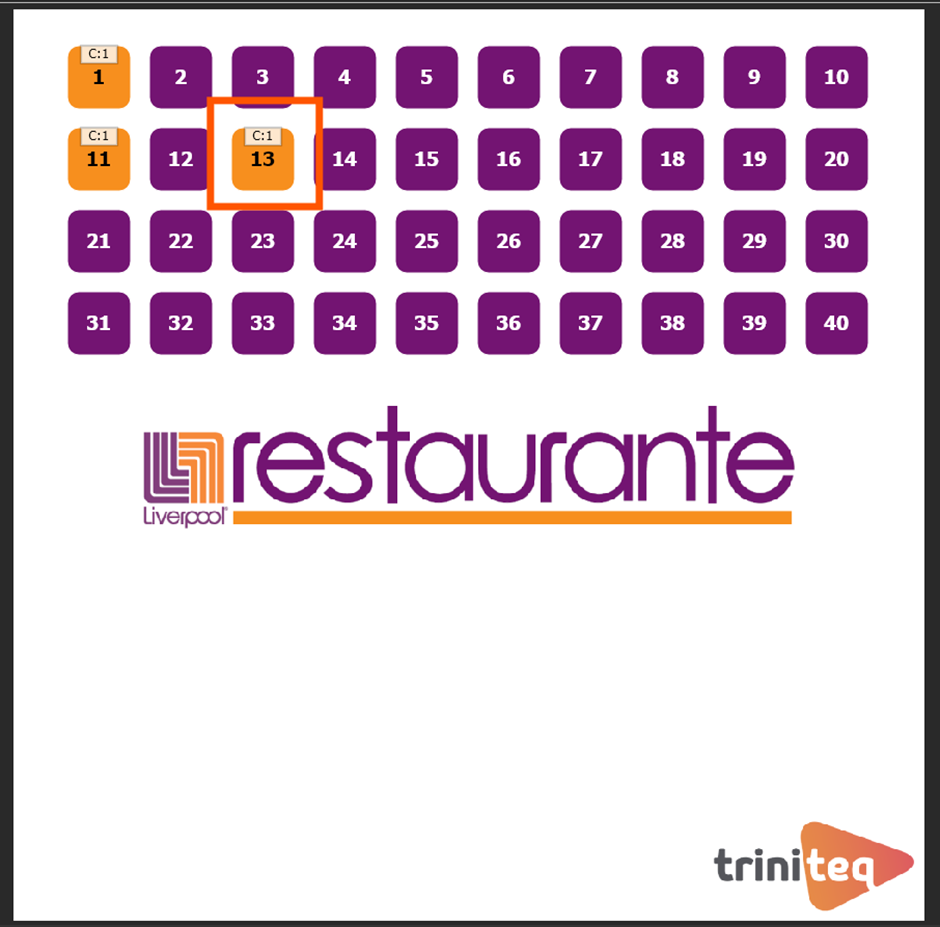
Go to the order that is being reassigned.
Step 3
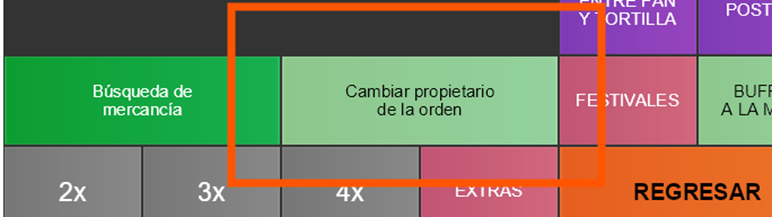
Press Change Order Owner
Press the Remap Creator / Owner key to start the reassignment.
Step 4
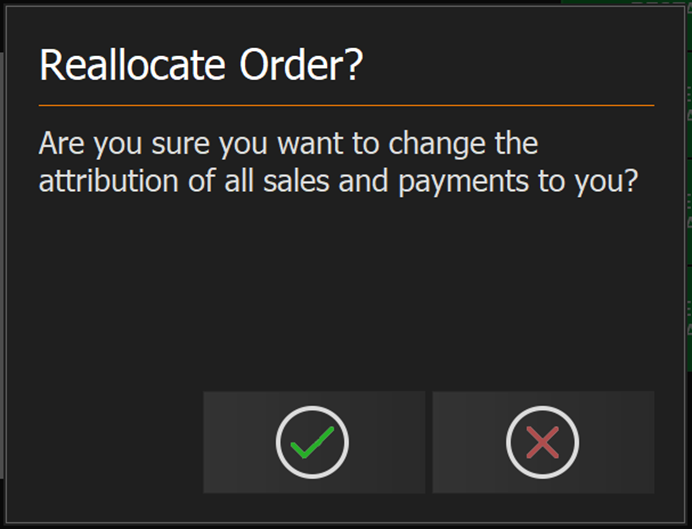
Confirm
Confirm the change when the POS asks.
Step 5
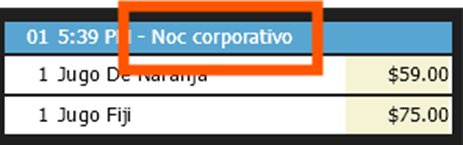
Check the order
The order review screen now shows you as the owner.
Step 6
Need help?
Triniteq support
Our support team is here to help.
Call 1300 784 276 or email support@triniteq.com, and include your venue name so we can find your setup straight away.