
System programming · Guide
Connecting printers
Add a receipt or production area printer in PowerEPOS, set its interface, IP address and layouts, remove one you no longer need, and publish the change to the POS.
PowerEPOS
Connecting printers
Printers in PowerEPOS
Adding a printer, sending items to the right one and swapping out a faulty unit are all done from the System module in PowerEPOS, so most of it you can do yourself.
In this guide
- StartBefore you start
- Adding a printer
- 1Open the outlet's printers
- 2Start a new printer and name it
- 3Choose a backup printer and the printer class
- Configuring the printer
- 4Set the interface
- 5Set the IP address
- 6Choose the receipt and kitchen layouts
- 7Set the language and feed lines
- 8Save and check
- Removing a printer
- Publishing to the POS
- 9Save and close
- 10Publish
- 11Keep the revision number
- 12Need help?
Start
Before you start
- Access to the PowerEPOS Management Console.
- The printer's make and model.
- Its IP address and port, or the printer administrator password if the printer did not come from Triniteq.
Adding a printer
Step 1
Open the outlet's printers
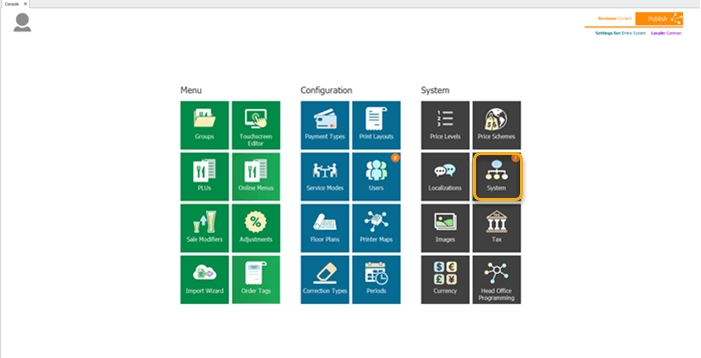
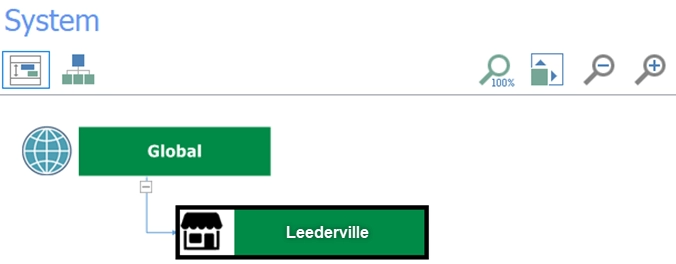
From the Management Console, select the System tile. The System module holds the global configuration for your system, with the outlets down the left-hand side marked by a shop icon.
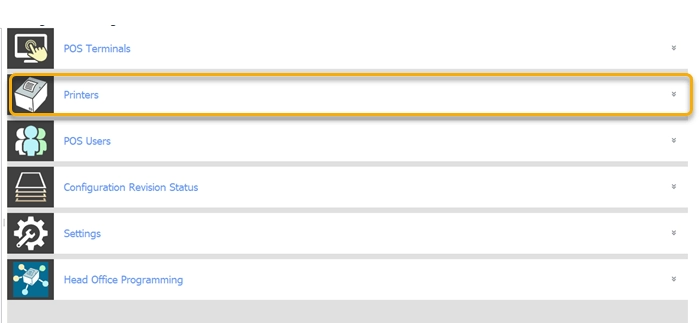
Select your outlet — Leederville here — to open its POS terminal settings, then Printers on the right. The Printer Configuration window lists the printers already set up for that outlet.
Step 2
Start a new printer and name it
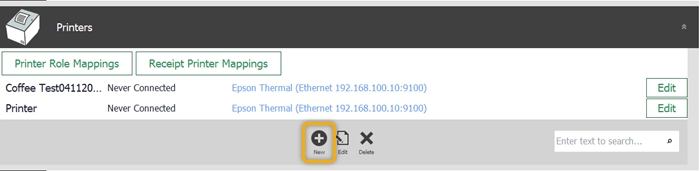
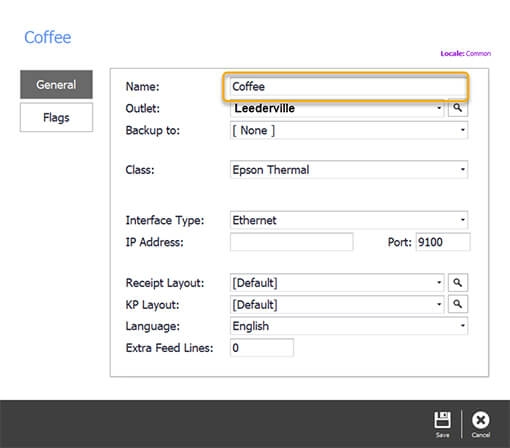
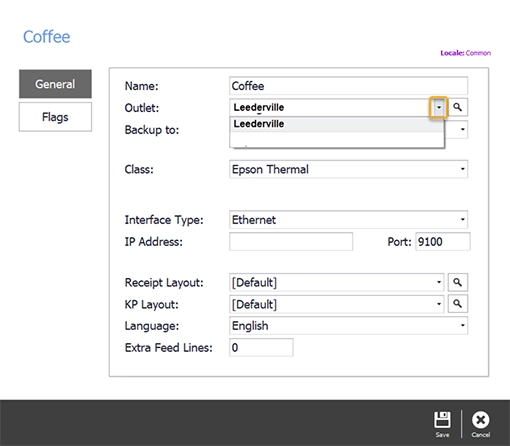
Select New in the control panel. Name the printer after the production area it serves — coffee or kitchen, say — and check the outlet is right, changing it with the drop-down if it is not.
Step 3
Choose a backup printer and the printer class
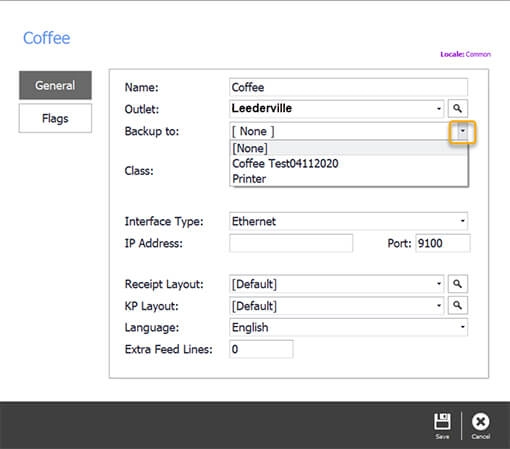
The backup printer is where orders go if this one fails. Pick the printer nearest to the one you are installing, so diverted orders come out somewhere staff can reach quickly.
Then set the Class — the model of printer. In this example it is an Epson thermal printer.
Configuring the printer
Step 4
Set the interface
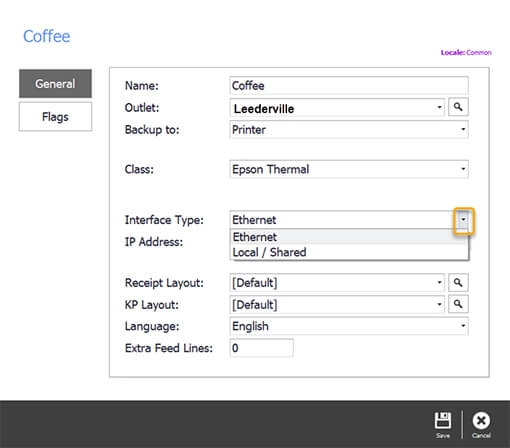
The interface is how the printer reaches the POS, and there are two choices.
Ethernet puts the printer on the local network, so it belongs to no single device and any tablet or terminal can print to it.
Local/Shared connects it to one device. Other devices can still use it, but when the tablet or terminal it is plugged into is switched off, the printer stops working.
Step 5
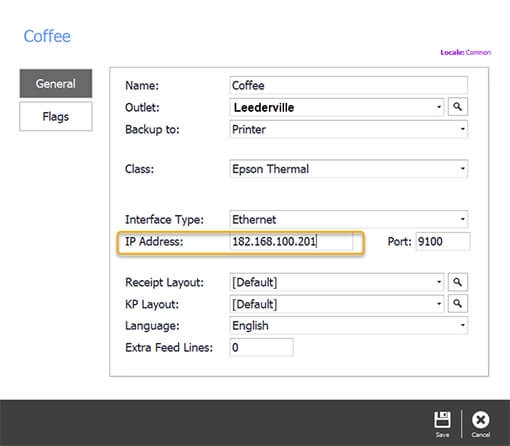
Set the IP address
If you bought the printer from Triniteq we can configure its IP address and port for you, and the fields fill themselves in when you pick the printer from Class.
If you already had the printer, you will need its administrator password to configure it. Either way, raise a ticket with us if the configuration gives you trouble.
Step 6
Choose the receipt and kitchen layouts
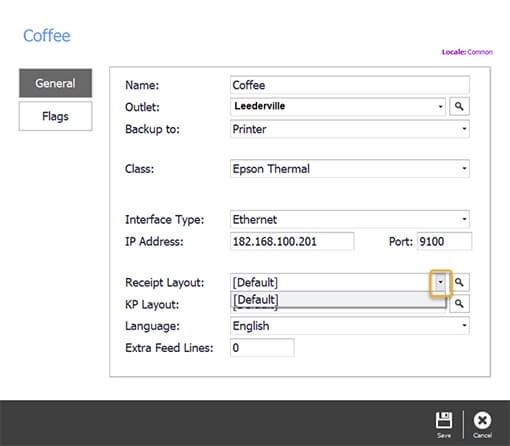
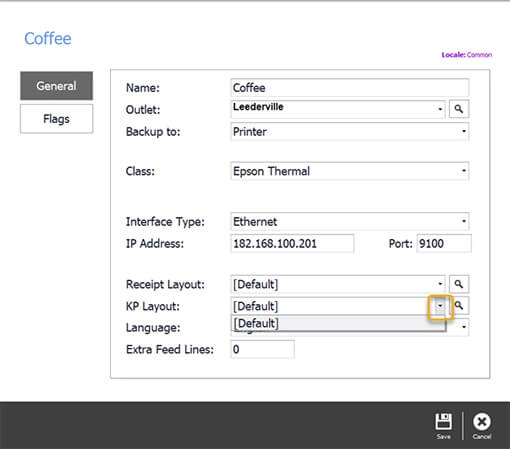
Layouts keep what is printed consistent. For a standard setup, take the default Receipt layout and the default Kitchen Printer (KP) layout.
Step 7
Set the language and feed lines
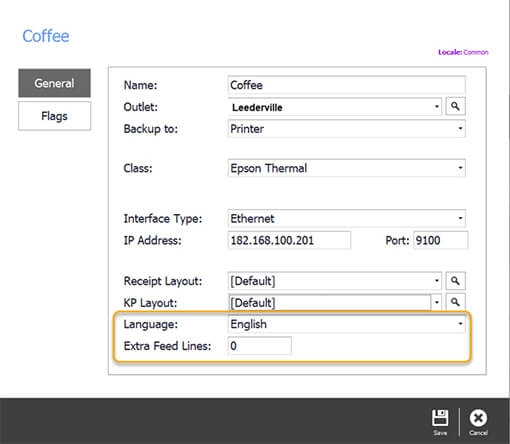
Set the language, and put 0 in Extra Feed Lines unless you want blank space at the end of the receipt — if you do, enter the number of lines you need.
Step 8
Save and check
Select Save. You are taken back to the Printers window, where the new printer should be listed. Edit takes you back into its setup.

Removing a printer
Select the printer in the Printers window and choose Delete in the control panel.

Publishing to the POS
Step 9
Save and close
Select Save in the control panel, then close the window to return to the Management Console.
Step 10
Publish
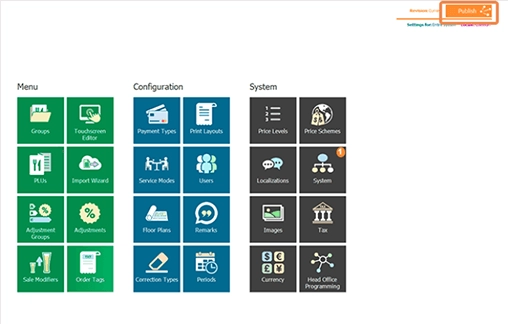
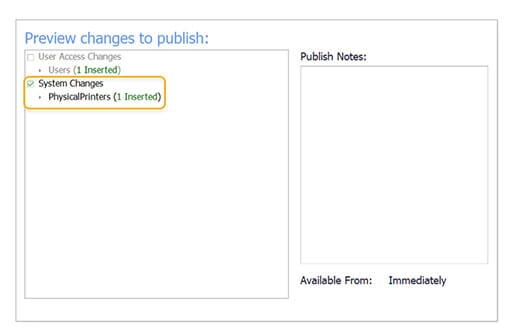
The orange marker on the System tile shows there are settings waiting. Select Publish at the top right, check the changes and the outlets, clear anything you are not ready to send, and publish.

Step 11
Keep the revision number
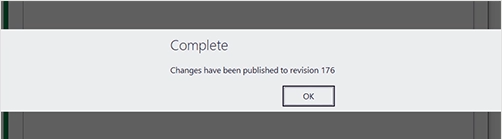
The Complete message carries a revision number. The Revision Management Tool, which takes the Publish button's place at the top right, works from that number.
Step 12
Need help?
Triniteq support
Our support team is here to help.
Call 1300 784 276 or email support@triniteq.com, and include your venue name so we can find your setup straight away.