
System programming · Guide
Mapping PLUs to printers
Create a printer role in PowerEPOS, connect it to a physical printer, move it to a different printer, and publish the change to the POS.
PowerEPOS
Mapping PLUs to printers
Printer roles and mappings
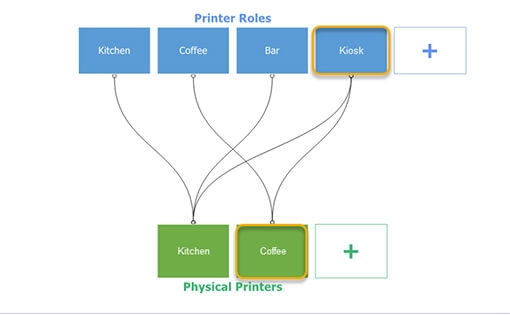
PLUs are not mapped straight to printers. They are mapped to a printer role, and the role is mapped to a physical printer. That extra step is what lets you move a whole production area to a different printer in a few seconds when one fails, without touching a single PLU.
In this guide
- StartBefore you start
- Creating a printer role
- 1Open the outlet's printers
- 2Open the role assignments
- 3Add the role
- 4Save it
- Connecting a role to a printer
- 5Drag the role onto the printer
- 6Save and close
- Moving a role to a different printer
- 7Open the role assignments again
- 8Drag the role to the new printer
- 9Delete the old link
- 10Check what you deleted
- 11Save and close
- Publishing to the POS
- 12Publish
- 13Keep the revision number
- 14Need help?
Start
Before you start
- Access to the PowerEPOS Management Console.
- The printers already set up for the outlet — see our guide on connecting printers.
Creating a printer role
Step 1
Open the outlet's printers
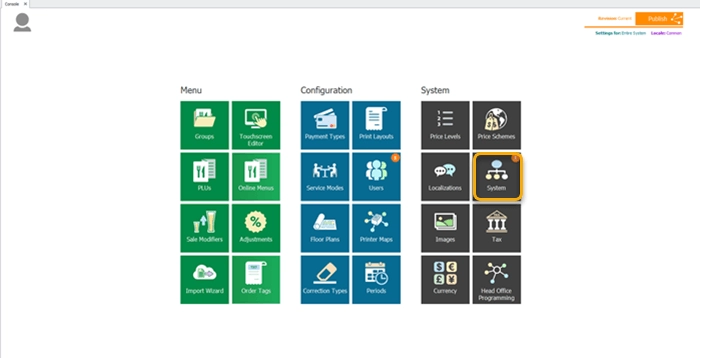
From the Management Console, select the System tile. The System module holds the global configuration, with the outlets down the left marked by a shop icon.
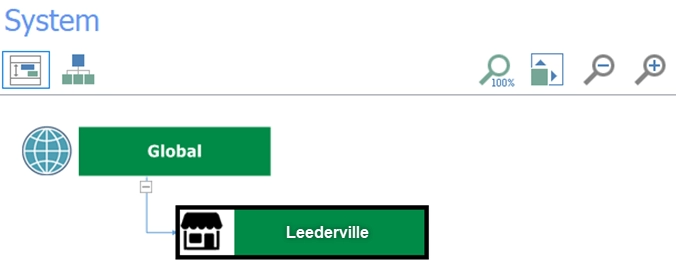
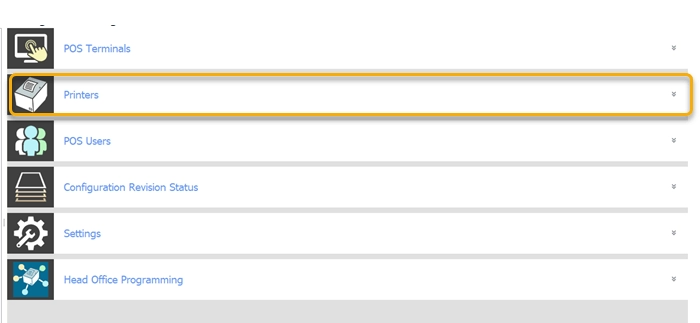
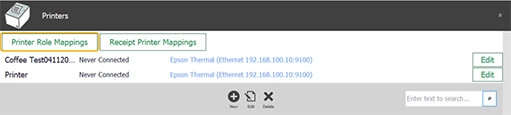
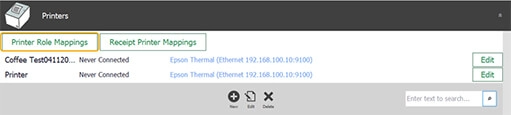
Select your outlet — Leederville here — to open its POS terminal settings, then Printers on the right. The Printer Configuration window lists the printers already set up for that outlet.
Step 2
Open the role assignments
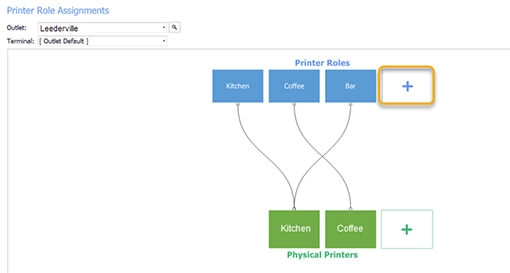
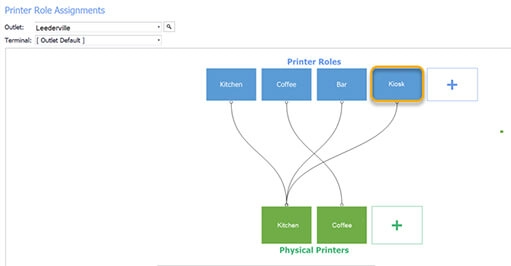
Select Printer Role Mappings to open the Printer Role Assignment window. This is the picture of which role prints where — in this example, every PLU on the Coffee role prints at the physical printer called Coffee.
Step 3
Add the role
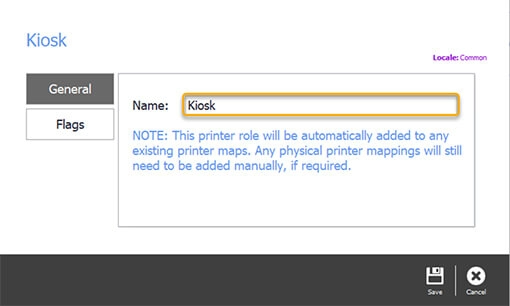
Select the add button on the right and give the new role a name — Kiosk here.
Step 4
Save it
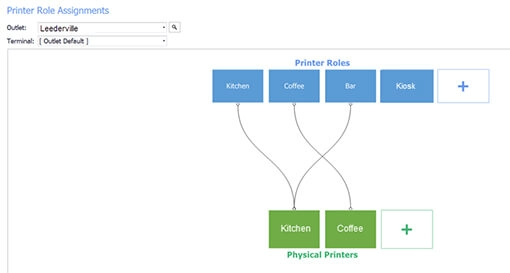
Select Save in the control panel. You come back to the Printer Role Assignments window with the new role in it.
Connecting a role to a printer
Step 5
Drag the role onto the printer
Select the Kiosk role and drag it onto the Kitchen printer. That is the connection made.
Step 6
Save and close
Select Save and close, which brings you back to the Printer Role Assignment window, then Save & Close again to leave the System module and return to the Management Console.


Moving a role to a different printer
Step 7
Open the role assignments again
Go back through settings, outlets and Printers, and select Printer Role Mappings.
Step 8
Drag the role to the new printer
Select the role you are moving — Kiosk — and drag it onto the new physical printer, Coffee in this example.
Step 9
Delete the old link
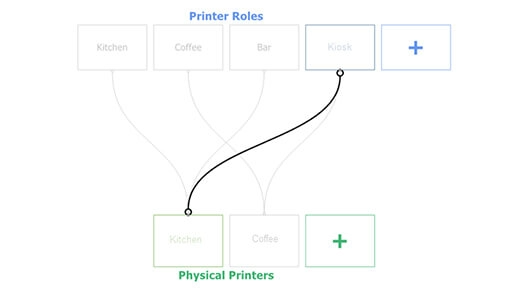
Now remove the link from Kiosk to the Kitchen printer: select the link and choose Delete in the control panel, or press Delete on the keyboard. Leaving it in place causes errors when dockets print later.

Step 10
Check what you deleted
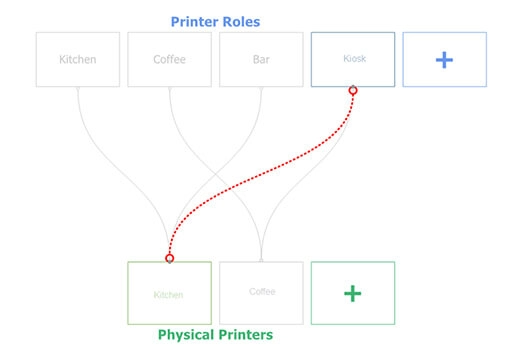
The deleted link is drawn as a red dotted line, so you can see exactly what has gone.
Step 11
Save and close
Select Save and close to return to the Printer Role Assignments window, then Save & Close again to leave the System module.



Publishing to the POS
Step 12
Publish
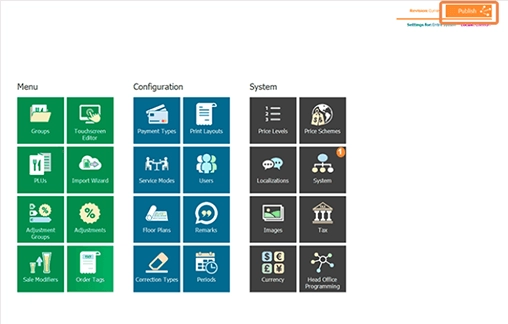
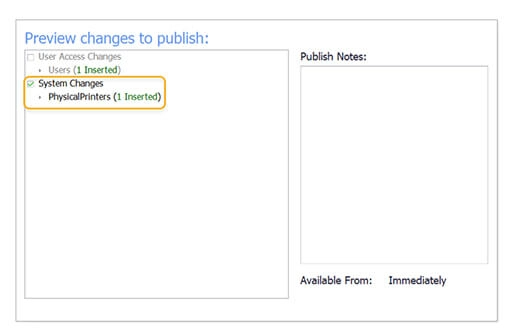
The orange marker on the System tile shows there are settings waiting. Select Publish at the top right, check the changes and the outlets, clear anything you are not ready to send, and publish.

Step 13
Keep the revision number
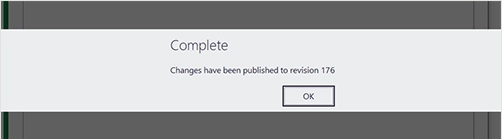
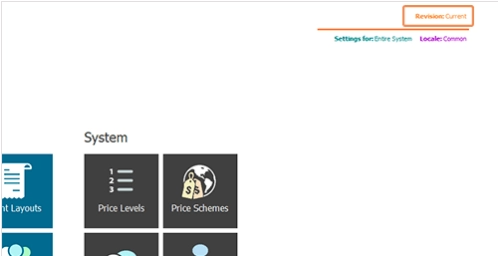
The Complete message carries a revision number, which the Revision Management Tool works from. It takes the Publish button's place at the top right of the screen.
Step 14
Need help?
Triniteq support
Our support team is here to help.
Call 1300 784 276 or email support@triniteq.com, and include your venue name so we can find your setup straight away.