
System programming · Guide
Creating and editing POS users
Add a staff member to PowerEPOS, set their access role, scope and PIN, edit an existing profile, and publish the changes to your terminals.
PowerEPOS
Creating and editing POS users
User profiles in PowerEPOS
Every team member gets their own profile in PowerEPOS. That is what lets the system attribute each change and each transaction to a person, and it is what feeds the staff side of your reporting — who is selling what, who might need more training, and anything that looks off while it is still small.
In this guide
- StartBefore you start
- Adding a new user
- 1Open the Users module
- 2Start a new user
- 3Name them and set their access role
- 4Set their scope
- 5Give them a PIN
- 6Close the module
- Editing a user
- Publishing user settings to the POS
- 7Open Publish
- 8Choose the changes and the outlets
- 9Keep the revision number
- 10Need help?
Start
Before you start
- Access to the PowerEPOS Management Console.
- The staff member's name, the outlet or region they work at, and the access role they should have.
- A PIN for them, of up to 8 digits.
Adding a new user
Step 1
Open the Users module
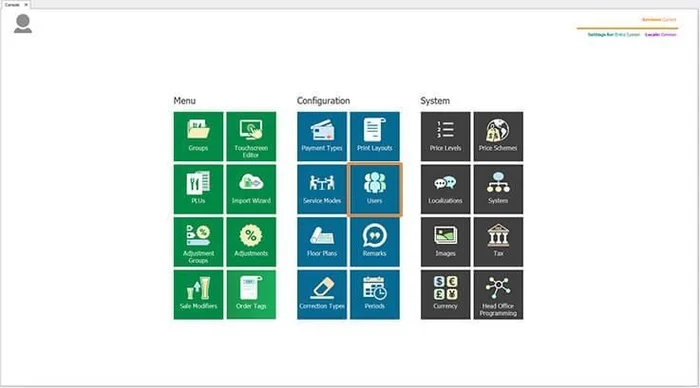
In the PowerEPOS Management Console, select Users.
Step 2
Start a new user
Select New from the centre Control Panel. The New User Configuration window opens.

Step 3
Name them and set their access role
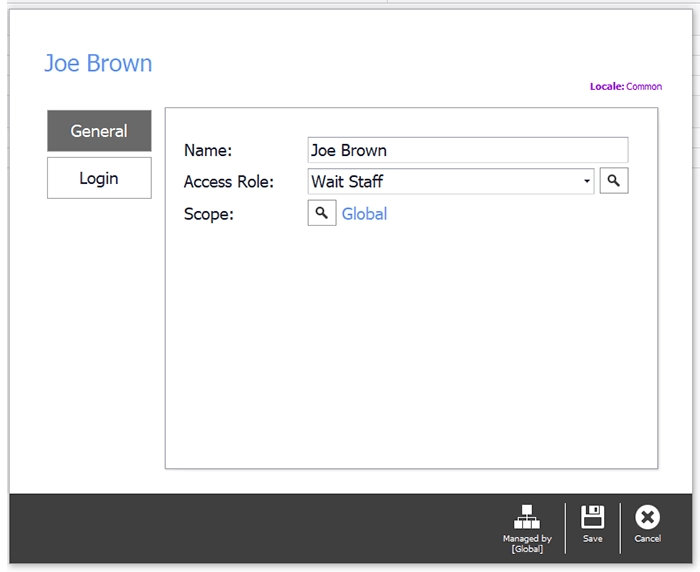
Enter the user's name and pick their Access Role from the drop-down — in this example a new wait person, Joe Brown, gets Wait Staff. Then select the Scope search icon.
Step 4
Set their scope
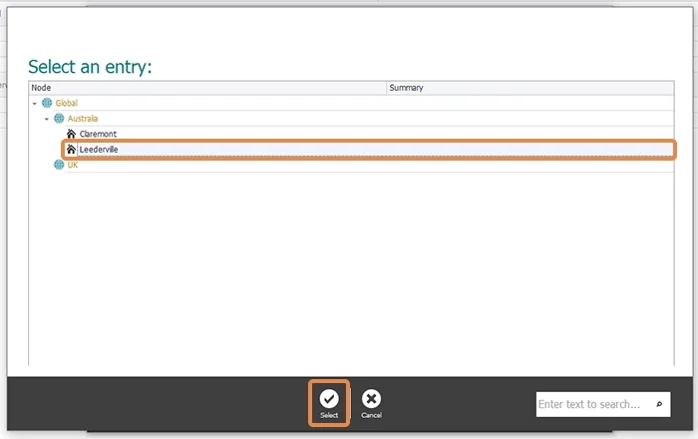
Scope is the regions and outlets the user is assigned to. Choose the ones they work at — here, Leederville — and select Select to save it.
Step 5
Give them a PIN
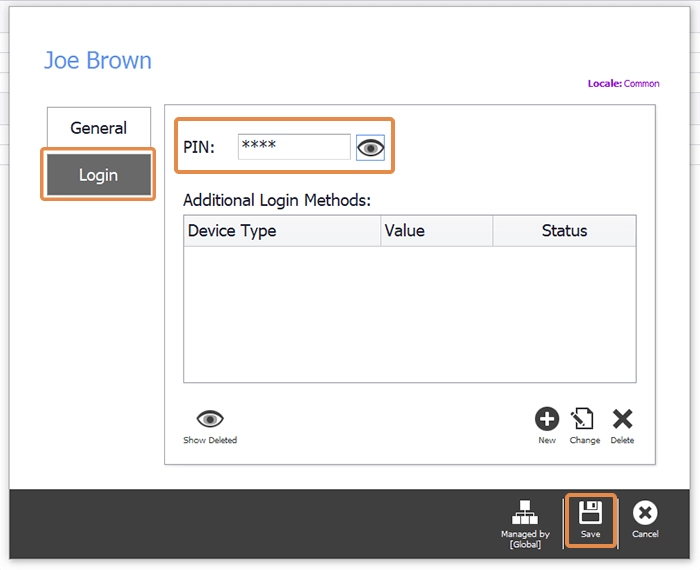
Select Login to set the user's login method, and enter the PIN they will use on the POS terminal or device. A PIN can be up to 8 digits. Select Save.
Other ways to sign in
Users can also be set up to sign in with an RFID card or fob. Contact Triniteq support if you want those turned on.
Step 6
Close the module
Back in the Users module, select Close. That returns you to the Management Console, ready to publish.

Editing a user
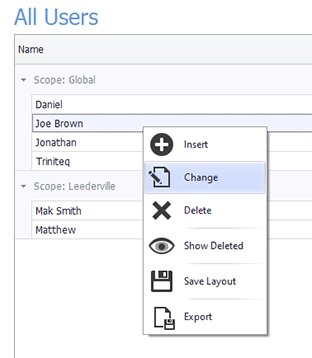
There are three ways to open the User Configuration window from the Users module. Any of them does the same thing.
- Double-click the user profile.
- Left-click the user profile and choose Change from the options.
- Select the profile, then Change in the Control Panel.

Publishing user settings to the POS
Step 7
Open Publish
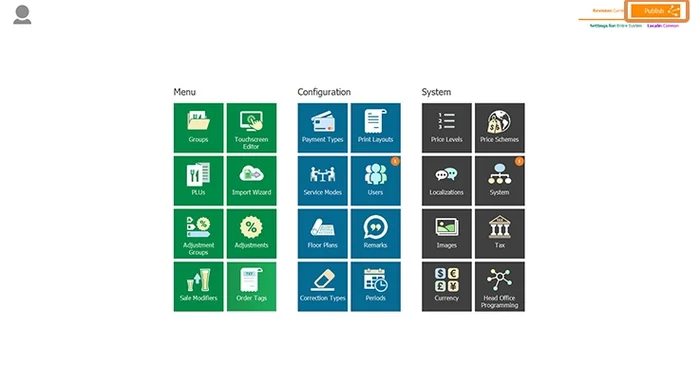
In the Management Console, the orange markers on the Users and System tiles show there are settings waiting to go out. Select Publish at the top right of the screen.
Step 8
Choose the changes and the outlets
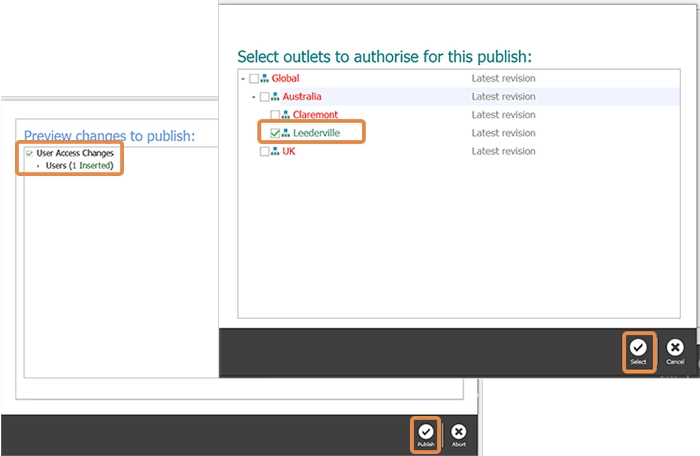
Check what is being published and where it is going, and clear anything you are not ready to send or any outlet you do not want it to reach.
Step 9
Keep the revision number
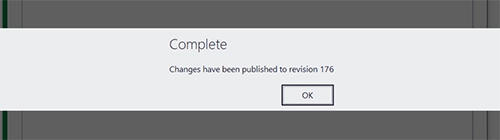
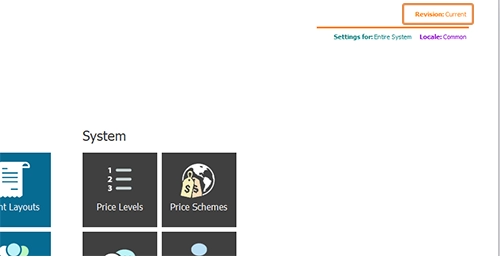
When the publish finishes you get a Complete message with a revision number. That number is what the Revision Management Tool works from — it takes the place of the Publish button at the top right of the screen.
Step 10
Need help?
Triniteq support
Our support team is here to help.
Call 1300 784 276 or email support@triniteq.com, and include your venue name so we can find your setup straight away.