
System programming · Guide
Setting up access roles
Create an access role in PowerEPOS, set its flags, adjustments and corrections, edit or delete an existing role, and publish the change to the POS.
PowerEPOS
Setting up access roles
Access roles in PowerEPOS
An access role decides what a member of staff can do on the POS — which discounts and surcharges they can apply, which corrections they can make, and which parts of the system they can reach. Roles are built in the Users module and then published out to your terminals.
In this guide
- StartBefore you start
- Creating an access role
- 1Open the Users module
- 2Start a new role
- 3Name it and open Flags
- Setting what the role can do
- 4Work through the flags
- 5Choose the adjustments
- 6Choose the corrections
- Editing and deleting roles
- Publishing to the POS
- 7Close the configuration window
- 8Publish
- 9Keep the revision number
- 10Need help?
Start
Before you start
- Access to the PowerEPOS Management Console.
- A clear idea of what this role should and should not be allowed to do.
Creating an access role
Step 1
Open the Users module
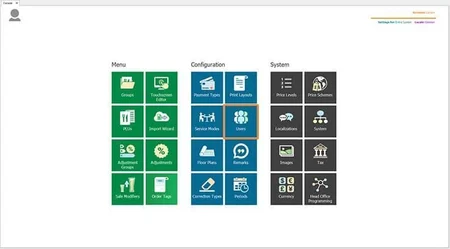
From the PowerEPOS Management Console, select Users.
Step 2
Start a new role
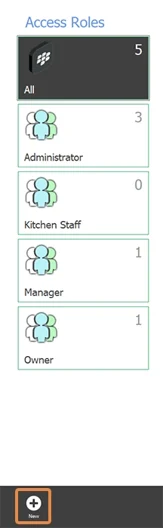
Select New directly beneath Access Roles to open the Access Roles Configuration window.
Step 3
Name it and open Flags
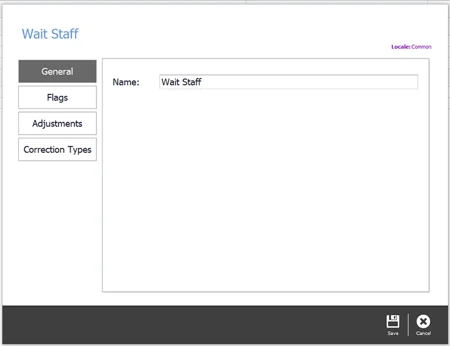
Give the role a name, then select Flags.
Setting what the role can do
Step 4
Work through the flags
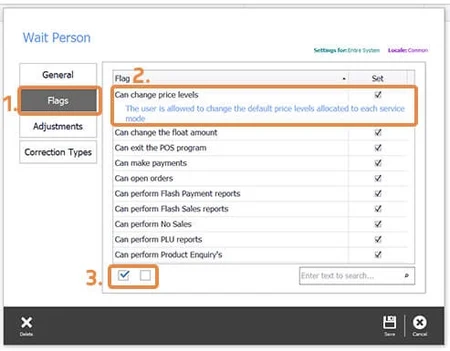
Flags are the individual permissions, each one on or off. Select a flag to read what it does. The checkboxes below the descriptions turn the whole set on or off at once.
Step 5
Choose the adjustments
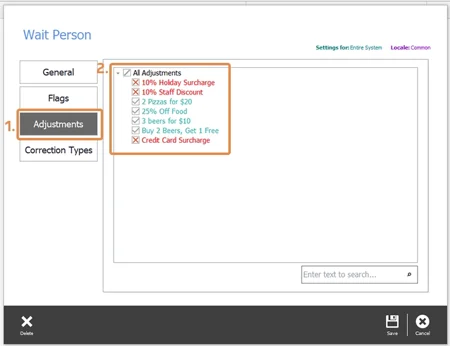
Adjustments is the list of discounts and surcharges this role may process. For a wait person, clear the ones that should need a manager.
Step 6
Choose the corrections
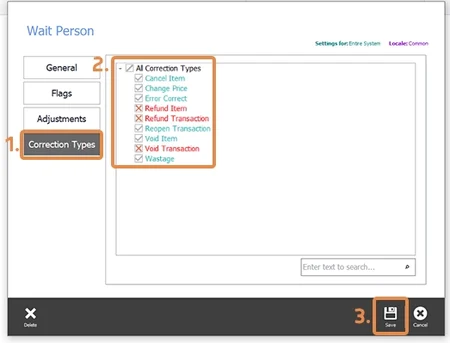
Then pick the Corrections the role is allowed to make, and select Save in the control panel to save the role and close the window.
Editing and deleting roles
Double-click a role in the list on the left to open it for editing, then Save and Close when you are done.
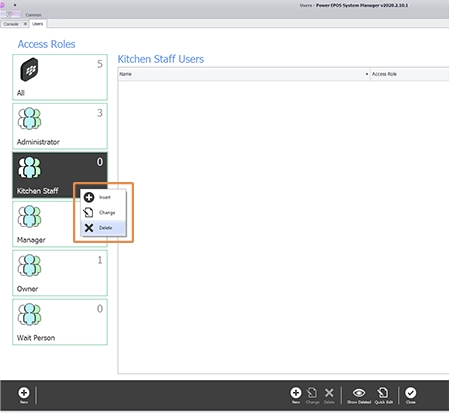
To delete one, right-click it, select Delete, and Save in the control panel.
A role with users on it cannot be deleted
If staff are still assigned to the role you are deleting, they show in red. Double-click each one, give them a different access role, and then come back and delete the role.
Publishing to the POS
Step 7
Close the configuration window
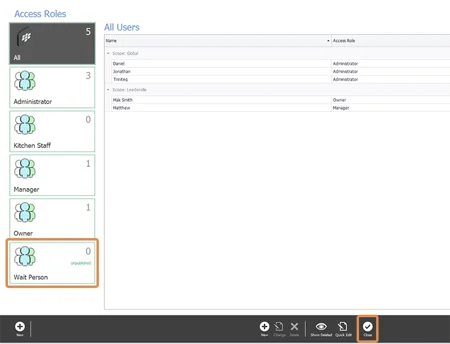
A new role is marked unpublished until you send it out. Select Close in the control panel to leave the Access Roles configuration window.
Step 8
Publish
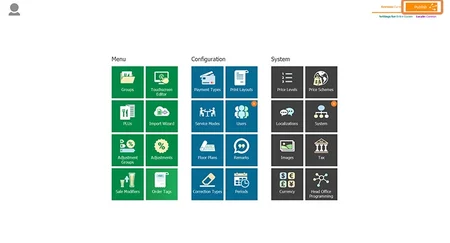
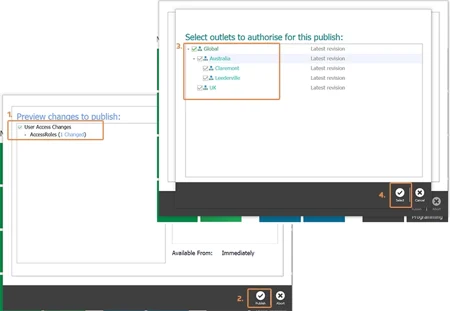
Back in the Management Console, the orange markers on the Users and System tiles show what is waiting. Select Publish at the top right, then check the changes and the outlets, clearing anything you are not ready to send.
Step 9
Keep the revision number
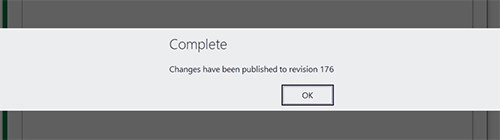
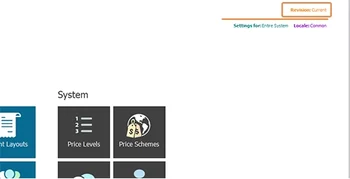
The Complete message carries a revision number, which the Revision Management Tool works from. It takes the Publish button's place at the top right of the screen. The role is now available on your terminals, tablets, laptops and other Windows devices.
Step 10
Need help?
Triniteq support
Our support team is here to help.
Call 1300 784 276 or email support@triniteq.com, and include your venue name so we can find your setup straight away.