
Modules · Guide
Creating gift cards in Gift Card Manager
Sign in to the Triniteq Gift Card Manager portal and create a gift card, either preloaded with a value or registered to be topped up at the POS.
Triniteq Platform
Creating gift cards in Gift Card Manager
Gift Card Manager
Gift Card Manager loads funds onto a code that can then be spent at the POS. The code can come from somewhere else — printed on a physical card, or issued by a purchase app — or you can have Gift Card Manager generate one. Throughout this guide, gift card covers gift vouchers too: both are the same thing, a code carrying a balance.
In this guide
- StartBefore you start
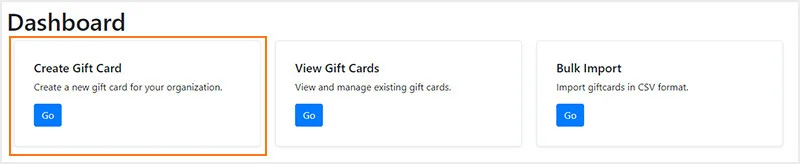
- 1Sign in and start a gift card
- 2Choose the organisation
- 3Create the card
- 4Need help?
Start
Before you start
- A sign-in for the Gift Card Manager portal at https://giftcard.triniteq.com.
- The gift card code, if the cards were printed or issued somewhere else.
Step 2
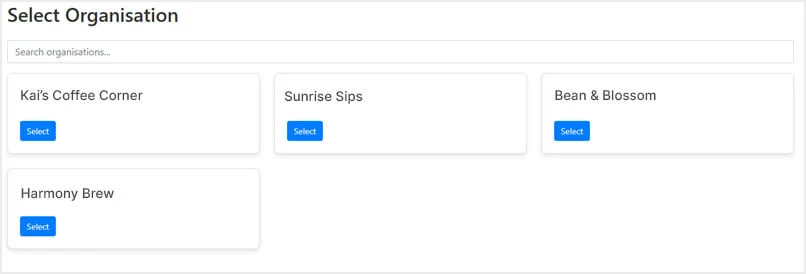
Choose the organisation
Select the organisation the gift card belongs to.
Step 3
Create the card
There are two ways to go from here. A preloaded card carries a set value — $50 or $100, say — and can be used the moment it is created. A registered card carries no value yet; it is activated and loaded at the POS when somebody buys it.
To preload it, enter the gift card code or select Generate for a new one, add the value, choose the type, add any notes such as a name or email address, and select Create Gift Card.
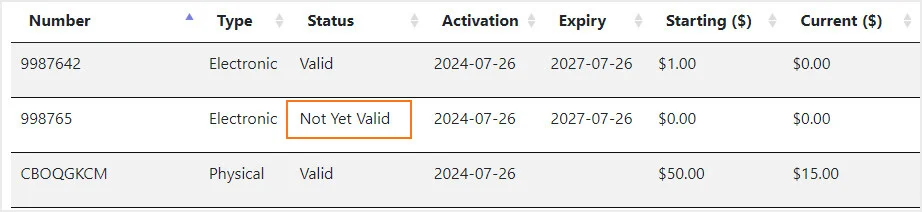
To register it instead, enter or generate the code, choose the type, and select Create Gift Card. Its status will read Not Yet Valid until it is activated and topped up on the POS.
Step 4
Need help?
Triniteq support
Our support team is here to help.
Call 1300 784 276 or email support@triniteq.com, and include your venue name so we can find your setup straight away.