
Modules · Guide
Redeeming a gift card at the POS
Take a gift card or voucher as payment on PowerEPOS, settle whatever is left on another payment type, and cancel a gift card payment applied by mistake.
PowerEPOS
Redeeming a gift card at the POS
Gift cards and vouchers as payment
A gift card is taken like any other payment type. PowerEPOS redeems as much of the card's balance as the order needs, and anything still owing is settled however the customer wants to settle it.
In this guide
- 1Ring the sale up
- 2Find the gift card payment button
- 3Choose the card type
- 4Enter the card number
- 5Check what was taken
- 6Settle the rest
- Cancelling a gift card payment
- 7Need help?
Step 1
Ring the sale up
Build the order on the POS as you normally would.
Step 2
Find the gift card payment button
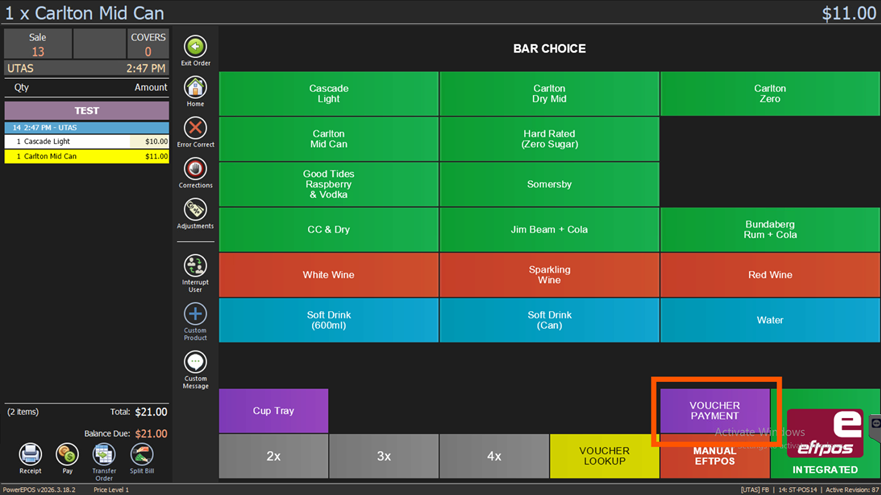
On the payment screen, find the voucher or gift card payment button.
Step 3
Choose the card type
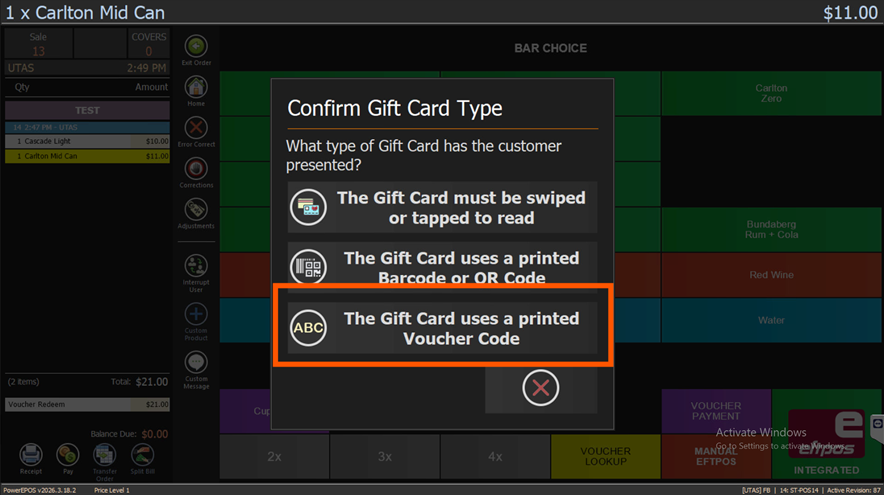
Choose the type that matches the card in front of you and how the number is going into the POS. For most physical gift cards that is Printed Voucher Code, with the number typed in by hand.
Step 4
Enter the card number
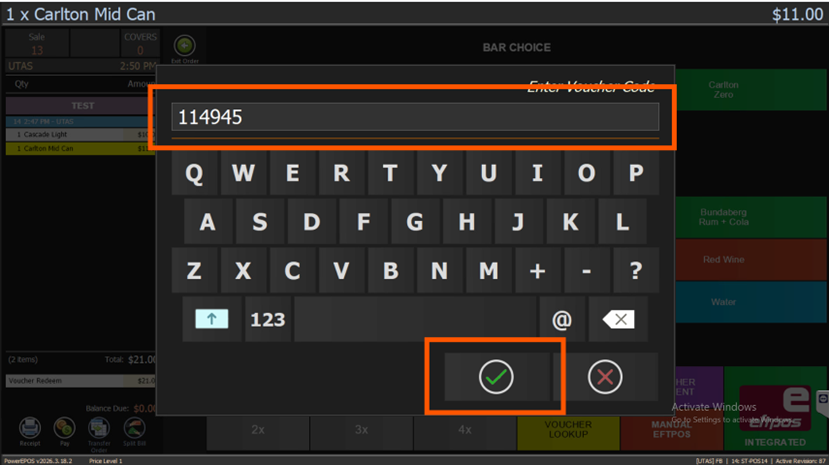
Type the number on the on-screen keyboard and press the tick.
Step 5
Check what was taken
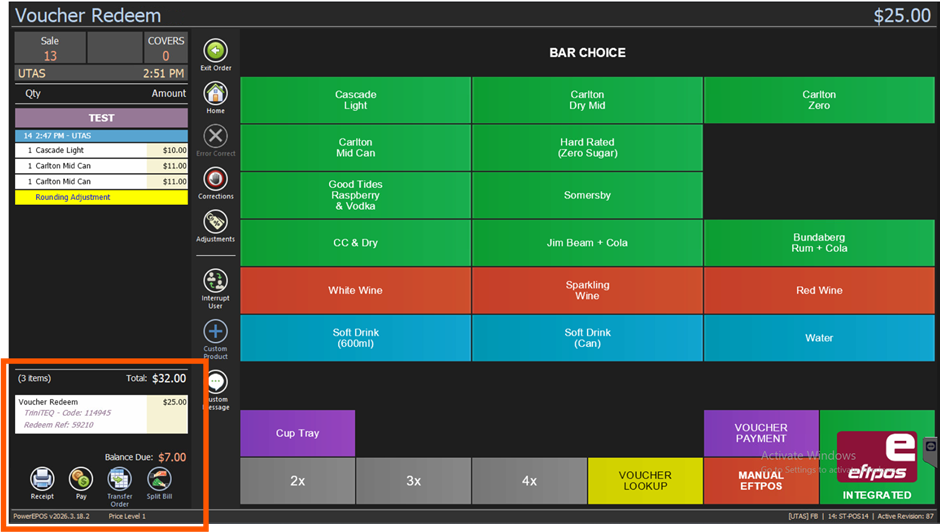
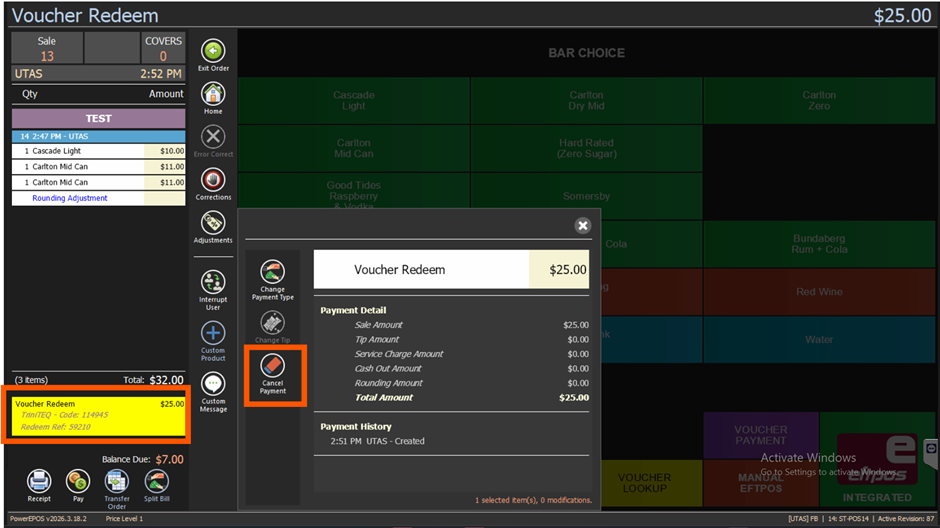
PowerEPOS redeems the maximum available balance on the card and applies it to the order. The amount taken and anything still owing both appear at the bottom left of the screen.
Step 6
Settle the rest
Take whatever is left on another payment type to finish the sale.
Cancelling a gift card payment
If a gift card payment goes on by mistake, press the gift card payment line in the payment summary and choose Cancel. The payment comes off the order and the balance goes back on the card.
Step 7
Need help?
Triniteq support
Our support team is here to help.
Call 1300 784 276 or email support@triniteq.com, and include your venue name so we can find your setup straight away.