
Using PowerEPOS · Guide
Declaring cash and closing the day
Count the cash drawer, declare it against the day's takings, correct a declaration that was entered wrong, and finalise the Z report.
PowerEPOS
Declaring cash and closing the day
Cash declaration and the Z report
A Z report is run at the end of a shift or a day. It summarises every transaction and resets the totals to zero. Declaring the cash first is what lets the report show a true variance between what the POS expected and what is in the drawer.
In this guide
- StartBefore you start
- Declaring the cash
- 1Open Count Cashdrawer
- 2Start the count
- 3Enter what is in the drawer
- 4Say whether the float is included
- 5Check the payment totals
- Correcting a declaration
- 6Take the old figure back out
- 7Declare the right amount
- 8Finalise and print
- 9Need help?
Start
Before you start
- The cash drawer counted.
- Whether your count includes the float.
- A POS login with access to Reports.
Declaring the cash
Step 1
Open Count Cashdrawer
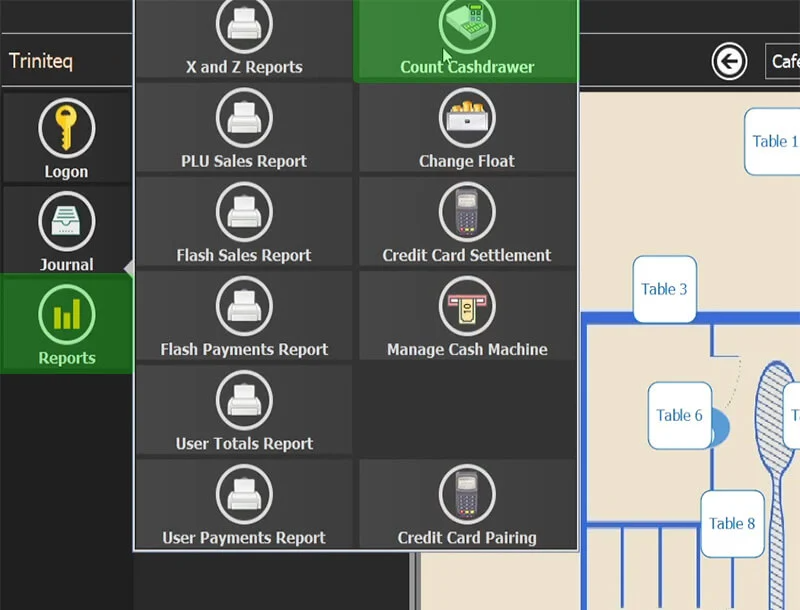
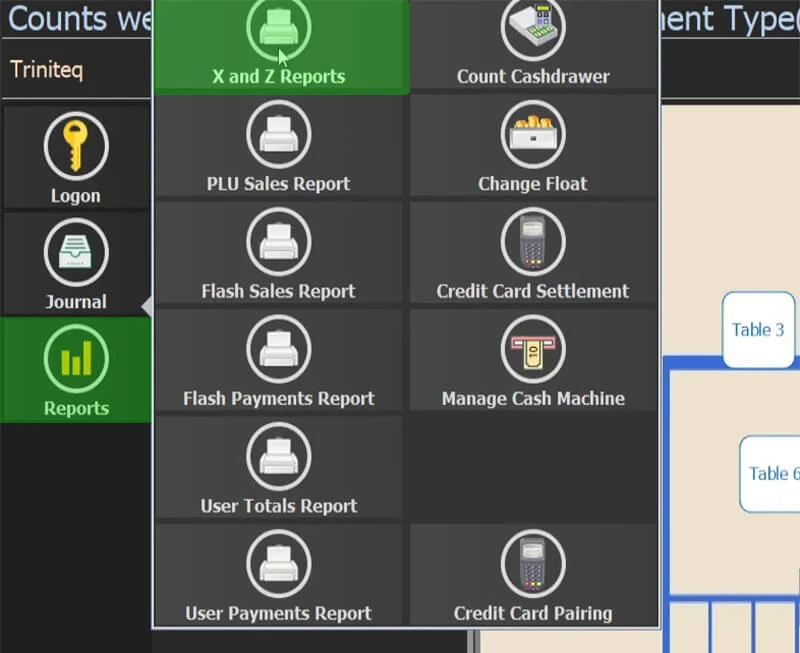
Sign in to the POS and go to Reports → Count Cashdrawer.
Step 2
Start the count
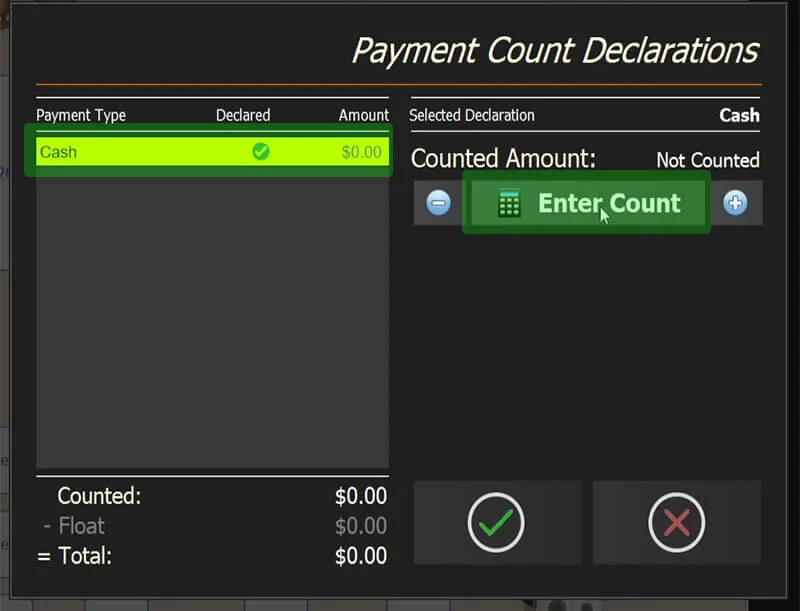
Choose Cash, then Enter Count.
Step 3
Enter what is in the drawer
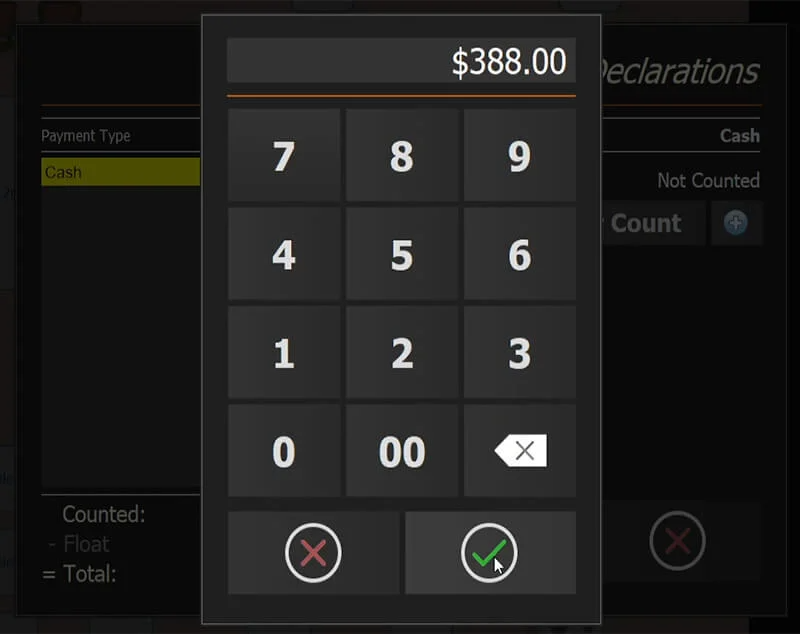
Type the total amount of cash in the drawer.
Step 4
Say whether the float is included
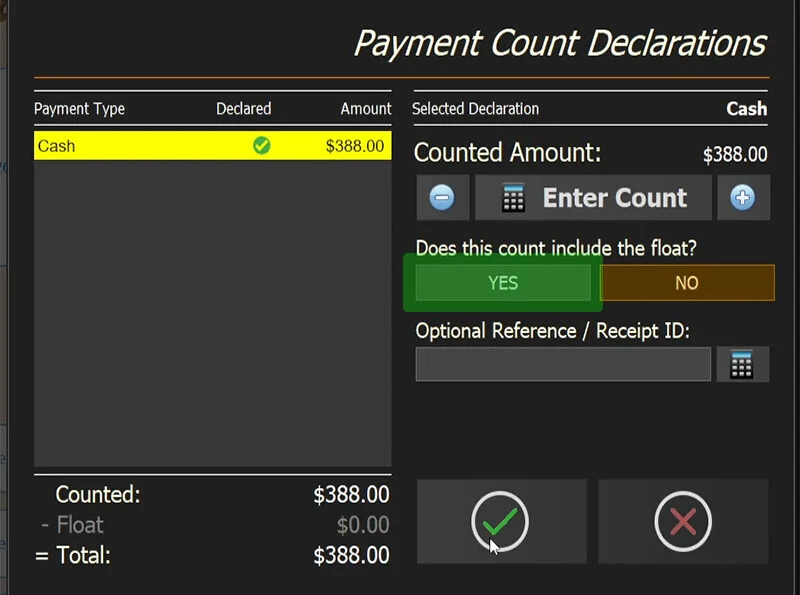
If your count includes the float, choose Yes and the POS takes the float off the declaration. Press the green tick to save and close.
Step 5
Check the payment totals
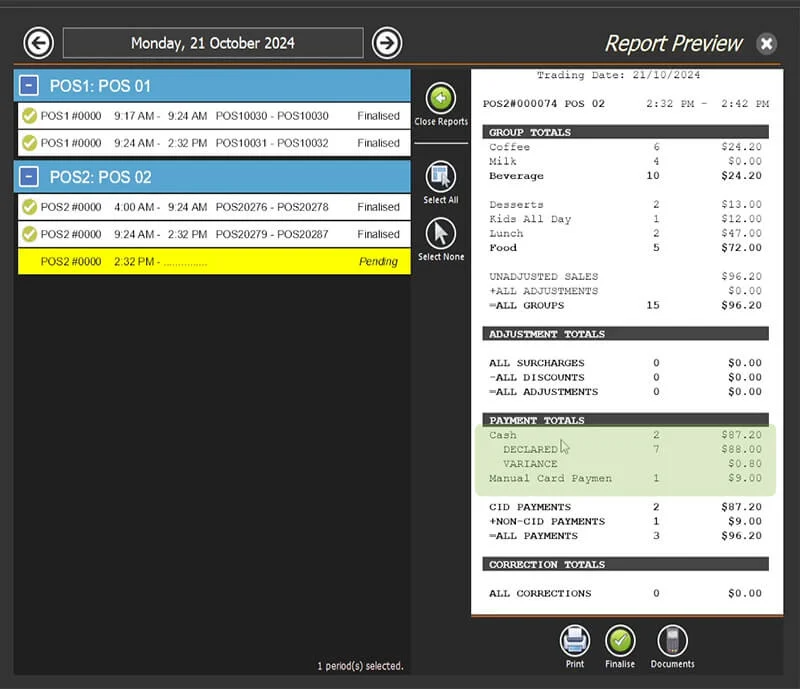
Go to Reports → X and Z Reports and read the payment totals. If they are right, press the green tick to finalise. If there is a variance, correct the declaration first.
Correcting a declaration
Step 6
Take the old figure back out
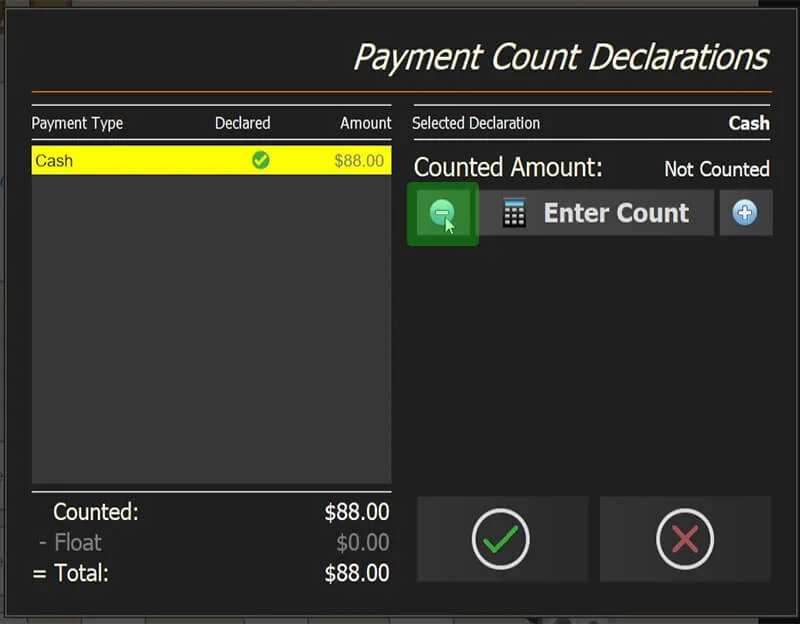
Go to Reports → Count Cashdrawer, press the minus button and enter the amount you declared before, without the float, to bring it back to zero. Press the green tick to save.
Step 7
Declare the right amount
Count and declare again, exactly as above, then check the payment totals once more.
Step 8
Finalise and print
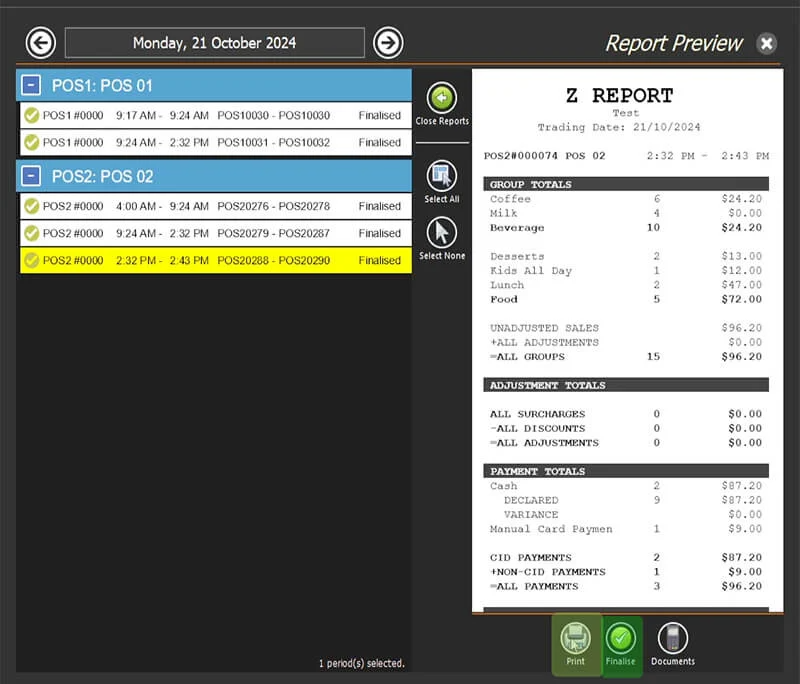
When the totals match, finalise the Z report and print it. The shift or day is closed.
Step 9
Need help?
Triniteq support
Our support team is here to help.
Call 1300 784 276 or email support@triniteq.com, and include your venue name so we can find your setup straight away.