
Using PowerEPOS · Guide
Processing refunds, by card and by cash
Refund a single item or a whole transaction on PowerEPOS, back to the card it was paid on or out of the cash drawer.
PowerEPOS
Processing refunds, by card and by cash
Refunds on the POS
Refunds are done on the POS, either an item at a time from an order or a whole transaction from the journal. A refund goes back the way the money came: cash out of the drawer, card back to the same card.
In this guide
- StartBefore you start
- Refunding one item to a card
- 1Mark the item as a refund
- 2Pay it out by card
- 3Let the customer present their card
- 4Check the journal
- Refunding a whole transaction to a card
- 5Open the journal
- 6Choose the transaction
- 7Let the customer present their card
- 8Check it went through
- Refunding one item in cash
- 9Mark the item as a refund
- 10Pay it out in cash
- 11Check the journal
- 12Need help?
Start
Before you start
- A POS login with permission to process refunds.
- The customer's card, for a card refund — it must be the card the sale was paid on.
Refunding one item to a card
Step 1
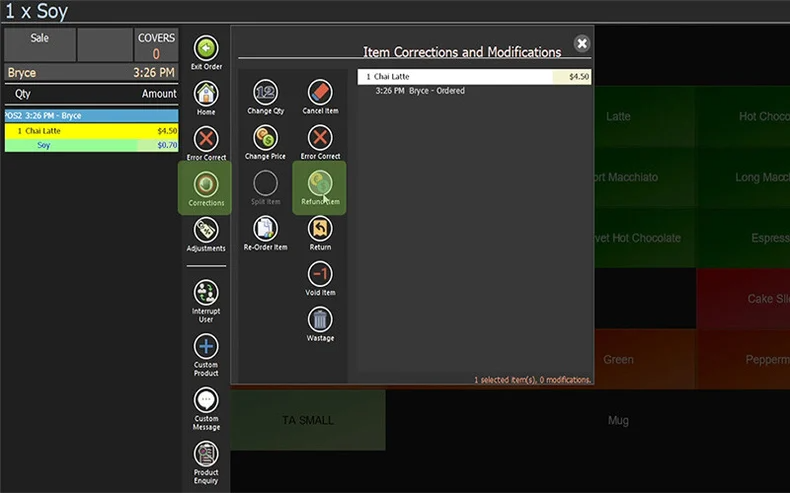
Mark the item as a refund
Sign in and open a new order. Select the item being refunded, with the parent item highlighted, then choose Corrections → Refund Item.
Step 2
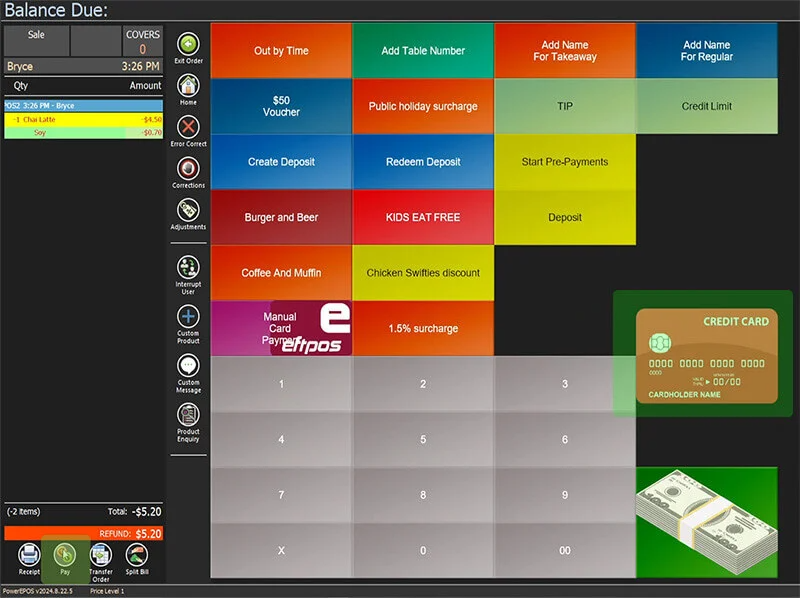
Pay it out by card
Close the corrections panel, press Pay, then Integrated EFTPOS.
Step 3
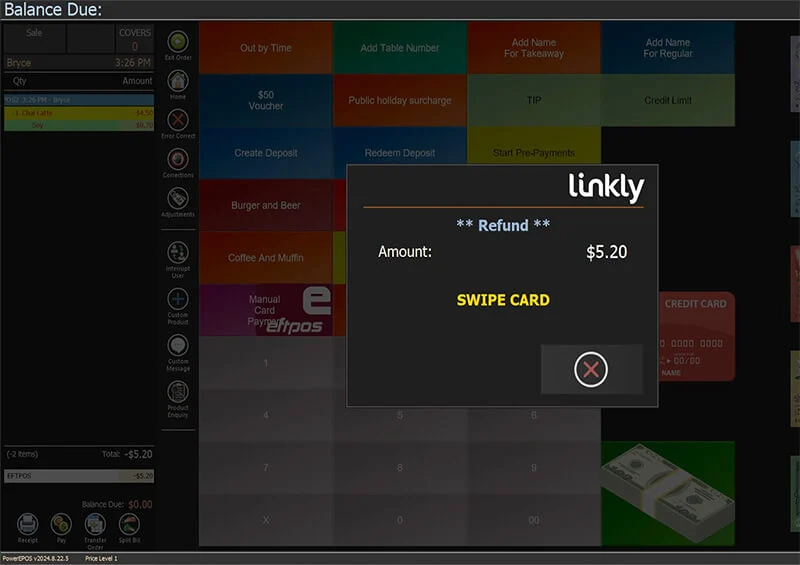
Let the customer present their card
The terminal asks the customer to tap or swipe and enter their PIN.
Step 4
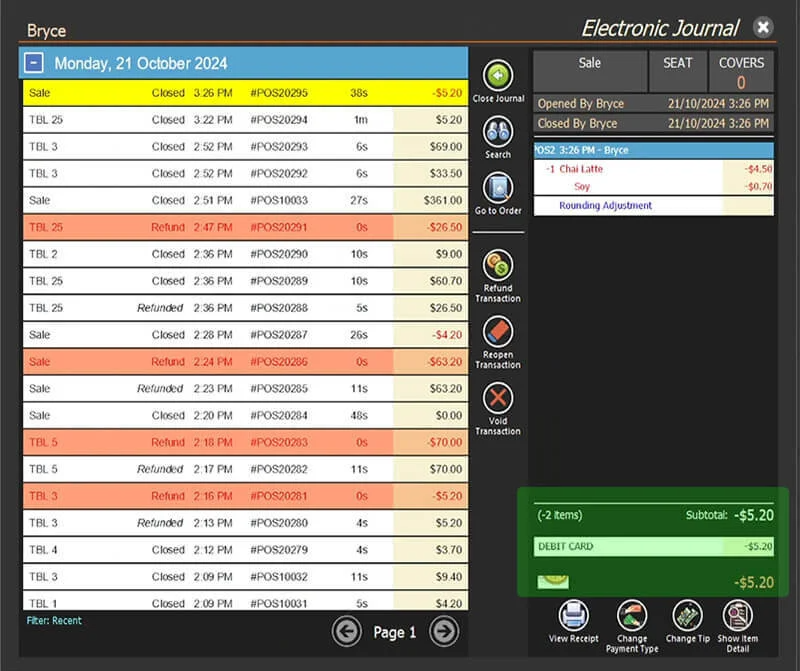
Check the journal
The refund is approved and sent back to the POS, where it appears in the journal as a negative sale.
Refunding a whole transaction to a card
Step 5
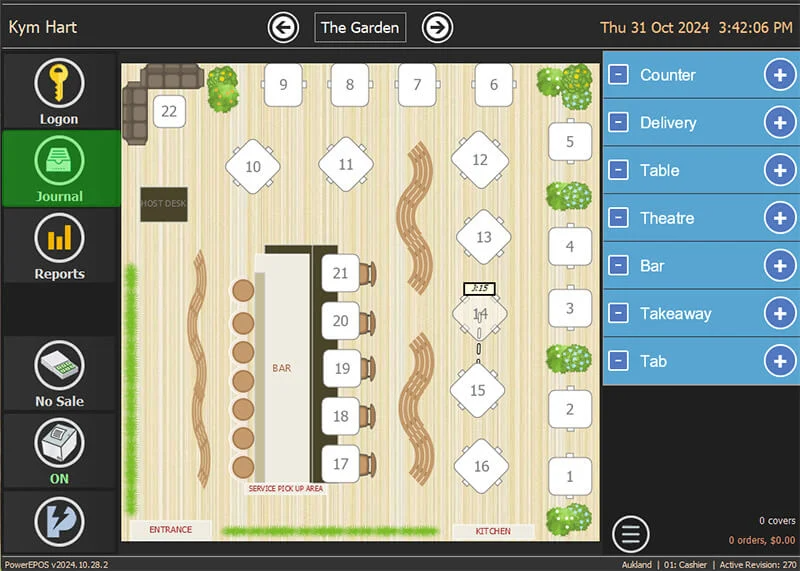
Open the journal
Sign in and open the Journal.
Step 6
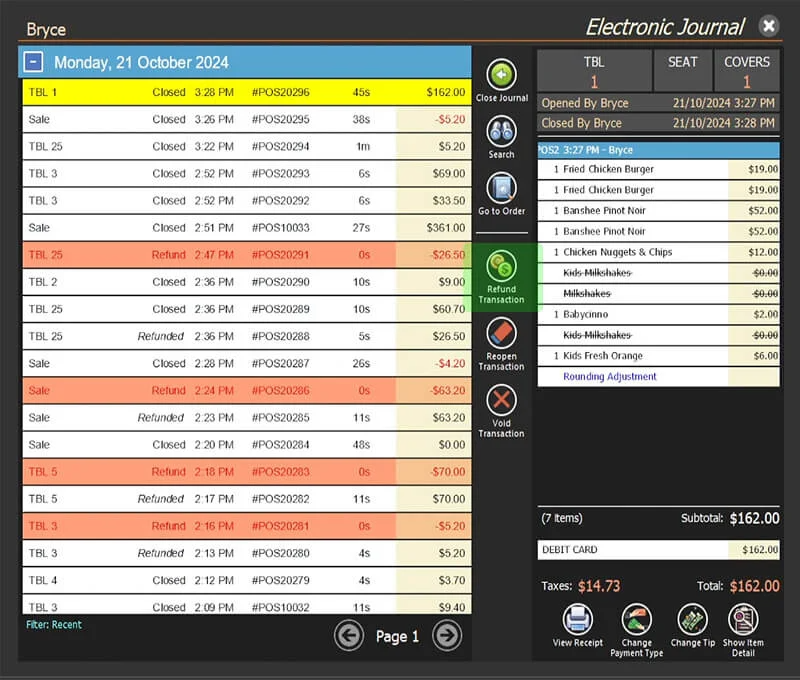
Choose the transaction
Find the transaction, choose Refund Transaction and press the green tick.
Step 7
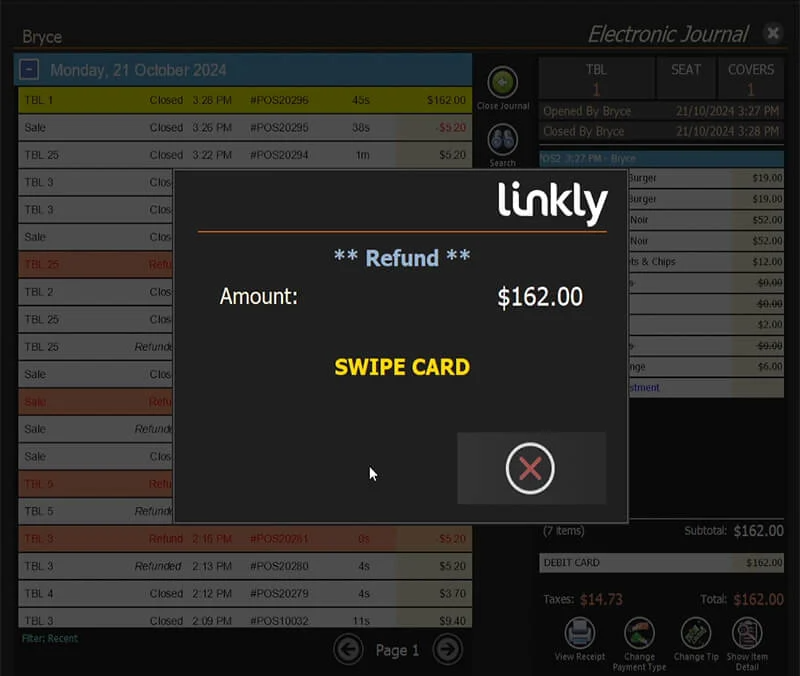
Let the customer present their card
The terminal asks the customer to tap or swipe and enter their PIN.
Step 8
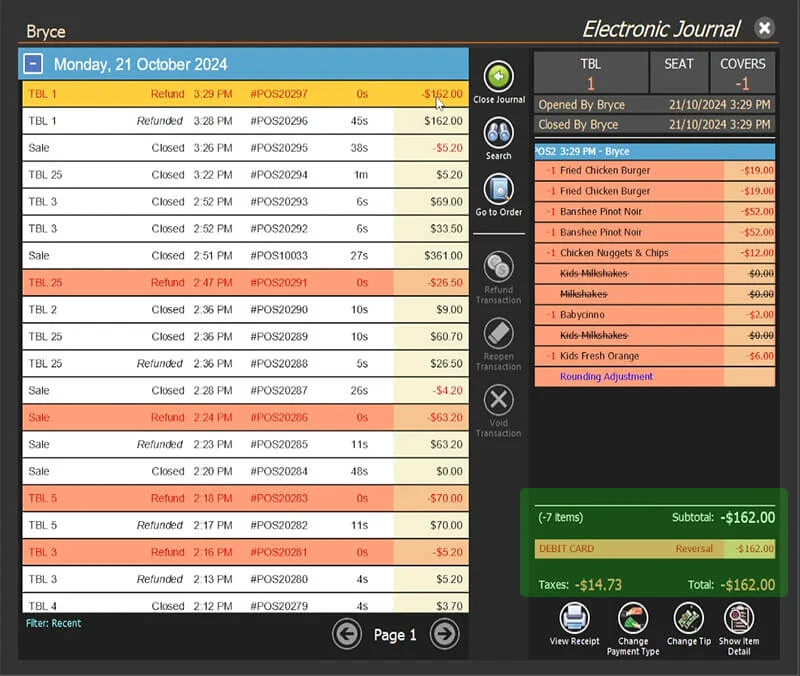
Check it went through
The transaction turns red in the journal and shows a negative amount.
Refunding one item in cash
Step 9
Mark the item as a refund
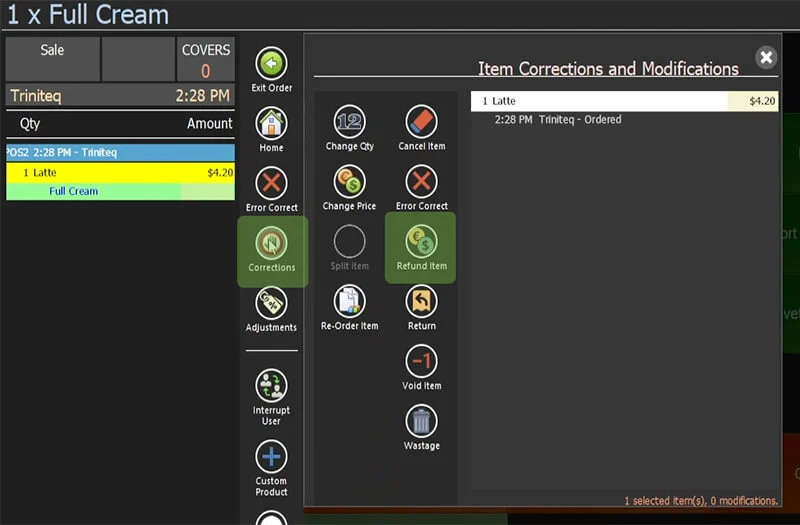
Sign in and open an order. Select the item with the parent item highlighted, then choose Corrections → Refund Item.
Step 10
Pay it out in cash
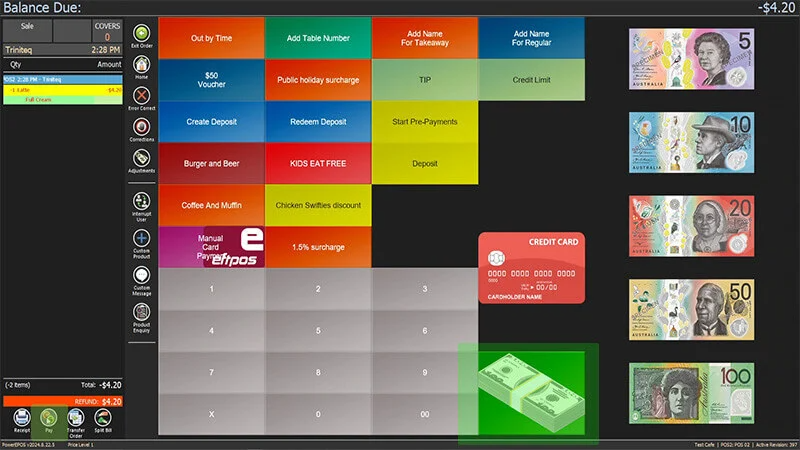
Close the corrections panel, press Pay, then Cash. The drawer opens so you can hand the money back.
Step 11
Check the journal
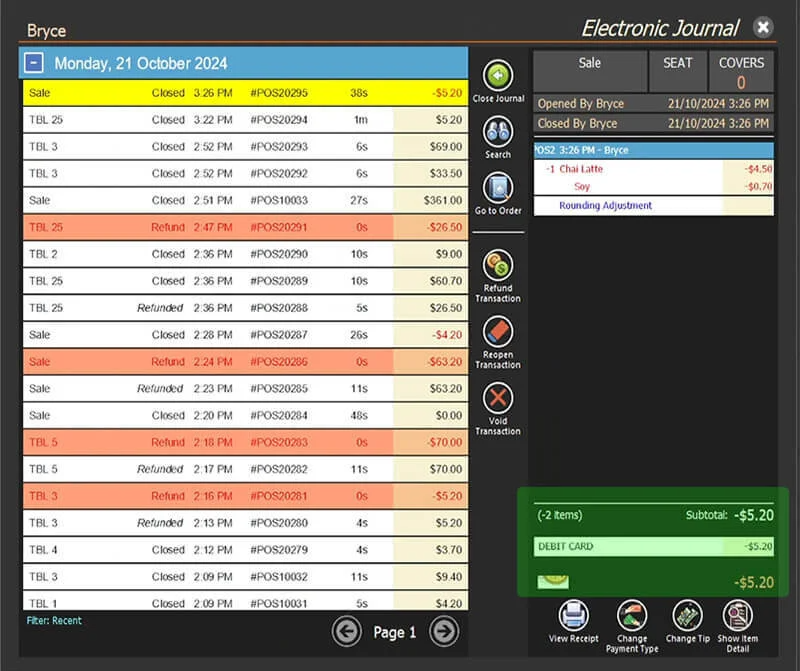
The item shows in red in the journal, with a negative amount against it.
A refund follows the original payment
Cash sales are refunded in cash and card sales back to the same card. Refunding a card sale in cash leaves the takings out by the amount twice over.
Step 12
Need help?
Triniteq support
Our support team is here to help.
Call 1300 784 276 or email support@triniteq.com, and include your venue name so we can find your setup straight away.