
Modules · Guide
Sending a digital receipt
Send a customer their receipt by email or SMS from the POS, what they receive, and what happens when something goes wrong.
Triniteq Platform
Sending a digital receipt
Triniteq Digital Receipts
Triniteq Digital Receipts behaves like another printer on your POS. It captures the receipt as it is printed and offers the customer a copy by SMS or email instead. There is nothing for staff to learn beyond one extra choice at the end of a sale.
In this guide
- StartBefore you start
- Sending a receipt
- 1Print the receipt as usual
- 2Choose email or SMS
- 3By email
- 4By SMS
- If it works, and if it does not
- What the customer gets
- 5Need help?
Start
Before you start
- Digital Receipts installed on your POS terminal — raise a ticket with Triniteq support to have it set up.
- The customer's email address or mobile number.
Sending a receipt
Step 1
Print the receipt as usual
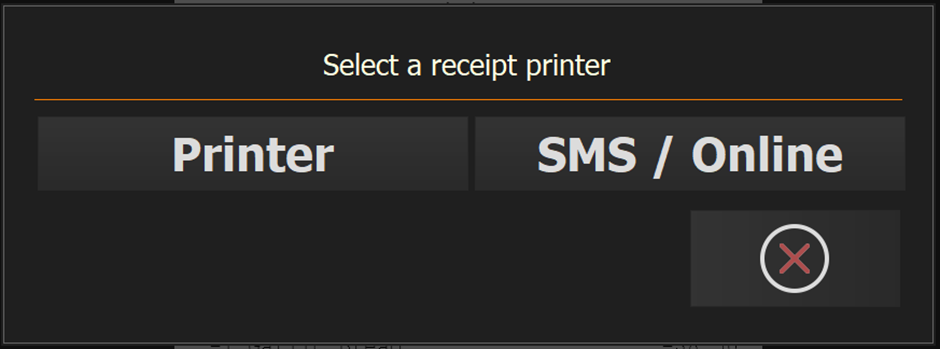
Carry on taking transactions exactly as you do now. When it comes to the receipt, PowerEPOS offers you the choice between printing it and SMS/Online.
Step 2
Choose email or SMS
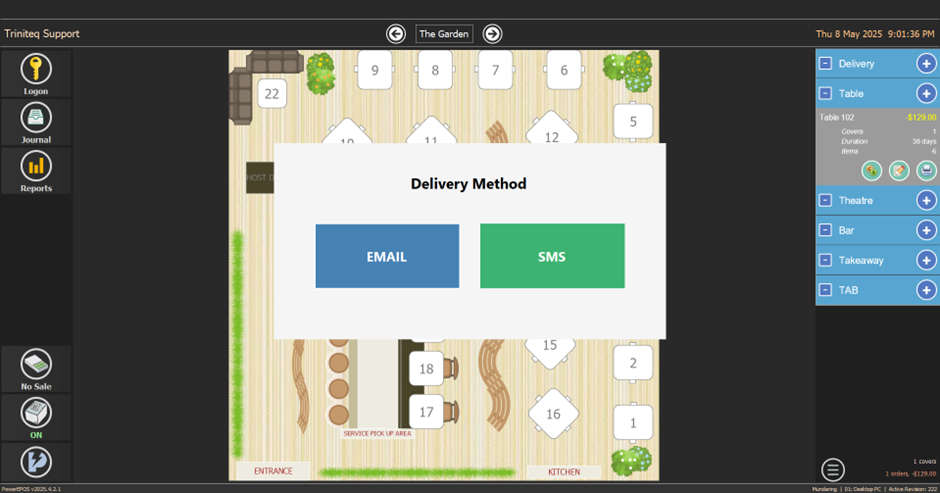
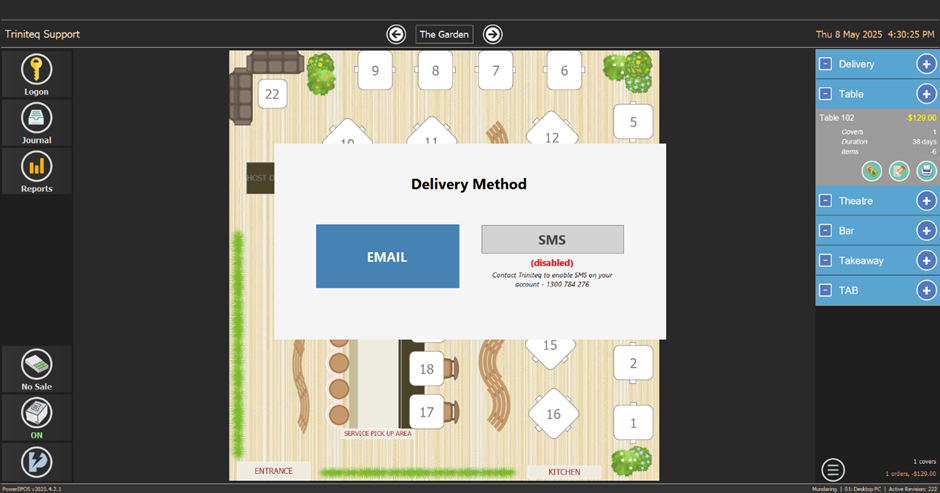
Choosing SMS/Online hands the receipt to the Triniteq Digital Receipt Agent on the POS, which captures and formats it in the background. A prompt then asks how the customer wants it.
Step 3
By email
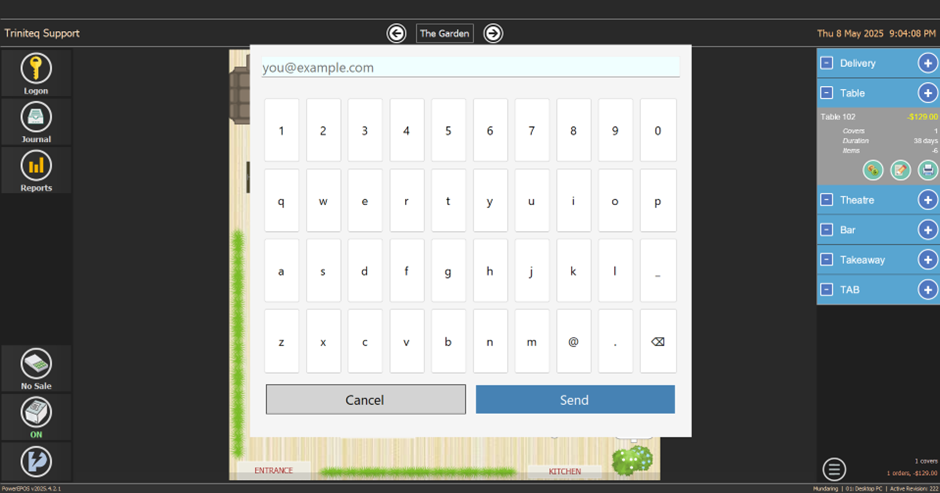
Tap Email, enter the customer's address and press Send.
Step 4
By SMS
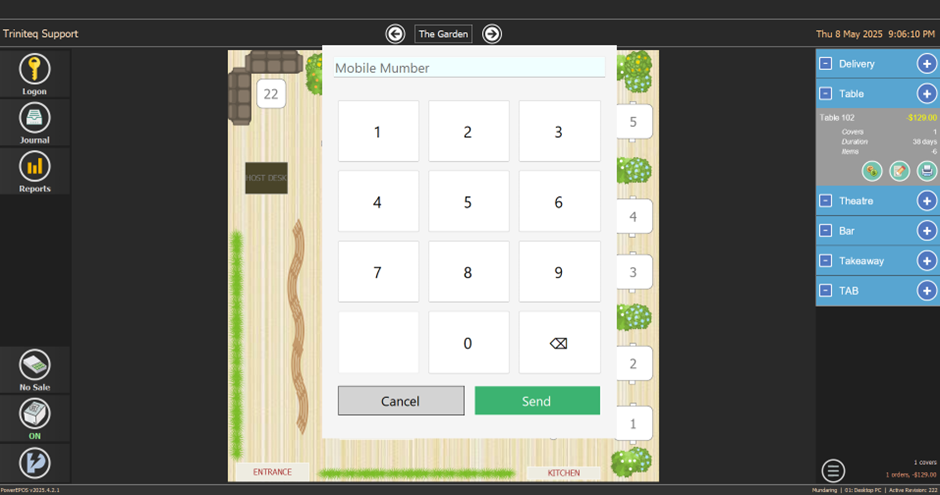
Tap SMS, enter the customer's mobile number and press Send. Either format works: 044xxxxxxx or 6144xxxxxxx.
SMS can be switched off
Some venues choose not to offer SMS. Where it is off, a message says so on screen. Raise a ticket with us if you want it turned on.
If it works, and if it does not
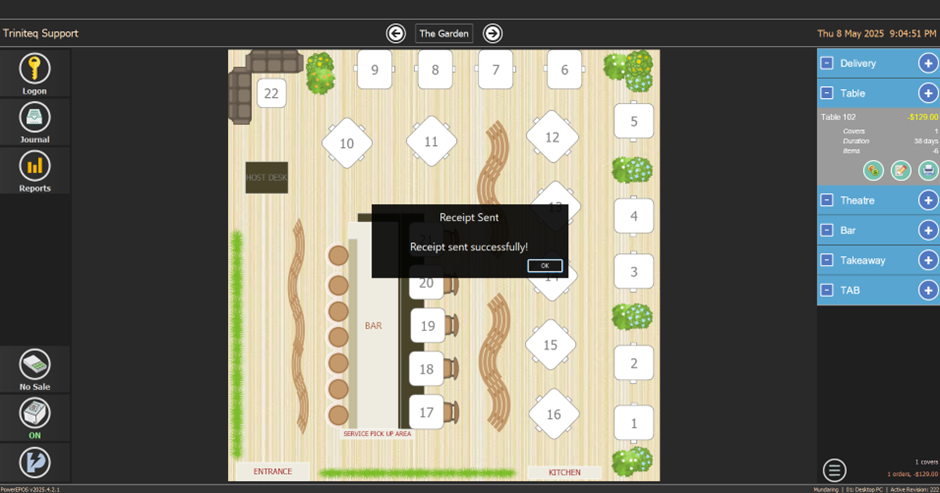
A confirmation appears on screen and clears itself after three seconds; tapping OK dismisses it straight away.
If something goes wrong, a message says so. The receipt is saved on the terminal and Triniteq support can send it again later — nothing is lost.
What the customer gets
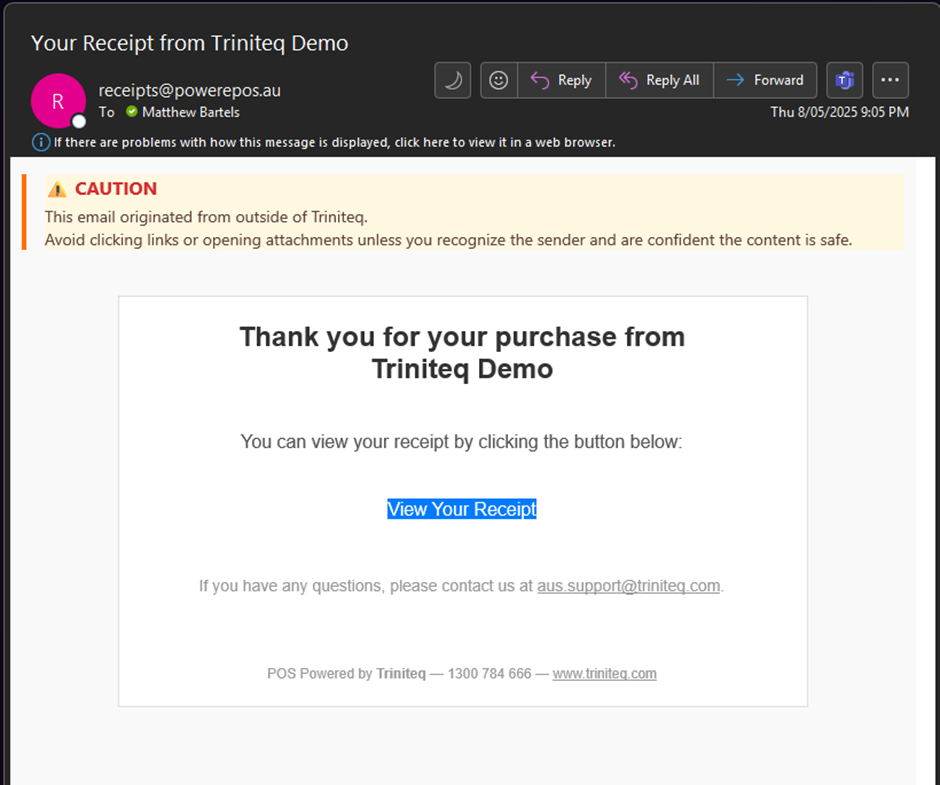
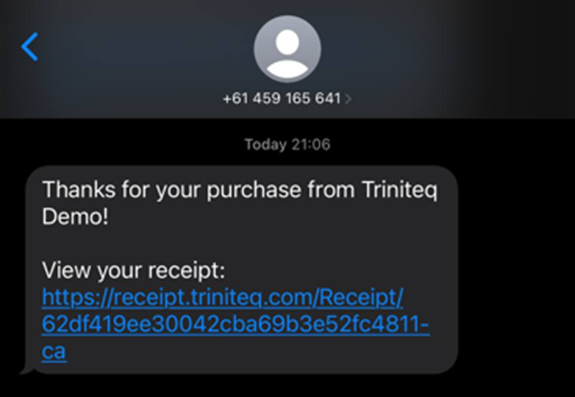
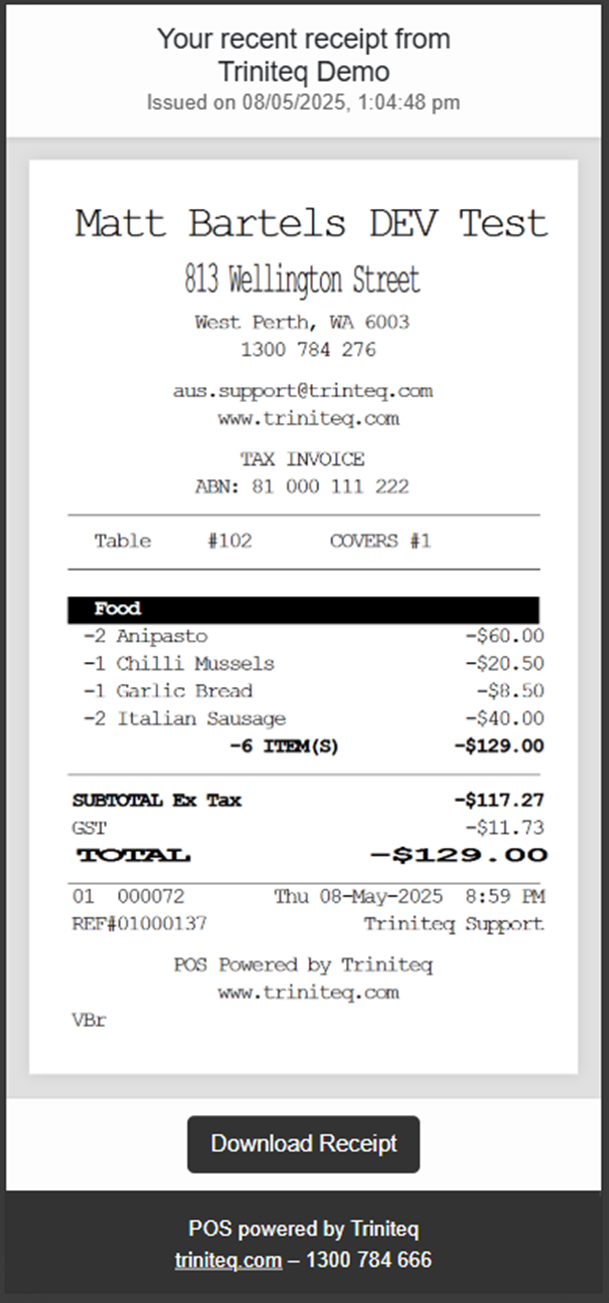
The receipt is uploaded to the Triniteq cloud server, and the customer receives either an email from receipts@powerepos.au titled Your Receipt from [venue name], or an SMS from Triniteq, PowerEPOS or a standard mobile number. Either way it carries a link that opens the receipt in a web browser.
Receipts stay online for six months, and the receipt page tells the customer so.
Step 5
Need help?
Triniteq support
Our support team is here to help.
Call 1300 784 276 or email support@triniteq.com, and include your venue name so we can find your setup straight away.