
Modules · Technical service guide
Setting up the TQ Receipt Agent
Create the receipt account, install and register the TQ Receipt Agent on a terminal, configure it as a printer in PowerEPOS, and deal with the common problems.
Triniteq Platform
Setting up the TQ Receipt Agent
TQ Receipt Agent
The TQ Receipt Agent is what turns a printed receipt into one the customer can be sent. It installs on the terminal, registers against the venue's organisation ID, and then appears to PowerEPOS as an ordinary printer. There are three parts to a setup: the account, the install, and the POS configuration.
In this guide
- StartBefore you start
- Creating the account
- 1Register the venue
- Installing the agent
- 2Run the installer
- 3Register the terminal
- Configuring the POS
- 4Open the outlet's printers
- 5Insert the printer
- 6Map it to the terminals
- Using it on the POS
- 7Print, then choose email or SMS
- When something goes wrong
- 8Need help?
Start
Before you start
- Administrator access on the terminal.
- The venue name and an email address for the account.
- Whether the venue wants SMS receipts.
- Access to PowerEPOS System Manager, with permission to publish.
Creating the account
Step 1
Register the venue
Go to the TQWebReceipt login page and provide the venue name, an email address and whether SMS receipts are wanted. An organisation ID is issued once the account exists — you need it to register each terminal.
Installing the agent
Step 2
Run the installer
Download it from receipt.triniteq.com/agent_install and work through the prompts. It installs to C:\PowerEPOS\TQ Receipt Agent\.
The installer carries .NET 9 with it, which is why it is a large download.
Step 3
Register the terminal
The application starts itself after installation, and a shortcut is added to the common startup folder so it comes back after a reboot.
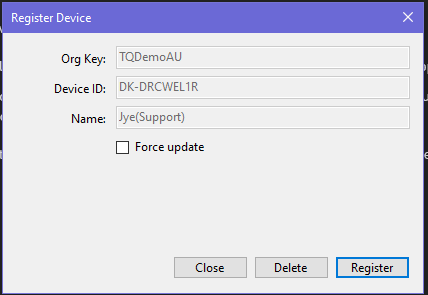
Find its icon in the system tray, right-click and select Register. Enter the organisation ID, and set the name to the terminal plus the venue — VenueTerminalXX.
Configuring the POS
Step 4
Open the outlet's printers
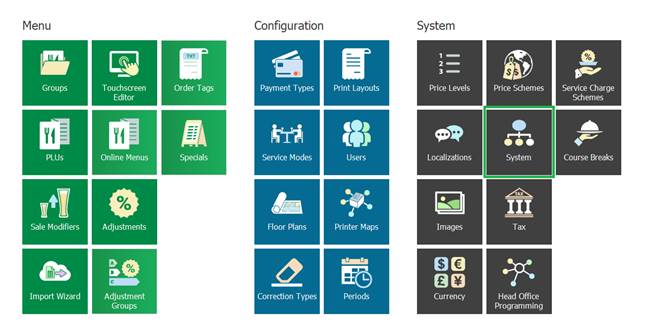
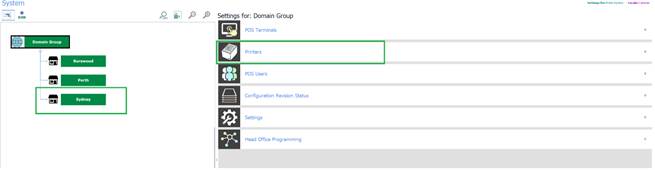
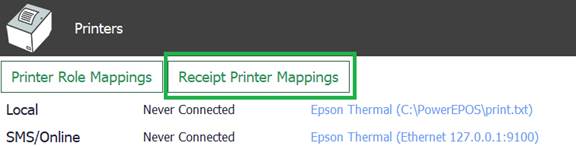
In PowerEPOS System Manager, go to System, choose your outlet, and open Printers.
Step 5
Insert the printer
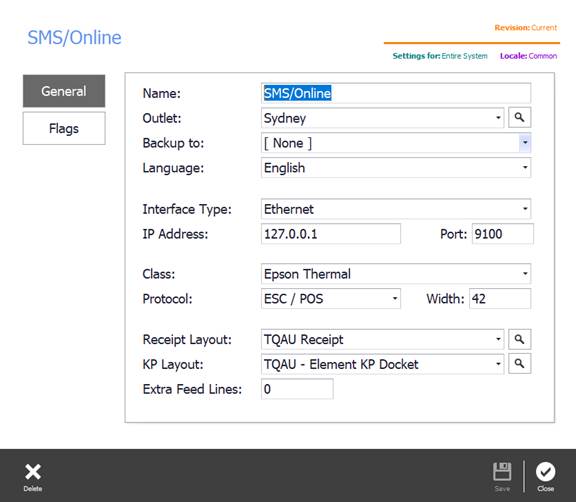
Insert a new printer, configure it to the setup you have been given, and save it.

Step 6
Map it to the terminals
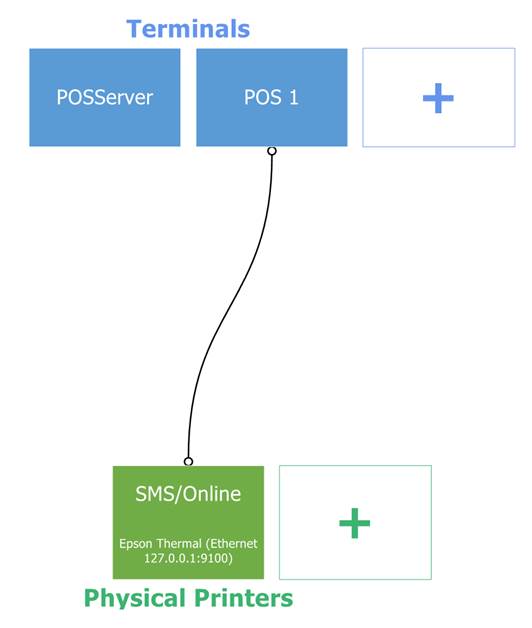
Select Receipt Printer Mappings and make sure the terminals that should use this printer are selected. Then save and publish.
Using it on the POS
Step 7
Print, then choose email or SMS
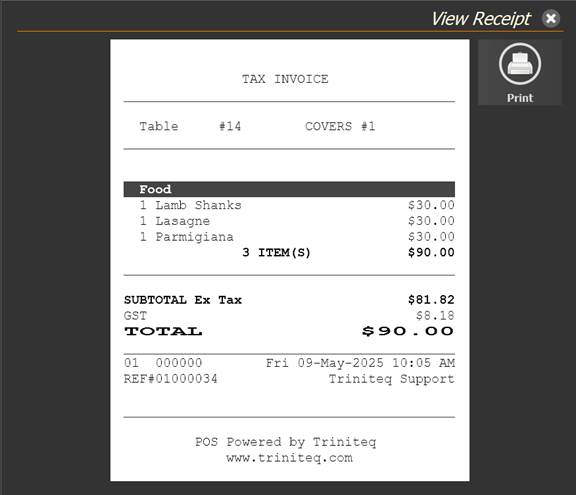
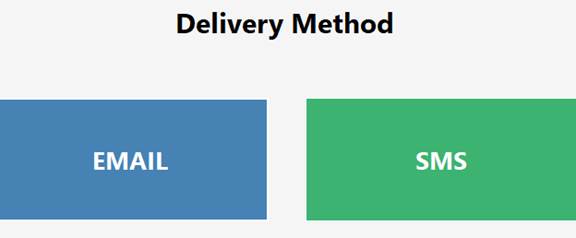
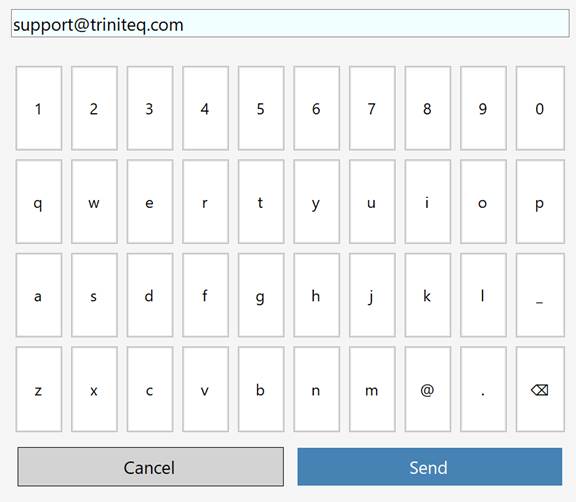
On the POS, choose to print a receipt. A preview appears; select Print, then choose Email or SMS. An on-screen keyboard comes up for the address or the number, and a confirmation appears once it has gone.
When something goes wrong
- Resetting the password — in the Register window, tick Force Update and register again. The configuration is kept and a new password is set.
- Decommissioning a device — in the Register window, select Delete. That removes the registration both on the terminal and online.
- A corrupted POS configuration — delete the contents of C:\Users\<currentuser>\AppData\Local\TQReceiptAgent and configure it again.
- Managing devices centrally — the cloud portal lists every registered device, and can blacklist, block or delete them.

Step 8
Need help?
Triniteq support
Our support team is here to help.
Call 1300 784 276 or email support@triniteq.com, and include your venue name so we can find your setup straight away.