
System programming · Guide
Setting up a special in the back office
Create a temporary price change for a product in PowerEPOS System Manager and push it live to the terminals.
PowerEPOS System Manager
Setting up a special in the back office
Temporary price changes from System Manager
A special is a temporary price for a product that exists already. You set the price and the period it runs for in PowerEPOS System Manager, and publish it to the terminals.
In this guide
- StartBefore you start
- 1Open Specials
- 2Start a new special
- 3Choose the Regular PLUs tab
- 4Find the product
- 5Set the price and the period
- 6Save, then publish
- 7Need help?
Start
Before you start
- Access to PowerEPOS System Manager, with permission to edit Specials.
- The product you are discounting, already set up as a PLU.
- The start and end date and time, and the sale price.
Step 1
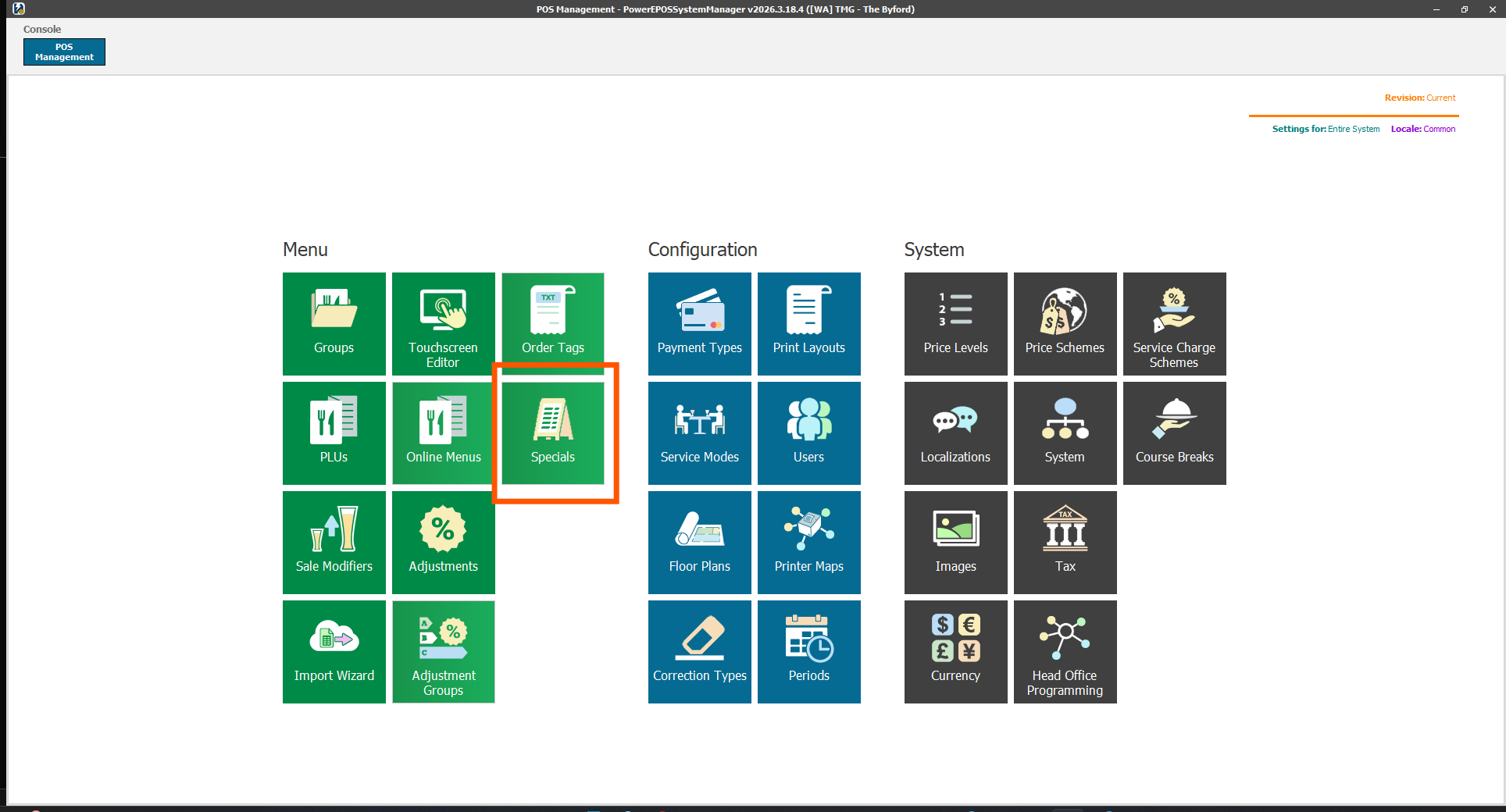
Open Specials
Sign in to PowerEPOS System Manager and open Specials.
Step 2
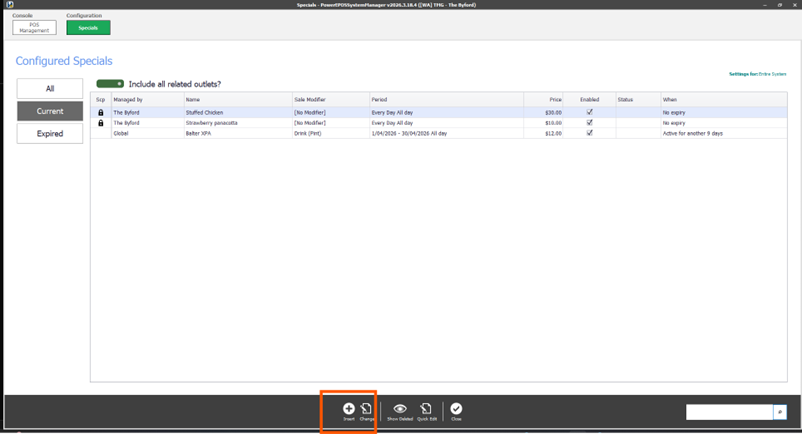
Start a new special
Click Insert.
Step 3
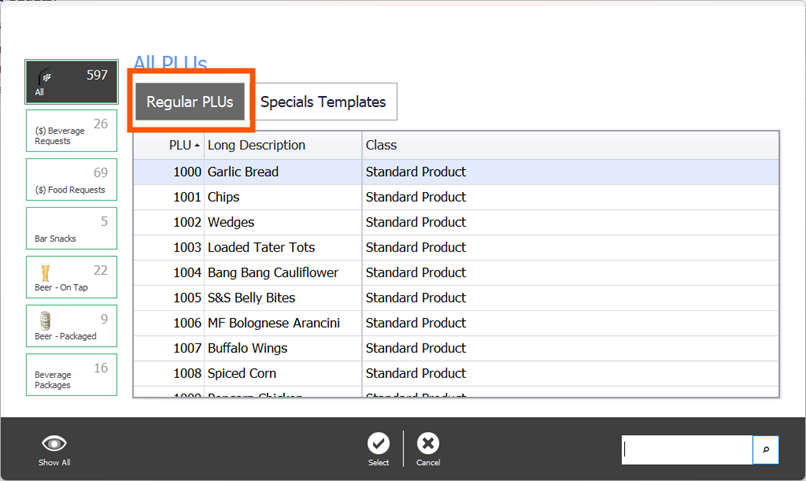
Choose the Regular PLUs tab
This special is a price change to a product that already exists rather than a new item, so open the Regular PLUs tab.
Step 4
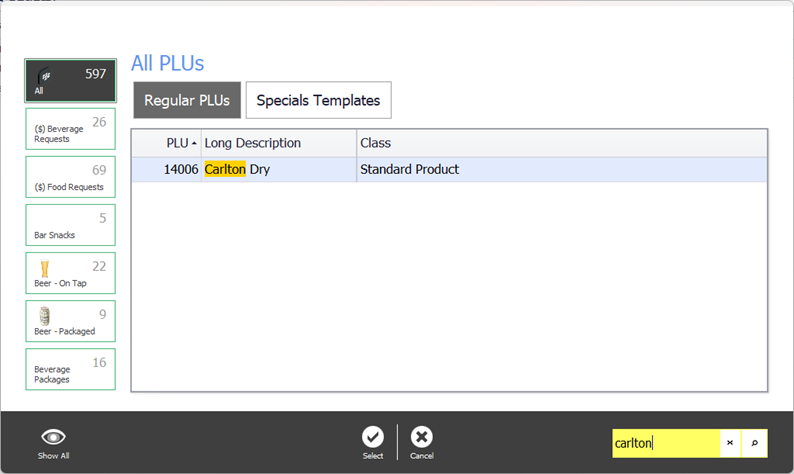
Find the product
Select the PLU you are putting on special from the list.
Step 5
Set the price and the period
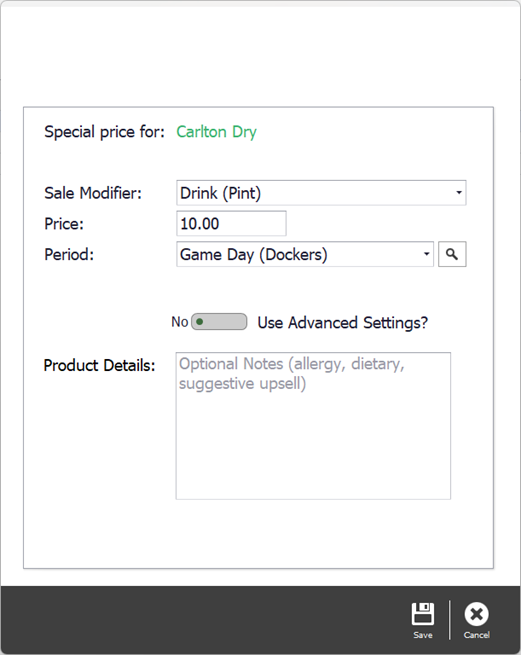
Choose the Sale Modifier size, then set the price and the period the special runs for. You can build a period here, or pick one that already exists from the list.
The sale modifier size is only needed for a product configured with sizes, such as small, medium and large. Skip it for a single-size product.
Step 6
Save, then publish
Click Save to create the special, then Save again on the main screen to push it live. The first save only stores the special in System Manager; the terminals see nothing until the second one.
Specials start and stop by themselves
A special switches on and off with the time period set against it. Nothing has to be done on the day to start it or to end it.
Step 7
Need help?
Triniteq support
Our support team is here to help.
Call 1300 784 276 or email support@triniteq.com, and include your venue name so we can find your setup straight away.