
System programming · Guide
Setting up time periods
Create or edit a time period in PowerEPOS System Manager and publish it, so specials, discounts, surcharges and button restrictions switch on by themselves on the days you choose.
PowerEPOS System Manager
Setting up time periods
Dates and times that drive specials and surcharges
A time period is a saved set of dates and times. On its own it does nothing: you attach it to a special, a discount, a surcharge or a button restriction, and that rule then applies only inside the period. The commonest use is a Public Holiday Surcharge that switches itself on for every public holiday of the year.
In this guide
- StartBefore you start
- 1Open Periods
- 2Choose a period, or start a new one
- 3Name the period and add its dates
- 4Save and publish
- 5Need help?
Start
Before you start
- Access to PowerEPOS System Manager, with permission to edit Periods.
- The full list of dates and times you want to cover, such as next year's public holidays.
- Whether you are editing a period that already exists or creating a new one.
Step 1
Open Periods
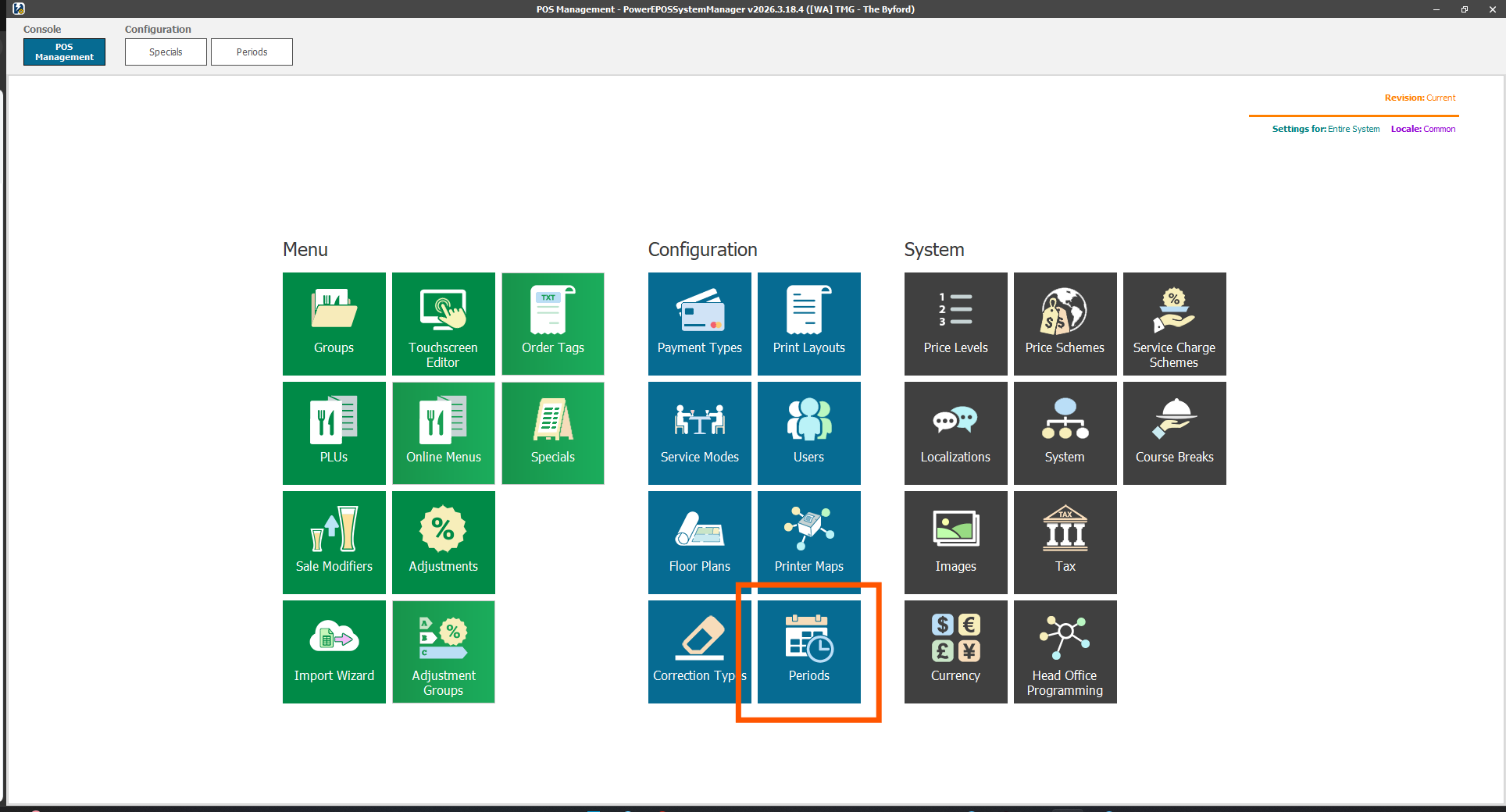
In System Manager, open the POS Management console and choose Periods, under Configuration.
Step 2
Choose a period, or start a new one
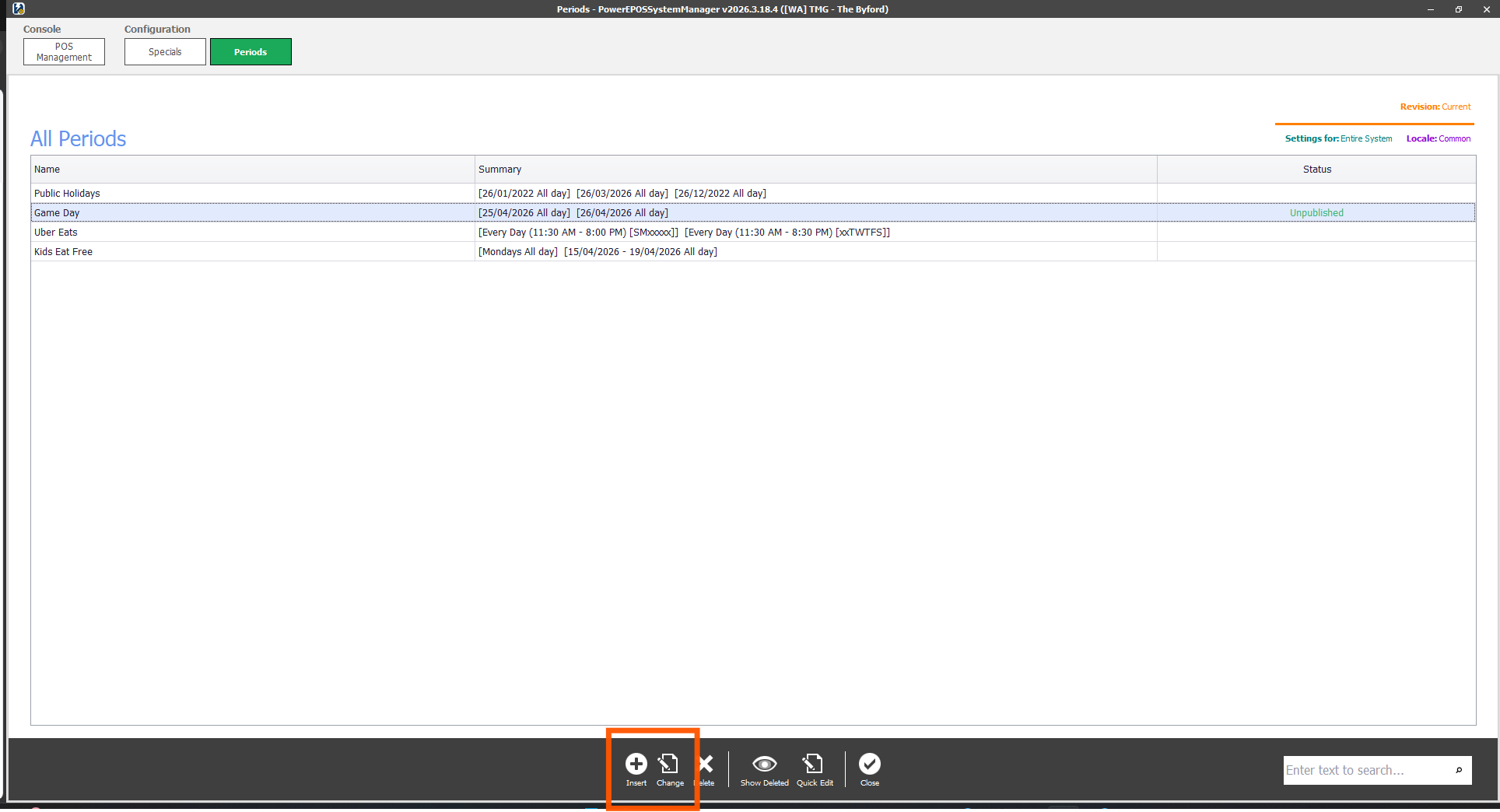
All Periods lists every period with a summary of the dates it covers and whether it has been published. To change one that exists, select it and click Change. To make a new one, click Insert.
Step 3
Name the period and add its dates
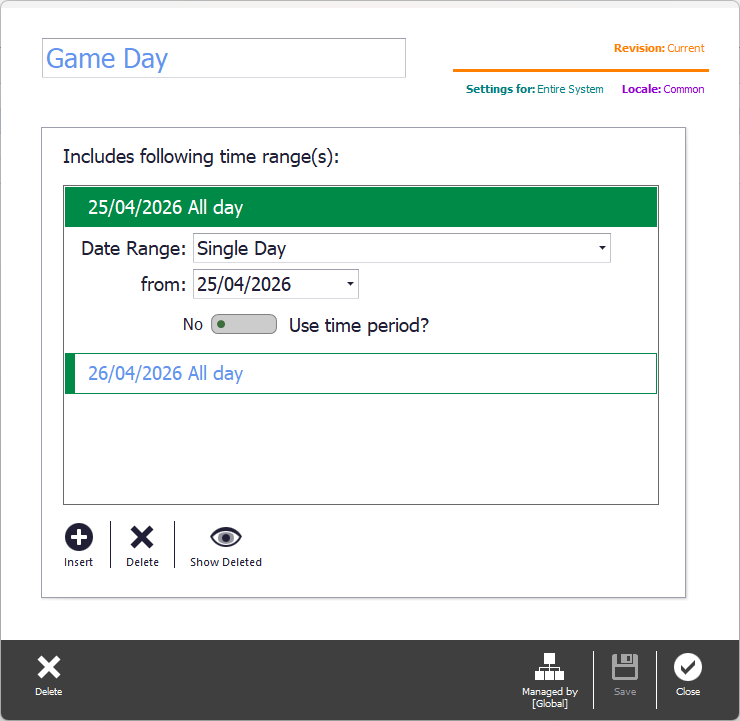
Type a name at the top of the screen. Under Includes following time range(s), click Insert to add a range and choose its Date Range — a single day, a span of dates, or a repeating day of the week. Set Use time period? to Yes if the range covers part of a day rather than all of it. Add as many ranges as you need: every public holiday for the year can sit in one period.
Step 4
Save and publish
Click Save, then Publish. Saving alone keeps the change in System Manager; the terminals do not see the period until it is published.
A period does nothing by itself
Until it is linked to a special, a discount, a surcharge or a button restriction, a time period has no effect on the POS.
Check your periods once a year
Public holiday dates move. Add next year's dates to the period before they come around rather than on the morning itself.
Step 5
Need help?
Triniteq support
Our support team is here to help.
Call 1300 784 276 or email support@triniteq.com, and include your venue name so we can find your setup straight away.