
Modules · Guide
Updating the customer advert screens
Upload an advert image in Triniteq Platform, choose the dates it runs and the terminals it shows on, and let the POS pick it up on its next sync.
Triniteq Platform
Updating the customer advert screens
Advert images, from Triniteq Platform
The images on the customer-facing screens are managed in Triniteq Platform. You upload an image, give it a name, optionally set the dates it runs between, and choose which terminals show it.
In this guide
- StartBefore you start
- 1Sign in to Platform
- 2Open Adverts
- 3Choose the image
- 4Name it
- 5Set the dates, if it runs for a while
- 6Upload it
- 7Choose where it shows
- 8Need help?
Start
Before you start
- An active PowerEPOS account.
- The image itself, on the computer you are working at.
First time in Platform
If Platform asks you to request access, complete the request and contact Triniteq support to have it approved.
Step 2
Open Adverts
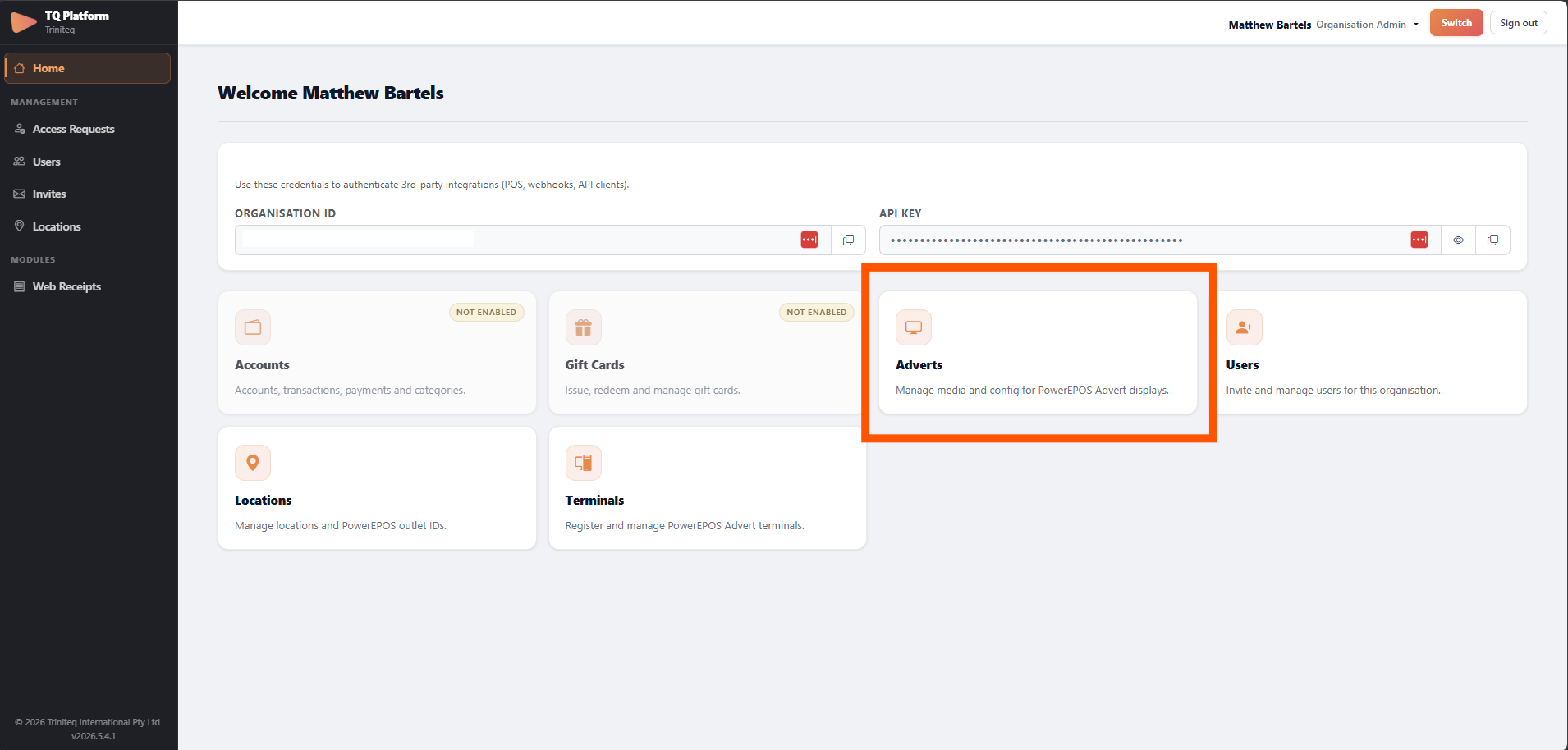
From the dashboard, choose Adverts.
Step 3
Choose the image
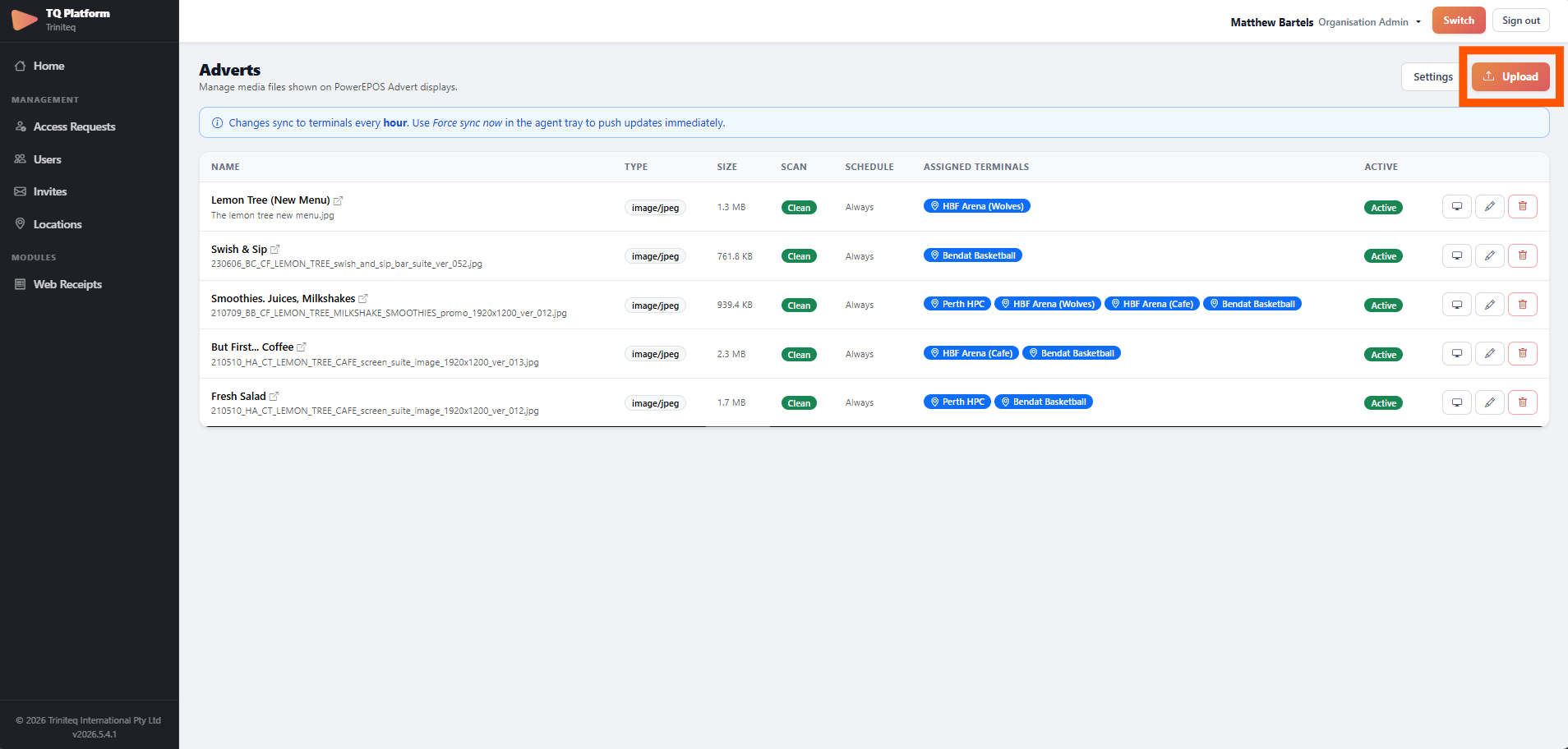
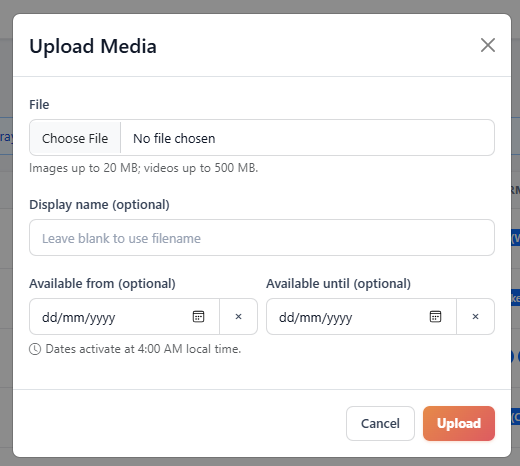
Click Upload, then Select File, and pick the image from your computer.
Step 4
Name it
Give it a display name you will recognise later, when there are a dozen of them.
Step 5
Set the dates, if it runs for a while
Set a From date, an Until date, or both. Either works on its own, so an advert can start on a date and run until you take it down.
Step 6
Upload it
Click Upload.
Step 7
Choose where it shows
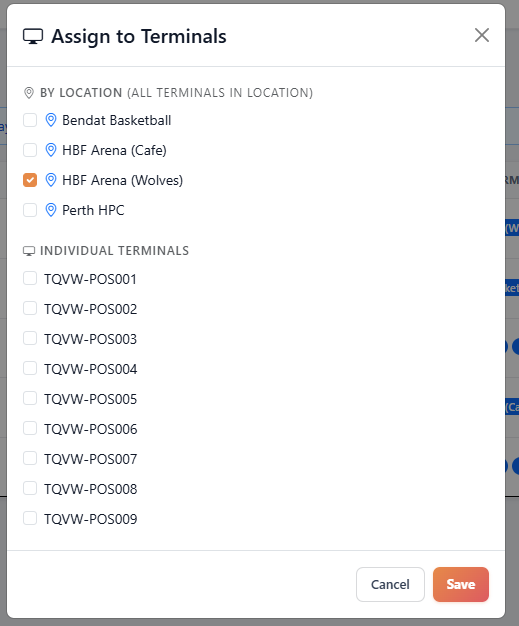
Platform then asks where the image should appear. Pick any combination of locations and individual terminals.
It appears on the next sync
The terminals pick the image up on their next sync with the cloud, not the moment you press Upload. Scheduled dates use about 4am as the cutoff: an image becomes active or inactive at the first sync after 4am on the date you set.
Old adverts are deleted
An image more than 30 days past its From date is removed from the system automatically. Keep your own copy of anything you may want to run again.
Step 8
Need help?
Triniteq support
Our support team is here to help.
Call 1300 784 276 or email support@triniteq.com, and include your venue name so we can find your setup straight away.