
Integrations · Technical service guide
Zeller Integration (Direct)
Activate Zeller as the credit card provider in System Manager, set up the payment button, then pair the Zeller terminal with the POS.
PowerEPOS
Connecting a Zeller terminal directly to PowerEPOS
Zeller Direct integration
Connecting a Zeller terminal directly means card payments go from PowerEPOS to the terminal on their own, and the result comes back into the sale. There are two halves to it: activating Zeller as the credit card provider in System Manager, and pairing the physical terminal with the POS. Neither works without the other.
In this guide
- StartBefore you start
- Activating Zeller in System Manager
- 1Open the POS terminal
- 2Set the credit card provider
- 3Check the payment button
- 4Set the button type
- 5Save and publish
- Pairing the terminal
- 6Open Credit Card Pairing
- 7Sign in to Zeller
- 8Name the device
- 9Pick the terminal and finish
- 10Need help?
Start
Before you start
- PowerEPOS 2026.5.7.5 or newer.
- An active Zeller account and at least one Zeller terminal.
- Your payment types configured in PowerEPOS, if you plan to map card types to particular payment types.
- The Zeller terminal switched on, connected to Wi-Fi or mobile data, and signed in to your Zeller account.
Activating Zeller in System Manager
Step 1
Open the POS terminal
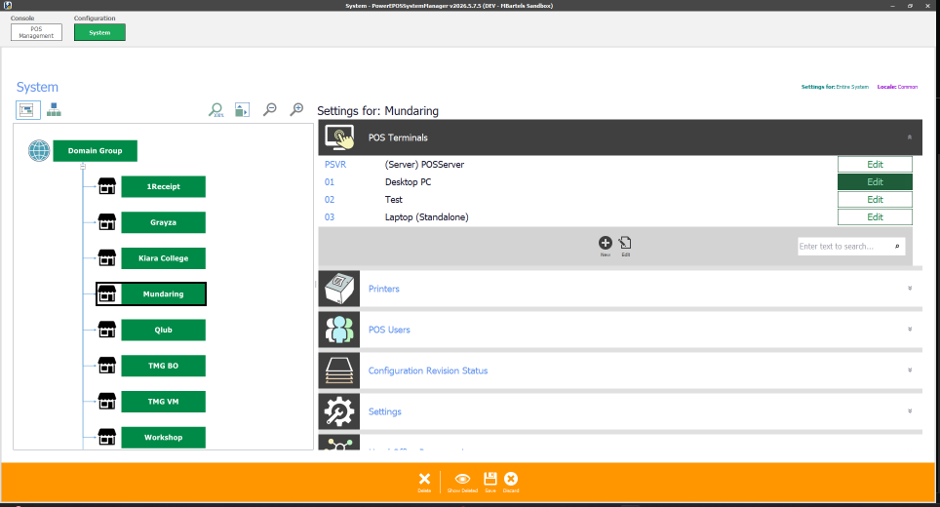
In System Manager, go to System and select the POS terminal that will use the Zeller integration.
Step 2
Set the credit card provider
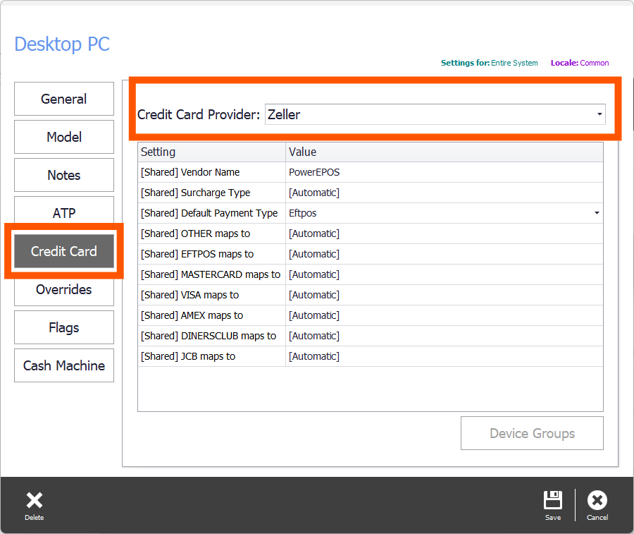
Open the Credit Card tab and set Credit Card Provider to Zeller.
Adjust the interface settings if you need to, or leave the defaults. To combine card types into a single total, point each option at a payment type you have already set up under Payment Types. Select Save when you are done.
Step 3
Check the payment button
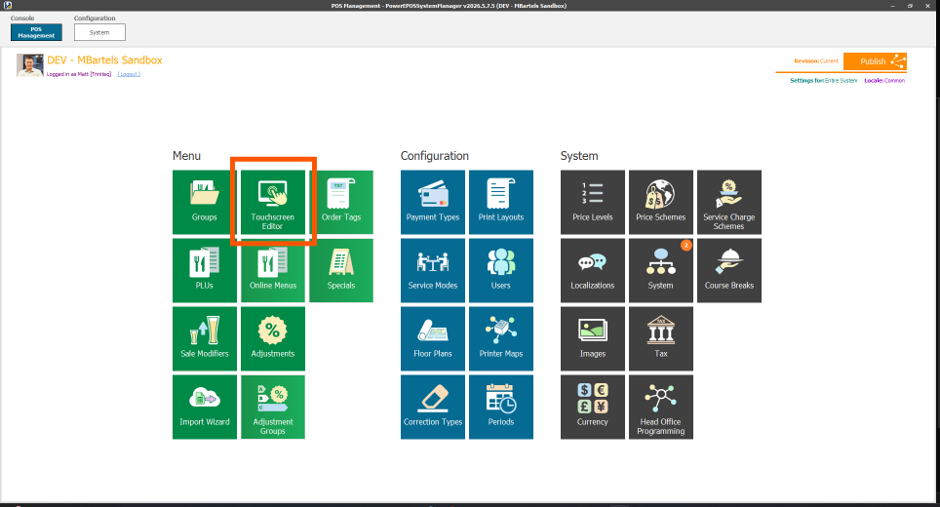
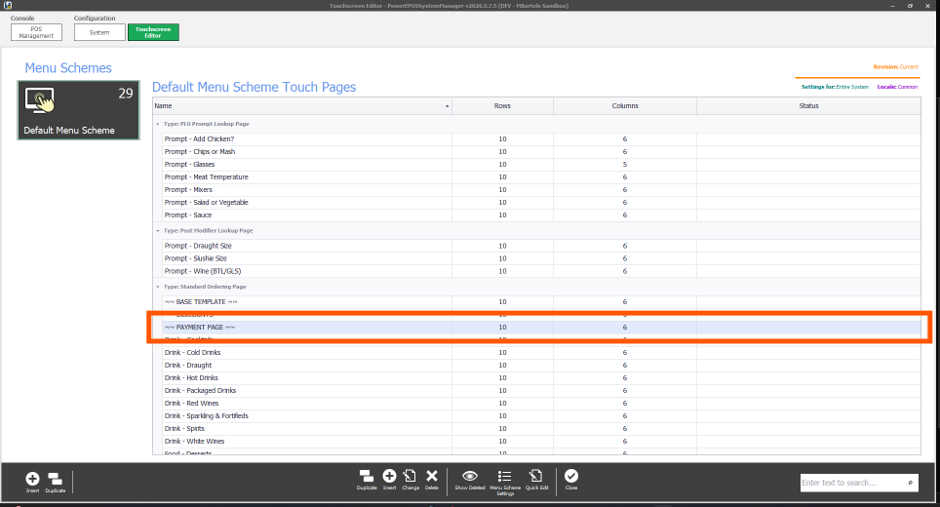
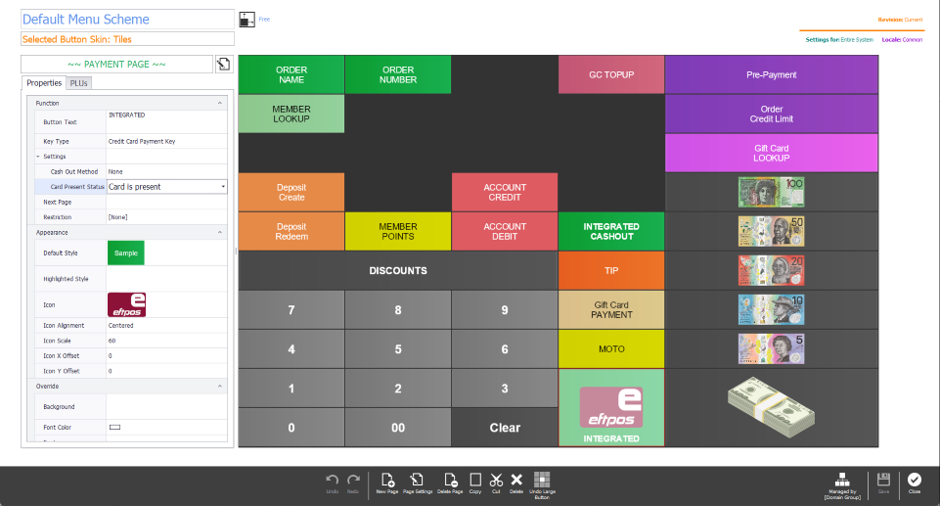
Before publishing, make sure the POS touchscreen has a credit card payment button. Open the Touchscreen Editor and load your payment page.
Step 4
Set the button type
Select the payment or EFTPOS button and set its type to Credit Card Payment Key. Leave Card Present Status on its default, Card is present.
To allow manual card entry as well, add a second button with the Card Present Status set to Not present.
No cashout
Cashout is not currently supported by Zeller.
Step 5
Save and publish
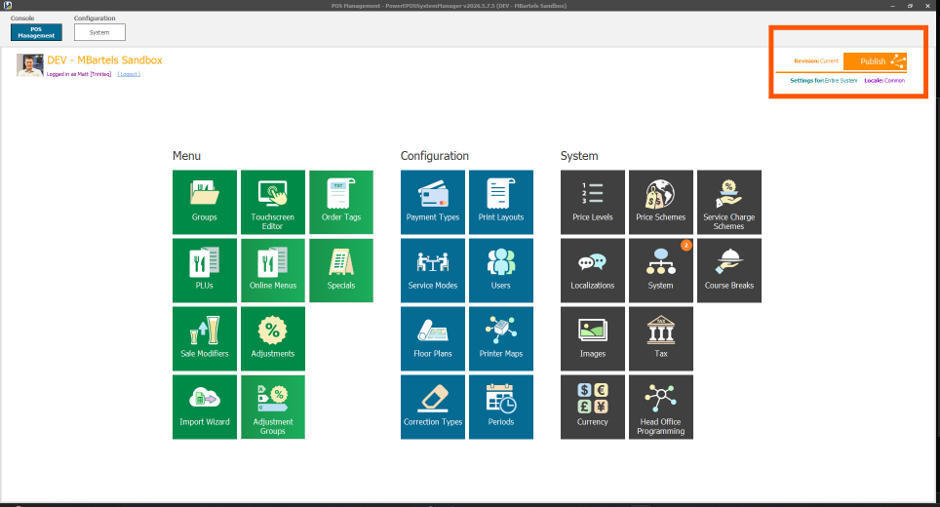
Save your changes and publish them, to push the configuration out to the POS in the venue.
Pairing the terminal
Step 6
Open Credit Card Pairing
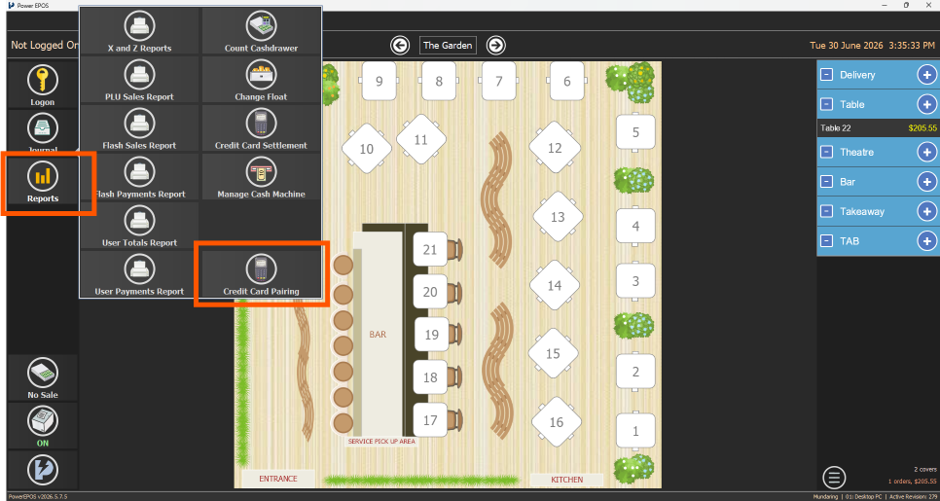
In PowerEPOS, go to Reports → Credit Card Pairing, entering your user PIN if you are asked for it. The Zeller setup screen appears.
Step 7
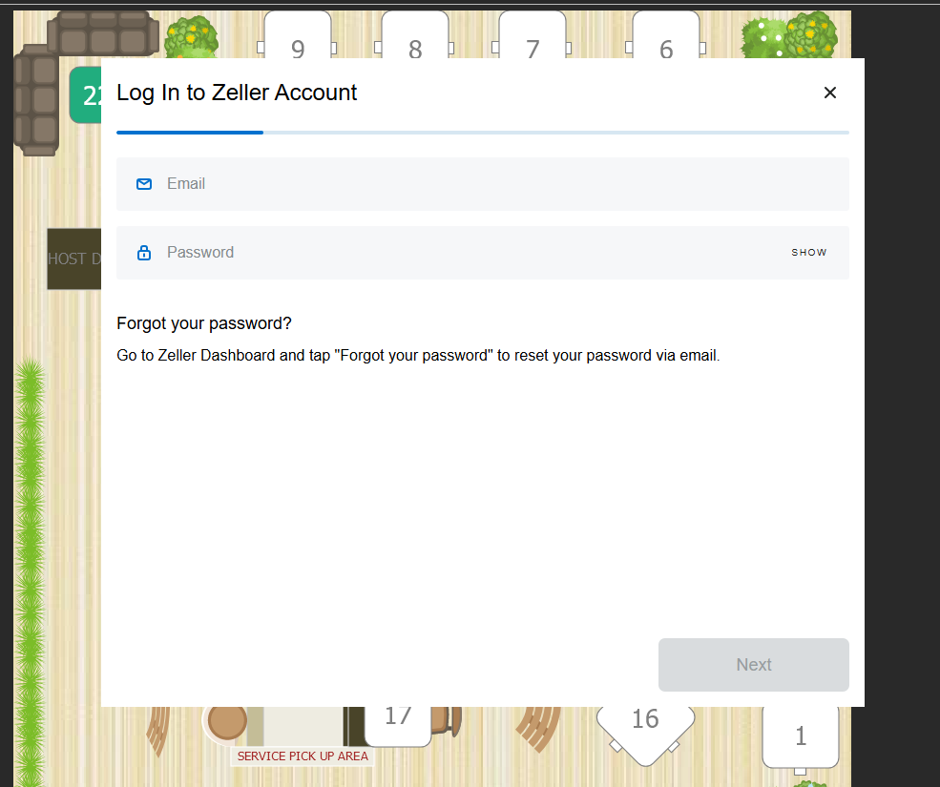
Sign in to Zeller
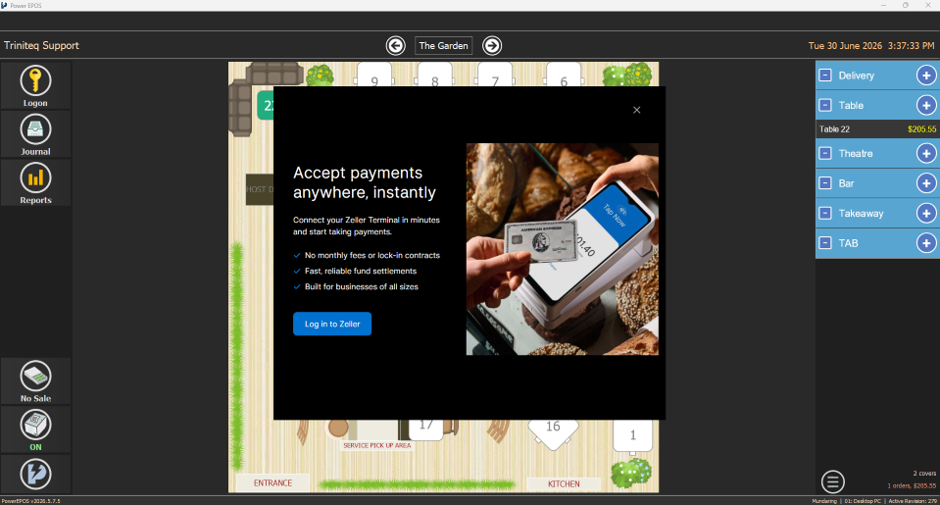
Select Log in to Zeller and enter your Zeller email and password.
Step 8
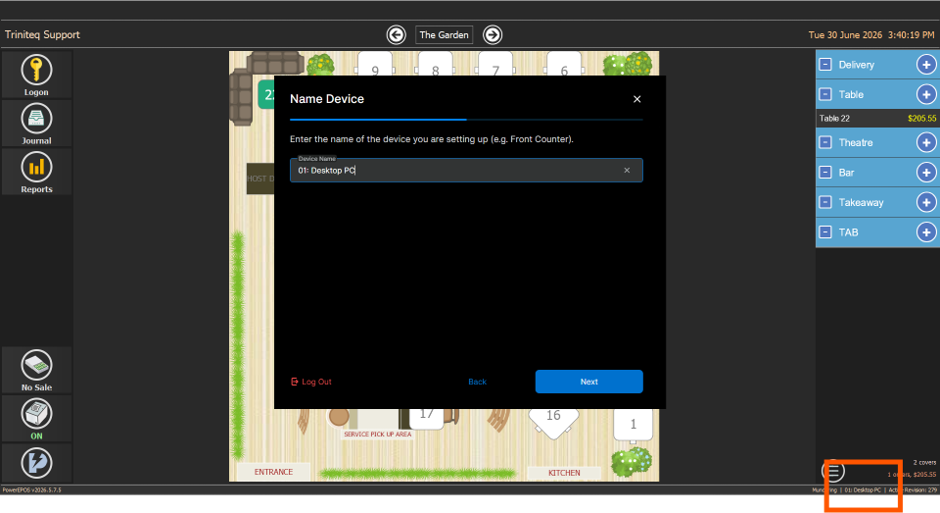
Name the device
Give the device a name. Using the same name as the POS terminal makes reporting much easier later — the POS device name is in the bottom-right corner of PowerEPOS.
Step 9
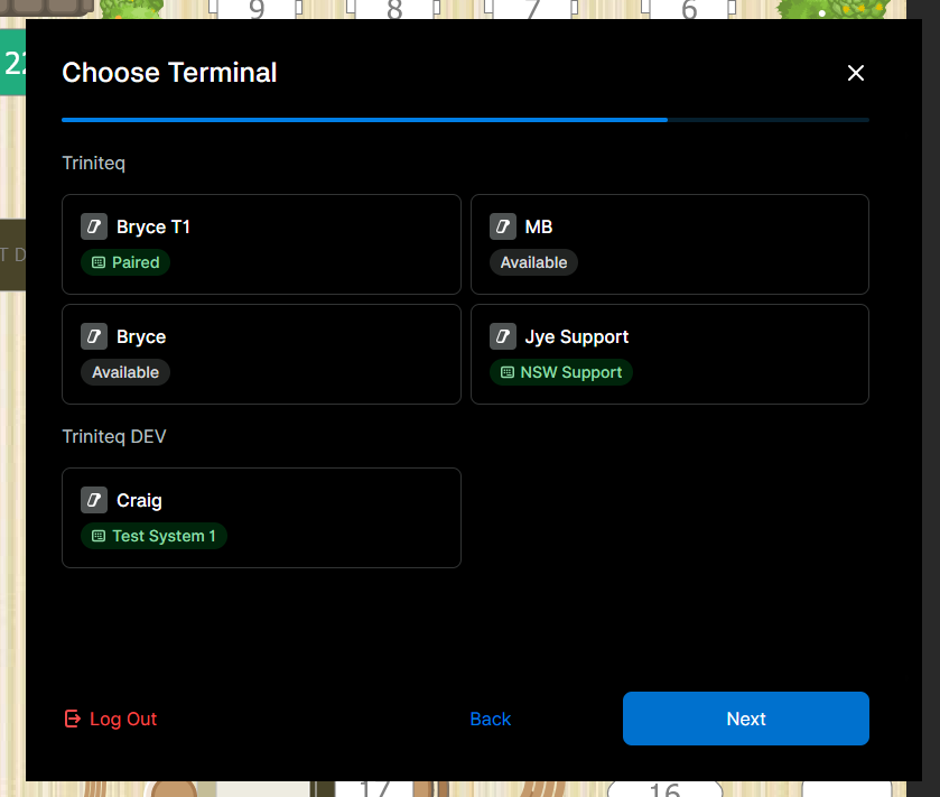
Pick the terminal and finish
Select the Zeller terminal to pair with this POS. When pairing is done, close the window with the × at the top right. The POS can now take integrated card payments.
Step 10
Need help?
Triniteq support
Our support team is here to help.
Call 1300 784 276 or email support@triniteq.com, and include your venue name so we can find your setup straight away.