
Integrations · Guide
Pairing a Tyro EFTPOS terminal with PowerEPOS
Pair a Tyro EFTPOS terminal with a POS terminal from the PowerEPOS screen, so card payments are sent straight from the POS to the Tyro terminal.
PowerEPOS + Tyro
Pairing a Tyro EFTPOS terminal with PowerEPOS
Tyro integrated EFTPOS with PowerEPOS
Pairing links a Tyro EFTPOS terminal to a POS terminal, so card payments are sent straight from PowerEPOS to the Tyro terminal. It takes a few minutes, is done from the POS screen and the Tyro terminal, and needs no extra software.
In this guide
- Before you start
- Open Pair with POS on the Tyro terminal
- Open Credit Card Pairing in PowerEPOS
- Enter the pairing details
- Pair and confirm
- Need help?
Start
Before you start
Work through the steps in order. The Tyro terminal needs to stay on the Pair with POS screen while you finish the pairing in PowerEPOS.
- The Tyro EFTPOS terminal powered on and connected to the venue's network.
- PowerEPOS open on the POS terminal you want to pair with this Tyro terminal.
- Your Tyro admin password. If you don't know it, press Help on the Tyro terminal and it will guide you through recovering it.
Do not download the Tyro Terminal Adapter from the Tyro website
Tyro may advise you to download and install their Terminal Adapter. PowerEPOS does not need it, and it should not be installed. PowerEPOS uses the newer TTA v2 integration, which is installed automatically with PowerEPOS and opened through Credit Card Pairing as described here.
Step 1
Open Pair with POS on the Tyro terminal
On the Tyro EFTPOS terminal:
- Press the Menu button.
- Select Configuration and enter your admin password.
- Select Integrated EFTPOS.
- Select Pair with POS.
The terminal now shows its Merchant ID and Terminal ID. You need both in a moment, so leave the terminal on this screen.
Step 2
Open Credit Card Pairing in PowerEPOS
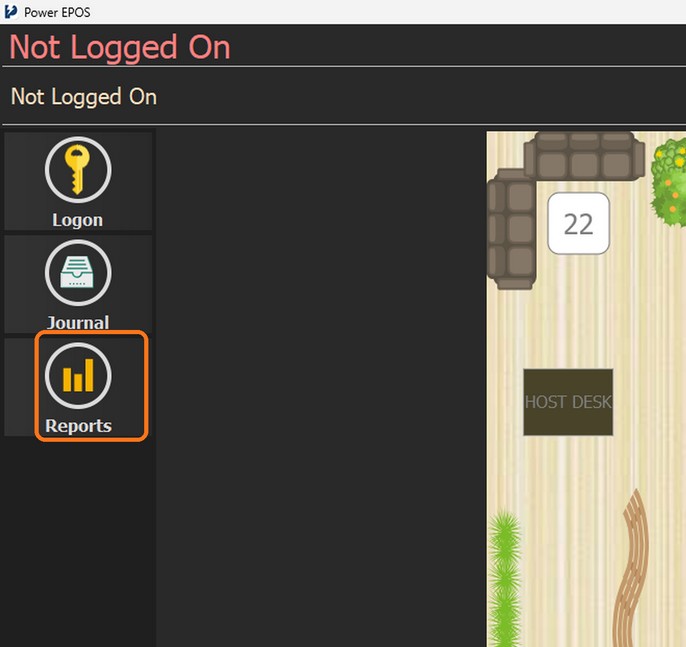
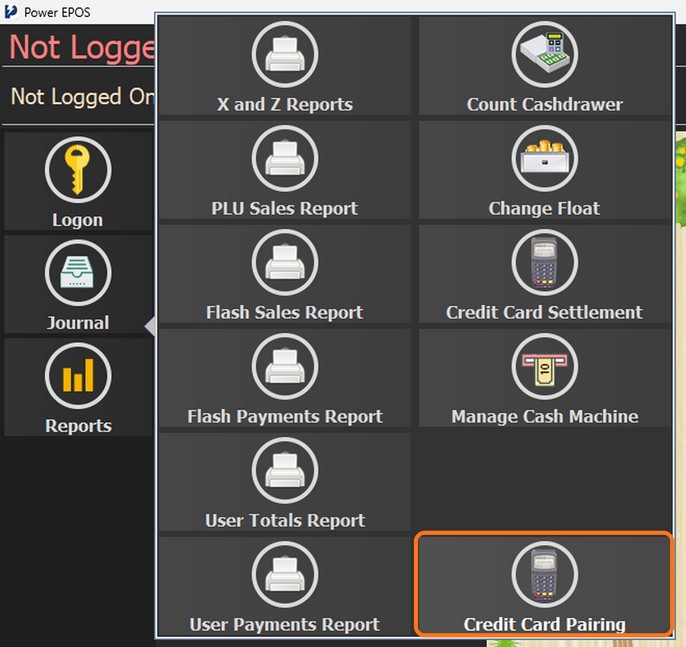
On the PowerEPOS screen, tap Reports in the left-hand menu, then select Credit Card Pairing from the menu that opens.
Step 3
Enter the pairing details
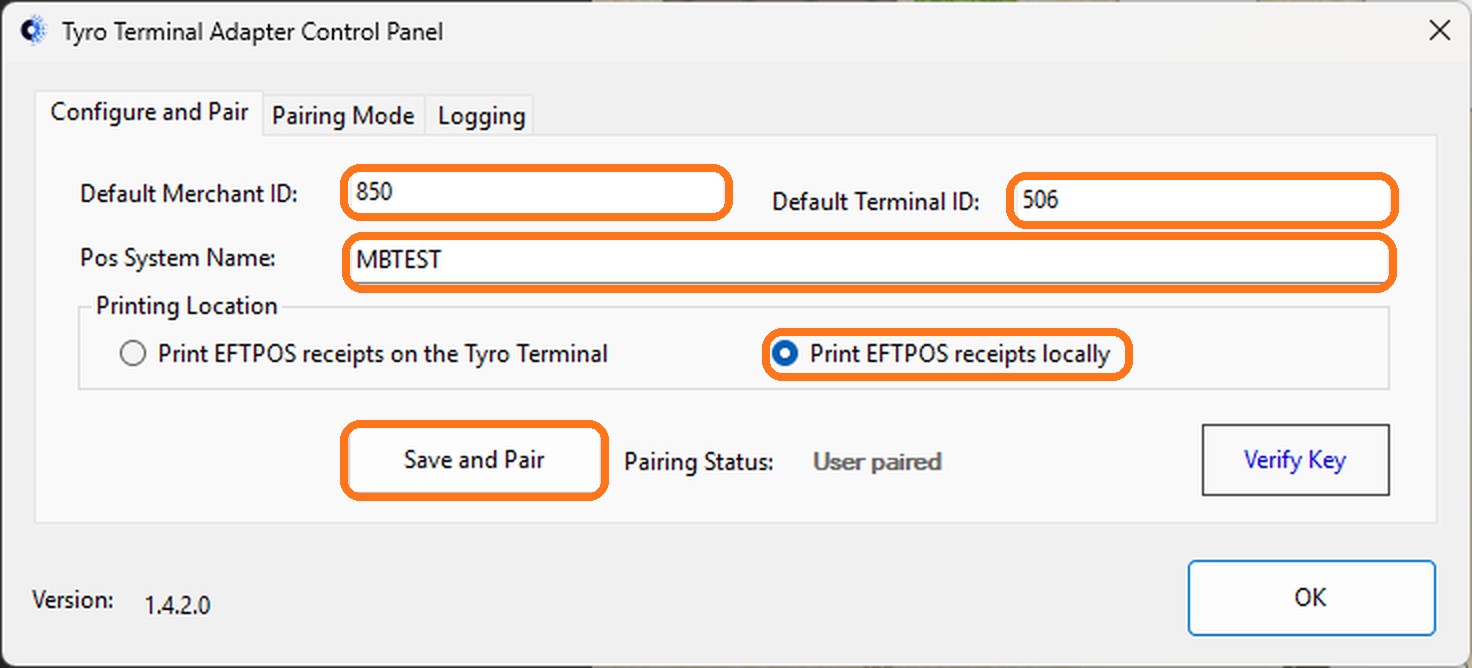
The Tyro Terminal Adapter Control Panel opens on the Configure and Pair tab. Fill in:
- Default Merchant ID and Default Terminal ID: exactly as shown on the Tyro terminal's Pair with POS screen.
- Pos System Name: a name for this POS terminal, for example Bar 1.
- Printing Location: select Print EFTPOS receipts locally, so receipts print on the POS printer.
Step 4
Pair and confirm
Press Save and Pair. Once pairing completes, Pairing Status shows User paired. Press OK to close the control panel. The Tyro terminal is now ready to take card payments from PowerEPOS.
If it does not show as paired
Check the Merchant ID and Terminal ID match the Tyro terminal exactly, make sure the terminal is still on the Pair with POS screen, and press Save and Pair again.
Step 5
Need help?
Triniteq support
Our support team is here to help.
Call 1300 784 276 or email support@triniteq.com, and include your venue name so we can find your setup straight away.