
System programming · Guide
Creating a customised adjustment
Build a multi-rule deal in PowerEPOS — a main, a salad and a drink for one price — with rules, requirements, flags and warnings, then test it on the POS.
PowerEPOS
Creating a customised adjustment
Advanced adjustments
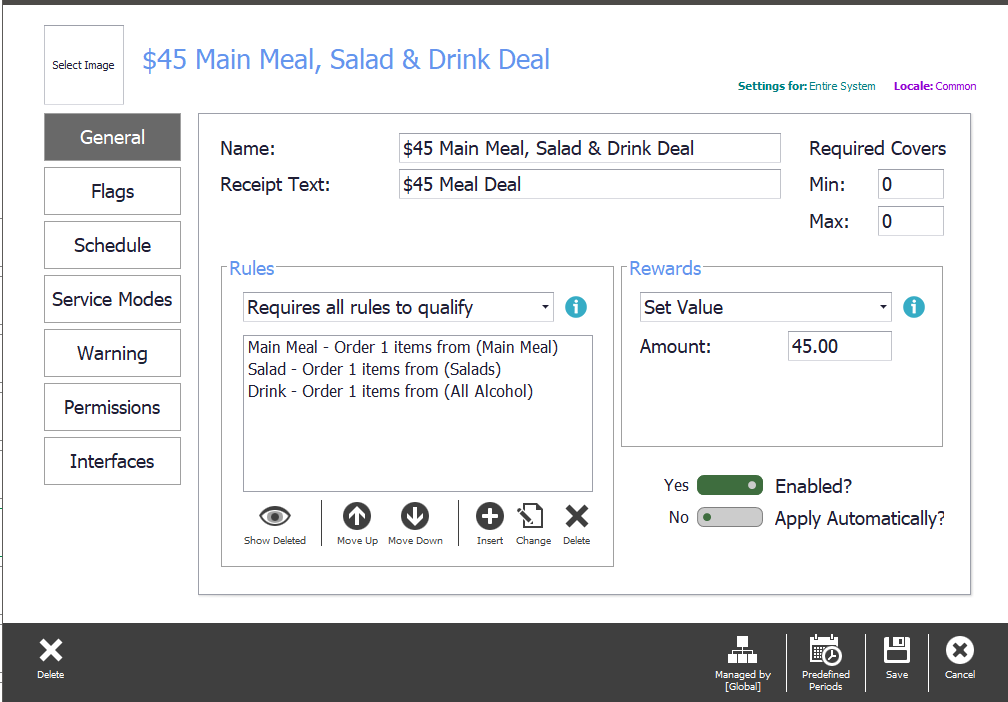
A customised adjustment is for deals a simple percentage or value cannot describe: several different items that have to be ordered together before the price changes. It works by rules — one for each group of qualifying items — and a reward that applies once those rules are satisfied. The example built here is a main meal, a salad and a drink for $45 instead of the sum of the three.
In this guide
- StartBefore you start
- The adjustment types
- Starting the adjustment
- 1Open the Adjustments tile
- 2Create a customised adjustment
- 3Name it and set the receipt text
- 4Choose a reward method
- 5Pick Set Value
- The rules
- 6Require all rules
- 7Name the rule and set its requirement
- 8Point it at the main meal group
- 9Decide about child products
- 10Set the flags
- 11Use the cheapest item first
- 12Add a warning, if it would help
- 13Repeat for the salad and the drink
- Narrowing when and where it applies
- 14Schedule
- 15Service modes
- 16Warnings
- 17Permissions
- 18Interfaces
- 19Add a graphic, save and publish
- Testing it on the POS
- 20Ring the deal up
- 21If it does not fire
- 22Read the rules on the POS
- 23Watch it turn black
- 24Need help?
Start
Before you start
- Access to the Adjustments tile in PowerEPOS.
- Your reporting or adjustment groups set up for the items the deal covers.
- A simpler adjustment first, if you have not built one — see [Creating a simple adjustment](/article/creating-a-simple-adjustment).
The adjustment types
- Simple Adjustment — a percentage or value, applied as a discount or a surcharge. A public holiday surcharge, a 100% owner discount, $20 off the total.
- Buy X items for $ — a set number of items from the same category sold for one price. Any 4 beers for $20 instead of $8 each.
- Buy X of the same PLU for $ — the same item ordered together at a lower price. 2 choc chip for $3 instead of $2 each.
- Buy X and receive Y free — discounts a number of items once a threshold of the same item or group is reached. Buy 2 coffees, get one free.
- Integration related adjustment — for discounts and surcharges applied elsewhere and sent to the POS. A credit card surcharge applied after the EFTPOS machine finalises the payment.
- Customised — the one built here: complex deals that need finer tuning. One main, one salad and one drink for $45.
Starting the adjustment
Step 1
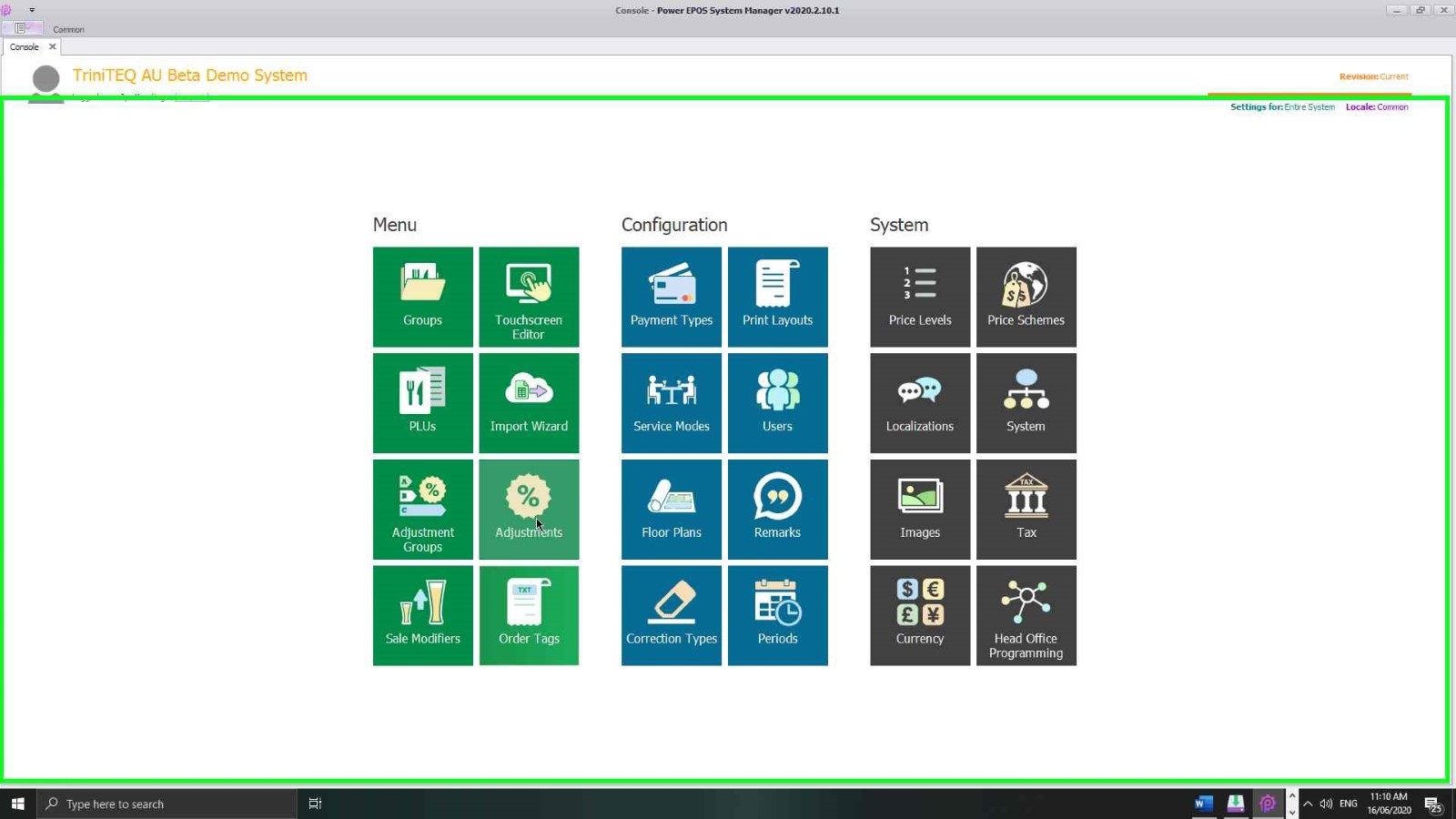
Open the Adjustments tile
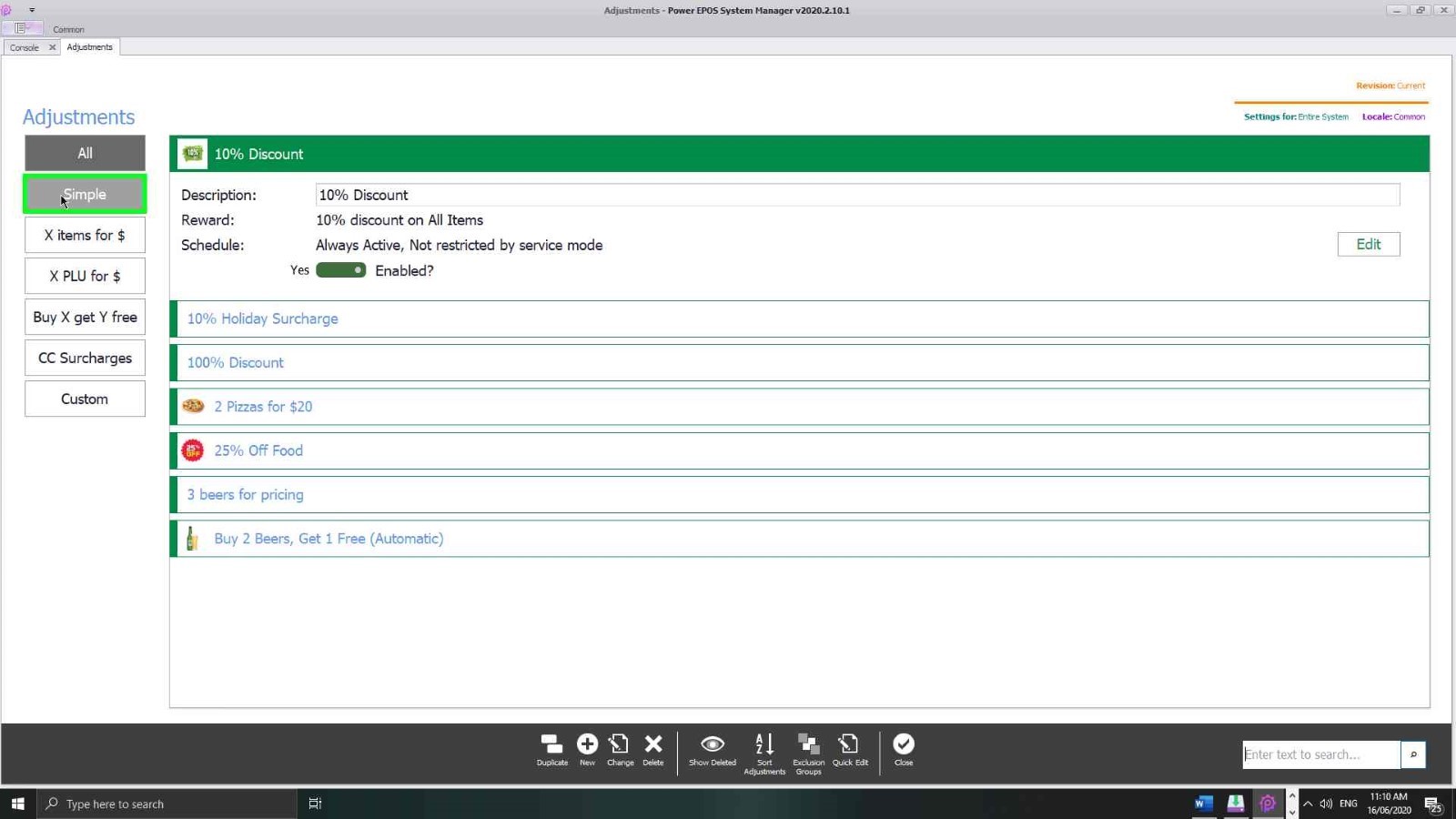
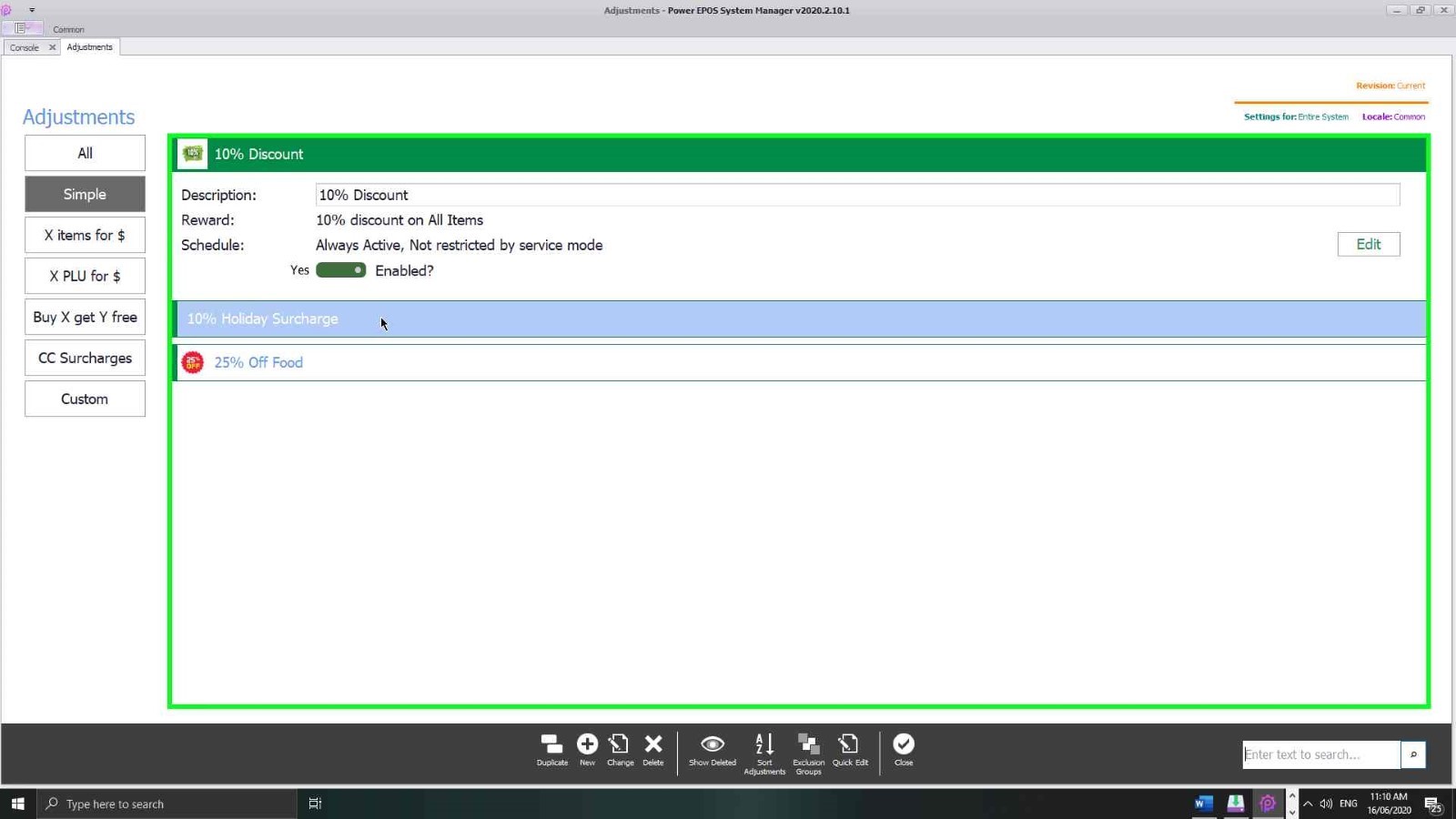
The adjustments screen lists the types down the left; selecting one lists the adjustments of that type on the right. Selecting an adjustment and choosing Edit on the far right opens it, and the same screen carries the enabled switch.
Step 2
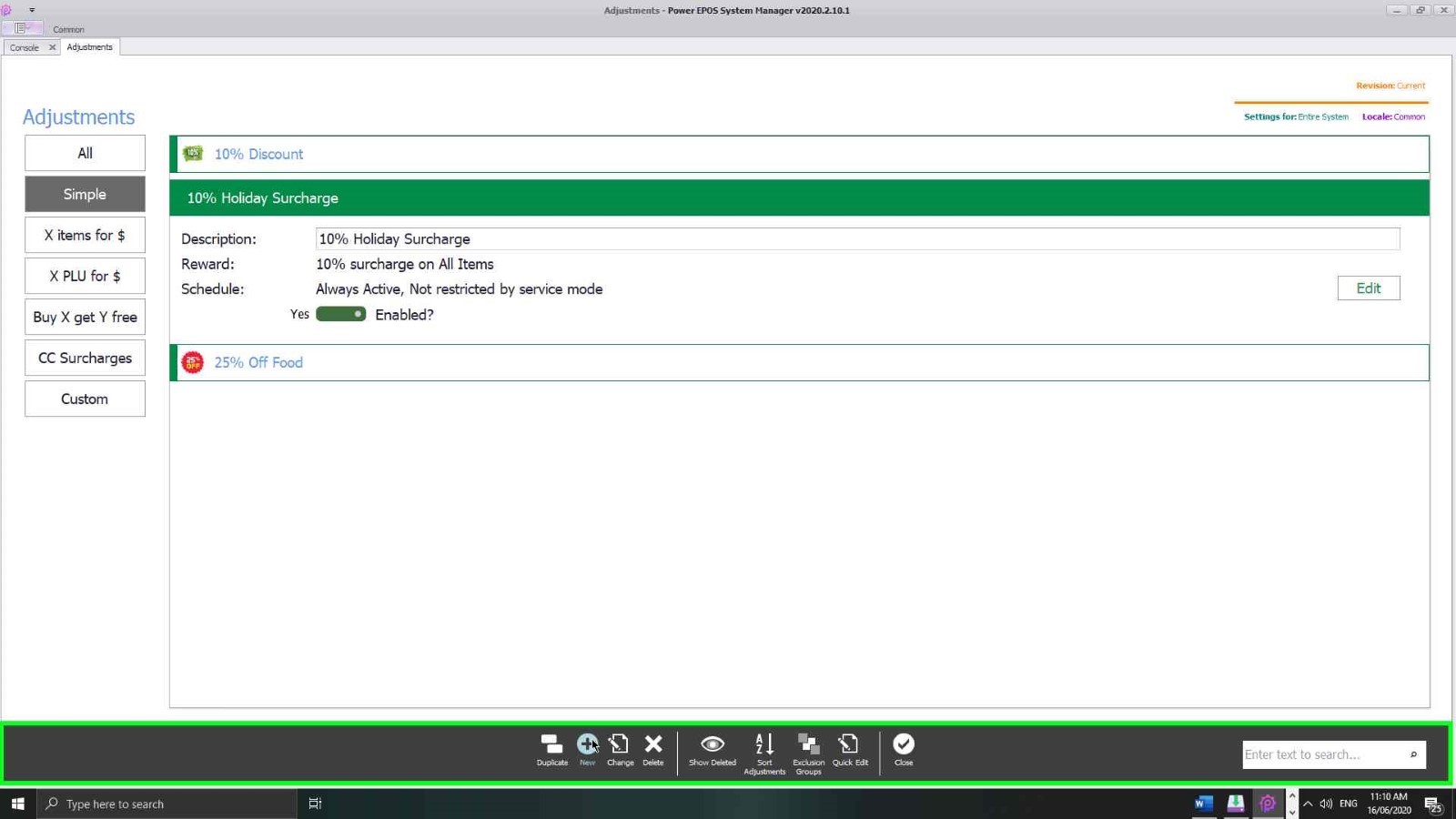
Create a customised adjustment
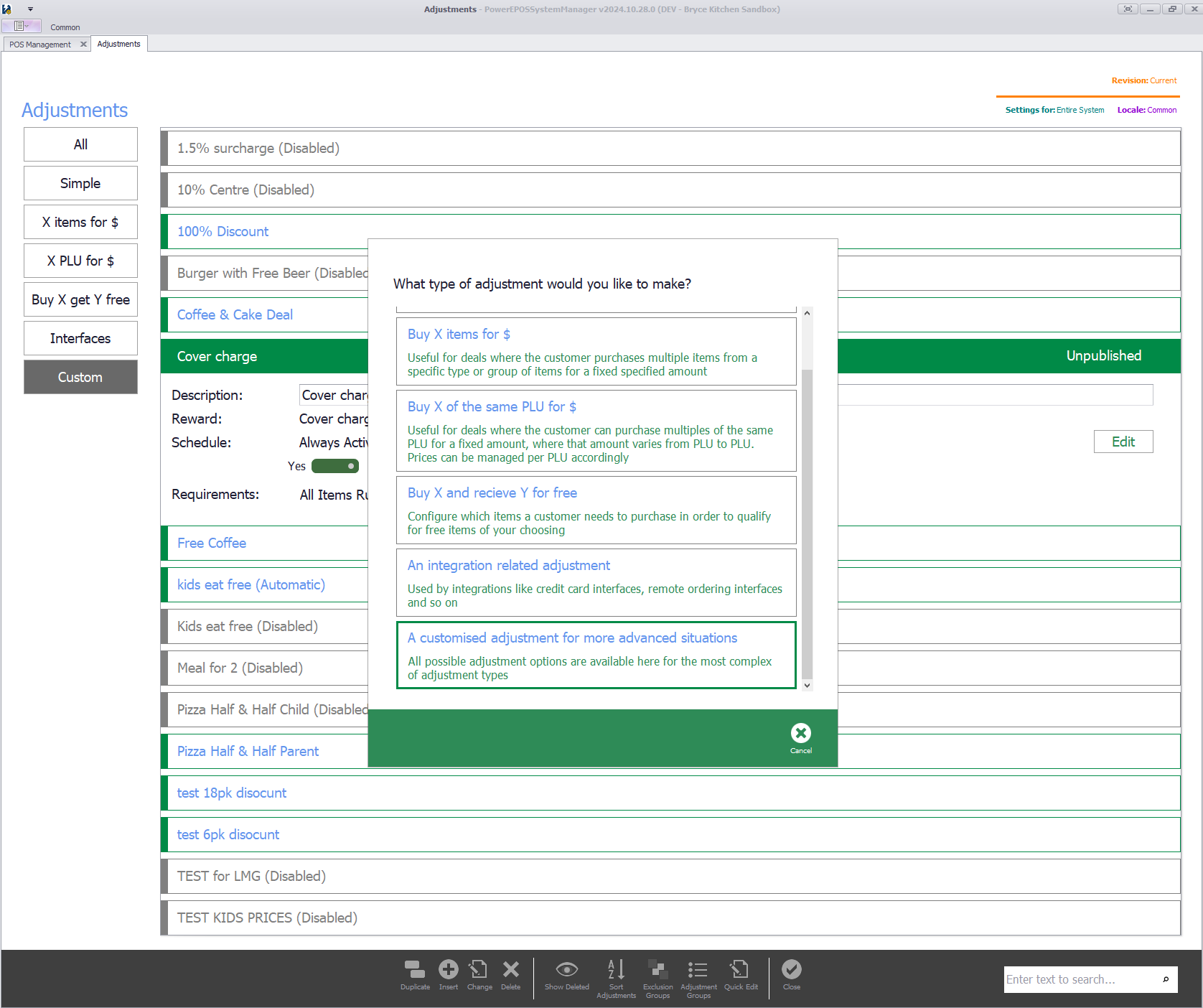
Select New in the control panel, then choose Customised adjustment for more advanced situations.
Step 3
Name it and set the receipt text
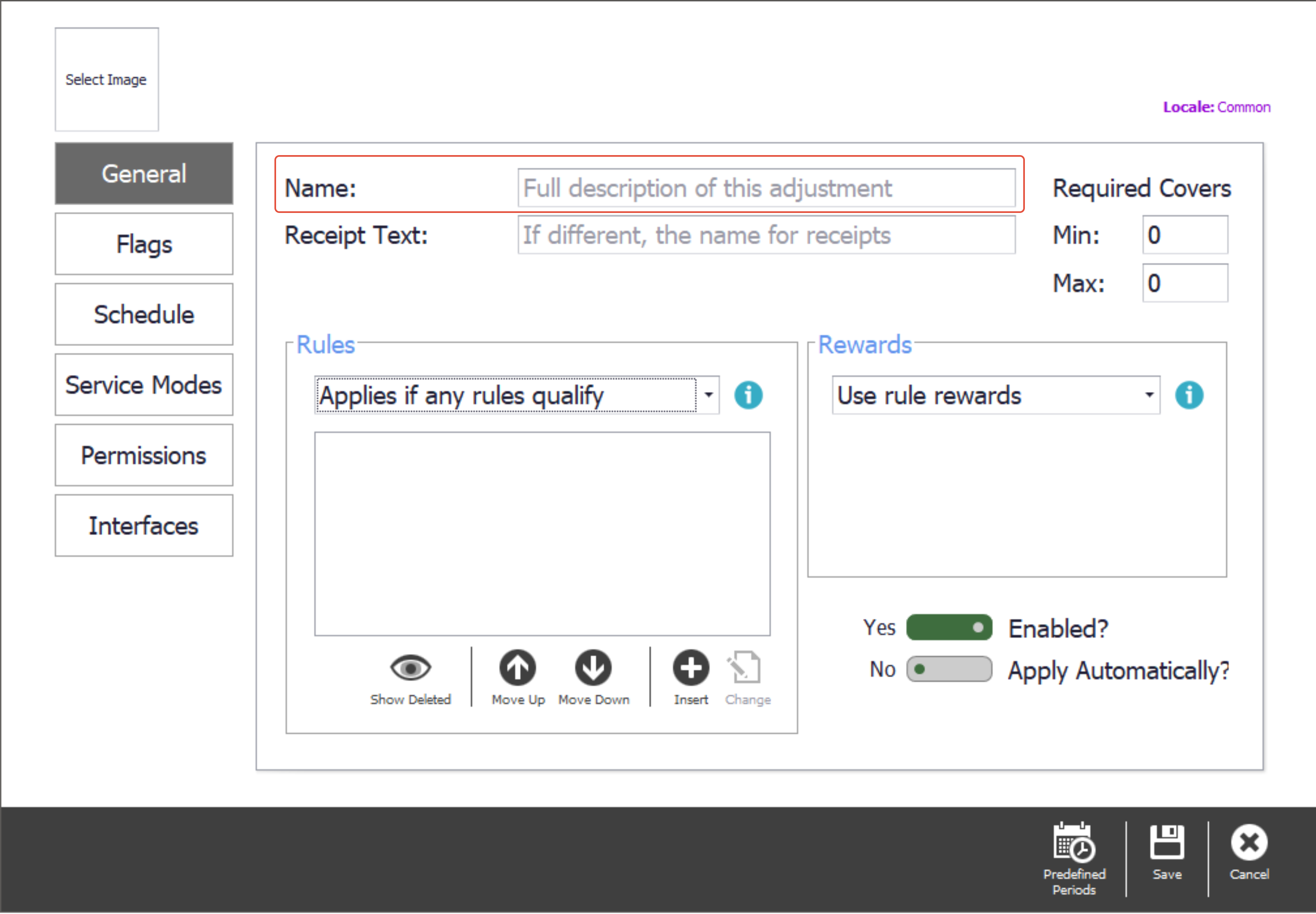
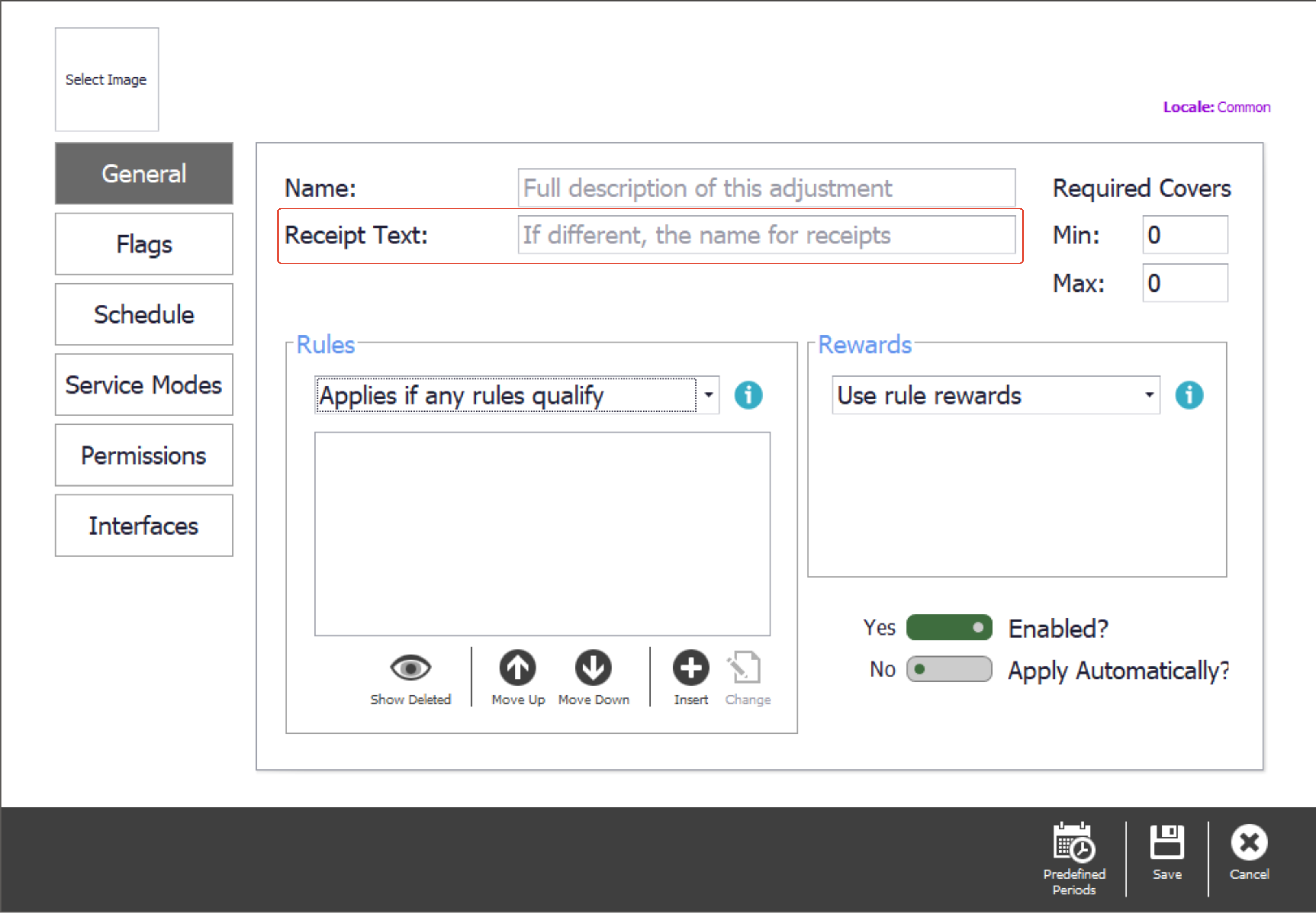
The name is what you will look for when you come back to change or disable the adjustment. The receipt text is what the customer sees on their receipt.
Step 4
Choose a reward method
The drop-down lists every reward method, and the i button describes each one. Which you choose changes some of the options below it.
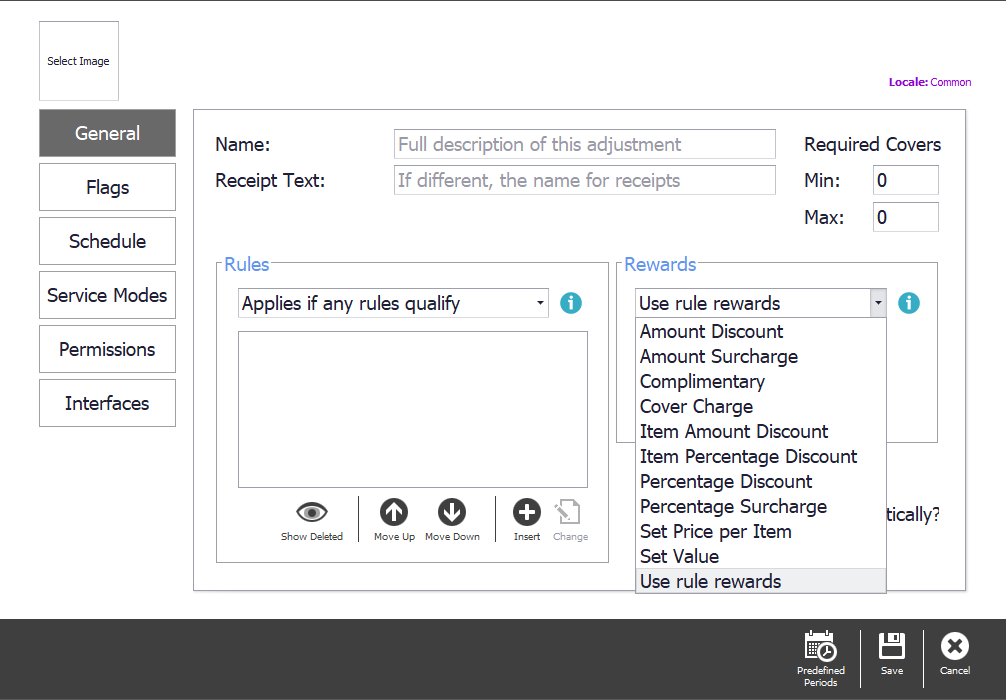
- Amount Discount — a fixed amount off the total of the qualifying items. $10 off when a rewards card is presented.
- Percentage Discount — a percentage of the total of the qualifying items. 5% seniors discount on coffee.
- Complimentary — sets every qualifying item to $0. An owners' discount on food.
- Amount Surcharge — a fixed amount added to the total of the qualifying items.
- Percentage Surcharge — a percentage added to the total of the qualifying items. A 10% public holiday surcharge.
- Cover Charge — a fixed amount multiplied by the number of covers. $5 per person.
- Item Amount Discount — a fixed amount off each qualifying item. $1 off medium coffees between 12pm and 1pm.
- Item Percent Discount — a percentage off each qualifying item. 5% off each main meal ordered.
- Set Price per item — sets each qualifying item to a fixed value, discounting or surcharging it depending on its own price. All glasses of house wine $8 during happy hour.
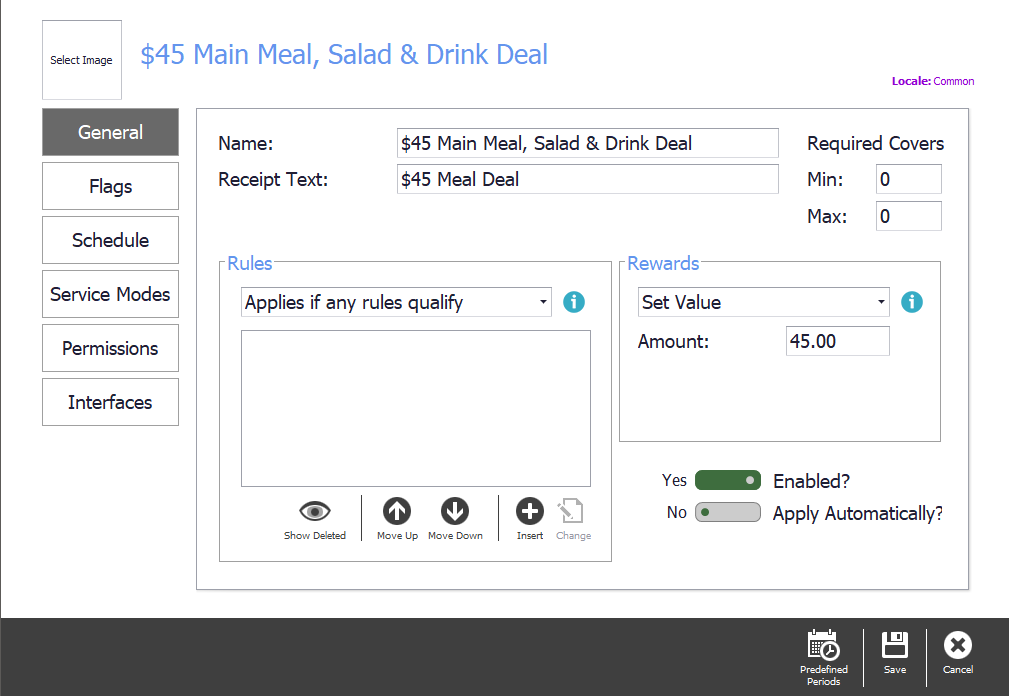
- Set Value — the total of all qualifying items becomes one set value. One main, one salad and one drink for $45.
- Use Rule Rewards — applies the reward set on each rule rather than one reward for the whole adjustment. One burger, no change; one beer, complimentary.
Step 5
Pick Set Value
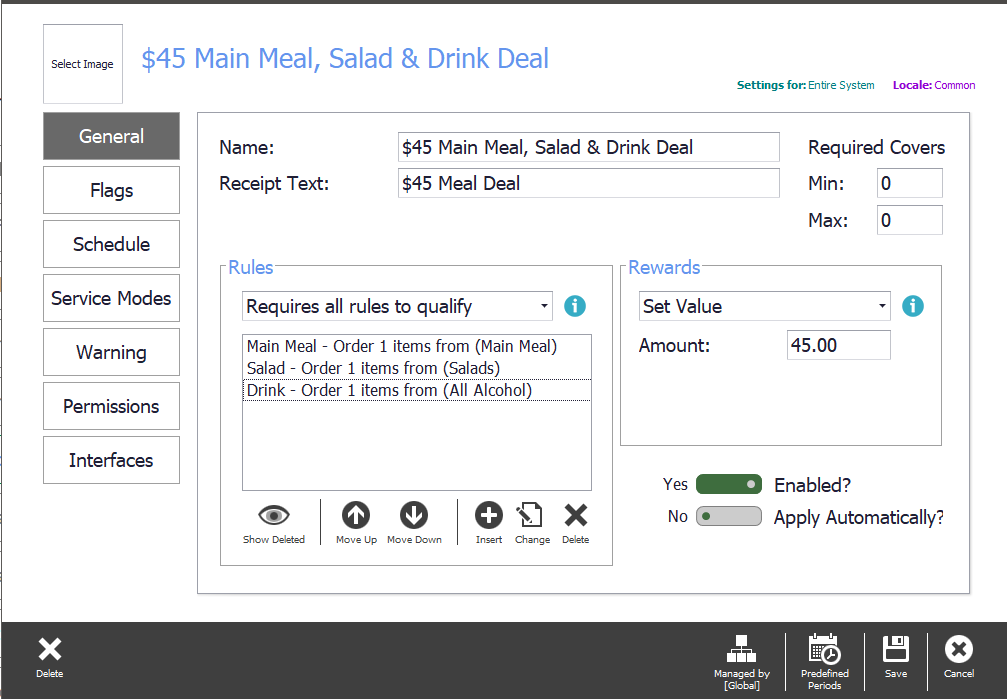
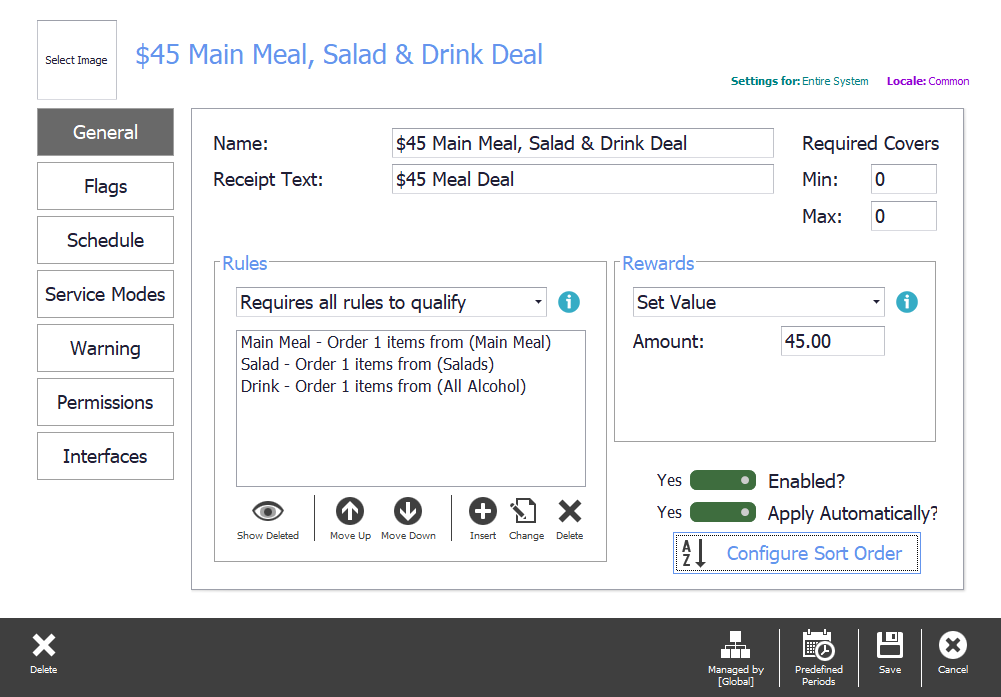
This guide uses Set Value, which is the simplest way to see how a customised adjustment hangs together: one main meal, one salad and one drink for $45.
The rules
Rules are what decides whether the deal applies at all. An adjustment can carry as many as it needs, and the setting above them decides how they are read together.
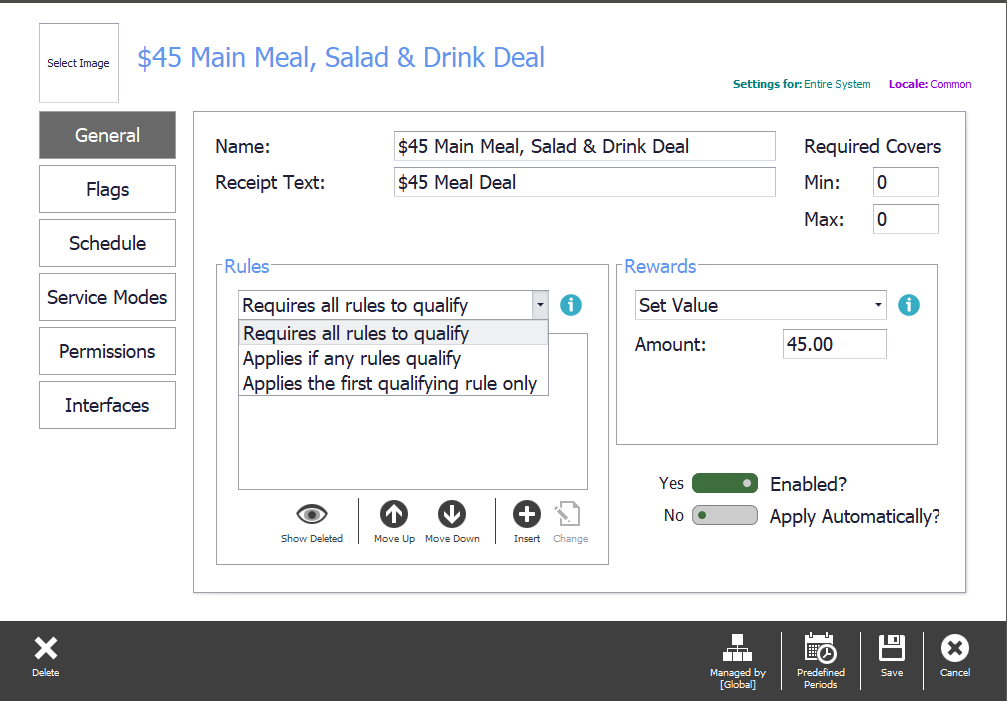
- Requires all rules to qualify — every rule has to be satisfied before the reward is worked out.
- Applies if any rules qualify — the reward fires on the first rule satisfied. With Use Rule Rewards, each rule's own reward fires too.
- Applies the first qualifying rule only — where several rules exist, the first one satisfied takes the reward and the rest are ignored.
Step 6
Require all rules
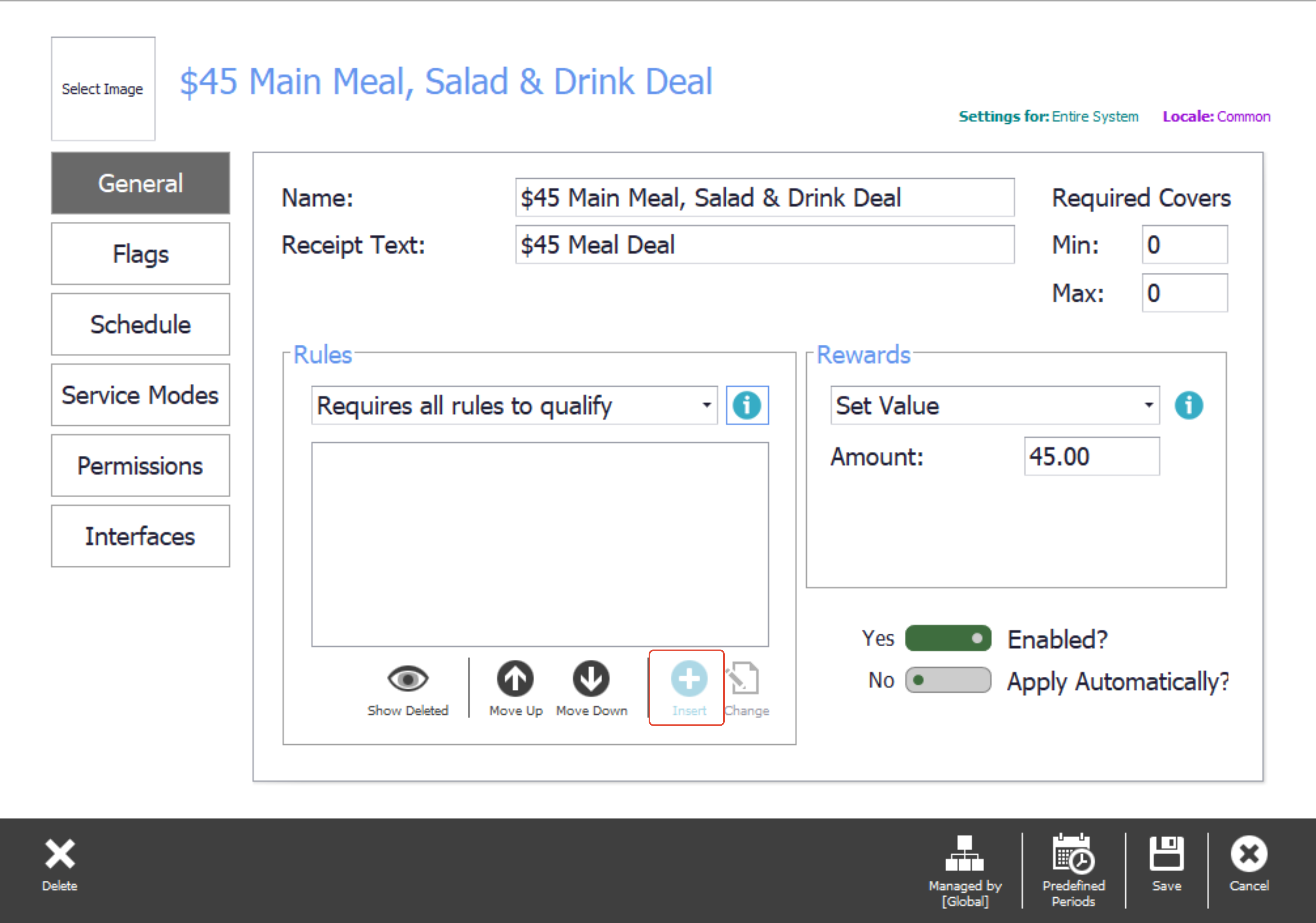
For this deal, choose Requires all rules to qualify, so the discount cannot be given by accident. Select Insert to add the first rule.
Step 7
Name the rule and set its requirement
Give the rule a name that says which items it covers, and choose the requirement.
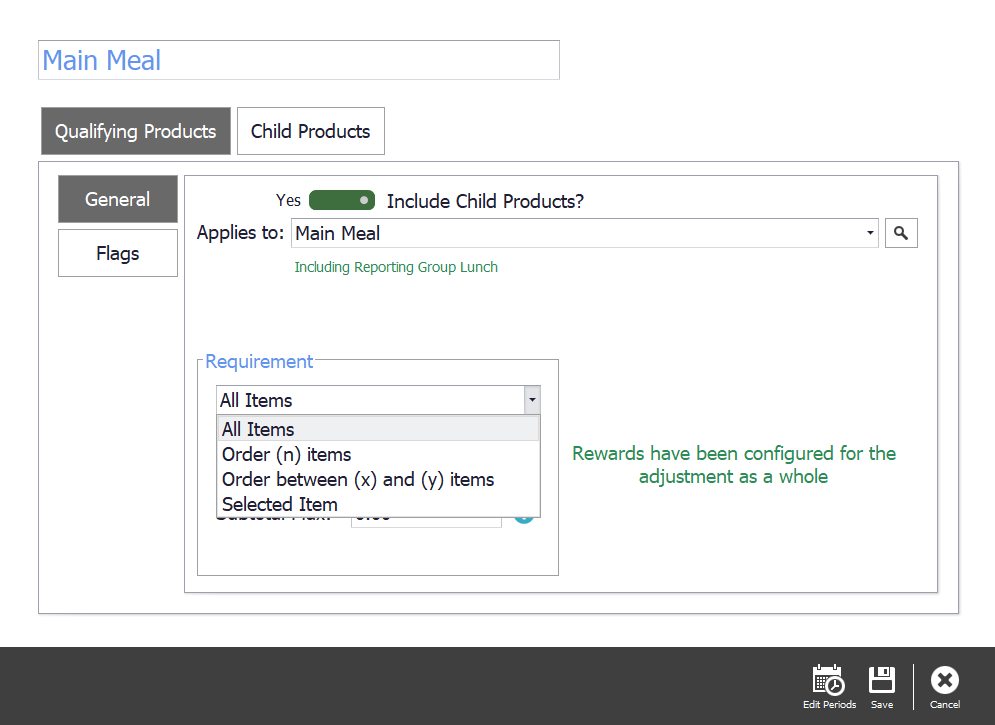
- All items — every item in the adjustment group is affected by the reward.
- Order (n) items — a set number of qualifying items has to be ordered.
- Order between (x) and (y) items — the number of qualifying items has to fall inside the range.
- Selected item — the rule is satisfied when a qualifying item is highlighted in the transaction list.
Step 8
Point it at the main meal group
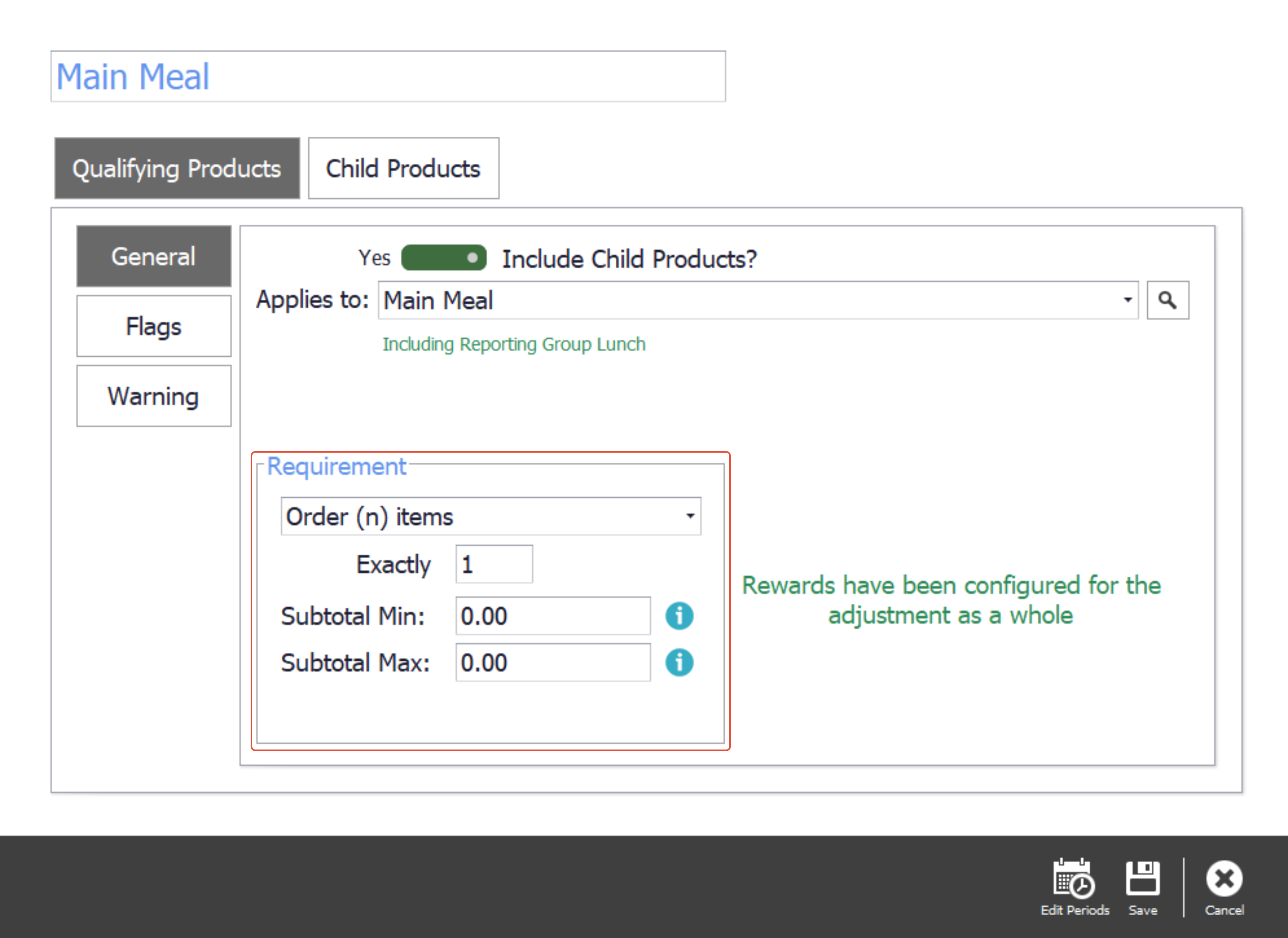
Choose the Main Meal group with the requirement Order (n) items set to 1. Subtotal Min and Max can restrict the group to a value range if you need that.
Step 9
Decide about child products
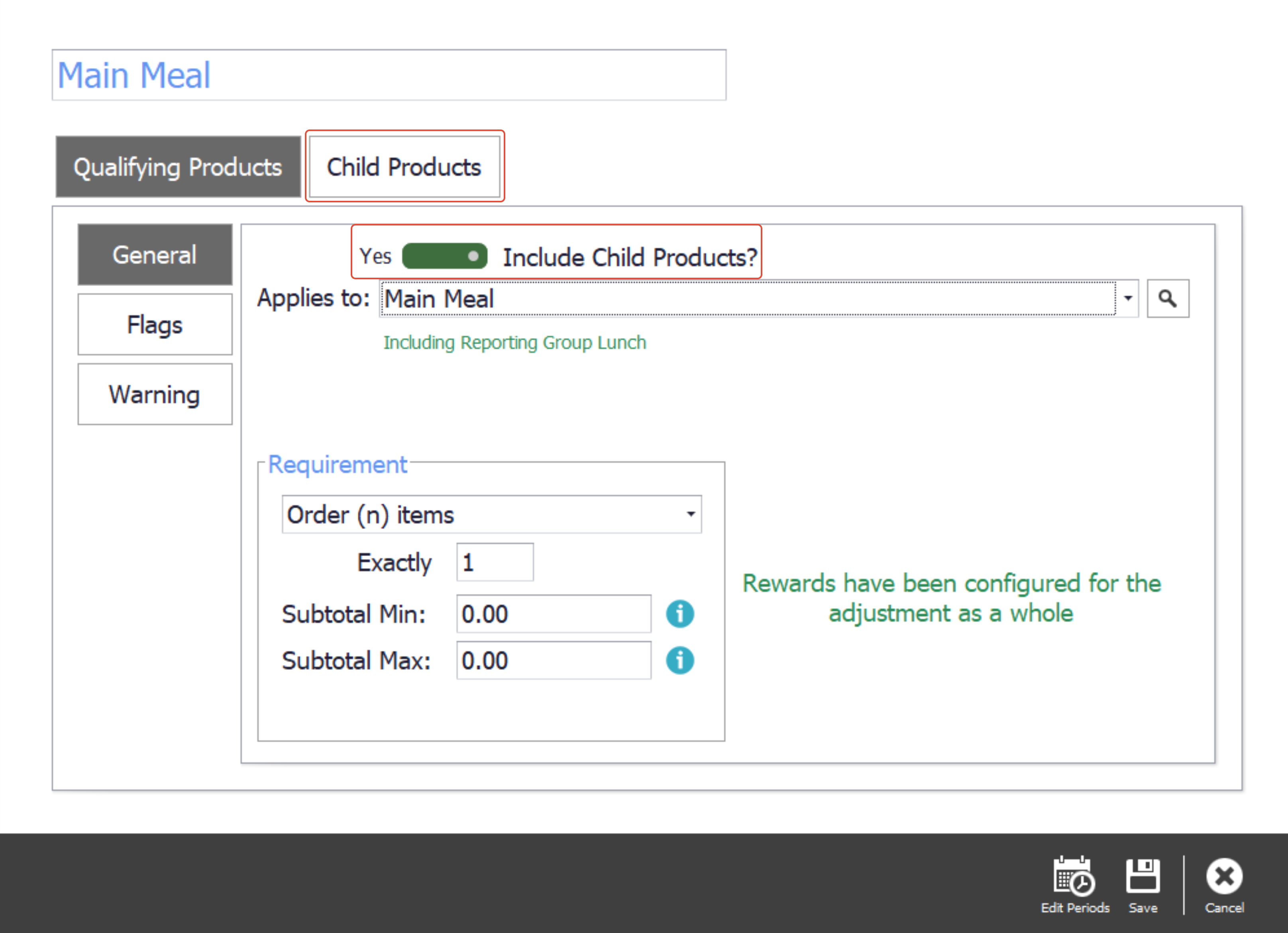
Child products are the extras added to a product. If a carbonara has $6 of extra chicken on it, you may not want the deal to swallow that too — switch child products to no and it will not.
Step 10
Set the flags
Flags control the qualifying group and its child products in finer ways.
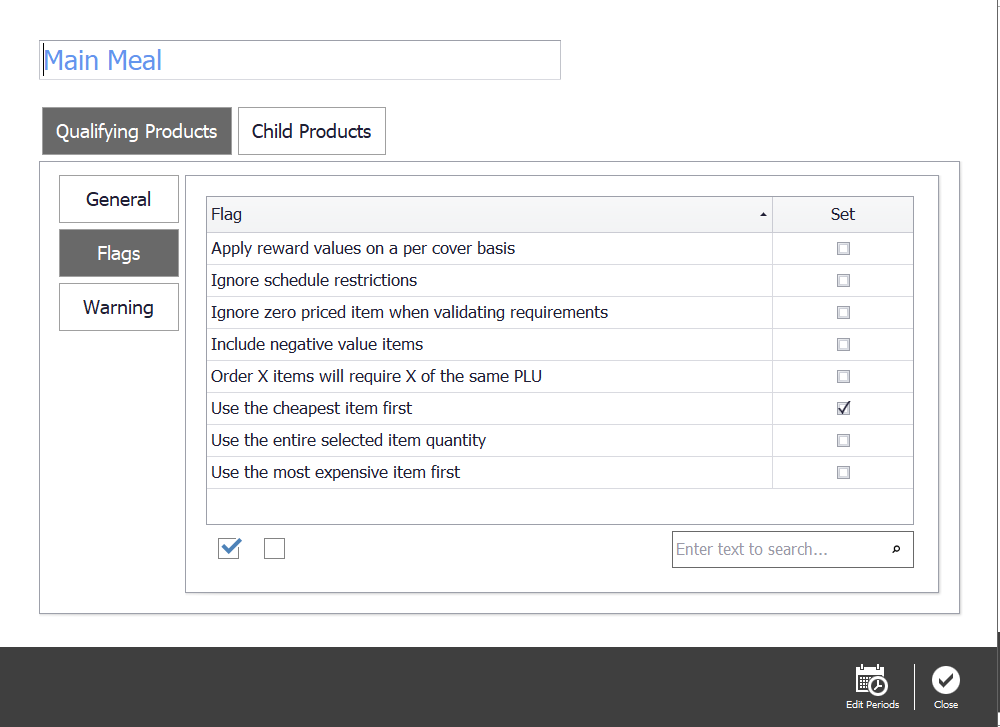
- Apply reward values on a per cover basis — spreads the reward across the covers as a multiple.
- Ignore schedule restrictions — this rule works outside the schedule set on the adjustment itself.
- Ignore zero priced items when validating requirements — $0 items in the rule's groups count towards neither the rule nor the reward.
- Include negative value items — negative value items in the rule group are taken into the reward.
- Order X items will require X of the same PLU — the rule only applies when the same item is ordered, rather than any items from the group.
- Use the cheapest item first — the reward is applied to the lower-value item.
- Use the entire selected item quantity — where the transaction line is more than 1, the whole quantity goes into the rule.
- Use the most expensive item first — the reward is applied to the higher-value item.
Step 11
Use the cheapest item first
For this deal, use the cheapest item first keeps as much margin as possible.
Step 12
Add a warning, if it would help
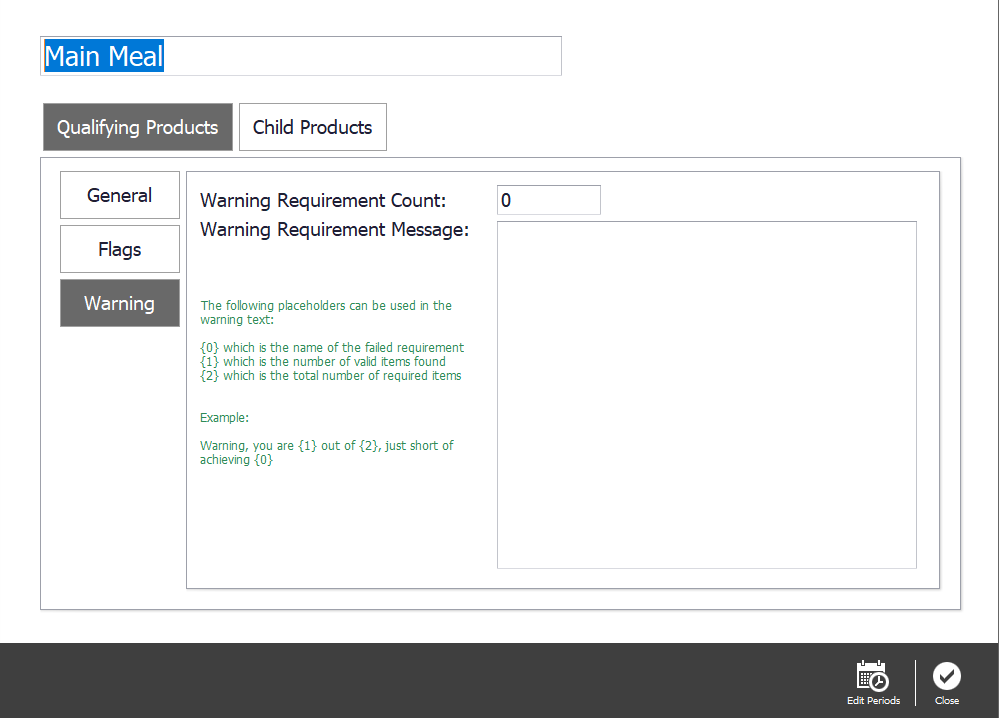
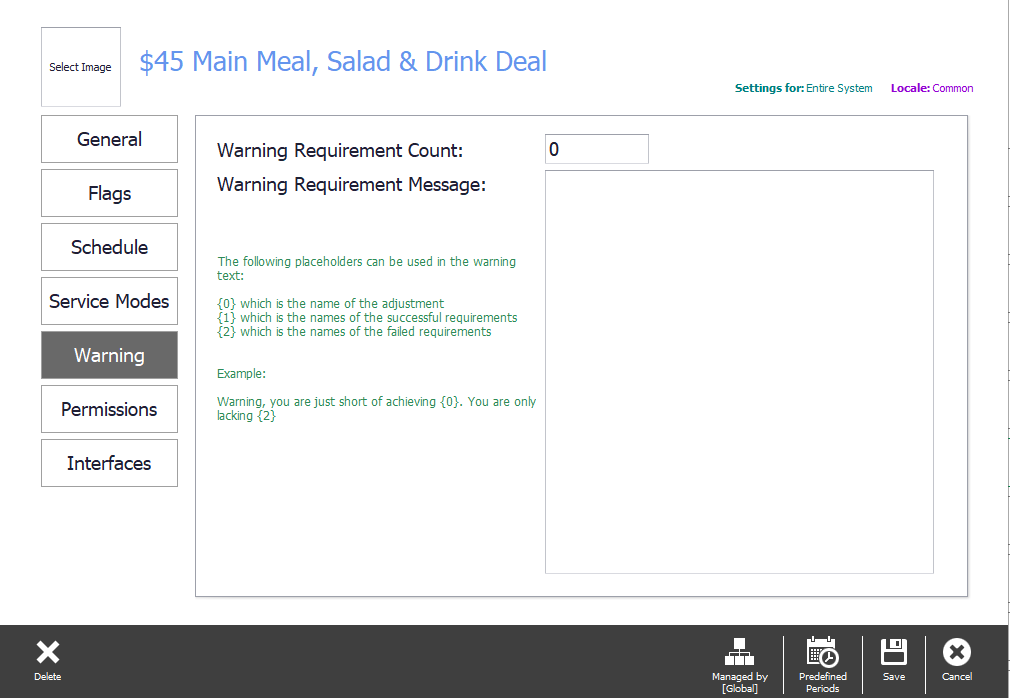
The Warning section is optional. It shows the user a message when the rule cannot be applied, or tells them what is still needed to reach it.
Step 13
Repeat for the salad and the drink
Build the other two rules the same way, one for the salad group and one for the drinks group.
Narrowing when and where it applies
The switches below the rules set whether the adjustment is enabled, and whether it applies automatically or has to be chosen from a button on the touchscreen. The settings down the left narrow it further.
Step 14
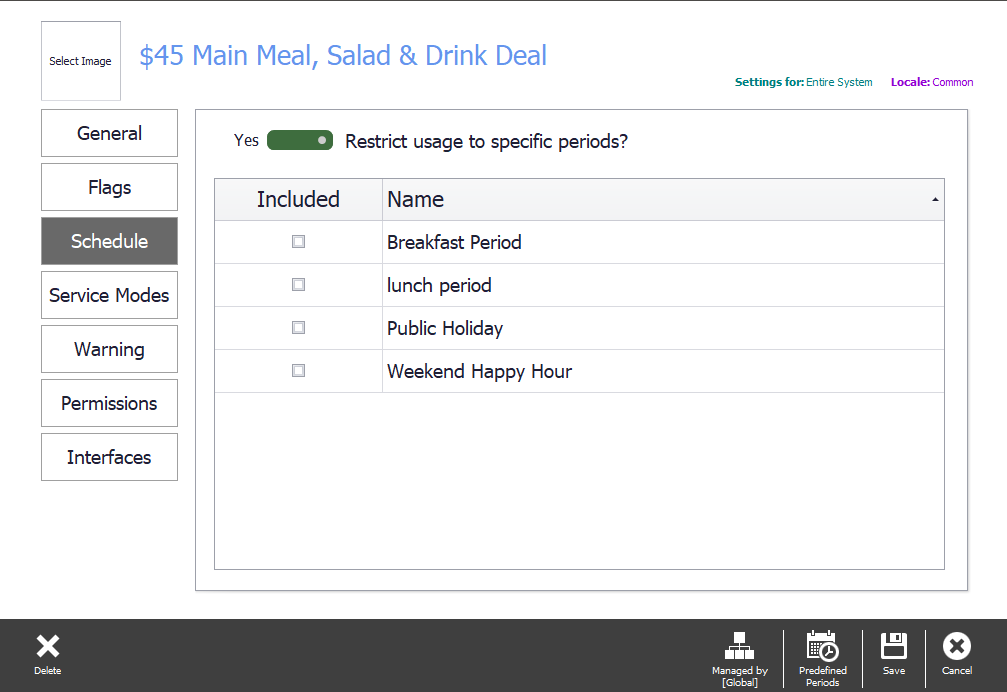
Schedule
Schedule sets the dates and times the adjustment is live between.
Step 15
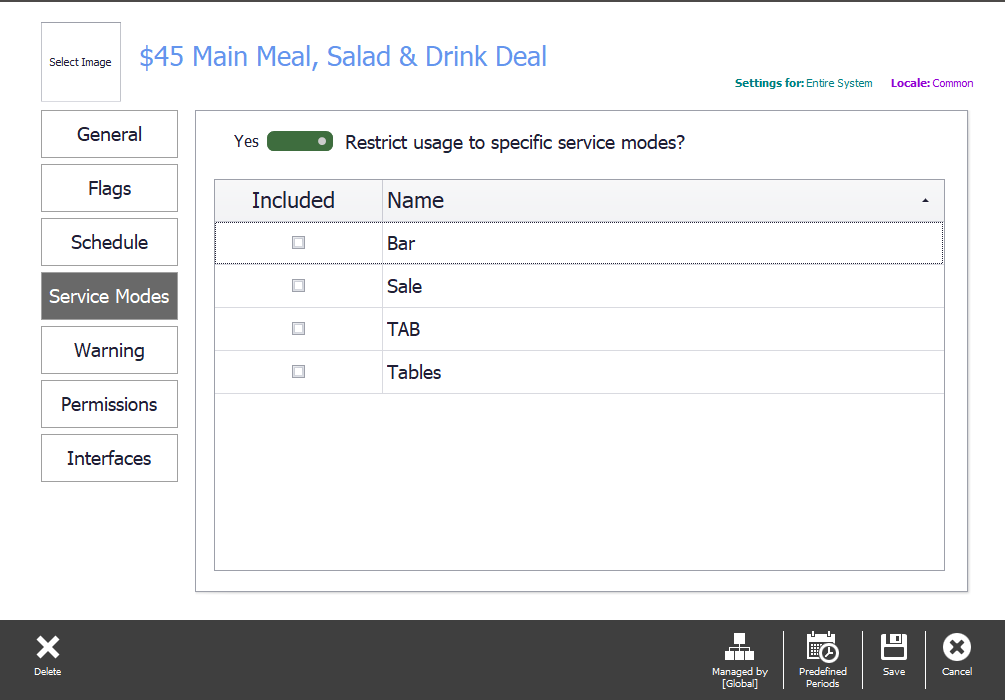
Service modes
Service Modes limits which modes it is available in. A dine-in deal belongs in the table service mode and nowhere else.
Step 16
Warnings
Warnings can also be set at the adjustment level rather than on one rule, in which case every qualifying rule uses that text.
Step 17
Permissions
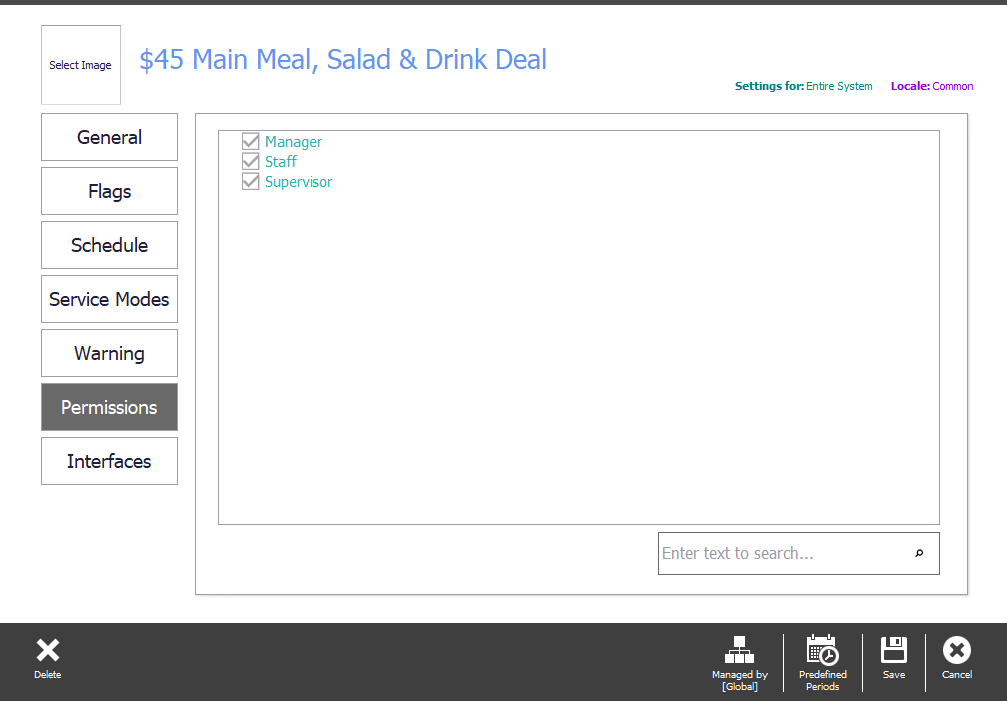
Permissions decides which groups of staff may apply the adjustment.
Step 18
Interfaces
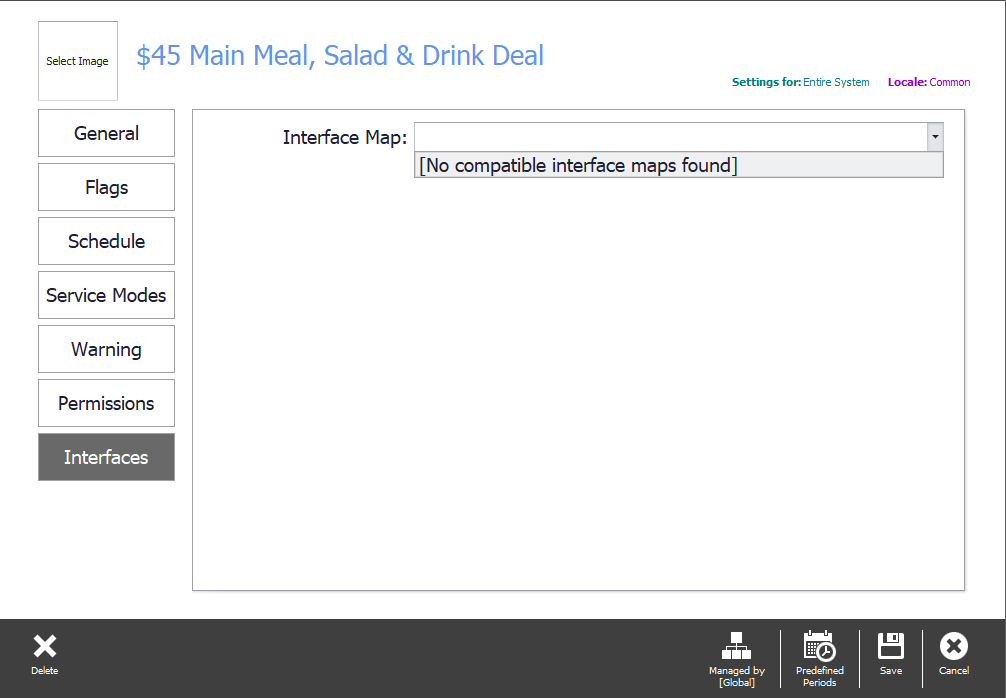
Where a qualifying integration is switched on, Interfaces maps the adjustment to it.
Step 19
Add a graphic, save and publish
A graphic gives staff a quick visual cue for what the adjustment is. Then select Save, and publish the change out to the POS.
Testing it on the POS
Step 20
Ring the deal up
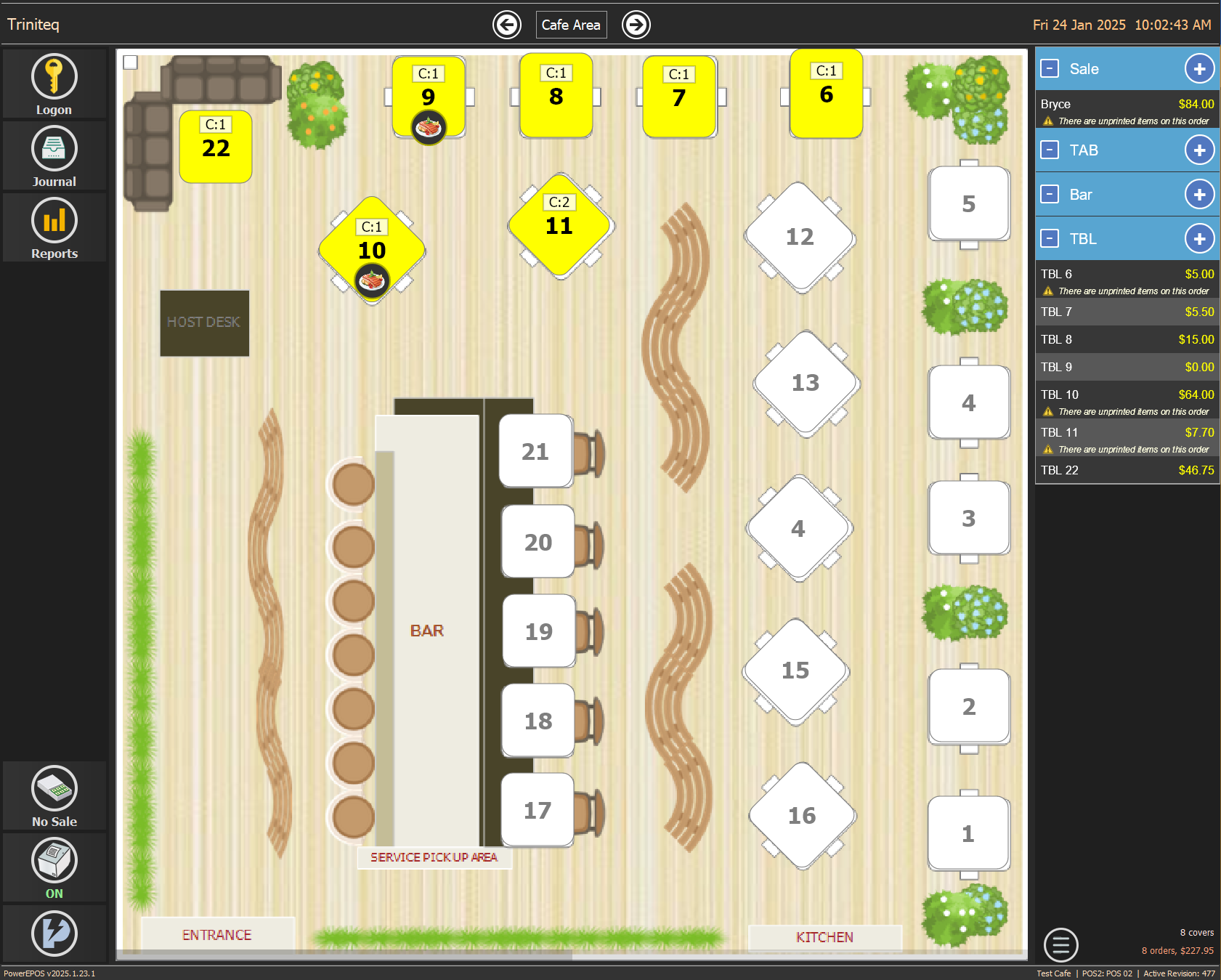
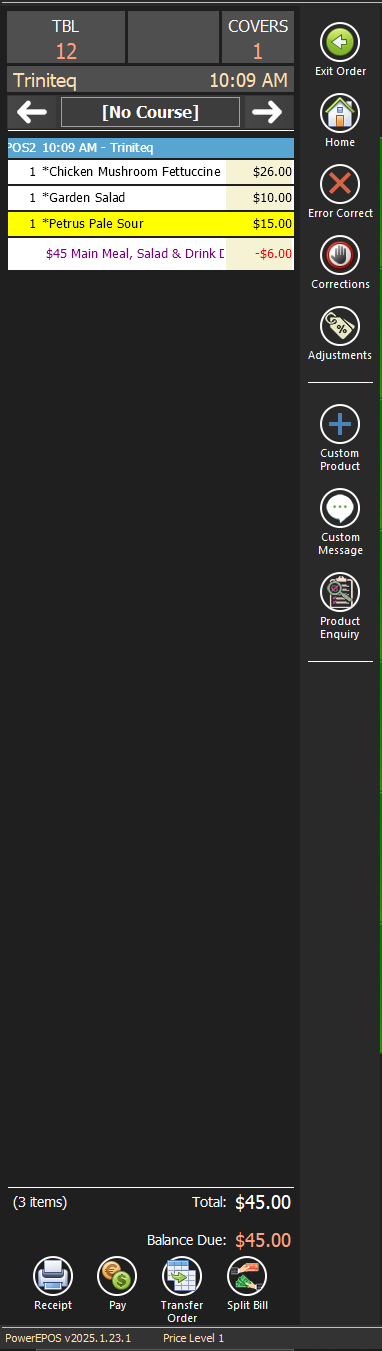
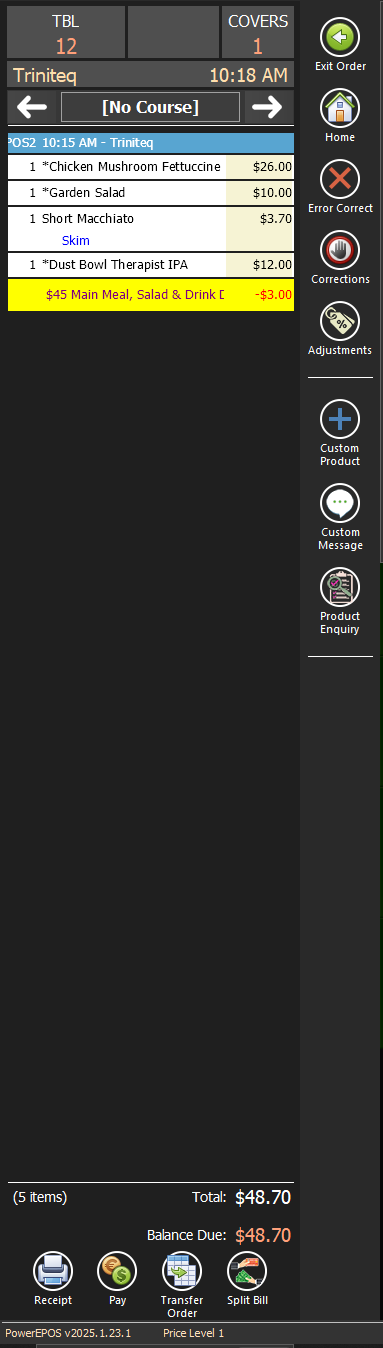
Sign in to the POS and open a new table. Once all the qualifying items are on the transaction, the deal appears underneath them, with a \* beside the items it has changed.
Step 21
If it does not fire
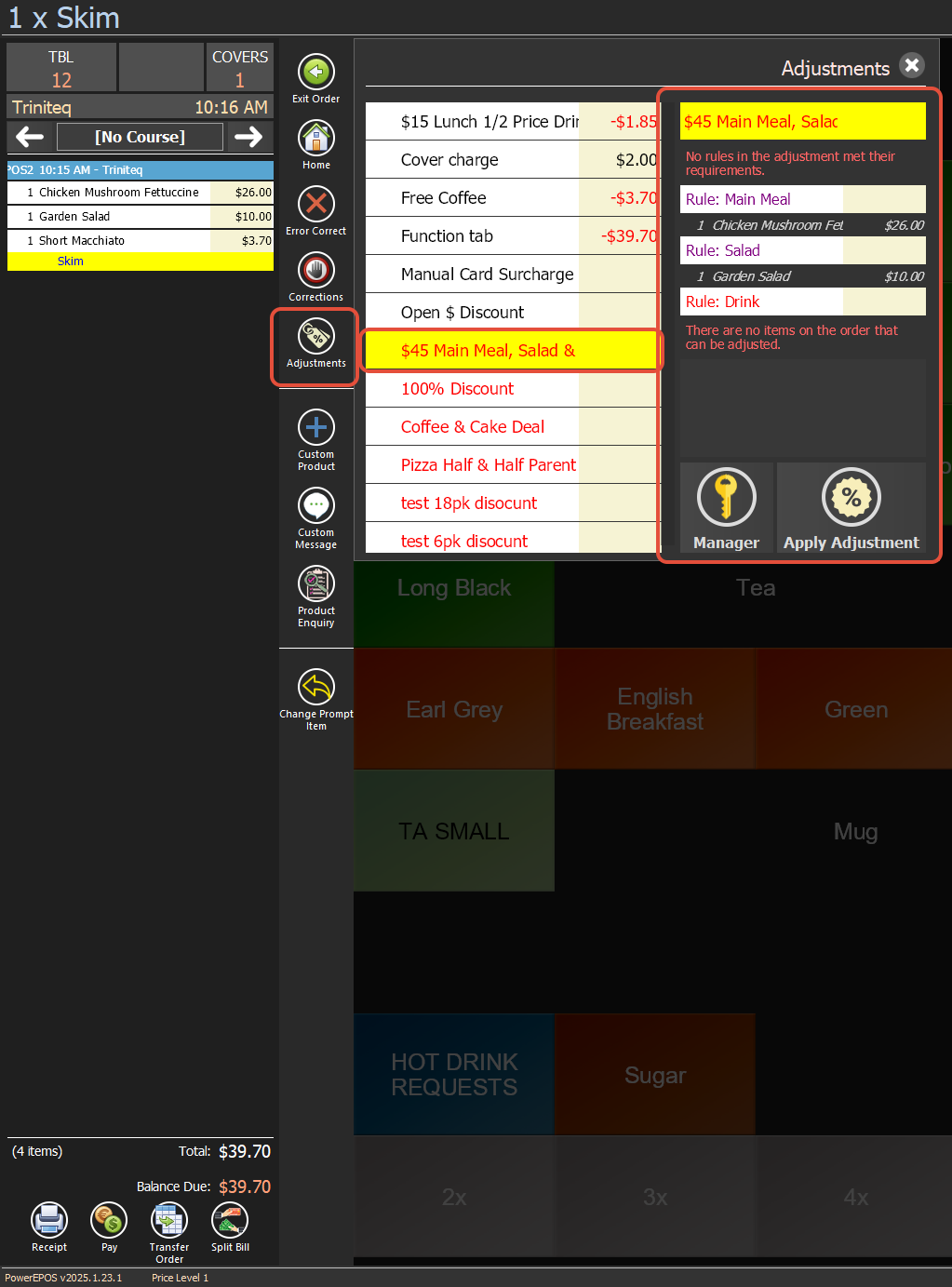
An error message means a rule needs more work. Turn the adjustment off automatic: you can then see the qualifying PLUs on the transaction and which rule is not satisfied.
Step 22
Read the rules on the POS
Select the Adjustment tab on the context bar and then the adjustment itself. While it is not being applied it is shown in red, and the adjustment rules are listed so you can see which one is short.
Step 23
Watch it turn black
Adding the missing item turns the adjustment black and shows the discount it will apply and which qualifying items it is using. Select Apply adjustment to put it on the items.
Step 24
Need help?
Triniteq support
Our support team is here to help.
Call 1300 784 276 or email support@triniteq.com, and include your venue name so we can find your setup straight away.