
System programming · Guide
Setting up public holiday surcharges
Create a Public Holidays schedule in PowerEPOS, add the dates, set the surcharge as a simple adjustment, and check it on the POS.
PowerEPOS
Setting up public holiday surcharges
Automatic surcharges
A surcharge set up in the back office applies itself. You build a schedule of public holidays, list the dates, and attach a percentage surcharge to that schedule — from then on it goes onto bills on those days and nowhere else, with nobody having to remember to switch it on.
In this guide
- StartBefore you start
- Creating the schedule
- 1Open Periods
- 2Insert a new period
- 3Choose For normal use
- 4Name it and save
- 5Publish
- Adding the public holiday dates
- 6Open the schedule
- 7Add each date
- 8Publish
- Setting the surcharge amount
- 9Open Adjustments and insert one
- 10Name it and set the percentage
- 11Restrict it to the Public Holidays schedule
- 12Choose the service modes
- 13Enable and save
- 14Publish
- Checking it on the POS
- 15Add today to the schedule and ring up an order
- 16Remove the date and publish
- 17Need help?
Start
Before you start
- Access to POS Management in PowerEPOS.
- Your public holiday dates.
- The surcharge percentage you want to charge.
Publishing
Each part of this ends with a publish, and it is the same publish every time: go back to the POS Management screen, select Publish at the top right, check the changes and the locations are right, and select Publish to roll them out to the POS.
Creating the schedule
Step 1
Open Periods
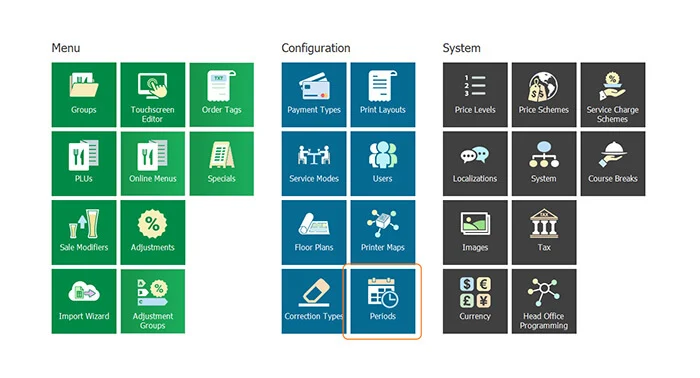
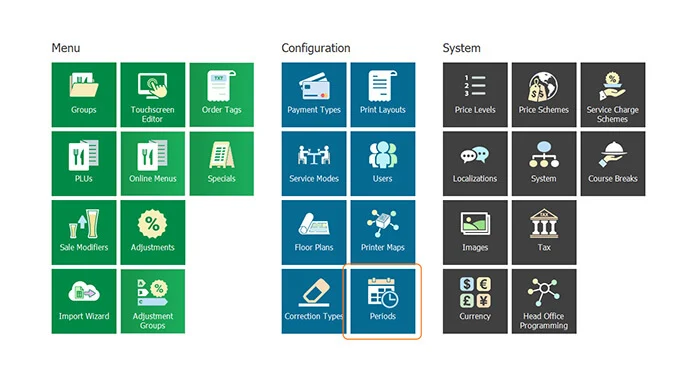
From POS Management, open Periods.
Step 2
Insert a new period
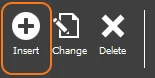
Select Insert from the toolbar.
Step 3
Choose For normal use
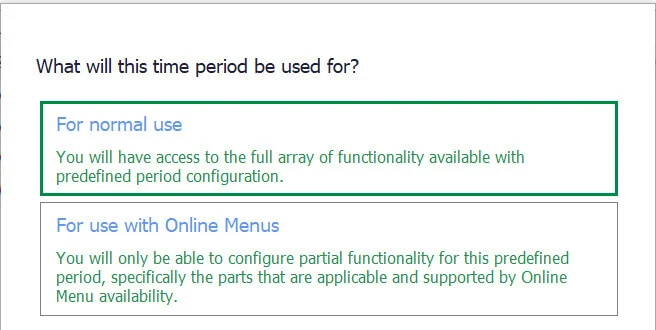
For the time period, select For normal use.
Step 4
Name it and save
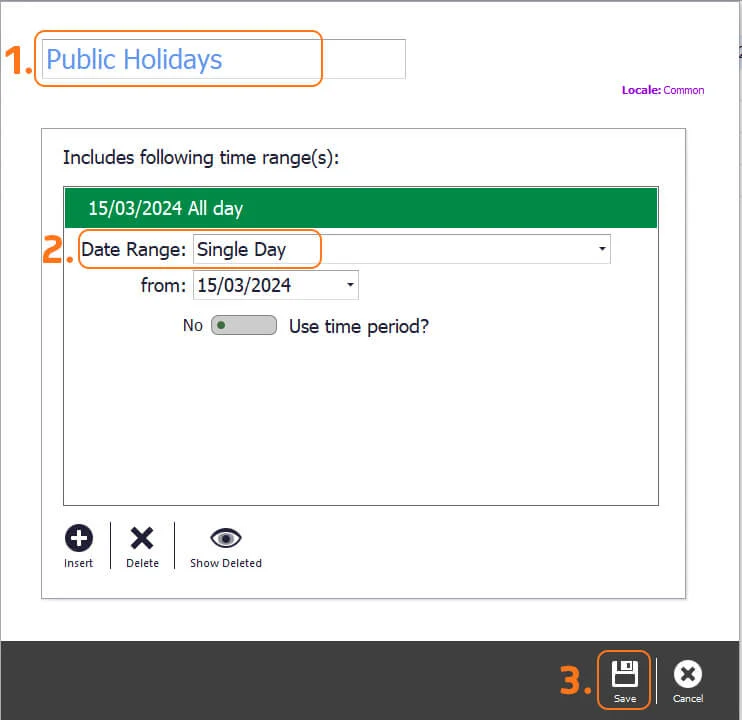
Give the schedule a name — Public Holidays here — set the date range to Single Day, and select Save.
Step 5
Publish
Publish the change out to the POS. The schedule now exists and is ready for dates.
Adding the public holiday dates
Step 6
Open the schedule
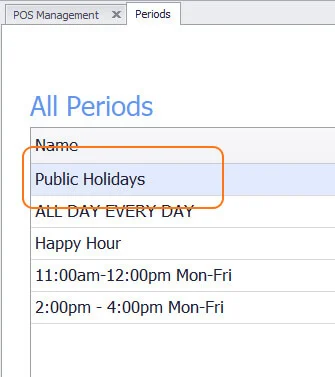
From POS Management, open Periods, then double-click Public Holidays.
Step 7
Add each date
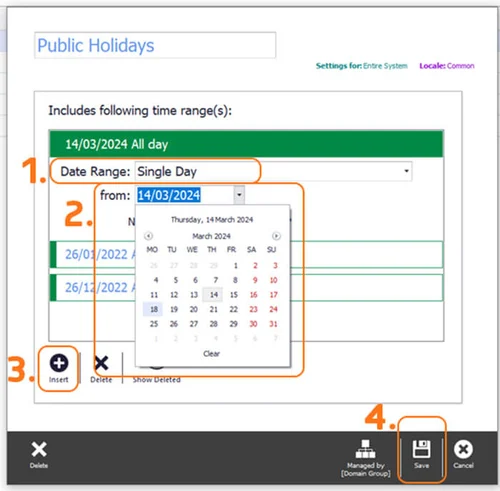
Choose Single Day from the drop-down, pick the public holiday from the calendar, and select Insert. Repeat that for every date you want, then select Save once at the end.
Step 8
Publish
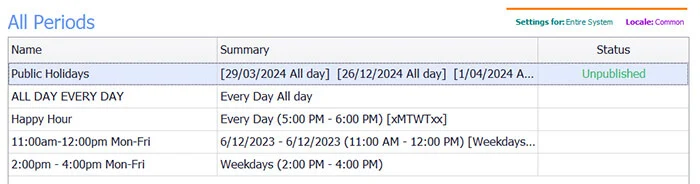
The dates are listed but unpublished until you send them out. Publish the change to the POS.
Setting the surcharge amount
The surcharge itself is a simple adjustment, tied to the schedule you just built.
Step 9
Open Adjustments and insert one
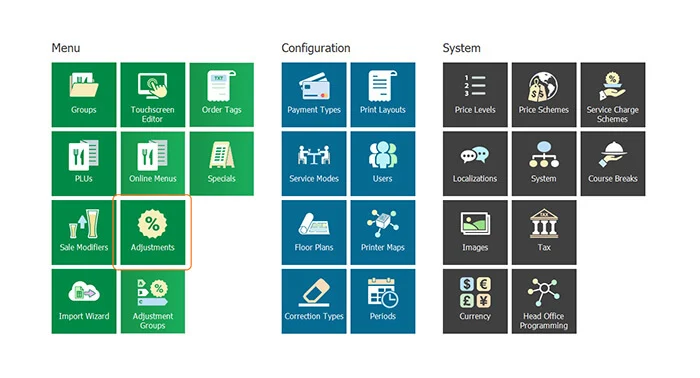
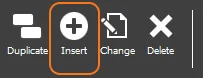
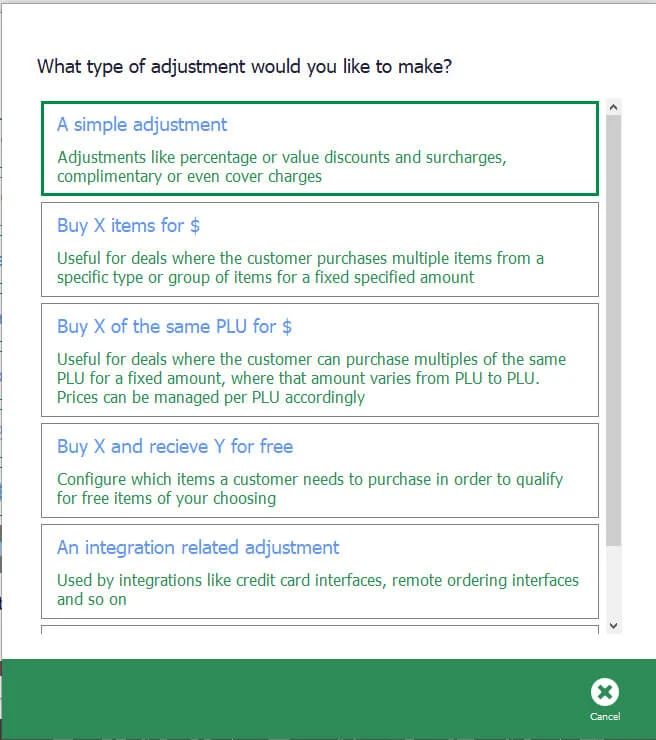
From POS Management, open Adjustments, then select Insert from the toolbar and choose Simple Adjustment from the list.
Step 10
Name it and set the percentage
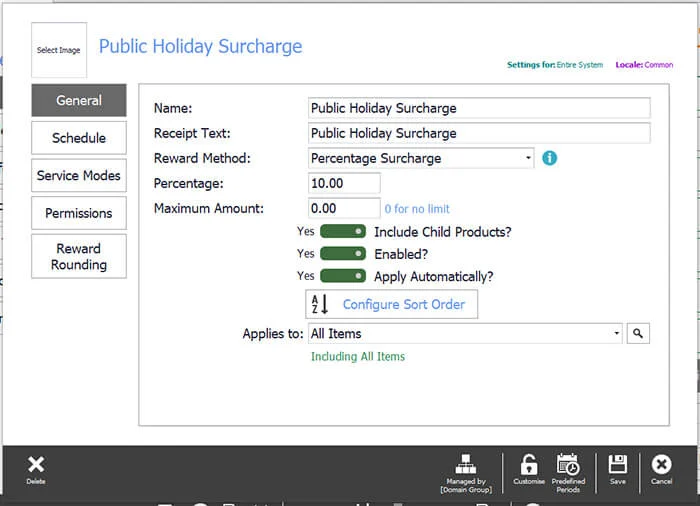
Enter the name of the adjustment, choose the reward method, set the percentage surcharge, and turn the three options on.
Step 11
Restrict it to the Public Holidays schedule
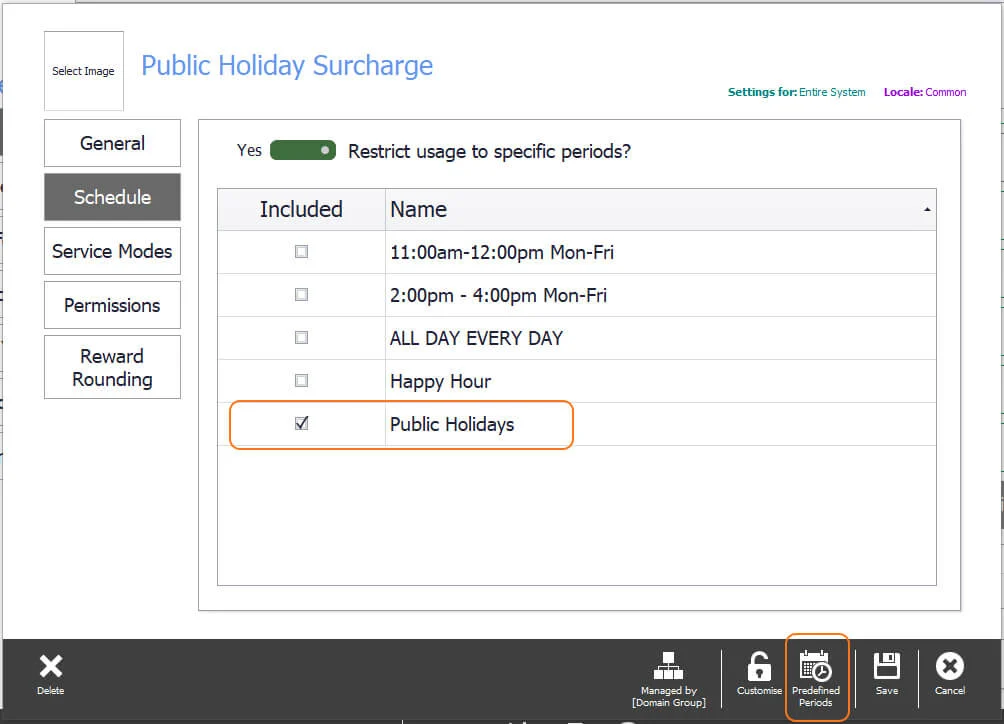
Go to Schedule in the left-hand menu, turn on Restrict usage to specific periods, and select Public Holidays.
If no schedule is offered here, create one first: either Periods in POS Management or Predefined Periods in the toolbar, then Insert.
Step 12
Choose the service modes
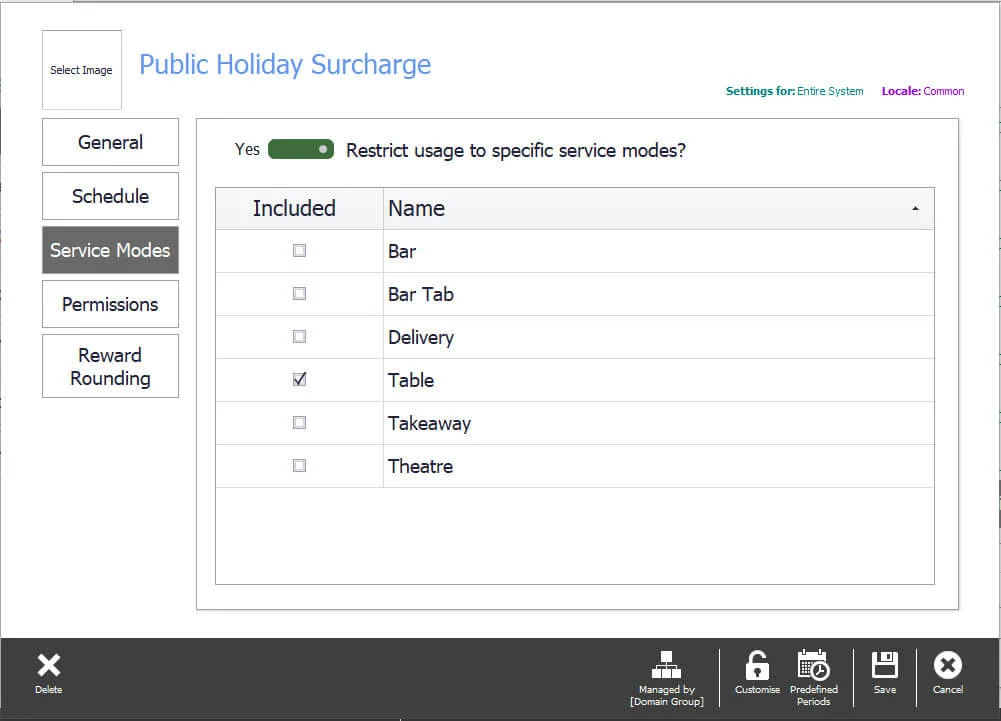
If the surcharge should only apply to certain service modes, turn the toggle on and pick them. Left off, it applies to every service mode.
Step 13
Enable and save
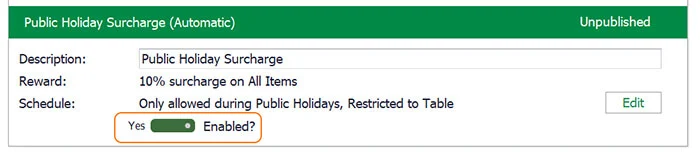
Save your settings, then on the final screen toggle the schedule to enabled and select Save.
Step 14
Publish
Publish the new adjustment out to the POS.
Checking it on the POS
Step 15
Add today to the schedule and ring up an order
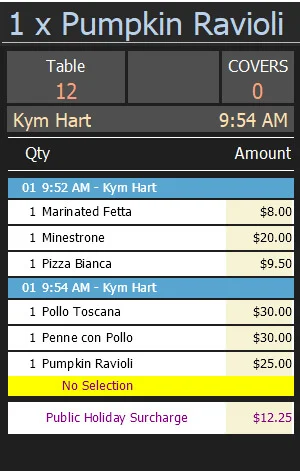
To see how the surcharge looks, add today's date to Public Holidays, publish it, and start an order on the POS. The surcharge calculates on the bill.
Take the date back off straight away
While today's date sits in the schedule, every customer is charged the surcharge. Remove it as soon as you have seen it work.
Step 16
Remove the date and publish
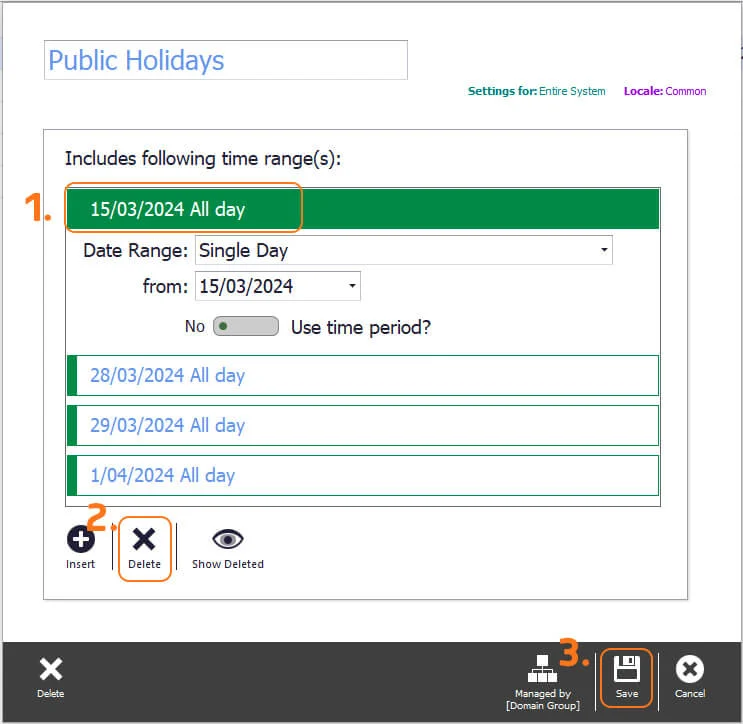
Select the date, select Delete, then Save. Publish again so the POS loses it too.
Step 17
Need help?
Triniteq support
Our support team is here to help.
Call 1300 784 276 or email support@triniteq.com, and include your venue name so we can find your setup straight away.