
System programming · Guide
Creating a simple adjustment
What the adjustment types are, and how to build a simple percentage or value discount or surcharge in PowerEPOS, with its schedule, service modes and permissions.
PowerEPOS
Creating a simple adjustment
Discounts and surcharges
Adjustments are usually thought of as discounts, but surcharges are adjustments too. They are how an order is changed quickly for a promotion, an incentive programme or a public holiday.
In this guide
- StartBefore you start
- The adjustment types
- Finding your way around Adjustments
- 1Open the Adjustments tile
- 2Edit or switch one off
- Creating a simple adjustment
- 3Start a new one
- 4Name it
- 5Set the receipt text
- 6Choose a reward method
- 7Set the amount
- 8Decide about child products
- 9Enable it, and choose automatic or manual
- Narrowing when and where it applies
- 10Schedule
- 11Service modes
- 12Permissions
- 13Add a graphic
- 14Need help?
Start
Before you start
- Access to the Adjustments tile in PowerEPOS.
- A clear idea of what the adjustment should do, and who should be allowed to apply it.
The adjustment types
- Simple Adjustment — a percentage or value, applied as a discount or a surcharge. A public holiday surcharge, a 100% owner discount, $20 off the total.
- Buy X items for $ — a set number of items from the same category sold for one price rather than the sum of each. Any 4 beers for $20 instead of $8 each.
- Buy X of the same PLU for $ — the same item ordered together at a lower price. 2 choc chip for $3 instead of $2 each.
- Buy X and receive Y free — discounts a number of items once a threshold of the same item or group is reached. Buy 2 coffees, get one free.
- Integration related adjustment — for discounts and surcharges applied elsewhere and sent to the POS, by an online menu or a card transaction. A credit card surcharge applied after the EFTPOS machine finalises the payment.
- Customised — more complex deals that need finer tuning. One main, one salad and one drink for $45 rather than the sum of the three.
Finding your way around Adjustments
Step 1
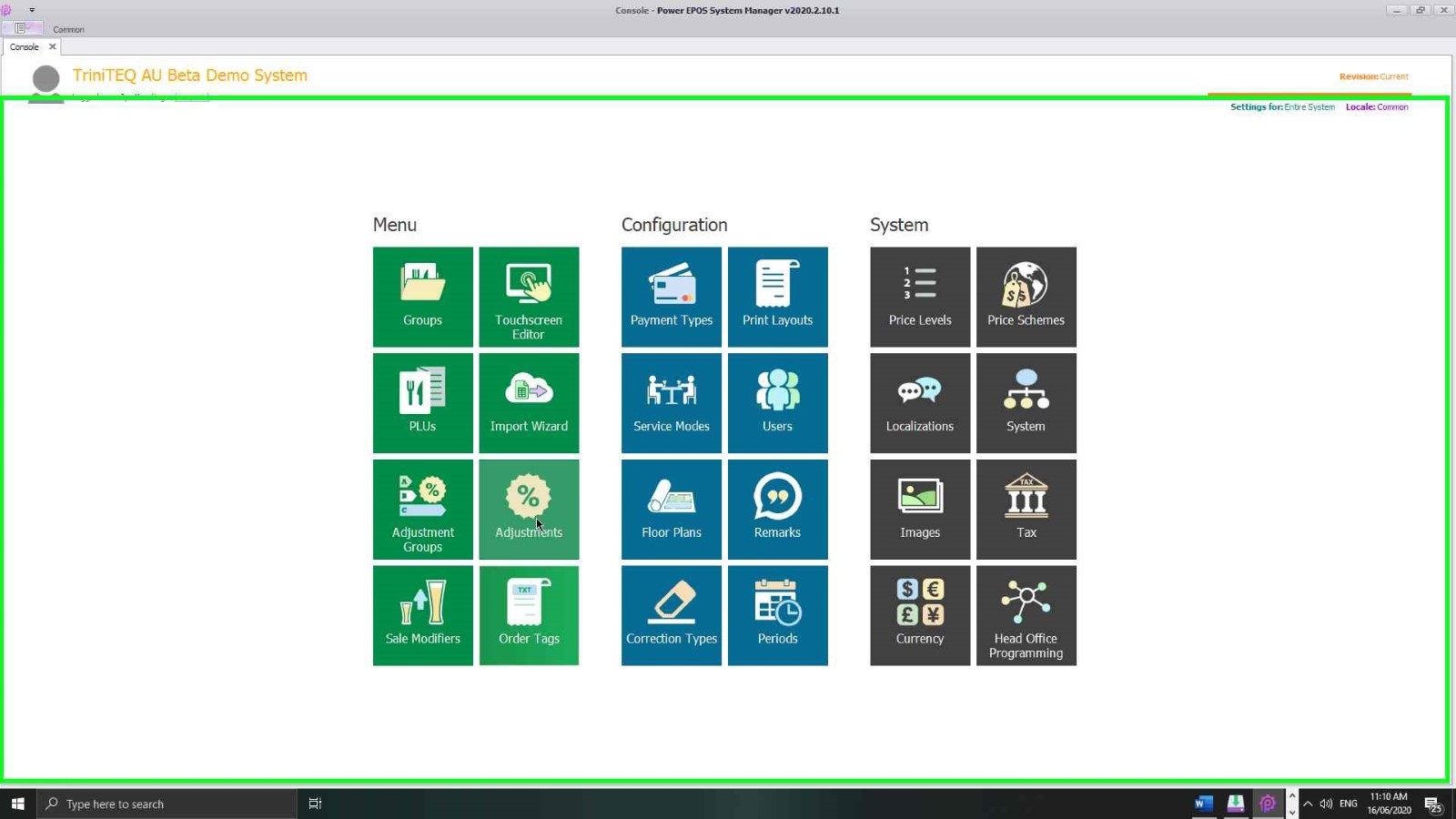
Open the Adjustments tile
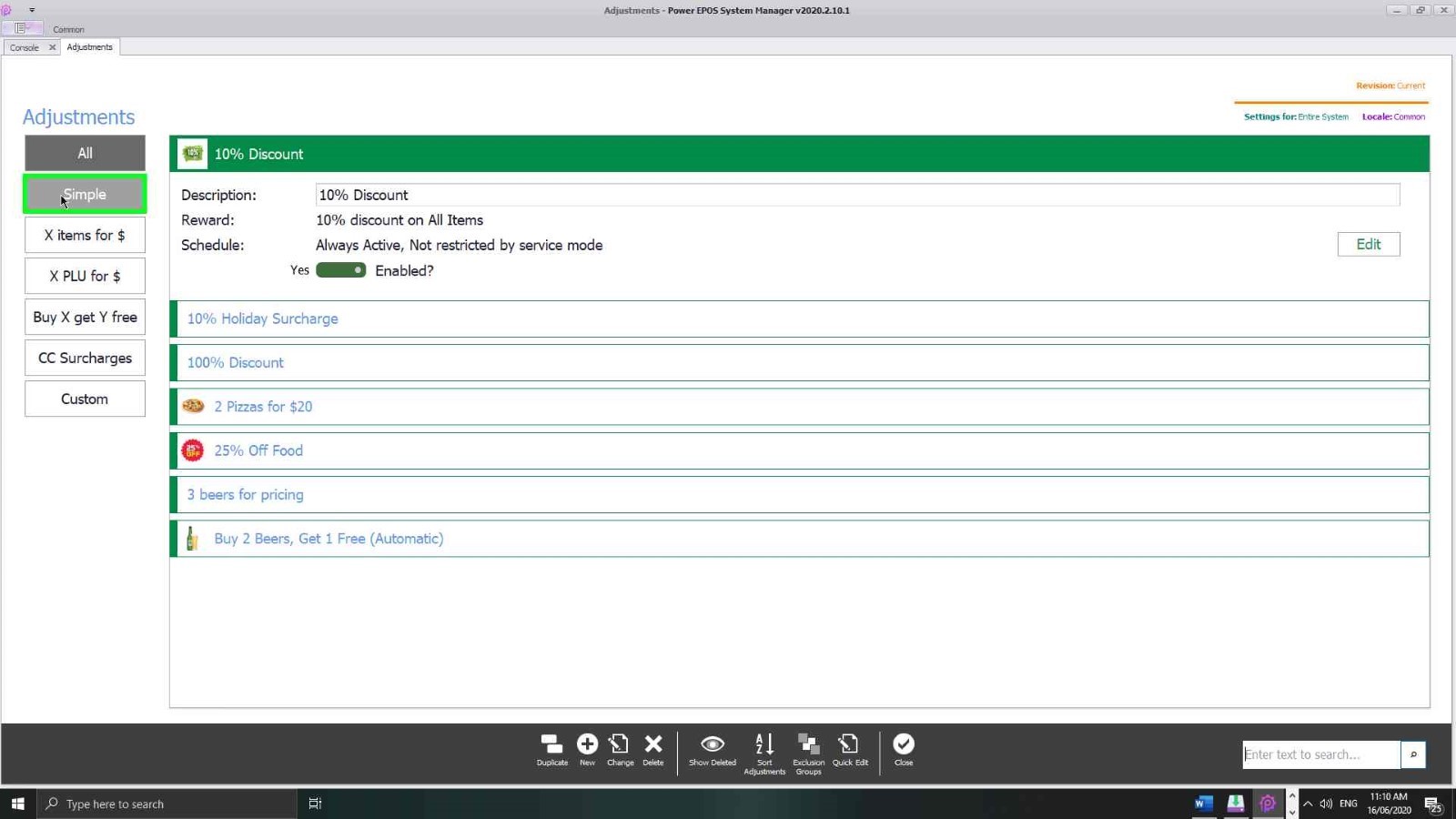
This opens the adjustments screen. The types are listed down the left; selecting one lists the adjustments of that type on the right.
Step 2
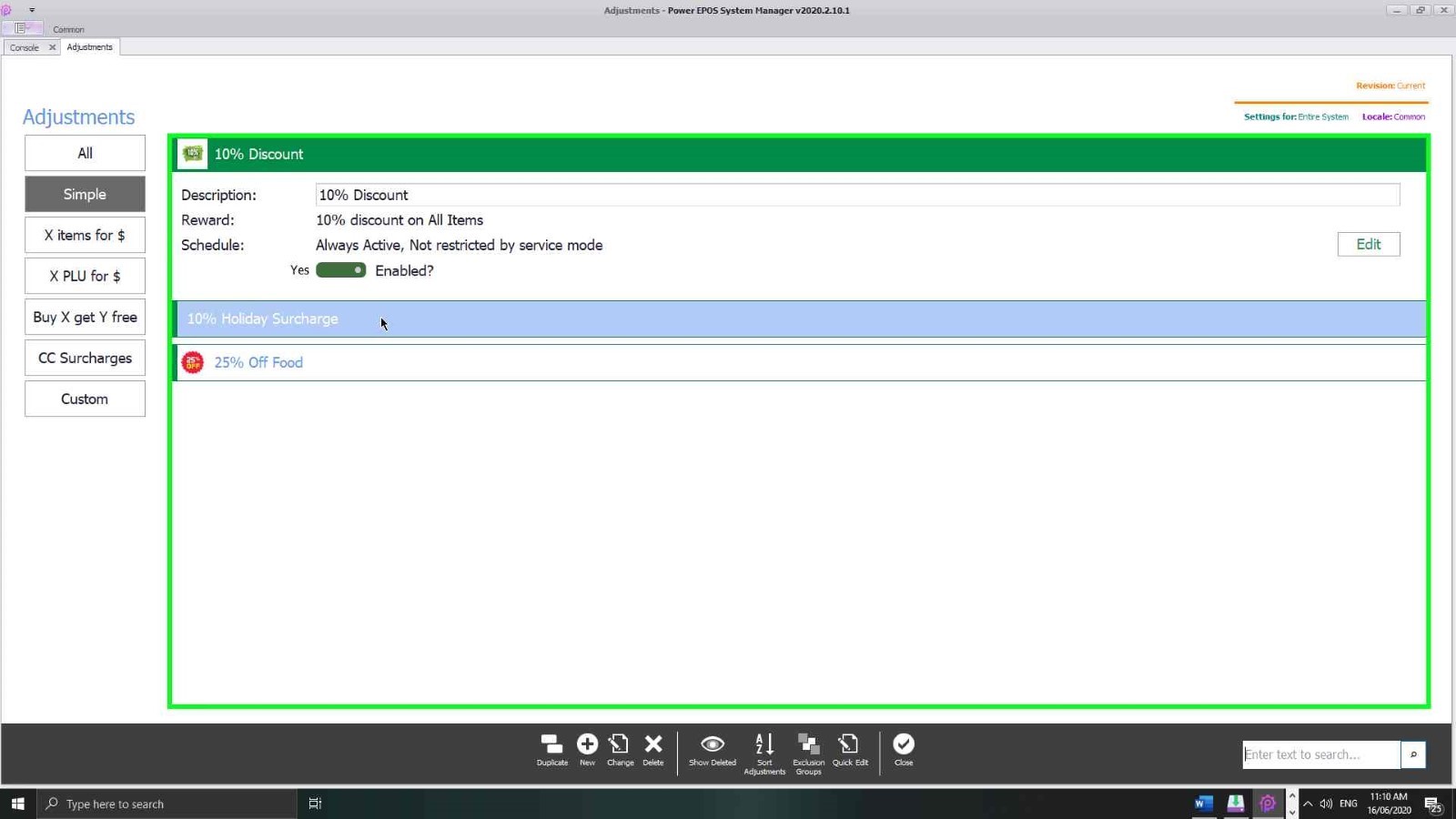
Edit or switch one off
Select an adjustment and choose Edit on the far right. The same screen carries the enabled switch, so an adjustment can be turned off without being deleted.
Creating a simple adjustment
Step 3
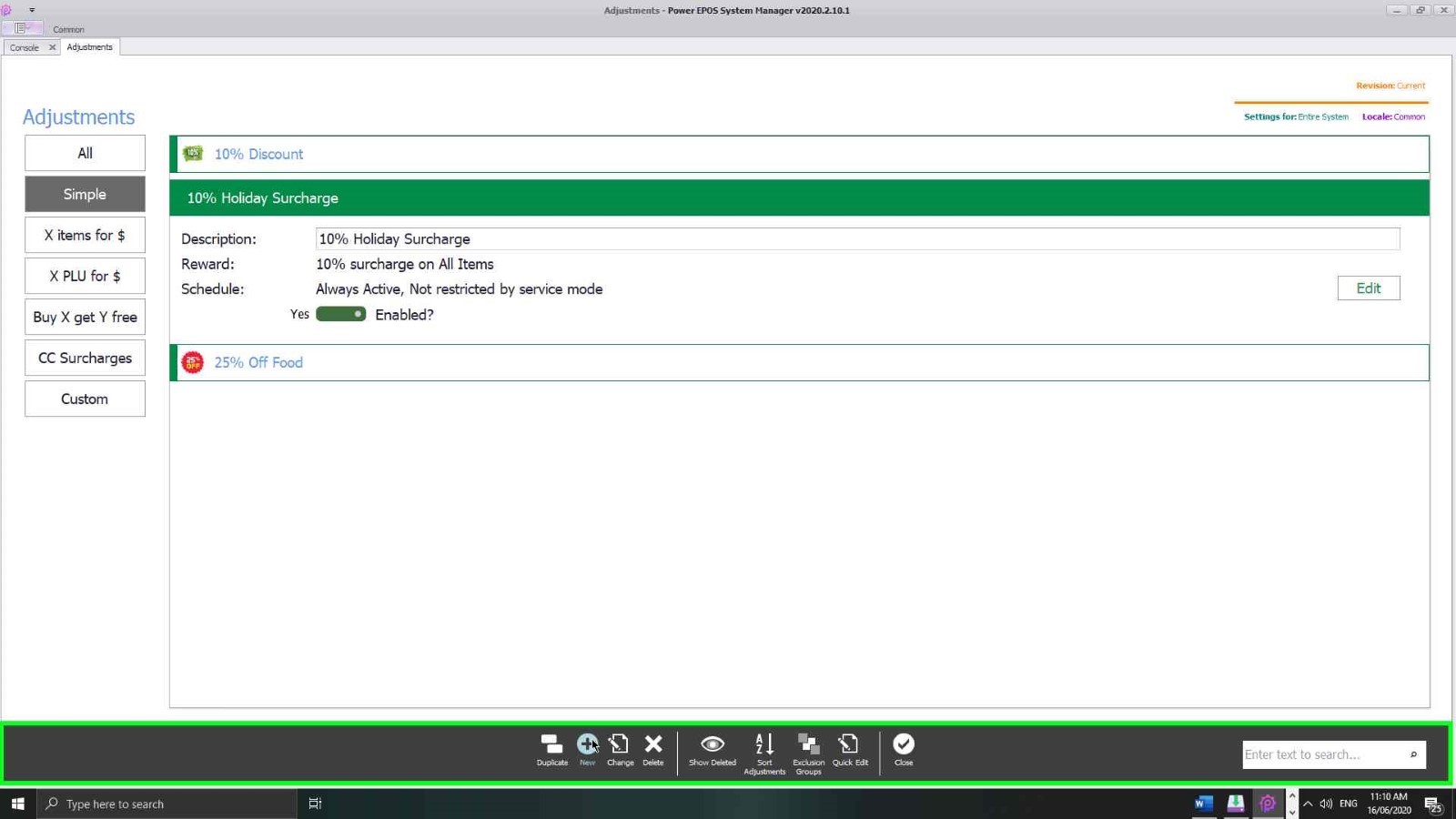
Start a new one
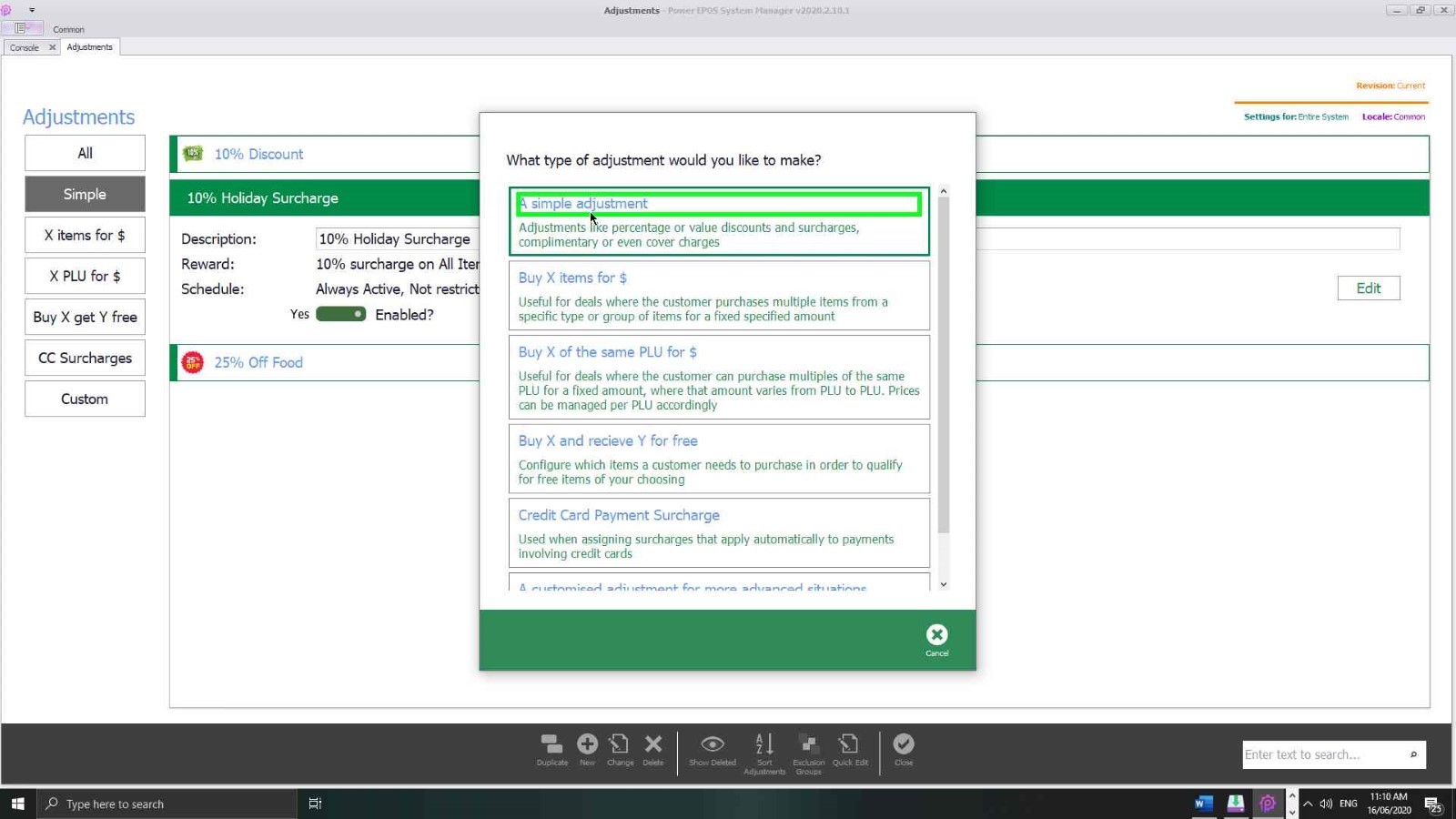
Select New in the control panel. A window opens with every type of adjustment PowerEPOS can create — choose Simple Adjustment.
Step 4
Name it
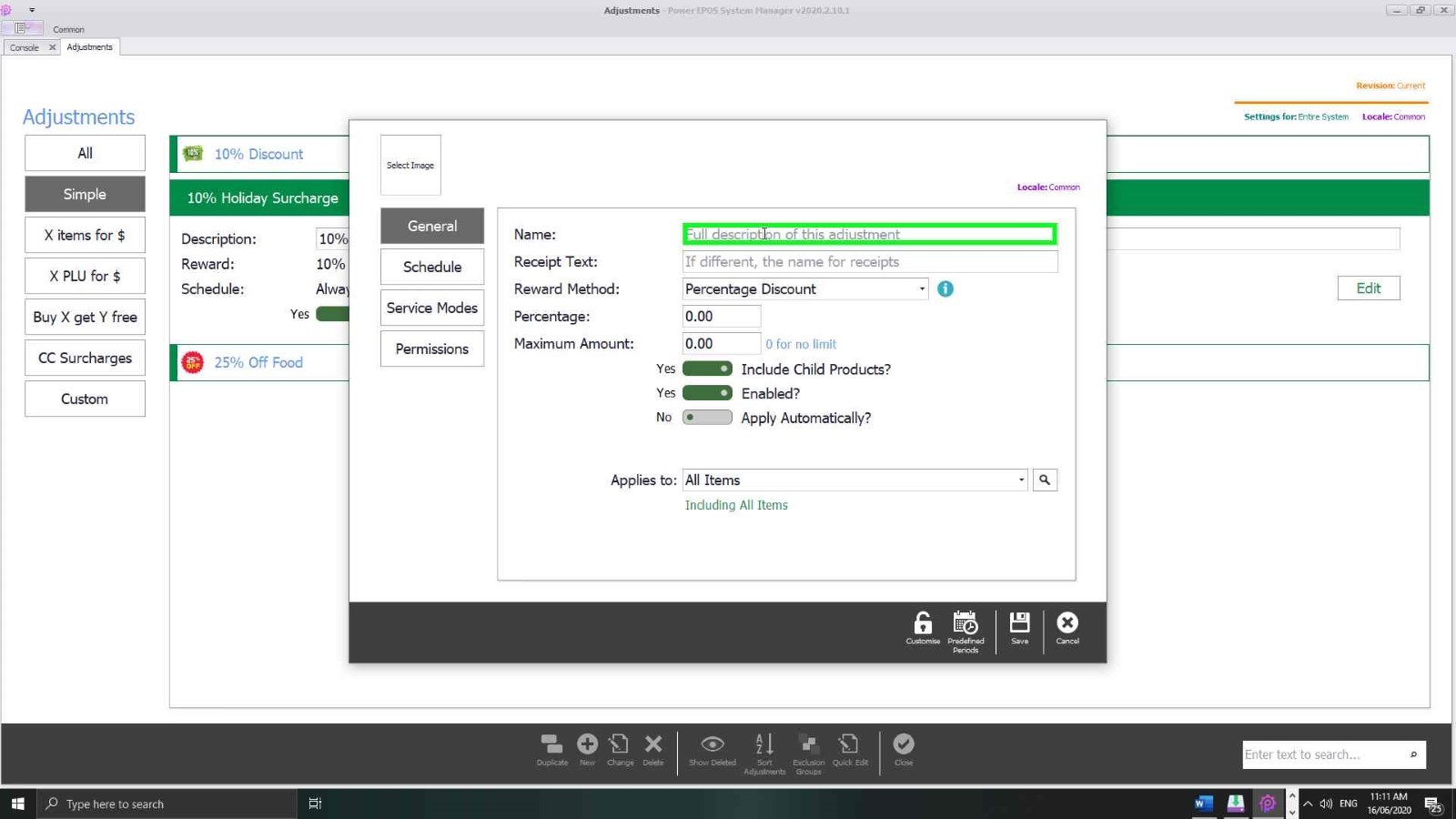
The name is for you, not the customer: it is what you will scan for when you come back to change, enable or disable this adjustment.
Step 5
Set the receipt text
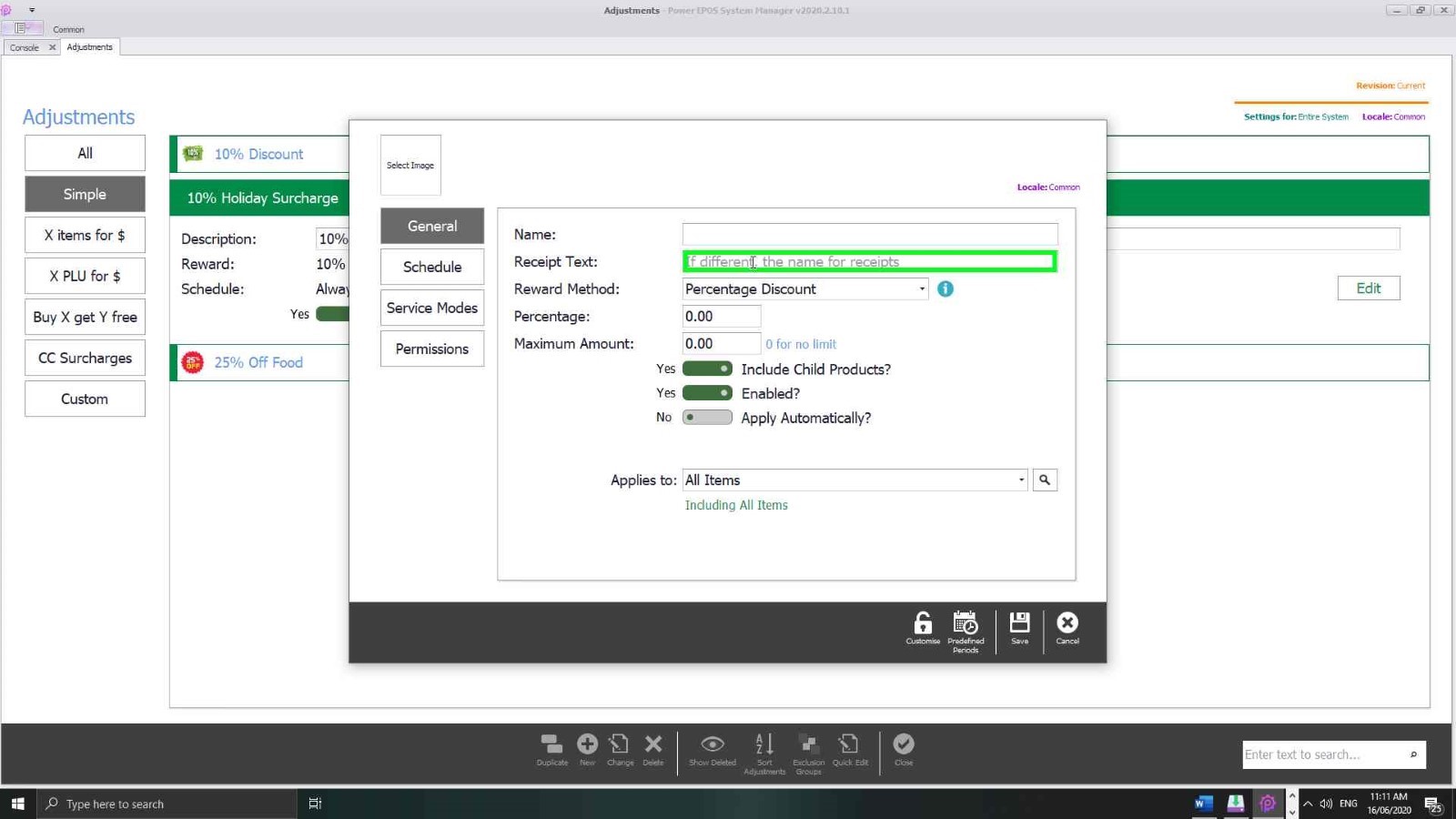
Receipt text is the part the customer sees, printed on their receipt.
Step 6
Choose a reward method
The reward method is what the adjustment actually does. The drop-down lists them all, and the i button gives a short description of each. Which one you pick changes some of the options below it.
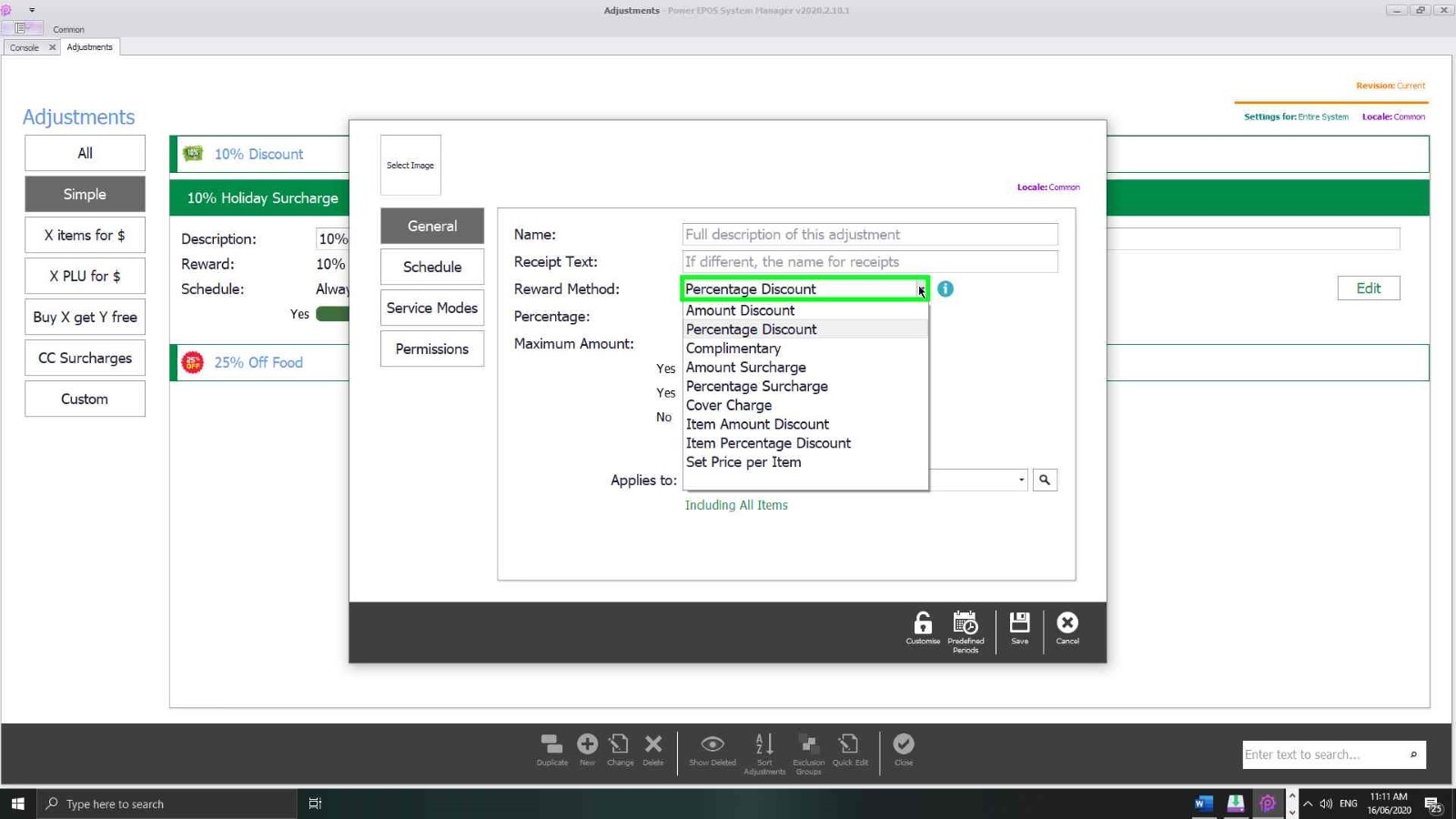
- Amount Discount — a fixed amount off the total of the qualifying items. $10 off when a rewards card is presented.
- Percentage Discount — a percentage of the total of the qualifying items. 5% seniors discount on coffee.
- Complimentary — sets every qualifying item to $0. An owners' discount on food.
- Amount Surcharge — a fixed amount added to the total of the qualifying items.
- Percentage Surcharge — a percentage added to the total of the qualifying items. A 10% public holiday surcharge.
- Cover Charge — a fixed amount multiplied by the number of covers on the transaction. $5 per person.
- Item Amount Discount — a fixed amount off each qualifying item. $1 off medium coffees between 12pm and 1pm.
- Item Percent Discount — a percentage off each qualifying item. 5% off each main meal ordered.
- Set Price per item — sets each qualifying item to a fixed value, discounting or surcharging it depending on whether its own price is above or below that figure. All glasses of house wine $8 during happy hour.
Step 7
Set the amount
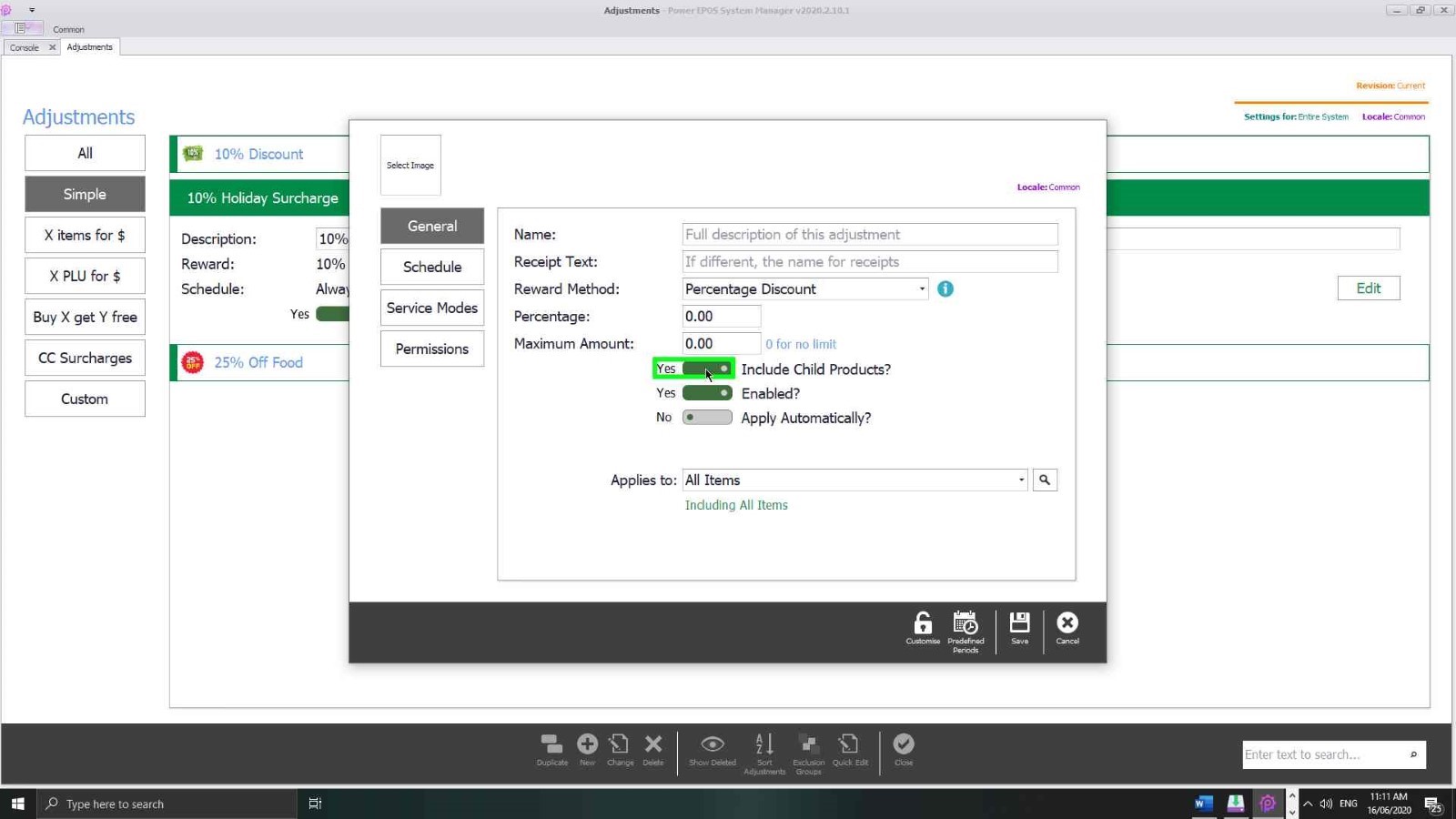
This guide uses Percentage Discount, which is both simple and one of the most used. Enter the percentage, and if you want, a maximum dollar amount the adjustment can take off.
Step 8
Decide about child products
The first switch includes or excludes child products — the extras added to a product. If a Caesar salad has $6 of extra chicken on it, you may not want the discount to come off that too; switch child products to no and it will not.
Step 9
Enable it, and choose automatic or manual
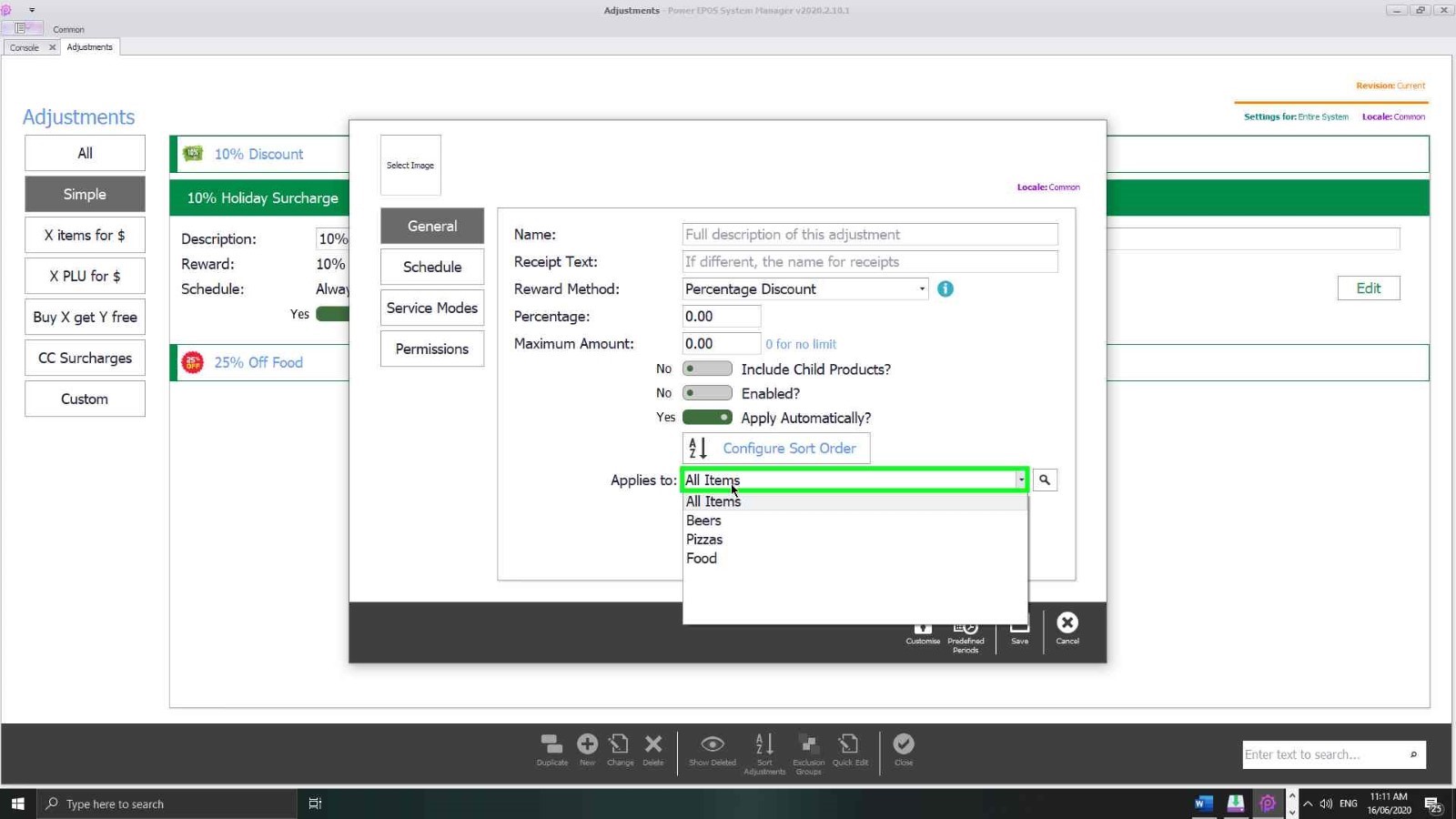
The switches after that set whether the adjustment is enabled, and whether it applies automatically when its conditions are met or has to be chosen by hand from a button on the touchscreen.
Last in the general settings, pick the Adjustment Group this one belongs to.
Narrowing when and where it applies
Step 10
Schedule
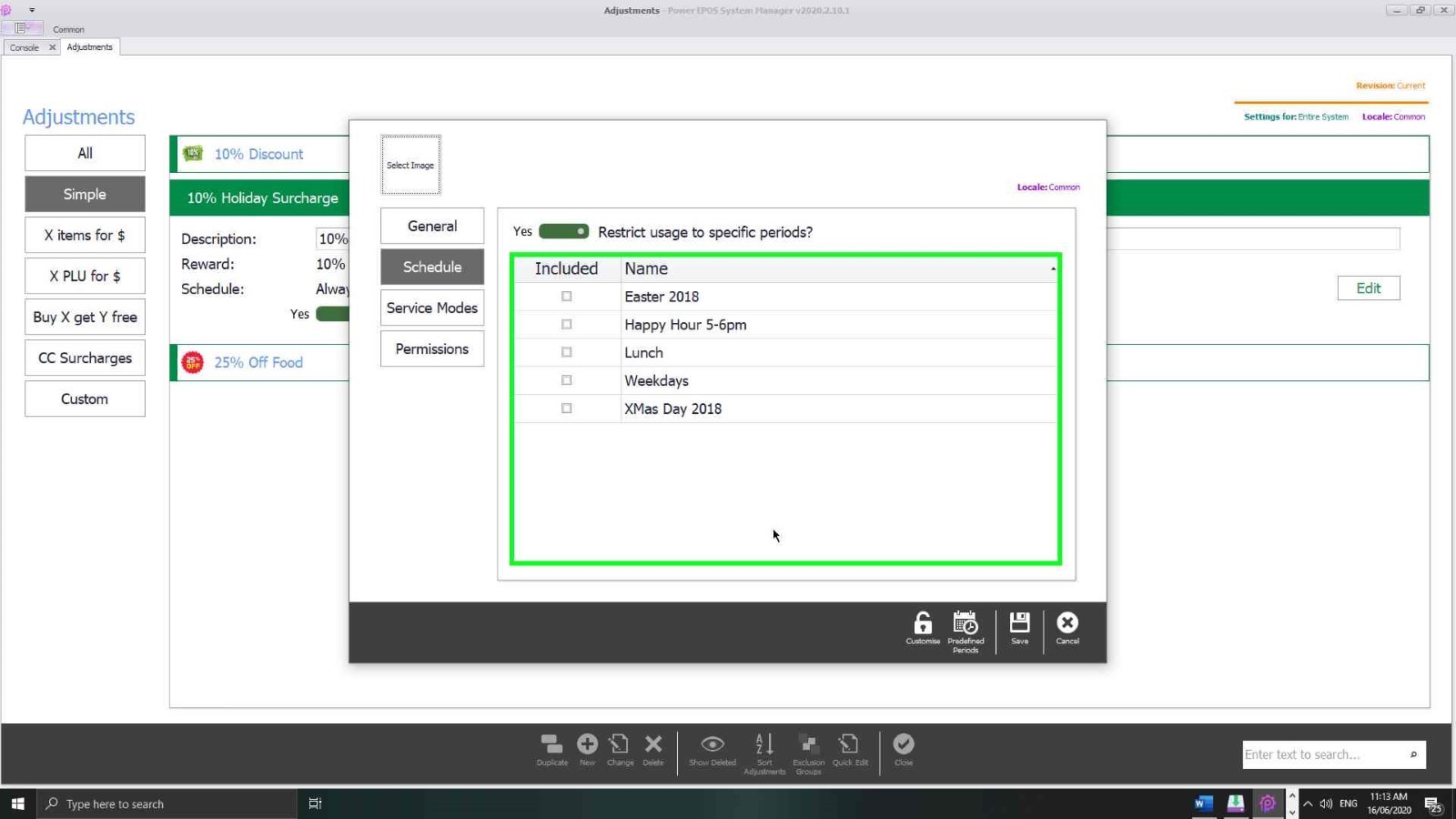
Schedule, on the left, sets the dates and times the adjustment is live between.
Step 11
Service modes
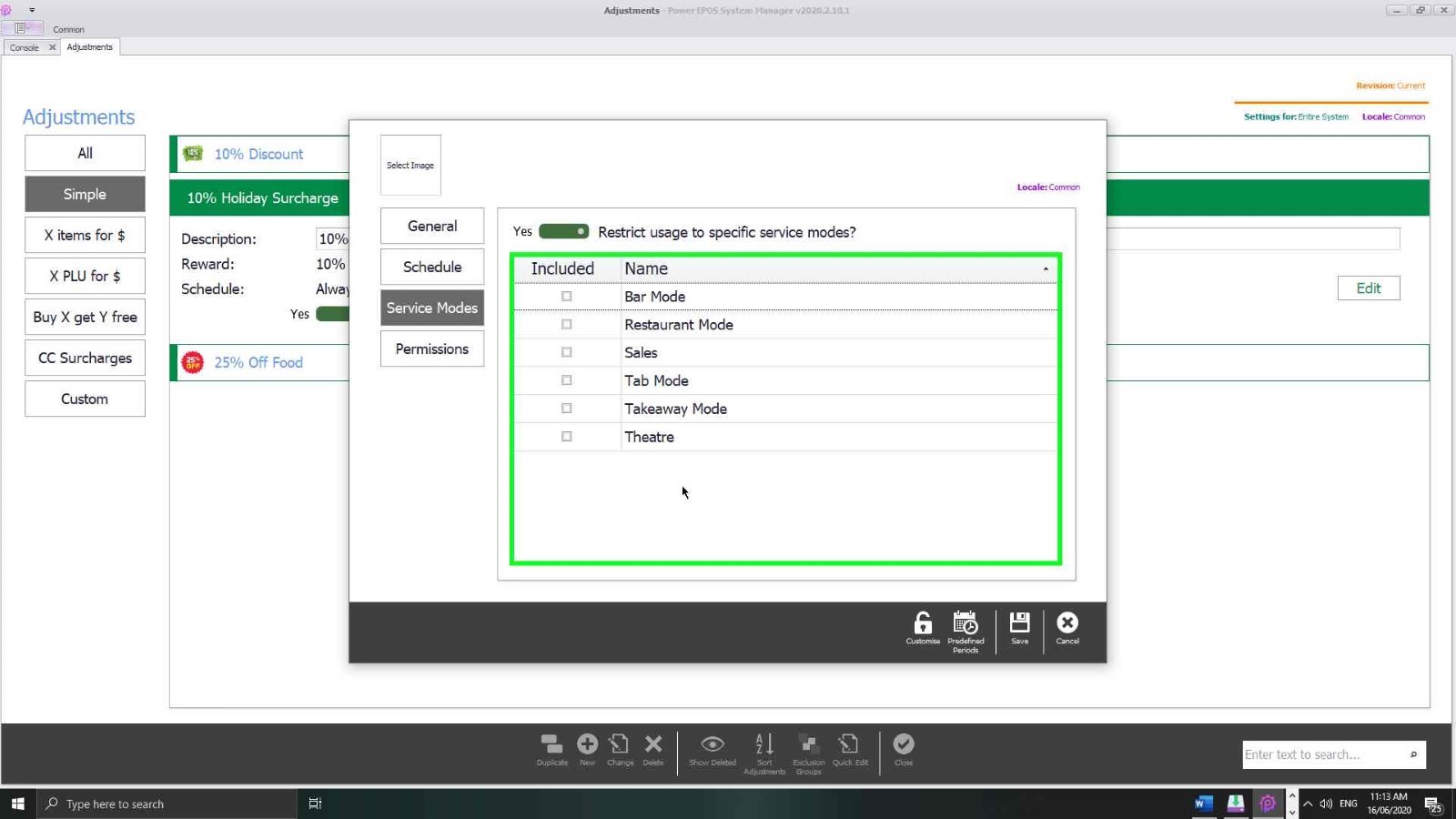
Service Modes limits which modes it is available in. A takeaway-only deal belongs in the takeaway service mode and nowhere else.
Step 12
Permissions
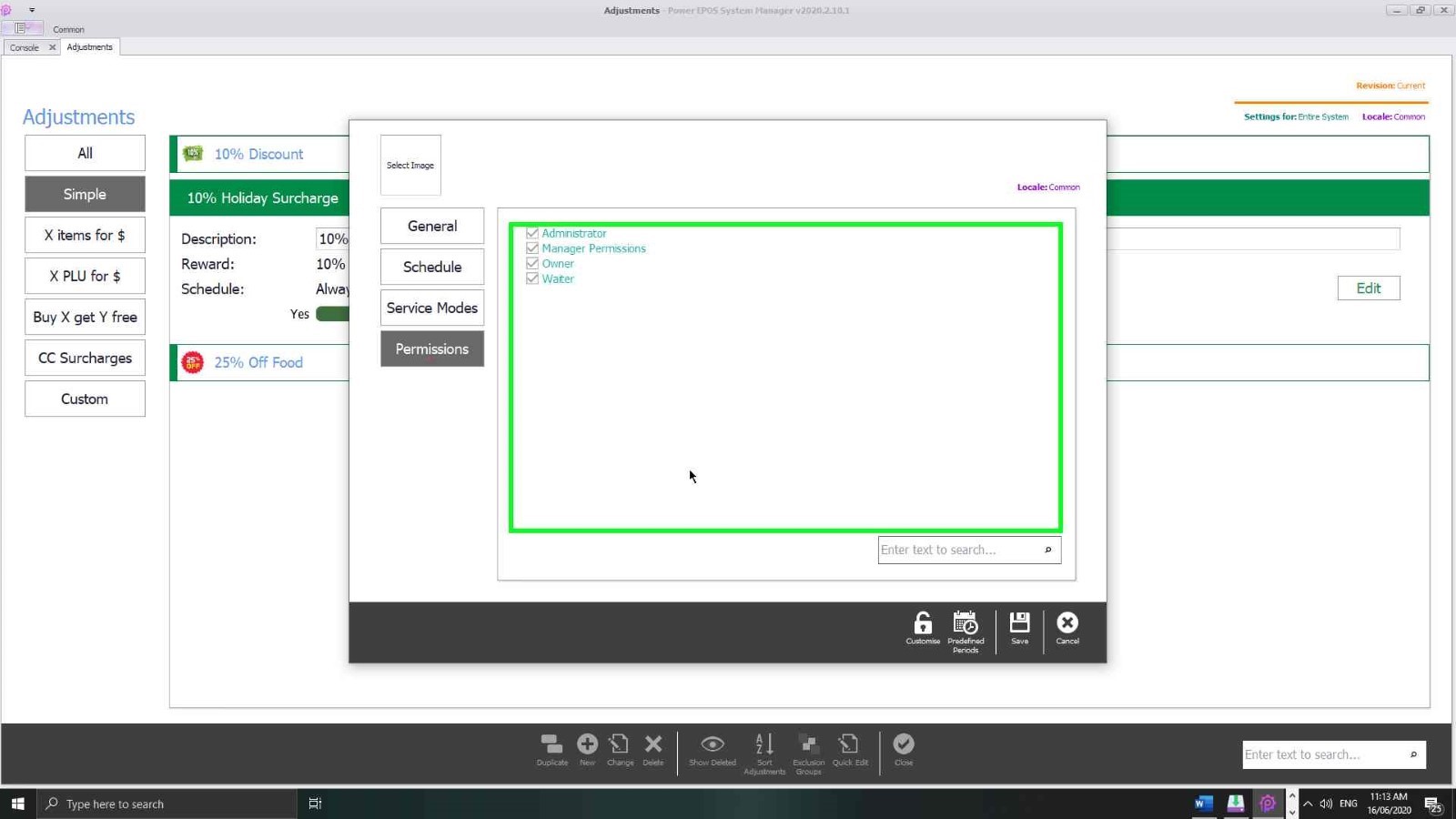
Permissions decides which groups of staff are allowed to apply it.
Step 13
Add a graphic
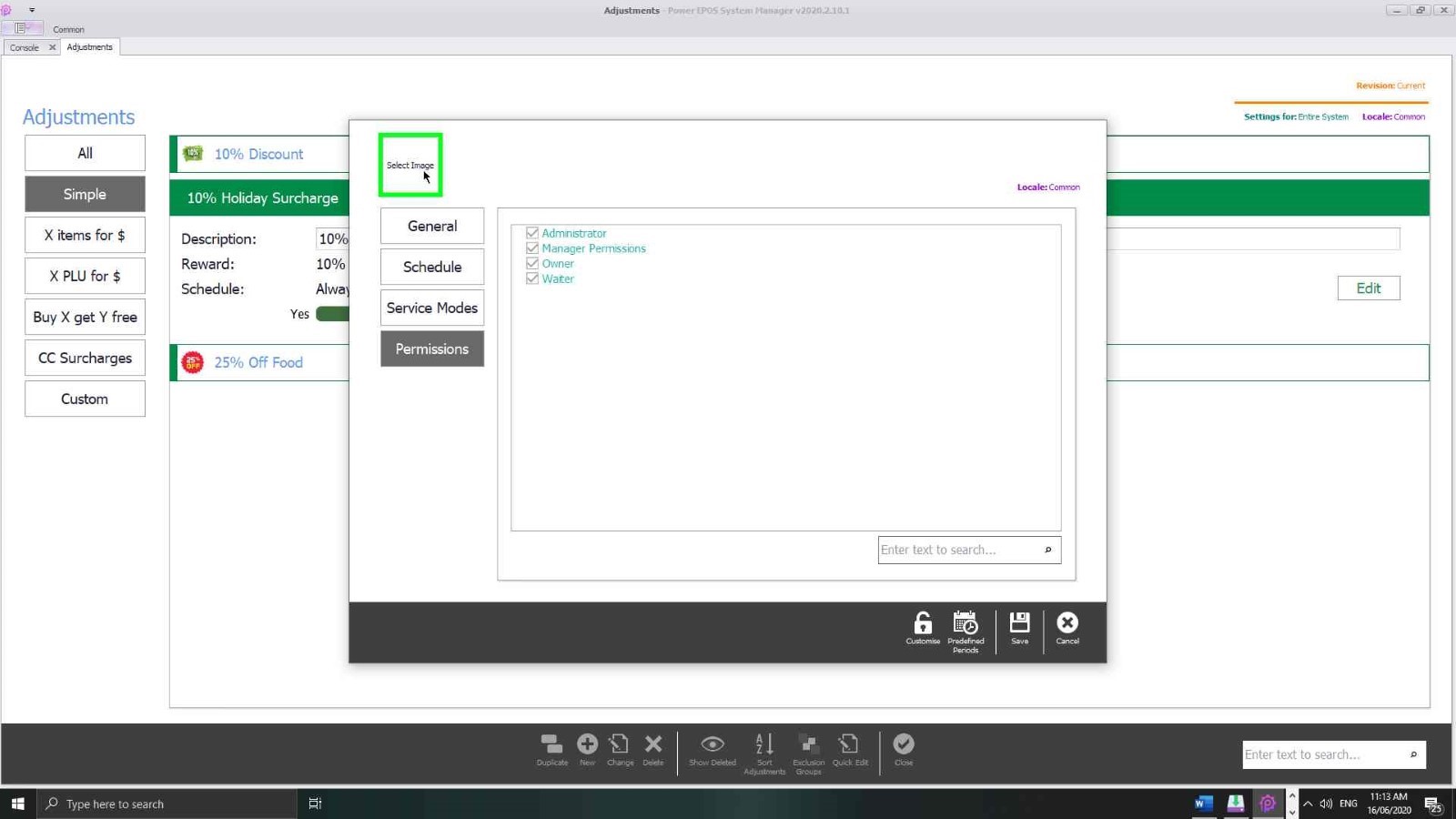
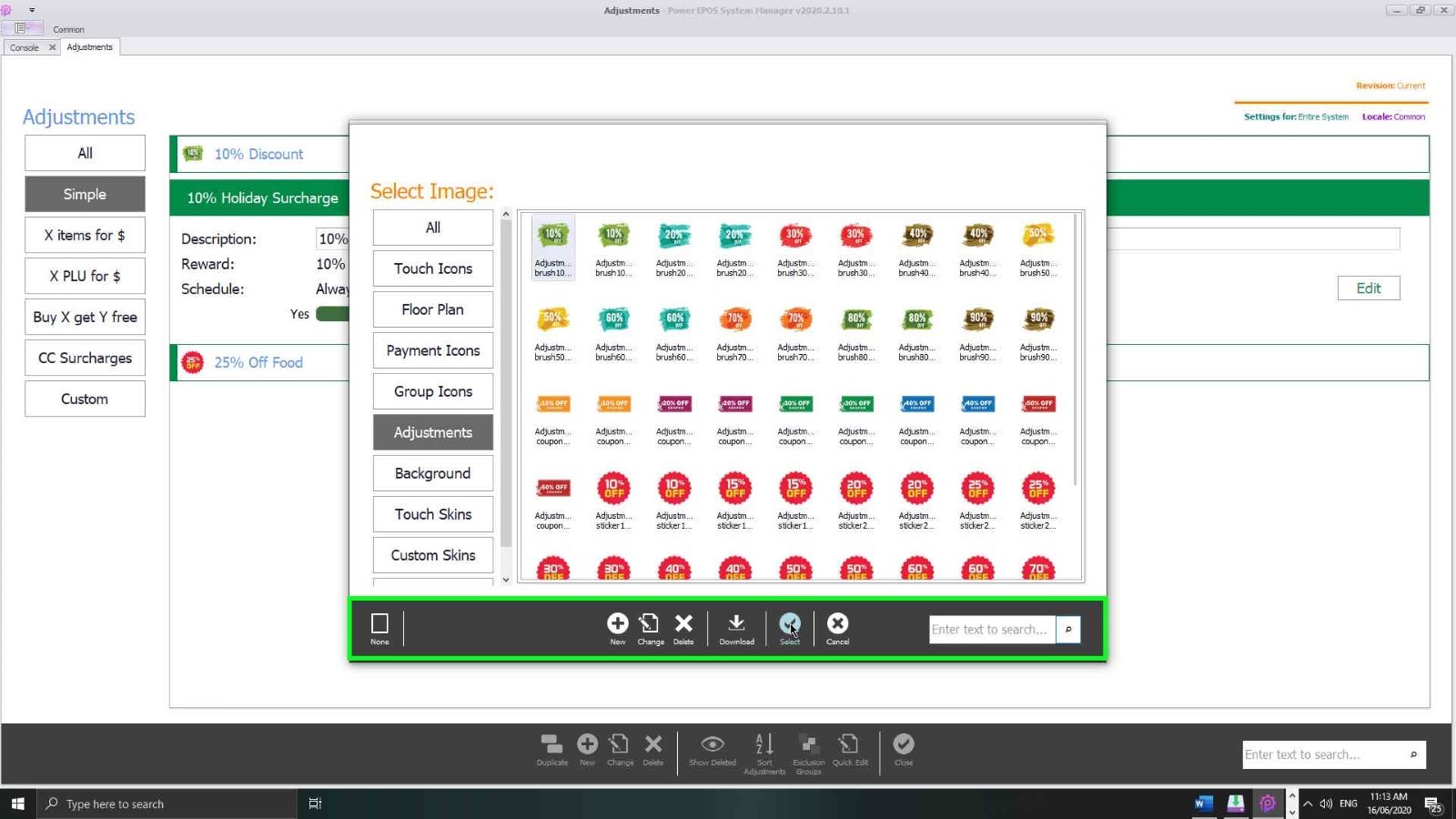
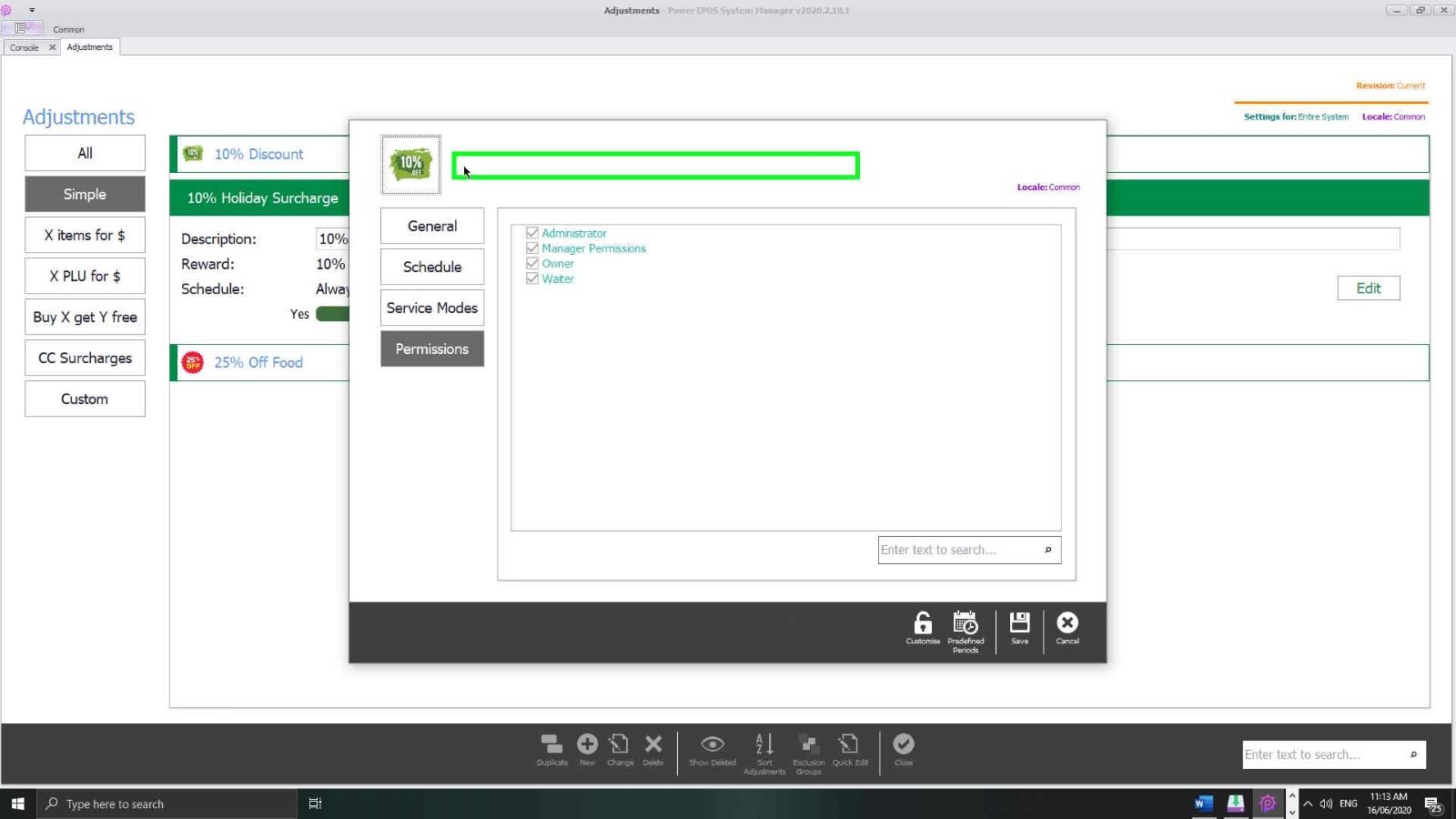
Finally you can attach a graphic, so staff can see at a glance what the adjustment is for.
Step 14
Need help?
Triniteq support
Our support team is here to help.
Call 1300 784 276 or email support@triniteq.com, and include your venue name so we can find your setup straight away.