
Modules · Guide
Moving your gift cards to Triniteq
How to switch from another gift card provider to Triniteq gift cards in TQ Platform without losing any customer balances.
Triniteq · Guide
Moving your gift cards to Triniteq
Moving from another gift card provider takes five parts: set up gift cards in TQ Platform, update the links on your website, have Triniteq support connect PowerEPOS, send us your existing cards to import, and turn off the old system. Your customers keep using the cards they already have.
In this guide
- StartBefore you start
- Plan your changeover day
- 1Sign in to TQ Platform
- 2Open the gift card settings
- 3Set your card defaults
- 4Connect your Stripe account
- 5Set your amounts and fee, then turn on online sales
- 6Design the emailed gift card
- 7Brand your storefront
- 8Replace the links on your website
- 9Book your PowerEPOS changeover with Triniteq support
- 10Export your cards from the old system
- 11Send the file to Triniteq support
- 12Check the imported balances
- 13Turn off your old gift card system
- Managing gift cards from now on
- 14Need help?
Start
Before you start
Steps you can do ahead come first. The changeover itself (connecting PowerEPOS, importing your cards and turning off the old system) works best on one day. You need:
- An Organisation Admin login for TQ Platform at platform.triniteq.com. Staff with view-only access can see gift card settings but can't change them.
- Gift cards switched on for your venue. If you don't see Gift Cards in the left-hand menu, contact Triniteq support.
- Your business details for Stripe: legal business name, ABN (or company number), the bank account your sales should be paid into, and ID for the business owner or a director. If you already have a Stripe account, you can sign in with it.
- Admin access to your current gift card system, so you can export your cards and turn it off.
- Access to edit your website, or the details of whoever looks after it.
Plan your changeover day
Setting up gift cards and preparing your website can happen any time. The switch itself is best done on one day, ideally before you open or after you close:
- Let Triniteq support know the date you'd like to change over, at least a few days ahead.
- On the day, stop selling and redeeming gift cards in the old system.
- Export your cards and send the file to Triniteq support.
- Triniteq support imports the cards and connects your PowerEPOS tills, then confirms with you.
- Switch your website links over and turn off the old system.
Why one day?
The export is a snapshot of every card's balance at that moment. If a card is used in the old system after you export, its balance in Triniteq will be out of date. Keep the gap between the export and the switch as short as possible.
Physical gift cards keep working
Plastic or printed cards you've already sold are imported with the same card numbers, so your till finds them when they're scanned or typed in. If the barcode on your cards is different from the printed number, include both in your export.
Step 1
Sign in to TQ Platform
Go to platform.triniteq.com and click Sign in with PowerEPOS. You sign in with your usual PowerEPOS back office details, so there's no separate password. Choose your venue if you're asked.
Step 2
Open the gift card settings
Click Settings in the left-hand menu, then Gift Cards under Apps, or go straight to platform.triniteq.com/Settings/GiftCards. Everything for gift cards is on this one page, and each box has its own Save button.
Step 3
Set your card defaults
In the Card defaults box, check these settings, then click Save:
- Default expiry: how many years a new card is valid for. Australian venues must allow at least 3 years under Australian Consumer Law, and the page warns you if your setting is lower. A reload restarts the period.
- Cards are partially redeemable by default: leave this on so customers can spend part of a card and keep the rest.
- Allow lookup by swipe card value: only needed if your existing cards have a barcode that's different from the printed card number. Triniteq support can set this for you during the import.
Step 4
Connect your Stripe account
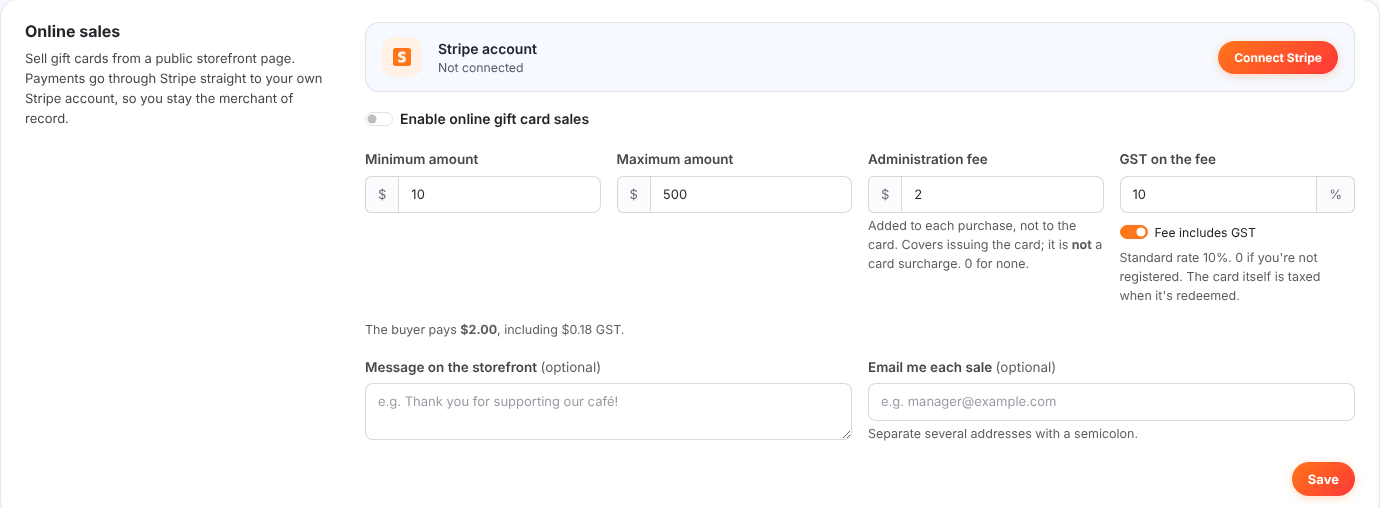
Online payments go straight to your own Stripe account, so you're the merchant of record and use your Stripe dashboard for payouts, refunds and reports.
- In the Online sales box, click Connect Stripe in the Stripe account panel.
- Sign in to Stripe or create an account, then enter your business, bank and identity details. Stripe sends you back to TQ Platform when you finish.
- Wait for the status to read Connected and ready. If it says Onboarding incomplete, click Complete Setup and finish what Stripe asks for.
Step 5
Set your amounts and fee, then turn on online sales
Still in the Online sales box:
- Enter the Minimum amount and Maximum amount a customer can buy online.
- Enter the Administration fee, a flat fee added to each purchase (0 for none). It isn't added to the card's balance: a $50 card with a $2 fee costs the buyer $52 and is worth $50.
- Enter the GST on the fee (10% by default, or 0 if you're not registered). The page shows exactly what the buyer pays.
- Optionally fill in Message on the storefront and Email me each sale.
- Switch on Enable online gift card sales, then click Save.
Don't call it a surcharge
Never describe the administration fee as a card or payment surcharge. It's a fee for issuing the gift card.
Step 6
Design the emailed gift card
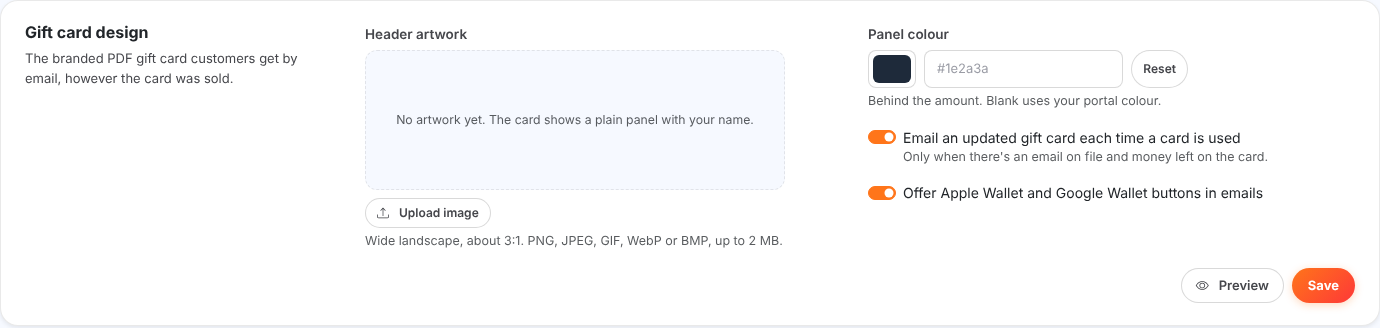
The Gift card design box sets the branded PDF gift card customers receive by email, however the card was sold.
- Under Header artwork, click Upload image. Use about 1200 × 980 px with the subject in the centre.
- Set the Panel colour, the colour behind the amount and barcode. Leave it blank to use your portal colour.
- Choose whether to Email an updated gift card each time a card is used, and whether to Offer Apple Wallet and Google Wallet buttons in emails.
- Click Preview to see a sample, then click Save.
Step 7
Brand your storefront
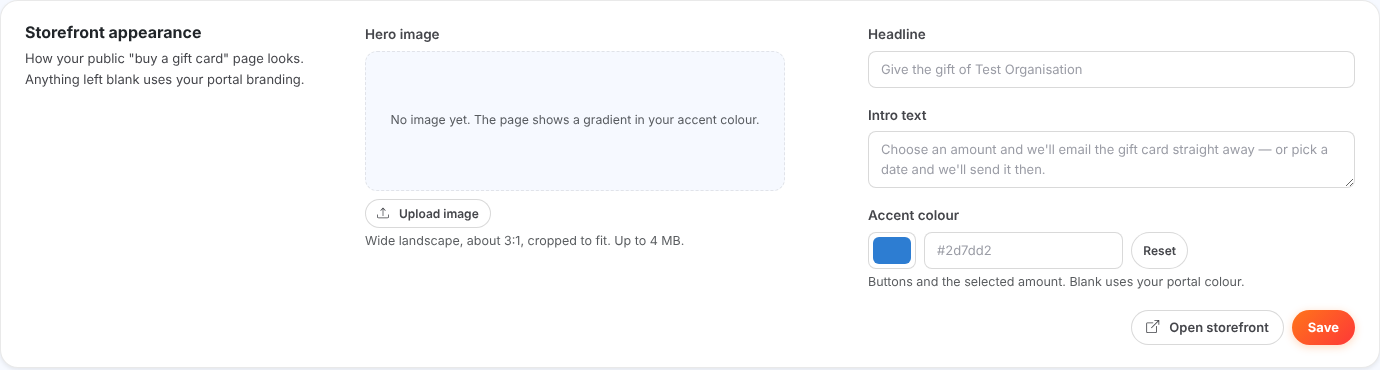
The Storefront appearance box sets how your public "buy a gift card" page looks. Anything left blank uses your portal branding.
- Under Hero image, click Upload image. Use about 2400 × 800 px and keep the important part in the middle, because phones show only the centre.
- Fill in the Headline, Intro text and Accent colour (used for the pay button and the selected amount).
- Click Save, then Open storefront to check it.
- Check your logo, email and phone under Settings > Logo & Colours and Venue Details, because the store and gift cards use them too.
Step 8
Replace the links on your website
Once online sales are on and Stripe is connected, the Links to share box on the same page shows your Storefront link (where customers buy cards) and your Balance check link. Use the copy button next to each one, and replace every link to your old provider:
- Your website: menu, header and footer buttons, the gift card page, and any banners or pop-ups.
- Online booking and ordering pages that link to gift cards.
- Your Google Business Profile, Instagram and Facebook bios, and pinned posts.
- Email newsletter templates and email signatures.
- QR codes on table talkers, menus, receipts and counter signs. Make new QR codes from your Storefront link.

Timing
You can prepare the changes ahead, but switch the links over on your changeover day, so customers stop buying cards in the old system at the same moment your balances are exported.
Step 9
Book your PowerEPOS changeover with Triniteq support
Triniteq support sets up the gift card integration in PowerEPOS for you, so you don't need to change anything on your tills. Tell support your preferred changeover date and time, and who will be at the venue to test a card at the till afterwards. Once it's connected, your tills look up Triniteq gift cards when they're scanned or typed in, sell and top up cards, and redeem them as payment with balances updated straight away.
Cards not yet imported won't be found
Once your tills are connected to Triniteq, cards from the old system that haven't been imported can't be found at the till. That's why the PowerEPOS connection and the import happen together on your changeover day.
Step 10
Export your cards from the old system
Export every card that still has money on it, usually as a CSV or Excel file from the old system's reports or card list. The column names don't need to match ours. Include as much of this as your old system offers:
- Card number (required): exactly as it appears on the card or email. Each number must be unique.
- Current balance (required): the amount left on the card now, not the original value.
- Physical or electronic (required): if your system doesn't record this, tell us which kind you sell.
- Purchase or issue date (recommended).
- Expiry date (recommended): so no customer's card expires earlier than it would have.
- Barcode or swipe value: only if it's different from the printed card number.
- Card holder email: lets customers get balance update emails and have their card re-sent.
- To, From and message: for gifted cards.
- Notes: anything useful, up to 100 characters per card.
You can leave out cards with a zero balance, and cancelled or expired cards.
Step 11
Send the file to Triniteq support
Triniteq support checks the file and comes back to you with any questions, such as duplicate numbers or missing balances, and checks expiry dates with you. The import is all or nothing: if any card has a problem, nothing is imported until it's fixed.
Emailing your customers
By default no one is emailed during the import. If you'd like card holders to receive their card again with your new branding, ask Triniteq support to send it as part of the import.
Step 12
Check the imported balances
Open Gift Cards in the left-hand menu, or platform.triniteq.com/GiftCards. Check that the total outstanding balance matches the final report from your old system, then try one imported card and one new online purchase at the till.
Step 13
Turn off your old gift card system
All gift card work now happens in TQ Platform. Turn the old system off so nobody creates, tops up or redeems a card there by mistake:
- Close or disable the old system's online store, and remove any buy or balance check pages it hosts.
- Turn off any automatic emails or promotions the old system sends.
- Remove the old gift card app or payment button from your tills, tablets and back office, and let your staff know.
- Keep a copy of your export file and the old system's final reports for your records.
- Once everything is working, cancel your subscription with the old provider.
Managing gift cards from now on
- Find a card, its balance and history: Gift Cards in the left-hand menu, or platform.triniteq.com/GiftCards.
- Issue a card by hand: Gift Cards > New gift card.
- Re-send a card to a customer: open the card and click Email gift card.
- Refund an online purchase: refund the payment in your Stripe dashboard, then edit the card and set its expiry date to today.
- Change prices, fees or branding: Settings > Gift Cards, or platform.triniteq.com/Settings/GiftCards.
Step 14
Need help?
Triniteq support
Our support team is here to help.
Call 1300 784 276 or email support@triniteq.com, and include your venue name so we can find your setup straight away.