
System programming · Guide
Creating PLUs
Add a PLU by hand in PowerEPOS and work through its settings: groups, pricing, text, prompts, printer roles, flags and barcodes.
PowerEPOS
Creating PLUs
PLUs in PowerEPOS
A PLU — Price Look Up — is the code the POS uses to find something in the system, whether that is a product or an instruction. When you add one, you also decide how it prints, how it reports, where it appears on screen and what it costs. This guide adds one by hand and goes through each of those settings.
In this guide
- StartBefore you start
- Adding a PLU
- 1Open the PLUs module
- 2Start a new PLU
- The general settings
- Text
- Groups
- Pricing
- Prompts
- Printer roles
- Flags
- Barcodes
- 3Need help?
Start
Before you start
- Access to the PowerEPOS Management Console.
- Your reporting, printing and display groups already set up in the Groups module.
- Your price schemes and sales modifiers set up in the Pricing module.
Adding a PLU
Step 1
Open the PLUs module
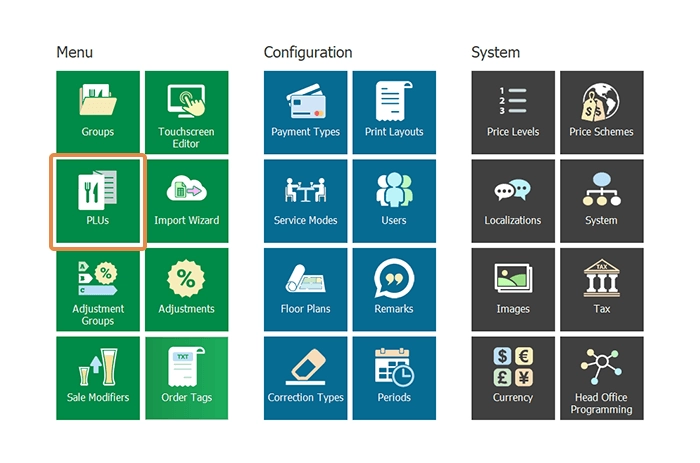
From the PowerEPOS Management Console, select PLUs.
Step 2
Start a new PLU
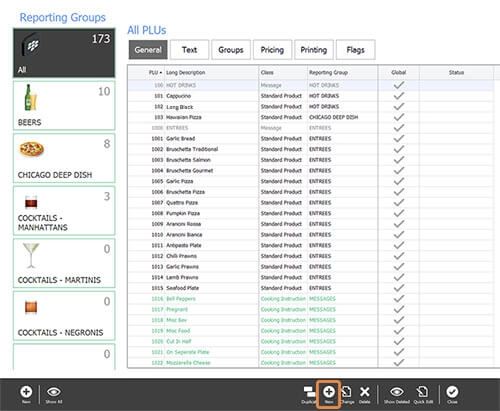
Select New from the central control panel to open the PLU Configuration window.
The general settings
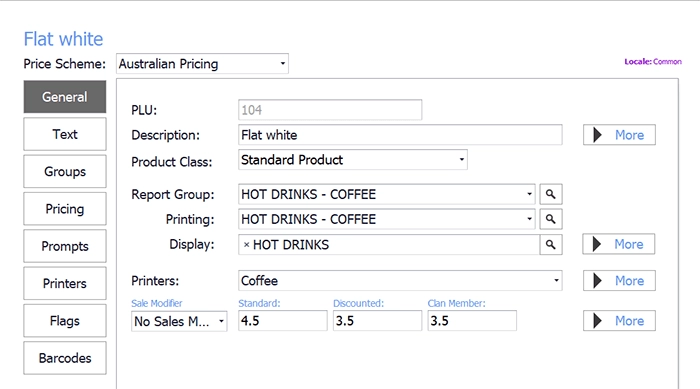
The first screen carries most of what the PLU needs. In this example the product is a flat white.
- Price Scheme — set up in the Pricing module. You can pick one, or leave the default pricing.
- PLU — the number, filled in for you.
- Description — the name of the product or instruction.
- Reporting Group — set up in the Groups module; this is how the PLU is categorised for reporting.
- Printing (Group) — puts the PLU with the group of PLUs that print together on a docket.
- Display (Group) — puts the PLU with the group that appears together on the POS touchscreen.
- Printers — the printer role the PLU is assigned to.
- Sales Modifier — a modifier already set up in the Pricing module.
- Standard — the standard price.
- Discounted — a discounted price, though these are usually set in the Pricing module.
- Clan Member — a clan member or loyalty discount price.
Text
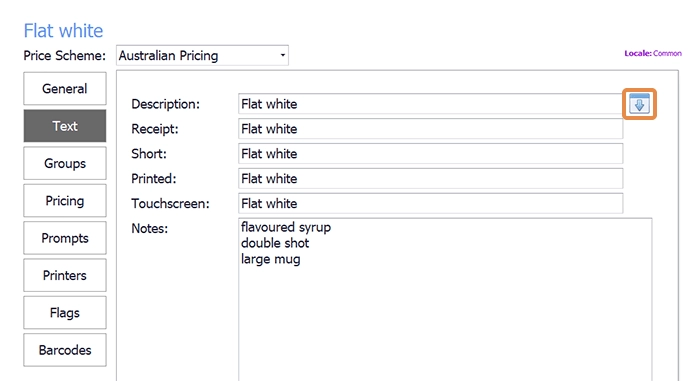
The text settings control how the PLU reads in each place it appears. Where one name works everywhere, the arrow button on the right copies it into all the fields; a longer name may want a shorter descriptor for some of them.
Groups
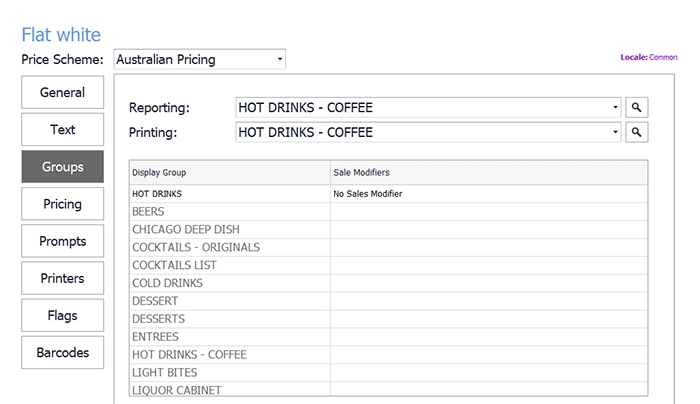
This section is where you put right a reporting or printing group that was set wrongly. Display groups and sales modifiers are shown here too, but cannot be added from here.
Pricing
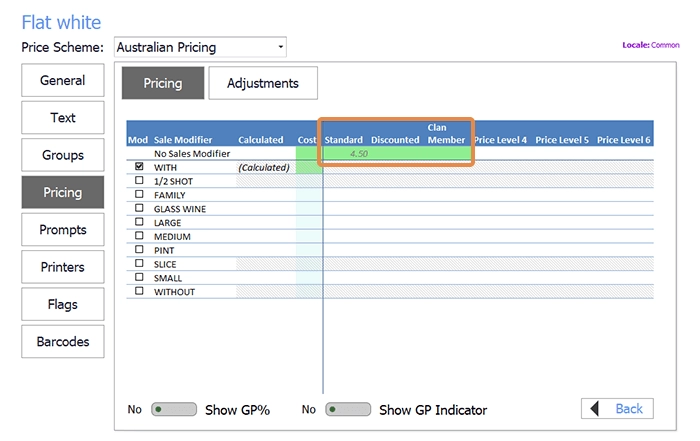
The green section repeats the pricing from the general settings, and lets you add further sales modifiers to the price.
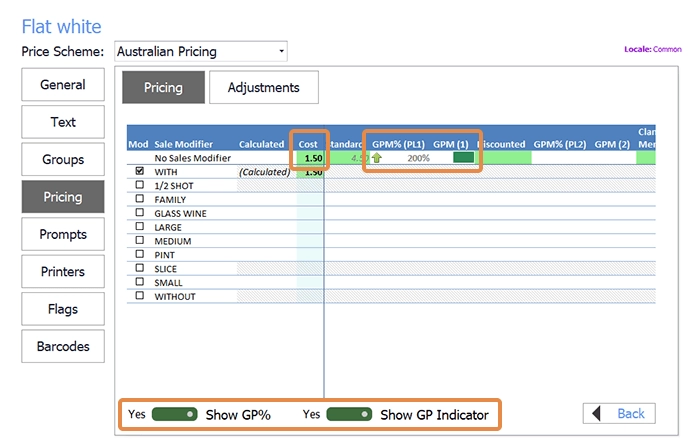
If you know what the product costs you, put it in Cost and turn on Show GP% and Show GP Indicator. The gross profit then shows at each price level, so you can see at a glance what a given price is earning.
Prompts
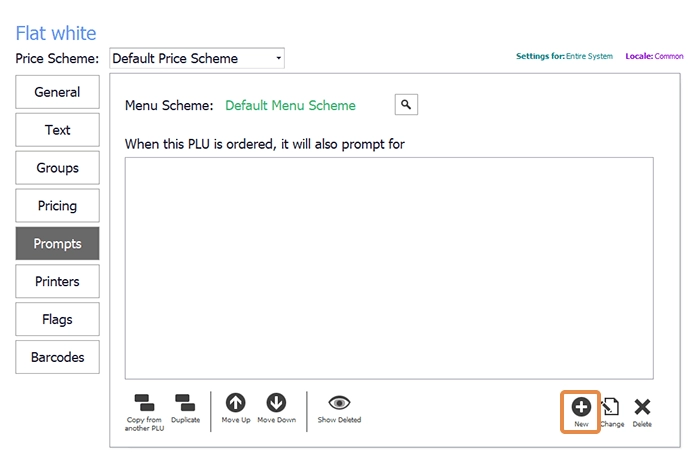
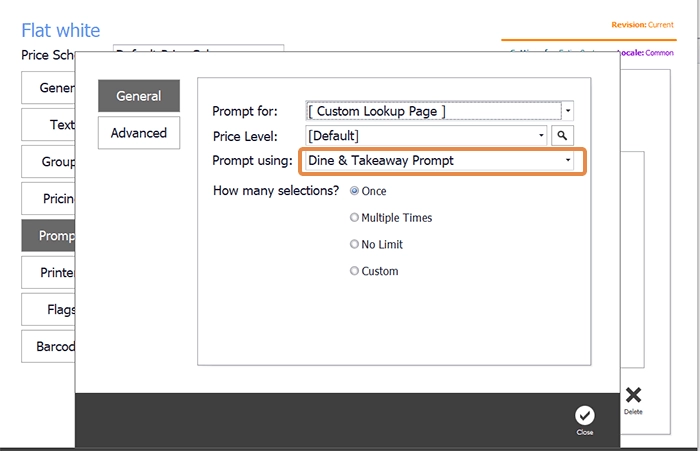
A prompt sends the server to a lookup page when the PLU is rung up — here, to ask whether the flat white is dine-in or takeaway. The lookup page itself is built in the Touchscreen Editor; see our guide on setting up POS screens.
Printer roles
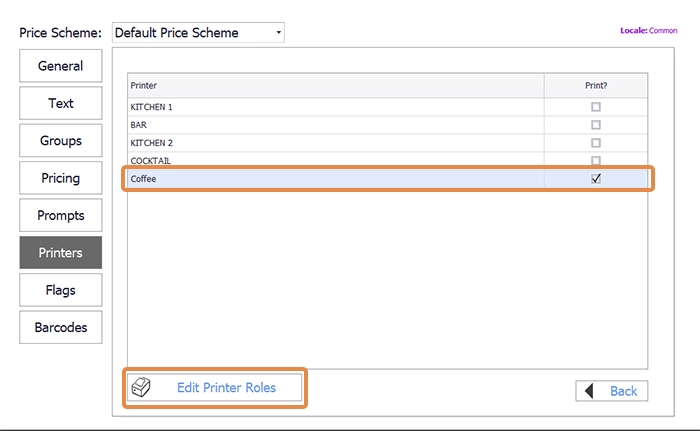
PLUs are mapped to printer roles rather than straight to production area printers, so that a whole group of PLUs can be moved from one printer to another when something goes wrong.
In the Printers section you can change the role this PLU uses, and Edit Printer Roles adds a new one quickly.
A new role is not yet attached to a printer
A printer role added from here is not connected to any printer. To connect it, open Printer Roles through the System tile on the Management Console. Our guide on mapping PLUs to printers covers this.
Flags
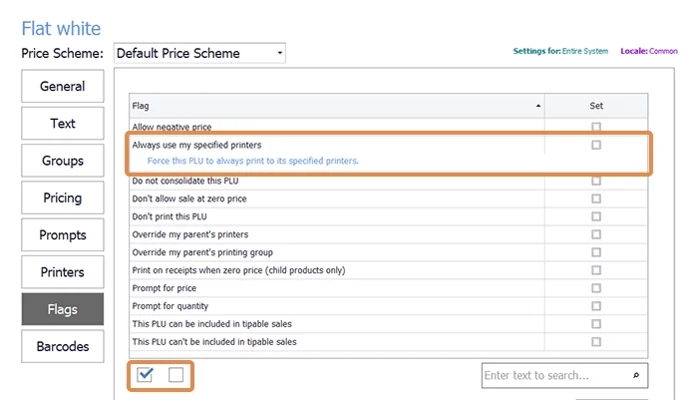
Flags hold the rest of the PLU's settings. Select a flag to read what it does; the checkboxes below turn the whole set on or off.
Barcodes
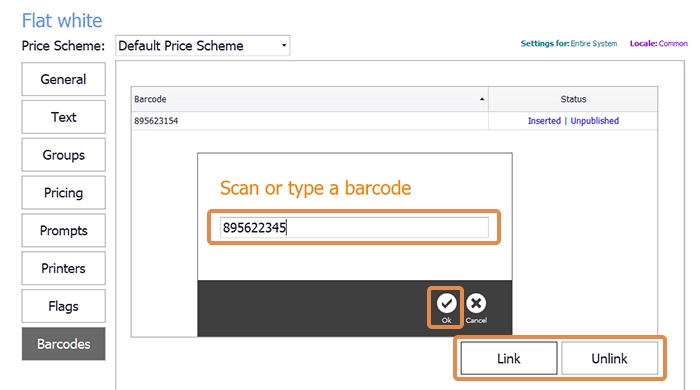
Last, you can attach a barcode, either by typing the number or by scanning it. Select Link, enter the code and select OK. To take one off, select the barcode and choose Unlink.
Step 3
Need help?
Triniteq support
Our support team is here to help.
Call 1300 784 276 or email support@triniteq.com, and include your venue name so we can find your setup straight away.