
System programming · Guide
Importing products with the Product Import Wizard
Bulk upload PLUs, PLU prices and POS users into PowerEPOS from a CSV file, then publish them to your terminals.
PowerEPOS
Importing products with the Product Import Wizard
Bulk imports in PowerEPOS
A long product list does not have to be typed in one PLU at a time. The Product Import Wizard in the PowerEPOS Management Console takes a CSV file and creates the lot in one pass. The same wizard also imports PLU prices, including sales modifiers and price schemes, and POS users.
In this guide
- StartBefore you start
- 1Prepare your CSV file
- 2Open the Import Wizard
- 3Choose what you are importing
- 4Pick the file
- 5Match the fields
- 6Check for mapping errors
- 7Check the data against your configuration
- 8Finish the import
- 9Publish the new PLUs to the POS
- 10Note the revision number
- 11Need help?
Start
Before you start
- Access to the PowerEPOS Management Console.
- Your product list in a spreadsheet, saved as a .csv file.
- Permission to publish changes out to your POS terminals.
Step 1
Prepare your CSV file
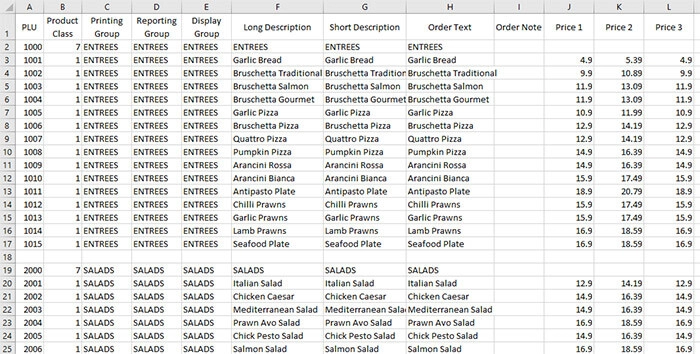
Build the file in Excel or another spreadsheet program and save it as a .csv. You can start from scratch, or download our sample CSV and fill it in.
Step 2
Open the Import Wizard
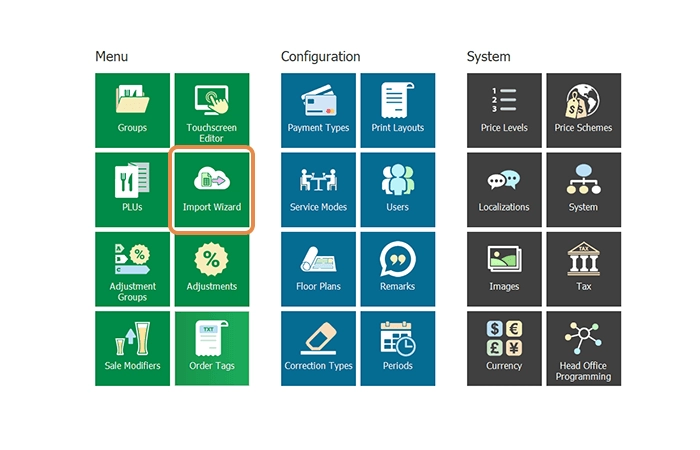
In the PowerEPOS Management Console, select the Import Wizard tile.
Step 3
Choose what you are importing
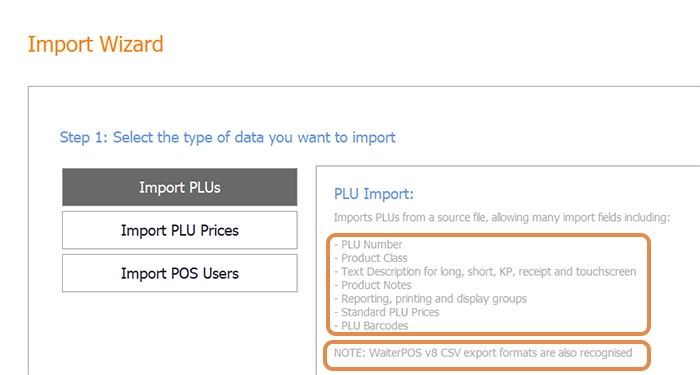
The Product Import Wizard opens on three choices: Import PLUs, Import PLU prices and Import POS users. Each tab carries its own notes — the Import PLU tab lists the fields it accepts, and the WaiterPOS export formats PowerEPOS can read.
This guide imports PLUs, so select Import PLUs and then Next in the Control Panel.

Step 4
Pick the file
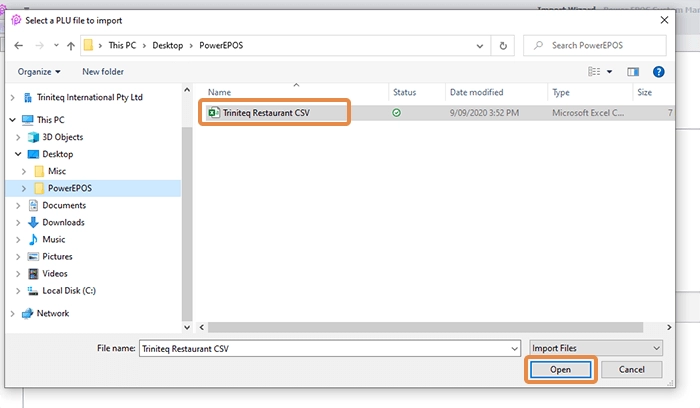
Find your .csv file on your PC and open it.
Step 5
Match the fields
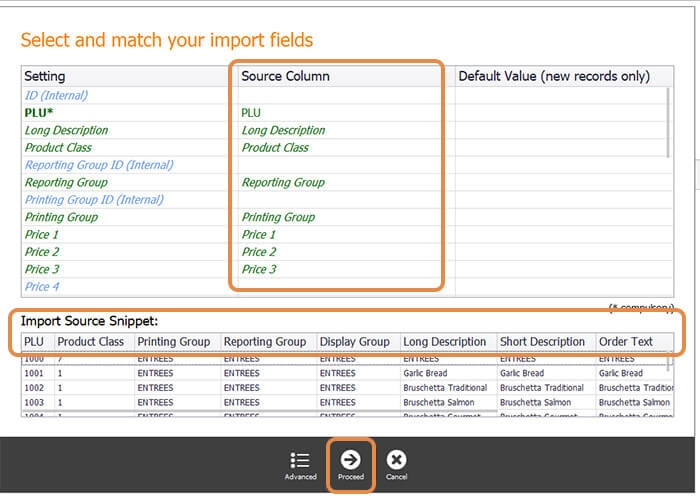
Now match the columns in your file to the fields in PowerEPOS. PowerEPOS matches them for you where it can, so most of the time you can read down the list and select Proceed.
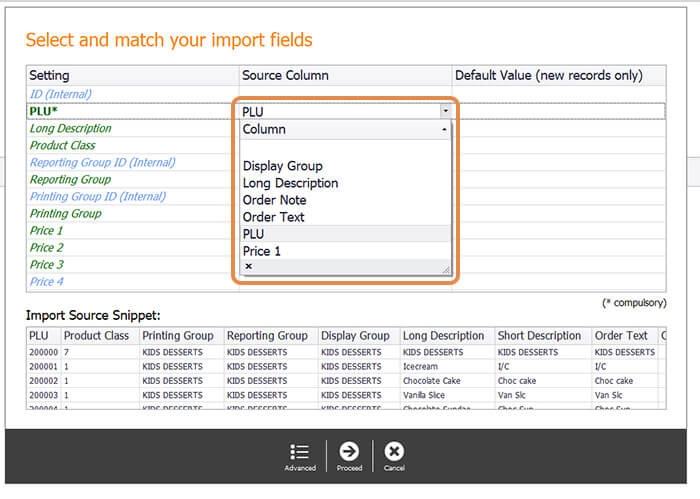
To set one yourself, use the drop-down on the right of the source column and pick the field it belongs to.
Step 6
Check for mapping errors
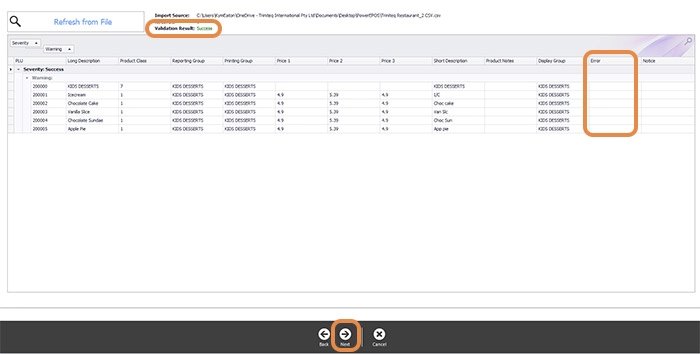
This screen reports what it made of the file. Check the Validation Result, and check that nothing is listed under Errors — an empty Errors column means every PLU is mapped correctly. Select Next.
If something is listed there, select Back and fix the matching on the previous screen.
Step 7
Check the data against your configuration
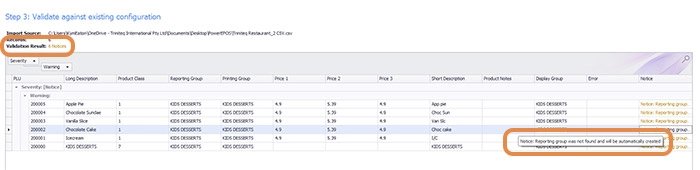
The wizard then checks the file against your current PowerEPOS setup. Notices are not errors: in this example there are six, and hovering over them explains that the reporting group Kids Desserts does not exist yet and will be created by the import. Read them, then select Next.
Step 8
Finish the import
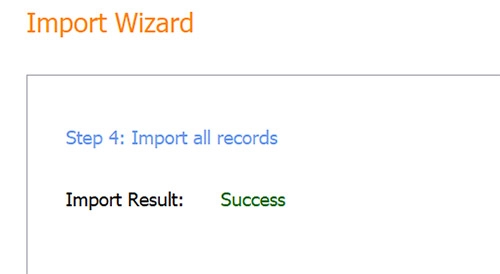
When the import has run you are shown the Import Result. Select Finish to return to the Management Console.
Step 9
Publish the new PLUs to the POS
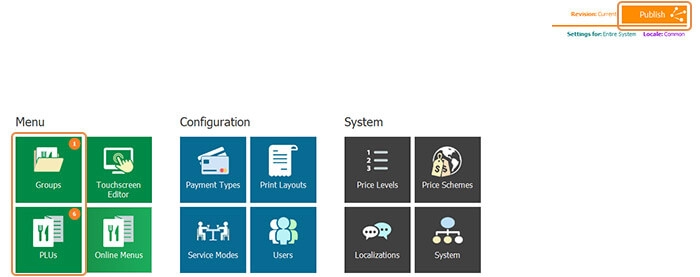
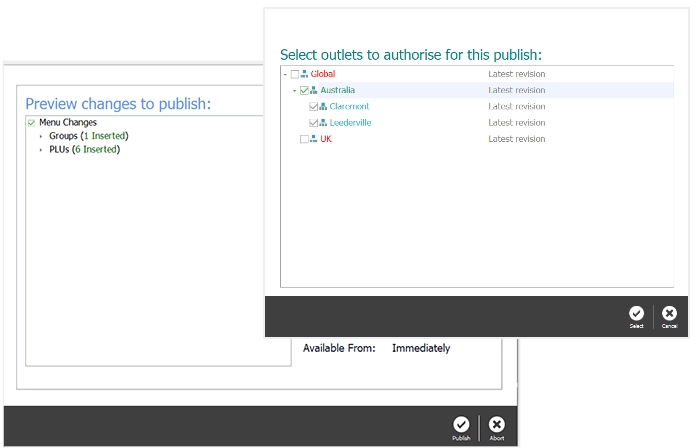
The imported PLUs are in the Management Console, but not yet on your terminals. In this example the console shows six new PLUs to publish and one new group created by the import.
Select Publish at the top right of the Management Console, choose the items you want to publish and the outlets to publish them to, and confirm.
Step 10
Note the revision number
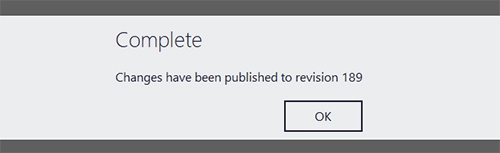
Once the changes are published you are shown a Complete message with a revision number. Keep it: the Revision Management Tool can wind the changes back by that number if you need to.
Step 11
Need help?
Triniteq support
Our support team is here to help.
Call 1300 784 276 or email support@triniteq.com, and include your venue name so we can find your setup straight away.