
System programming · Guide
Setting up a sales modifier
Use a sales modifier in PowerEPOS to give one PLU several variants — sizes, or glass and bottle — with their own prefixes and prices.
PowerEPOS
Setting up a sales modifier
Sizes and variants on one PLU
A sales modifier lets one PLU carry several variants. Rather than a Flat White Small, a Flat White Medium and a Flat White Large, you have one Flat White with a size chosen at the point of sale and the price to match. The same works for wine by the glass or the bottle, and anything else that is one product at more than one size or price.
In this guide
- StartBefore you start
- Creating the modifier
- 1Insert a new sales modifier
- 2Give it a name and a prefix
- 3Choose a pricing method
- 4Say which PLUs can use it
- Setting prices for a price table
- 5Open the PLU
- 6Go to the Pricing tab
- 7Set the price for the modifier
- 8Save and publish
- 9Need help?
Start
Before you start
- Your PLUs already created in the PLU list — see [Creating PLUs](/article/creating-a-plu).
- Access to the Sales Modifier screen in POS System Manager.
Creating the modifier
Step 1
Insert a new sales modifier
Open the Sales Modifier screen in POS System Manager and select Insert. To add a PLU to a modifier you already have, select that one and edit it instead.

Step 2
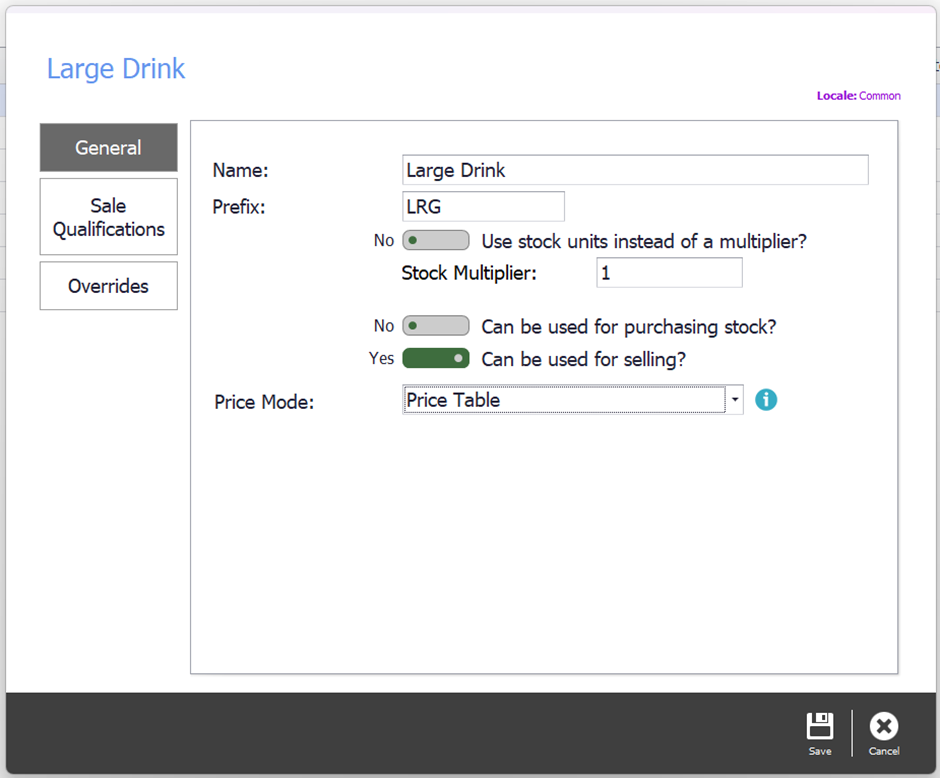
Give it a name and a prefix
The name is what you will see when building buttons and looking through System Manager. The prefix is what is printed and ordered against — LRG for a large coffee, for instance.
Step 3
Choose a pricing method
There are four ways a modifier can set a price.
- Multiply — multiplies the active price level by a factor. Large is twice the price of regular, say.
- Adjust — moves the price up or down by a fixed amount. Large is $1 more than the base PLU price.
- Price Table — set prices by hand for up to nine price levels, for full control.
- Set Price — charges one fixed price whenever the modifier is applied.
Step 4
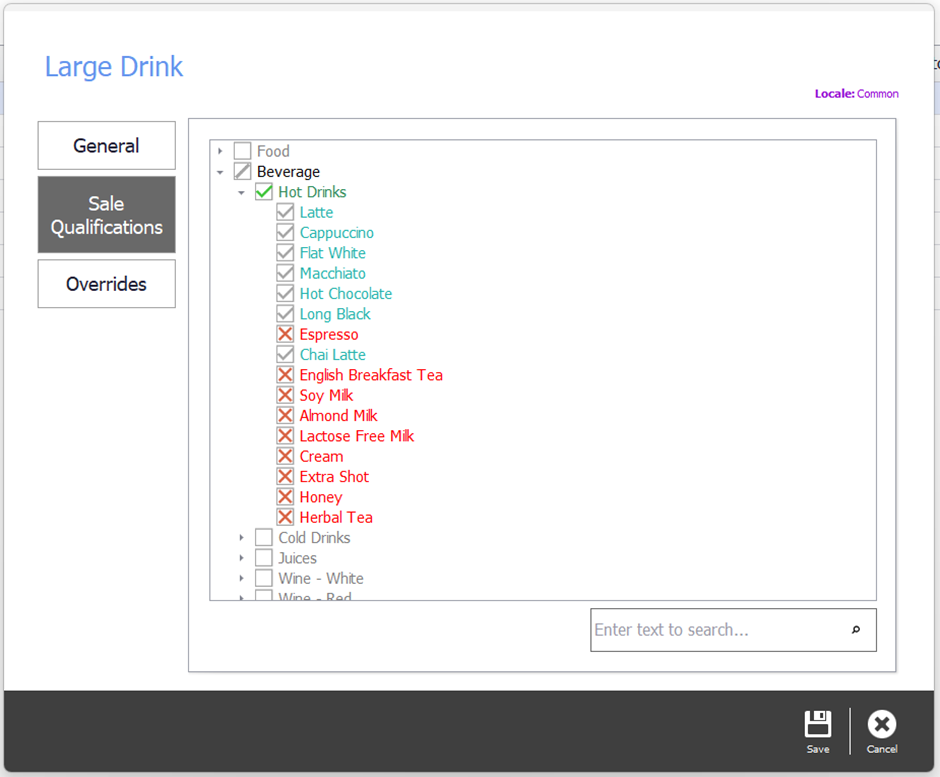
Say which PLUs can use it
Sales qualifications decide which PLUs the modifier applies to. You can qualify by main group, by reporting group, or by naming specific PLUs.
Setting prices for a price table
If the modifier uses a Price Table, the prices are set on each PLU rather than on the modifier.
Step 5
Open the PLU
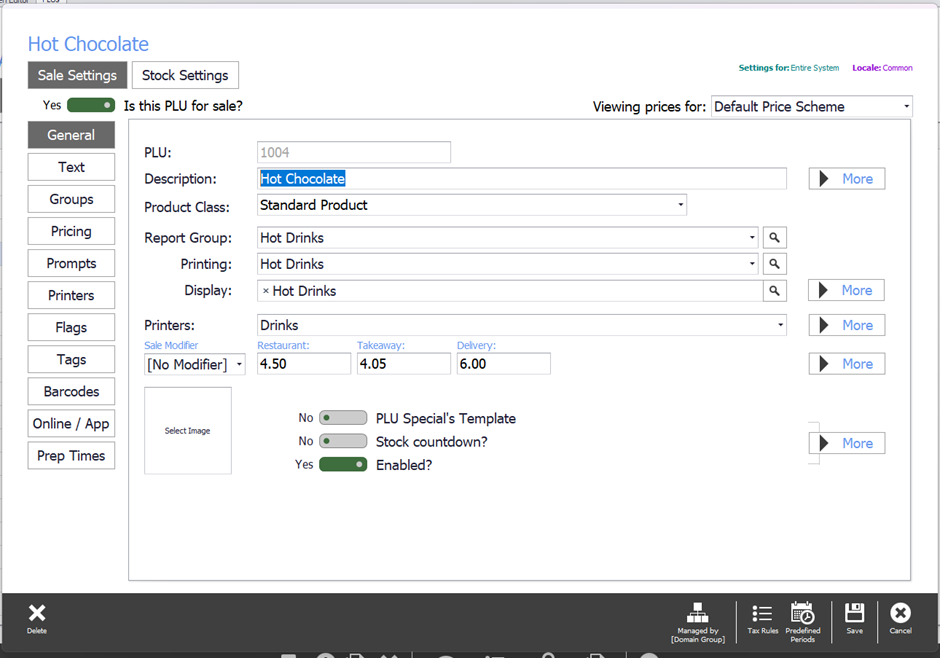
Open the PLU List in POS System Manager, find the PLU and edit it.
Step 6
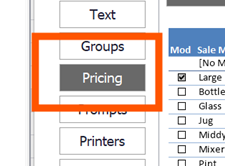
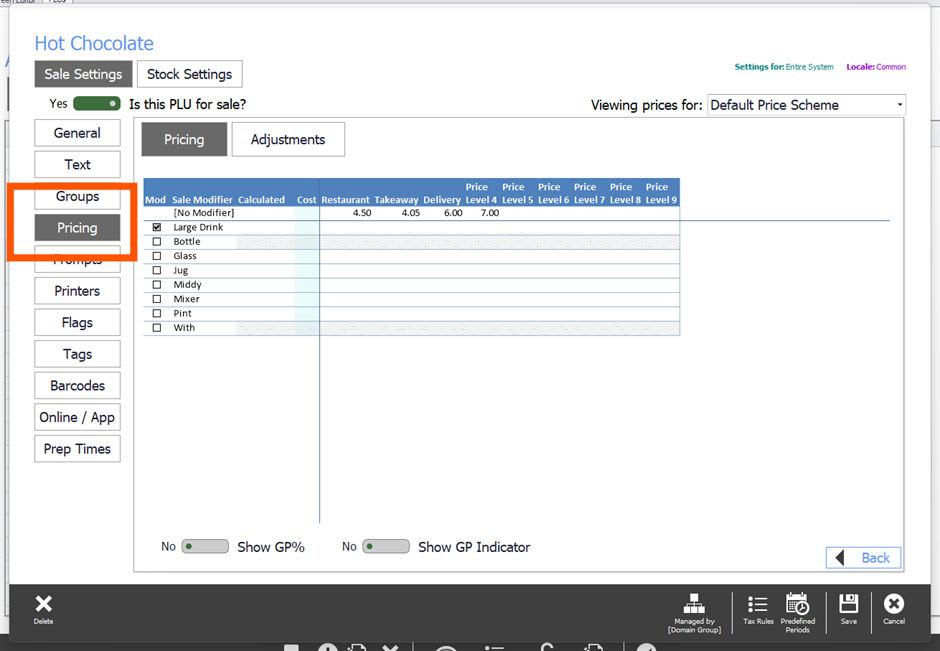
Go to the Pricing tab
Step 7
Set the price for the modifier
Find your sales modifier in the list — it should be ticked. If it is not, tick it to enable it for this PLU. Then set the price for the price level that applies when the modifier is used.
Step 8
Save and publish
Select Save, then Publish Config to send the change out to the POS.
Step 9
Need help?
Triniteq support
Our support team is here to help.
Call 1300 784 276 or email support@triniteq.com, and include your venue name so we can find your setup straight away.