
System programming · Guide
Creating a post modifier lookup page
Build a prompt page that appears when a PLU is ordered so staff can pick a size or sales modifier, then attach it to the PLU.
PowerEPOS
Creating a post modifier lookup page
PLU prompt pages
A post modifier lookup page is the prompt that appears when a PLU is ordered, so the server can choose a size or another sales modifier. It is not the same as a PLU prompt lookup page, which is for adding further PLUs or cooking instructions.
In this guide
- StartBefore you start
- Creating the page
- 1Insert a new page
- 2Name it and set the page type
- 3Open it for editing
- 4Lay the page out
- 5Set up the buttons
- Attaching the page to a PLU
- 6Open the PLU
- 7Add a prompt
- 8Point it at your page
- 9Publish
- 10Need help?
Start
Before you start
- Your sales modifiers, sizes and prices already set up — see [Setting up a sales modifier](/article/setting-up-a-sales-modifier).
- Access to the Touchscreen Editor in POS System Manager.
Creating the page
Step 1
Insert a new page
Open the Touchscreen Editor in POS System Manager and select the option to insert a new page.

Step 2
Name it and set the page type
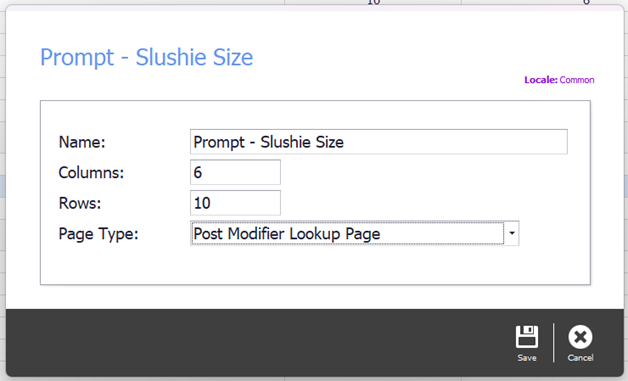
Give it a name you will recognise later — Prompt – Slushie Size, for instance. Leave the columns and rows at their defaults, and in the Page Type drop-down choose Post Modifier Lookup Page. Select Save.
Step 3
Open it for editing
Double-click the page you have just created.

Step 4
Lay the page out
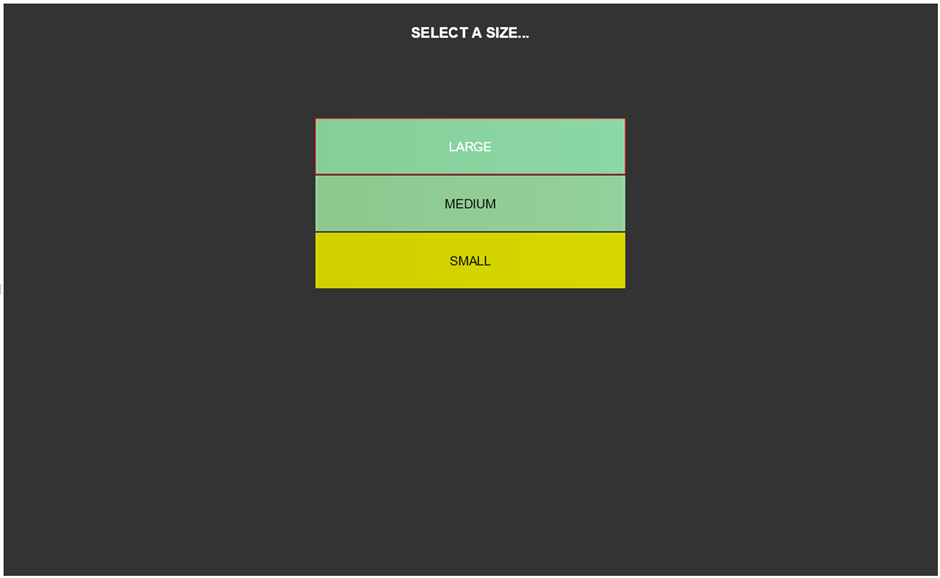
Format it as you want it. A clear heading at the top is worth adding, so staff know at a glance what they are being asked.
Step 5
Set up the buttons
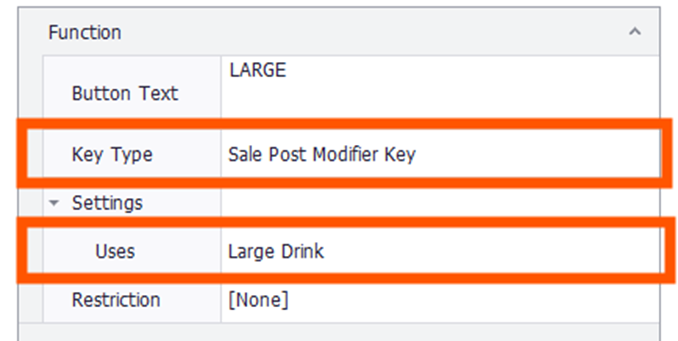
For each action button, set Key Type to Sale Post Modifier Key, and in Settings point the Uses field at the modifier it should apply. Select Save and Close when the page is finished.
Attaching the page to a PLU
The page does nothing until a PLU knows to call it.
Step 6
Open the PLU
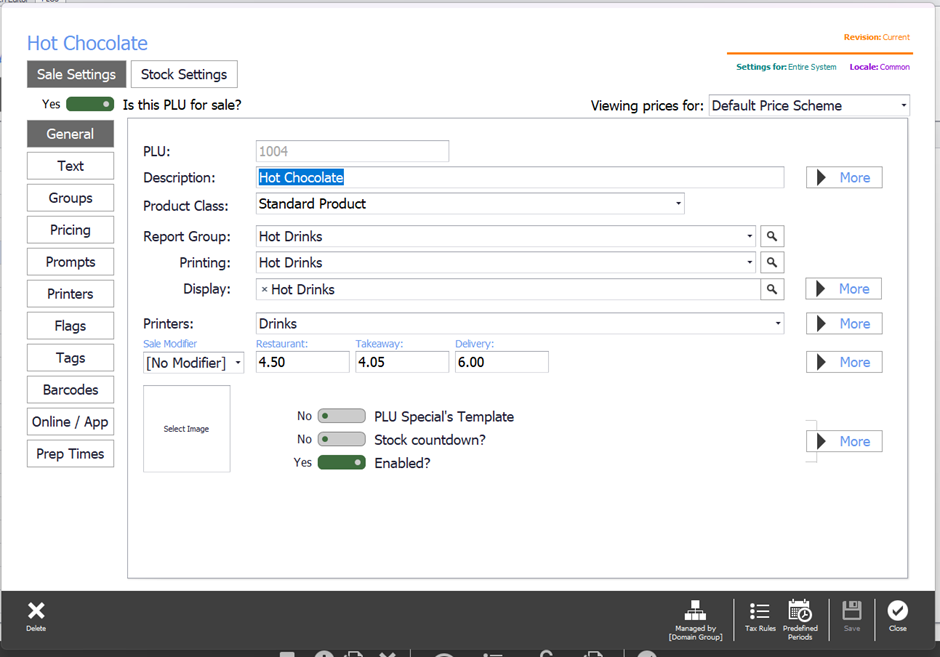
In POS System Manager, go to the PLU List, select the PLU and open its settings.
Step 7
Add a prompt
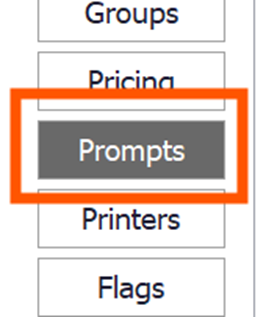
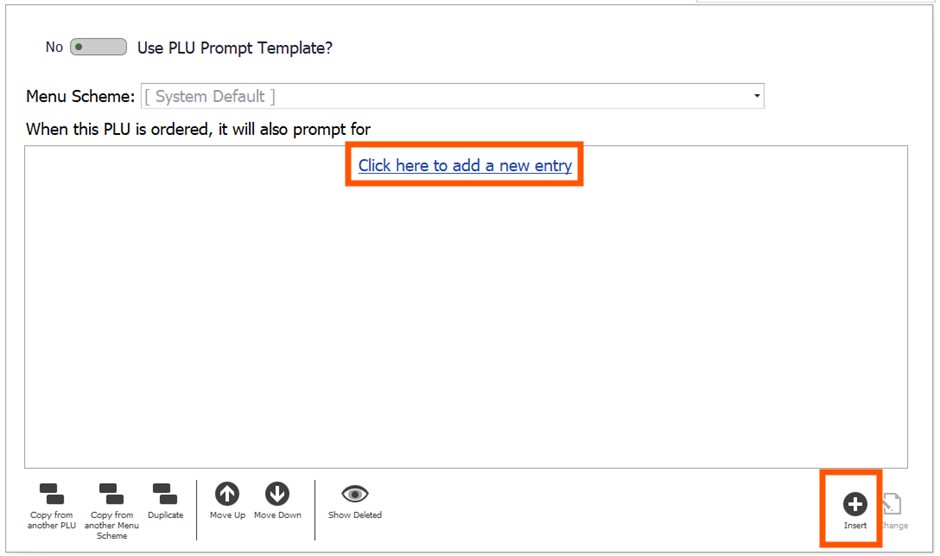
Go to the Prompts section. If there are no prompts yet, select Click here to add a new entry, or press Insert at the bottom right.
Step 8
Point it at your page
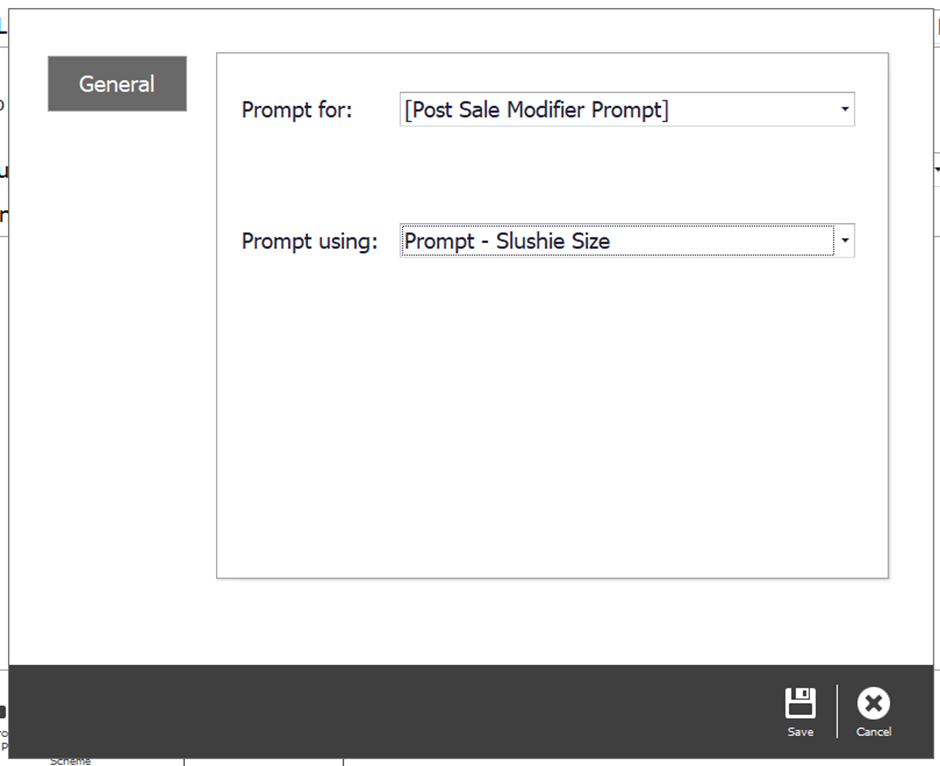
Set Prompt for to Post Sale Modifier Prompt, and Prompt using to the page you created. Select Save.
Step 9
Publish
Close the PLU screen and publish your changes, so the prompt reaches the POS.
The same prompt on many PLUs
Where the same prompt belongs on a number of PLUs, a PLU prompt template can be used instead of attaching it one at a time.
Prompts can also be scoped to individual outlets, and screens can be generated dynamically. Both need a hand from Triniteq support to set up.
Step 10
Need help?
Triniteq support
Our support team is here to help.
Call 1300 784 276 or email support@triniteq.com, and include your venue name so we can find your setup straight away.